The tiny tech reset that keeps saving my brain
#I started doing this 30-minute digital declutter thing because my phone was basically yelling at me. Storage almost full. Notifications stacked like dirty dishes. Desktop looking like someone sneezed PDFs all over it. And the worst part? I work in tech-ish stuff, I love gadgets, I love apps, I love trying new tools, so I kept telling myself “yeah I’ll organize it later.” Later became, like, 14 months.
So this is not one of those perfect minimalist productivity routines where someone has one app, one notebook, and somehow drinks green tea in silence at 5:12am. Nope. This is the messy-person version. The “I have 9 screenshots of a coffee machine error code” version. The “why do I still have a trial app from 2021?” version. It takes 30 minutes, you don’t need to buy anything, and honestly it feels way better than it should.
Before you start: don’t make it a whole identity crisis
#The biggest mistake I made the first time was trying to clean everything. Laptop, phone, cloud drive, email, bookmarks, photos, Slack downloads, password manager, random notes app, all of it. Bad idea. That’s not a declutter, that’s a digital excavation site. Thirty minutes is enough to make things noticeably calmer, not enough to become a new person. Which is fine, because becoming a new person sounds exhausting anyway.
Set a timer. Seriously. I use my phone timer because if I use a fancy productivity app I will somehow spend 12 minutes choosing the right bell sound. Pick one main device, usually your phone or laptop, and keep the goal simple: remove obvious junk, reduce interruptions, and make tomorrow-you slightly less annoyed. That’s it. If you find something complicated, park it in a note called “later cleanup” and move on. Future you may hate you a little, but current you has a timer running.
My rule now: if a cleanup task takes more than 2 minutes to decide, it’s not part of the 30-minute declutter. It’s a project wearing a tiny fake mustache.
Minute 0-3: do a quick safety check, because panic-deleting is not cute
#Before deleting anything, check backups. Not in a dramatic way, just a quick “am I about to ruin my own day?” way. If you’re on a phone, make sure your photos are syncing if you rely on iCloud Photos, Google Photos, OneDrive, or whatever cloud thing you trust. If you’re on a laptop, check that your important folders aren’t living only on the desktop like little hostages. Cloud sync is useful, but it is not always the same as backup, and that distinction has bitten me before. Sync can happily sync your mistakes too. Ouch.
I learned this after deleting a folder called “old stuff” that was, naturally, not old stuff. It had a tax PDF, a client note, and a half-finished writing draft I actually needed. So now I do a quick scan first: photos, documents, password manager, notes. If those are safe enough, I move fast. If they aren’t, I stop and fix that later. Not during the declutter. During the declutter we are calm little raccoons, not chaos goblins.
Minute 3-8: kill the obvious app clutter
#Open your app list and look for the stuff you clearly don’t use. Not “maybe someday I’ll learn Japanese with this app.” I mean the obvious ones: expired conference apps, old airline apps from one trip, shopping apps you downloaded for a coupon and then never touched, duplicate note apps, three different weather apps because one time it rained and you took it personally.
On iPhone and Android, the built-in storage screens are honestly pretty decent now. They can show apps by size, last used, downloads, cached data, and all that boring but helpful stuff. I always start with big apps I haven’t opened in months. Games are usually guilty. Video editors too. Also messaging apps with media caches, wow, those things can eat storage like a raccoon in a pizza bin.
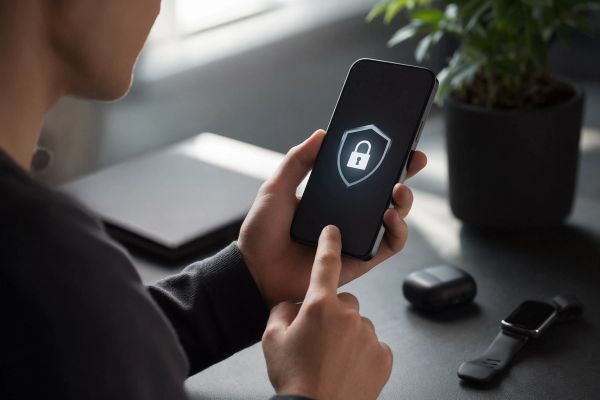
Small privacy nerd note: deleting an app does not magically erase your account, your cloud data, or every permission you ever gave it. Sometimes it just removes the app from your device while your account keeps sitting on a server somewhere, quietly existing. If you’re removing apps because you don’t trust them anymore, this is worth reading: Does Deleting an App Delete Your Data? Privacy Checklist. I wish I had understood that earlier, because me and a friend once thought uninstalling a fitness app meant the whole account was gone. It was not gone. Not even a little.
- Delete apps you obviously forgot existed.
- Log out or close accounts later if the app has sensitive info.
- Remove permissions for apps you’re keeping but don’t fully trust, especially location, microphone, contacts, and photos.
- Don’t spend 10 minutes debating one app. If it’s a maybe, it stays for now. Annoying, but practical.
Minute 8-13: notification triage, aka stop letting rectangles boss you around
#Notifications are where I get weirdly emotional. I love technology, but I do not love being interrupted by a sandwich shop app at 10:47pm. Like, please respect my household. The fastest win in this whole checklist is turning off non-human notifications. Humans can reach me. Banks and calendars can reach me. My delivery app can reach me when there is actual food involved. Almost nobody else gets that privilege.
On iOS, Screen Time and Focus modes can help you see usage patterns and reduce noise. On Android, Digital Wellbeing and notification categories are super useful, especially because you can shut off specific notification types instead of nuking the whole app. I’m not saying these tools fix discipline, because lol, but they do remove friction. And friction is the whole game. If opening a social app requires one extra tap, sometimes my lazy brain just gives up and goes back to life.
My personal settings are kinda strict now: social apps silent, shopping apps silent, games silent, news mostly silent, email badge off. Email badges are cursed. They sit there like a tiny red moral judgement. I still check email too much, but at least my phone isn’t sitting there shouting “37” at me like a disappointed manager.
Minute 13-18: screenshots, downloads, and photo junk
#This is the gross drawer of digital life. Screenshots of QR codes. Blurry receipts. Memes you saved to send someone and then didn’t. Downloaded PDFs named “document-4-final-FINAL-use-this-one.pdf” and somehow there are seven of them. I don’t try to organize my entire photo library in five minutes. I just search for screenshots and delete the dumb ones. Then I check downloads and delete installers, random menus, duplicate PDFs, and anything I can easily get again.
Phone photo cleanup is where people get nervous, and fair. Photos feel personal. Even the bad ones. Especially the bad ones, sometimes. If you want to go deeper without accidentally deleting precious stuff, I’d use a more careful process like this guide: How to Clean Up Your Phone Photo Library Without Losing Photos. For the 30-minute version, though, stay brutal only with obvious junk: screenshots, duplicates you can see with your own eyeballs, accidental pocket photos, blurry food pics where the food looks haunted.
One thing I do now is create a temporary album or folder called “review later” if I’m unsure. Is that just procrastination in a nicer shirt? Maybe. But it stops me from derailing the whole session. And usually, when I review it a week later, I delete 80 percent of it because the emotional attachment has evaporated. Digital clutter is sneaky like that. It feels important in the moment, then later it’s just a screenshot of a tracking number from last March.
Minute 18-22: desktop and files, but don’t become a librarian
#My desktop used to be a crime scene. I had ZIP files, video exports, icons stacked on icons, and one folder literally named “sort this omg.” I am not proud. But I’ve learned that file cleanup goes best when I don’t over-design the folder system. The more perfect the system, the less I use it. So now I have boring folders: Work, Personal, Money, Projects, Archive, and Temp. That’s basically it. If I need more structure inside a project, I create it there.
For laptops, use the storage tools already built in before downloading yet another cleaner app. Windows has Storage Sense and cleanup recommendations. macOS has storage management settings and lets you review large files. These are safer than random “boost your computer speed” utilities from the dusty corners of the internet. I’m not saying all cleaner apps are bad, but I am saying I’ve seen enough sketchy popups to have trust issues.
- Move loose desktop files into one temporary folder called Inbox or Sort.
- Delete installers, old ZIPs, duplicates, and exports you no longer need.
- Rename 3 to 5 important files with actual human-readable names.
- Empty the trash only if you’re confident. If not, wait a day. Seriously, no medal for speed-running regret.
Minute 22-25: browser tabs, bookmarks, and extensions
#Browser clutter is my most embarrassing category because tabs feel like thoughts. Closing them feels like forgetting who I am. But also, 48 tabs is not a research system. It’s just anxiety with favicons. So I do a quick tab sweep: close anything I can reopen from history, bookmark only the genuinely useful stuff, and shove maybes into a “Read Later” place. Sometimes I use the browser reading list, sometimes Notion, sometimes a plain note. The tool matters less than not having a tab row that looks like barcode art.
Extensions deserve a quick look too. This is a security thing as much as a clutter thing. Browser extensions can often read or modify pages, depending on permissions, and old extensions you forgot about are just… not ideal. Remove coupon extensions you don’t use, old screenshot tools, random PDF converters, and anything you don’t recognize. If an extension asks to read data on every website, I want a very good reason. “It looked useful in 2019” is not a good reason, sadly.
Minute 25-28: email, but only the surface layer
#Do not try to reach inbox zero in three minutes unless you enjoy lying to yourself. Email cleanup during a 30-minute declutter is about removing obvious noise. Search for unsubscribe candidates: newsletters you never open, shopping promos, random SaaS trial emails, event reminders from tools you don’t use. Unsubscribe from a few. Archive old promo emails. Delete the massive attachments if your email storage is crying.
I also make one filter or rule if I keep seeing the same junk. For example, receipts go into a receipts label, GitHub notifications go into a dev label, and newsletters skip the inbox if I’m pretending I’ll read them later. Which I might. I probably won’t. But at least they’re not poking me while I’m trying to find the dentist email.
Tiny warning: be careful clicking unsubscribe in obvious spam. For legit companies, unsubscribe links are normal. For shady emails, clicking anything can just confirm you exist. When in doubt, mark as spam and move on. I know that sounds basic, but basic is good. Basic keeps us from doing dumb stuff while half-awake with coffee.
Minute 28-30: the last two minutes are for future-you
#This part sounds too simple, but it’s the bit that makes the declutter stick. Spend the last two minutes setting one small boundary. Not ten. One. Turn on auto-delete for old messages if that makes sense for you. Schedule a weekly 10-minute file sweep. Put a recurring reminder to review app permissions once a month. Create a “Downloads cleanup Friday” reminder. Whatever. The point is to leave a tiny hook in the future so you don’t end up back at digital swamp level.
If you like the whole timed-reset format, you might also like building it into a bigger routine, like this Simple Weekly Reset Routine: Get Ready in 45 Minutes. I don’t do a full weekly reset every week, because I am a person with moods and laundry and sometimes tacos are more important. But when I do, my week starts way smoother. Annoyingly smoother. Like, “ugh productivity people were slightly right” smoother.
My actual 30-minute checklist, the messy version I use
#Here’s the checklist I keep in my notes app. It’s not beautiful. It does not have icons. It does not spark joy in a visually branded way. But it works, and that’s enough for me. I run through it when my phone feels heavy, my laptop feels slow, or I catch myself searching for the same file three times in one morning. That’s usually the sign. The tech is not broken, my system is just full of crumbs.
- 0-3 min: check backups and make sure you’re not about to delete something important.
- 3-8 min: remove unused apps, especially big ones or sketchy ones, and check permissions for apps you keep.
- 8-13 min: silence non-essential notifications. No shopping app needs emotional access to your evening.
- 13-18 min: delete obvious screenshot, download, and duplicate junk.
- 18-22 min: clear the desktop or downloads folder into simple folders, then delete obvious trash.
- 22-25 min: close browser tabs, remove weird extensions, bookmark only what you’ll actually use.
- 25-28 min: unsubscribe, archive, or filter a few noisy email sources.
- 28-30 min: set one reminder or automation so the mess doesn’t fully regrow by Thursday.
A few techy extras if you’ve got energy left
#If I finish early, which is rare but it does happen on a good day, I do one security-flavored task. I check my password manager for reused passwords. I remove old devices from accounts when the account settings make that easy. I review cloud sharing links. That last one is underrated. Old shared folders can linger forever, and sometimes you’ll find a link you made for a contractor, roommate, class project, whatever, and it’s still alive years later. Not great.
Passkeys are also worth trying where your important accounts support them. I’m not going to pretend every site has made it painless yet, because some account systems are still a haunted maze, but for major accounts, passkeys can reduce password hassle and phishing risk. Password managers are still useful though, don’t throw them into the sea. I use both. Contradictory? Maybe. Realistic? Definately.
Another bonus move: review cloud storage sharing. Google Drive, iCloud, Dropbox, OneDrive, whatever you use. Look for files shared publicly or with people who don’t need access anymore. This is less fun than deleting memes, I know. But it gives me that “locked the door” feeling. And as someone who once shared the wrong folder with the wrong email address, I can tell you that feeling is worth it.
What not to declutter when you’re tired
#There are some things I don’t touch during a quick cleanup unless I’m fully awake and feeling responsible, which is not always. I don’t delete password manager entries in bulk. I don’t mass-delete cloud folders. I don’t mess with system files. I don’t wipe old hard drives without checking them on another day. I don’t change complicated email rules when I’m grumpy. Basically, if the mistake would be painful or hard to reverse, it does not belong in the 30-minute sprint.
This is where a lot of productivity advice gets too aggressive for me. “Just delete everything you don’t use.” Okay, but some digital things are boring until they become essential. Old tax forms. Warranty PDFs. Recovery codes. Project contracts. School records. Family photos. I’d rather keep a slightly chubby Archive folder than accidentally delete something that makes me stare silently at a wall for 20 minutes.
Why this little routine feels weirdly powerful
#The funny thing is, digital clutter doesn’t weigh anything, but it absolutely has weight. You feel it when your search results are messy, when your phone buzzes too much, when you can’t find a file you swear you saved, when your storage warning pops up right as you’re trying to record a video of something cute. It’s not just aesthetics. It’s attention. It’s trust. It’s whether your devices feel like tools or tiny demanding roommates.
And I still love tech. Maybe more because of this. Cleaning up my digital space reminds me that the best tech is not the newest app or the fanciest automation. Sometimes it’s just making the stuff you already own behave better. A quieter phone. A downloads folder that doesn’t look cursed. Fewer mystery apps. A browser that opens without sounding like a jet engine. Small wins, but real ones.
So yeah, set a timer and try it. Don’t make it perfect. Don’t make it a weekend project unless you’re weirdly in the mood. Just give yourself 30 minutes and see what gets lighter. And if you’re into practical tech habits like this, I’ve been finding more good reads over on AllBlogs.in lately, very casual rabbit-hole material for when you want to improve your digital life without turning into a spreadsheet goblin.