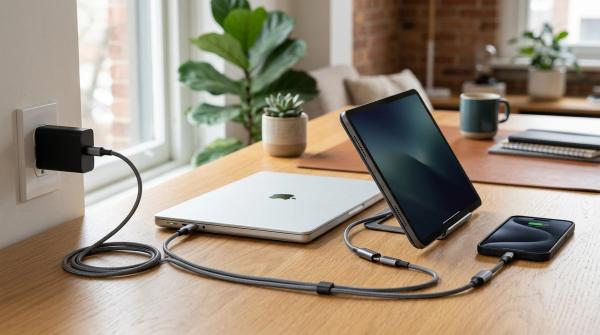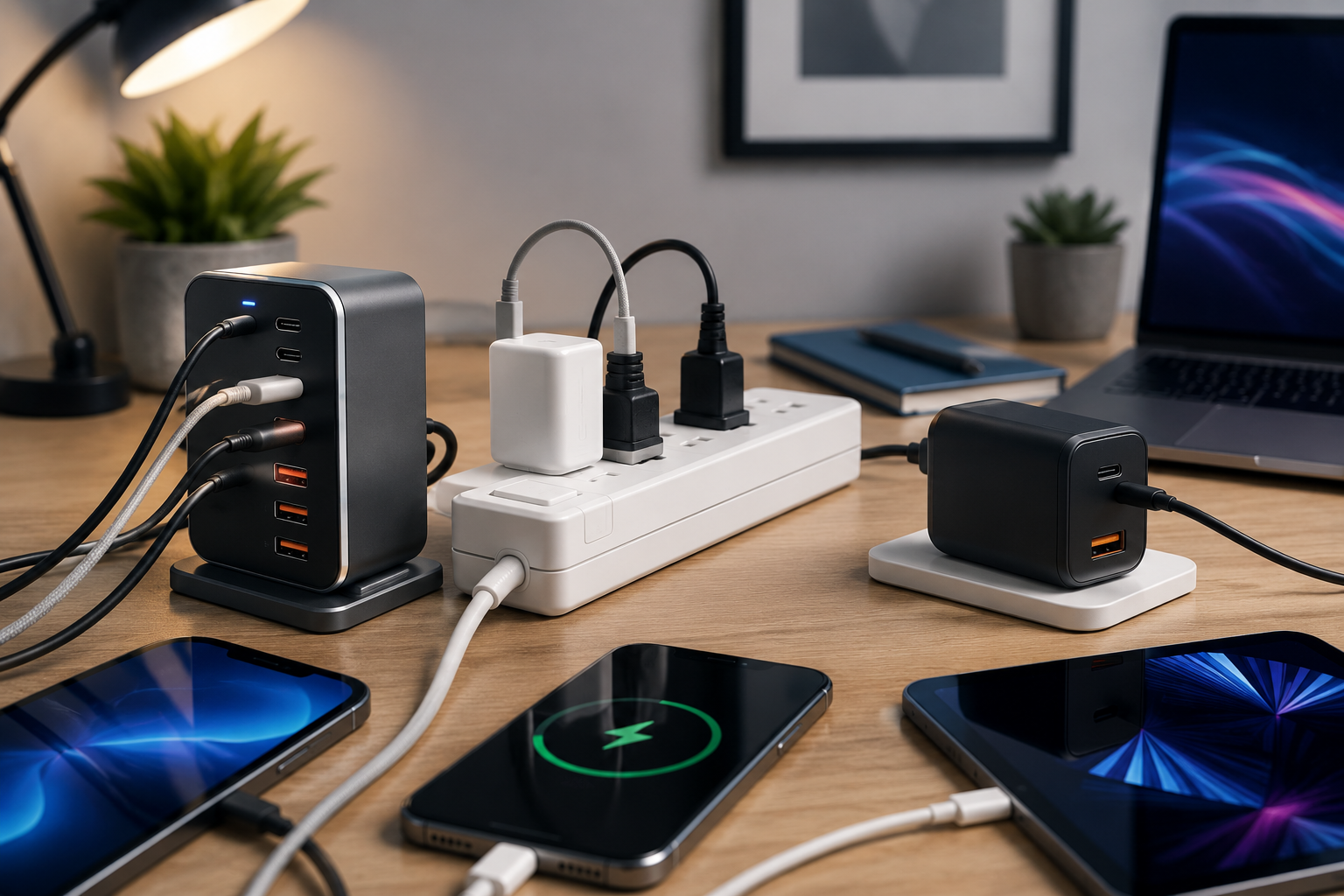
If your desk has slowly turned into a nest of charging cables, you are not alone. Between a laptop, phone, tablet, earbuds, smartwatch, power bank, mouse, keyboard and random accessories, it does not take much for a clean workspace to become a cable mess.
The right fix depends on what kind of mess you actually have. If most of the clutter comes from USB charging cables, buy a USB-C charging station. If you need regular wall outlets for a monitor, lamp, speakers, printer, desktop PC or router, buy a power strip with USB-C. If you want one compact charger for your laptop, phone and travel bag, a multi-port GaN charger may be the smarter choice.
Quick Answer
#Simple version: the USB-C charging station vs power strip decision comes down to the problem you are trying to solve.
If USB cables are the problem, get a charging station. If wall plugs are the problem, get a power strip. If portability is the problem, get a GaN charger.
Why This Choice Gets Confusing
#A modern desk collects chargers faster than you expect. One day you have a laptop charger and a phone cable. A few months later, you somehow have six cables, three wall bricks, a power bank, wireless earbuds, a watch charger and a tablet that is always at 12%.
That is where the confusion starts, because three different products seem to promise the same thing:
- USB-C charging station
- Power strip with USB-C
- GaN charger
They overlap, but they are not really the same.
A USB-C charging station is mainly for organizing and charging several USB devices in one place. A power strip with USB-C is mainly for adding AC outlets, with USB charging as a bonus. A GaN charger is mainly for getting a lot of charging power from a small wall charger, often for both desk use and travel.
So instead of asking, “Which one is best?” it is better to ask, “What do I actually need to plug in every day?”
USB-C Charging Station vs Power Strip vs GaN Charger: Quick Comparison
#Option 1: USB-C Charging Station, Best for a Central Desk Hub
#A USB-C charging station is a dedicated multi-device charger that sits on your desk and plugs into the wall with one power cable. Instead of having several wall adapters scattered around the room, you plug your USB-C and USB-A cables into one hub.
This is usually the cleanest option when your real problem is: “I have too many USB things to charge.”
It gives your devices a home. Your phone goes there. Your earbuds go there. Your tablet goes there. Your watch cable is not disappearing behind the desk every other day. Everything is still plugged in, but it feels much less chaotic.
Who Should Buy a USB-C Charging Station?
#Choose a USB-C charging station if:
- You charge four or more devices in the same place.
- Your desk has a phone, tablet, earbuds, watch, power bank or laptop.
- You want fewer wall adapters.
- You want charging cables to stay in one spot.
- You are setting up a family charging station.
- You prefer ports on the desk instead of hidden behind furniture.
A good charging station makes daily charging easier. You can sit down, plug in and move on without crawling under the desk or looking for the charger someone borrowed.
Who Should Skip It?
#A USB-C charging station may not be the right choice if:
- You mostly need AC outlets for monitors, lamps, speakers or a desktop PC.
- You need something small enough for travel.
- You only charge a phone and earbuds.
- Your desk already has enough USB-C power and mainly needs more wall outlets.
A charging station is not a replacement for a proper power strip if your setup has a lot of AC-powered equipment.
What to Watch Closely
#The big thing to check is shared wattage.
A charging station might advertise 100W, 140W or another impressive number. But that does not mean every port can deliver that much power at the same time.
Multi-port chargers divide power between connected devices. Your laptop may charge quickly when it is the only device plugged in, but once you add a phone, tablet and earbuds, the laptop may drop to a lower wattage.
Before buying, look for the product’s port output chart. You want to know what each port delivers when one device is connected, two devices are connected and all ports are being used.
If the product page does not explain that clearly, be cautious.
Option 2: Power Strip with USB-C, Best for Mixed Desk Setups
#A power strip with USB-C is still a power strip first. Its main job is to give you more AC outlets. The USB ports are usually a convenience feature.
That is why the USB-C charging station vs power strip comparison can be misleading. They are not built for the same main purpose.
A power strip is better when you need to plug in devices that do not charge over USB, such as:
- Monitor
- Desk lamp
- Speakers
- Printer
- Router
- Desktop computer
- Studio light
- External drive dock
Some power strips also include surge protection, but do not assume they all do. If surge protection matters to you, check the actual product details and ratings, not just the title.
Who Should Buy a Power Strip with USB-C?
#Choose a power strip with USB-C if:
- Your desk has several AC plugs.
- You want one place for wall plugs and light USB charging.
- Your setup includes a monitor, lamp, speakers, printer or desktop accessories.
- You can hide the strip safely under the desk or in a cable tray.
- You care more about practical power distribution than having a pretty charging dock.
This is often the most realistic choice for a home office, gaming setup or creator desk. Not everything is USB-C yet, and many desk items still need normal wall power.
Who Should Skip It?
#Do not rely on a power strip with USB-C if:
- You need strong USB-C PD charging for a laptop and the strip does not clearly support it.
- You want a clean desktop hub with easy-to-reach USB ports.
- You are buying mainly for USB charging, not AC outlets.
- You cannot verify the safety markings, load rating or USB output.
A USB-C port on a power strip does not automatically mean laptop charging. Sometimes it is only there for phones, earbuds and small accessories.
What to Watch Closely
#The biggest trap is weak USB-C output.
Some power strips include USB-C ports that look useful but only provide low-power charging. They may not support USB-C PD at all, or they may support it at a wattage that is too low for your laptop.
If you want a power strip to charge your laptop, check for:
- Clear USB-C PD support
- Per-port wattage, not just total USB wattage
- Output when multiple USB ports are being used
- AC load rating for everything plugged into the strip
- Safety or compliance markings for your region
If the listing only says “fast charging” but does not give real output details, do not treat it as a laptop charger.
Option 3: GaN Charger, Best for Compact Power and Travel
#GaN stands for Gallium Nitride. In chargers, GaN technology helps make power adapters smaller and more efficient.
For most shoppers, a “GaN charger” simply means a compact wall charger with one or more USB-C ports. Some also include USB-A.
Technically, GaN is the technology inside the charger, not the product category itself. But in everyday shopping language, people use “GaN charger” to mean a small, powerful charger for a laptop, phone, tablet, handheld console or travel bag.
Who Should Buy a GaN Charger?
#Choose a GaN charger for your desk if:
- You want one compact charger for your laptop and phone.
- You move between home, office, school, coffee shops or hotels.
- You like a minimal setup.
- You do not need AC outlets.
- Your wall outlet is easy to reach.
A GaN charger is especially useful if your desk charger also needs to be your travel charger. You can use it at your desk during the week, then toss it into your bag when you leave.
Who Should Skip It?
#A GaN charger may not be the best main desk solution if:
- Your wall outlet is behind a desk or hard to reach.
- The outlet is loose or worn out.
- You have many devices that stay plugged in all day.
- You also need AC power for monitors, lamps, speakers or printers.
- You do not like cables hanging down from the wall.
GaN chargers are convenient, but they are not always the neatest option for a permanent desk setup.
What to Watch Closely
#High-wattage multi-port GaN chargers can be surprisingly dense. If the charger plugs directly into the wall, it may pull downward in a loose socket. That is not always a dealbreaker, but it is worth thinking about before you buy.
Also check shared wattage. A GaN charger may give strong power from one USB-C port when used alone, then reduce output when you plug in two or three devices.
What to Check Before Buying Any Desk Charger
#Do not buy a multi-device charger based only on the biggest number in the title. Product pages often lead with the most impressive wattage, while the details that actually matter are buried farther down.
Check these five things first.
1. Wattage
#Start with your most demanding device. For most people, that is a laptop or tablet.
Ask yourself:
- What wattage does my laptop charger use?
- Do I need to charge my laptop while working, or only when it is asleep?
- Will I charge a phone, tablet, earbuds and watch at the same time?
- Does the charger show total wattage or per-port wattage?
A charger with a high total wattage can still disappoint if the main USB-C port drops too low when other devices are plugged in.
A practical rule: buy for your real daily setup, not the biggest number in the ad.
2. Ports and USB-C PD
#Look for USB-C PD, which means USB-C Power Delivery. USB-C PD matters for higher-power charging, especially for laptops, tablets and some handheld gaming devices.
But be careful with the wording.
A product can have a USB-C-shaped port without delivering the level of USB-C PD charging your device needs. “USB-C” tells you the connector type. It does not tell you the charging power by itself.
Check:
- How many USB-C ports are included
- Whether the USB-C ports support PD
- What each USB-C port can deliver
- What happens when all ports are used together
- Whether you still need USB-A ports for older cables
If a device claims USB-IF certification, that can be a good sign, but only if the claim is clear and verifiable. A vague badge in a product image is not enough.
3. Cable Quality
#A good charger cannot fix a bad cable.
For higher-power USB-C charging, your cable has to support the power being delivered. Some older or cheaper cables are fine for phones, but not suitable for laptop-level charging.
Before buying a new charger, check whether your cables are actually the bottleneck.
Look for:
- A cable rated for the charging level you need
- Clear product labeling
- A snug connector fit
- No fraying, exposed wire or heat damage
- Compatibility with USB-C PD where needed
If your charger is powerful but your cable is not, charging may be slower than expected.
4. Certification and Safety Markings
#Charging gear sits near expensive electronics, papers, bags, beds, desks and sometimes kids. Safety matters more than saving a few dollars or getting one extra port.
Look for recognized safety or compliance markings for your market. Depending on where you live, that might include UL, ETL, CE, UKCA, BIS or other marks. The exact mark depends on your country, so think of this as a traceability check, not just a logo hunt.
Be cautious if:
- The listing uses blurry or copied certification images.
- The product has no clear manufacturer details.
- The charger claims unrealistic performance for every device.
- The physical unit has no clear rating label.
- Reviews or photos show heat damage, loose ports or poor fit.
Certification does not mean a product is perfect, but clear safety information is much better than a random listing that only says “safe fast charger.”
5. Load, Heat and Placement
#Every charging setup has a limit.
For a power strip, that includes the total AC load of everything plugged into it. For a charging station or GaN charger, it includes the total USB output shared across ports.
Also think about heat and airflow.
Avoid placing chargers:
- Under blankets or cushions
- In tightly packed drawers while being used
- Behind furniture with no airflow
- Near liquids
- Where cables are sharply bent
A charger getting warm is not always a problem. But excessive heat, a burning smell, discoloration, buzzing or unstable charging are warning signs. Stop using it if something feels wrong.
Step-by-Step Buying Checklist
#Step 1: Count Your Daily Devices
#Write down what you actually charge at the desk.
For example:
- Laptop
- Phone
- Tablet
- Earbuds
- Smartwatch
- Power bank
- Camera battery
- Keyboard or mouse
- Handheld gaming device
- Extra family phone
Do not buy for an imaginary perfect setup. Buy for the devices that actually land on your desk every day.
Step 2: Separate USB Devices from AC Devices
#Make two lists.
USB charging devices:
- Phone
- Tablet
- Earbuds
- Watch
- Laptop, if it charges by USB-C
- Power bank
AC plug devices:
- Monitor
- Lamp
- Speaker
- Desktop PC
- Printer
- Router
- Other wall-plug devices
If the USB list is bigger, lean toward a USB-C charging station.
If the AC list is bigger, lean toward a power strip with USB-C.
If both lists are small and you travel often, a GaN charger may be the easiest choice.
Step 3: Identify Your Highest-Power Device
#This is usually the device that decides what charger you need.
For many people, that is the laptop. For others, it could be a tablet or handheld console. Check the charger that came with the device, or look at the manufacturer’s charging guidance.
Do not assume a phone-focused charger will power a laptop well.
Step 4: Check Per-Port Output
#This is the part many buyers skip.
Look for a chart or table that explains:
- Output from each port when one device is connected
- Output when two devices are connected
- Output when all ports are connected
- Which port gets priority
- Whether the laptop port stays useful under full load
If a product hides this information, that is not a great sign.
Step 5: Check Your Cables
#If you are upgrading to a USB-C PD charger, make sure your cables are not old, damaged or under-rated.
A weak cable can make a good charger feel slow, and then you end up blaming the wrong thing.
Step 6: Check Certification and Seller Traceability
#Before buying, ask:
- Is the manufacturer clearly named?
- Are safety markings visible?
- Are the ratings printed on the product, or only in the listing?
- Is there warranty or support information?
- Does the product match the plug type and rules for your country?
Imported power products need extra care. Plug shape, voltage compatibility, certification and warranty support can all vary by region.
Step 7: Plan Where It Will Sit
#A technically good charger can still be annoying if it lives in the wrong place.
- Charging station: Keep it on the desk, shelf or an accessible corner.
- Power strip: Mount or hide it safely, but keep plugs reachable.
- GaN charger: Use it where the outlet is firm and easy to access.
The best charger is not just the one with the right specs. It also needs to fit your space.
Common Mistakes to Avoid
#Mistake 1: Thinking “USB-C” Always Means Fast Charging
#USB-C is a connector type. It does not guarantee USB-C PD, laptop charging or high wattage.
Always check the actual output.
Mistake 2: Buying by Total Wattage Only
#A multi-port charger shares power. If the total output is split across several ports, your laptop may get less than you expected.
Look for the multi-device output chart.
Mistake 3: Ignoring the Cable
#If your cable cannot support the charging level, the charger cannot perform at its best.
The charger, cable and device all have to work together.
Mistake 4: Using a Power Strip as a Laptop Charger Without Checking PD
#Many USB-C power strips are fine for phones and accessories, but not strong enough for laptops.
Check USB-C PD support and per-port wattage before relying on one.
Mistake 5: Overloading the Desk Setup
#Do not keep adding adapters, extensions and splitters without checking load and placement.
If you need many AC outlets and many USB-C ports, you may need a thoughtful combination instead of one overloaded product.
Mistake 6: Hiding Chargers Where Heat Cannot Escape
#A neat desk is nice. A charger trapped in a hot, cramped space is not.
Leave room for airflow.
Mistake 7: Buying a Travel Charger for a Permanent Family Charging Zone
#A GaN charger is great for portability, but a family charging spot usually needs more stability, more ports and easier cable access.
A USB-C charging station usually makes more sense there.
Which One Should You Buy?
#Buy a USB-C Charging Station If You Want the Cleanest Multi-Device Charger
#This is the best fit if you are tired of USB cable clutter.
Choose it for:
- Family charging spots
- Study desks
- Work desks with several USB devices
- Shared charging shelves
- Phone, tablet, watch, earbuds and laptop setups
It is the most desk-friendly answer when USB charging is the main need.
Buy a Power Strip with USB-C If Your Setup Includes AC Devices
#This is the practical choice when your desk still has traditional plugs.
Choose it for:
- Monitor setups
- Desktop PC areas
- Creator desks
- Gaming desks
- Workstations with lamps, speakers, printers or other AC devices
Just do not assume the USB-C ports are strong enough for your laptop. Verify USB-C PD and output first.
Buy a GaN Charger If You Want Compact Power with Portability
#This is the best choice if you want one charger that can move with you.
Choose it for:
- Minimal desks
- Laptop plus phone setups
- Travel bags
- Hybrid work
- Small apartments or temporary workspaces
It is less ideal if you need many ports always available on the desk.
Best Setup by Desk Type
#Work Desk
#If you use a laptop, phone, earbuds and tablet, a USB-C charging station is usually the neatest option.
If you also have a monitor and lamp, use a proper power strip for those AC devices.
Study Desk
#A USB-C charging station works well for a student desk because it keeps the phone, tablet, earbuds and laptop charging in one place.
A compact GaN charger also makes sense if the same charger needs to go to class, the library or home on weekends.
Family Charging Spot
#Choose a USB-C charging station.
It is easier for several people to plug in phones, earbuds, watches and tablets without hunting for adapters.
Creator Desk
#Start with the AC devices.
If you have lights, monitors, speakers, camera chargers or a desktop machine, a power strip is probably necessary. Add a USB-C charging station if you also charge several USB devices every day.
Minimalist Desk
#A multi-port GaN charger can be enough if you only charge a laptop, phone and maybe one accessory.
Just make sure the outlet location actually works for your setup.
Final Takeaway
#For most multi-device desks, a USB-C charging station is the cleanest choice.
For desks with monitors, lamps, speakers, printers or desktop gear, a power strip with USB-C is more practical.
For a compact setup that can also live in a travel bag, a GaN charger is probably the better fit.
Before buying, check wattage, USB-C PD support, port behavior under load, cable quality, safety markings and where the charger will sit. Product specs and available models change often, so compare the current details against the devices you actually use every day.