
Updated: June 16, 2026
If DigiYatra is not working right before your flight, take a breath. It’s annoying, yes, but it’s usually fixable — and even if it isn’t, you can still enter the airport the regular way with your boarding pass and a valid ID.
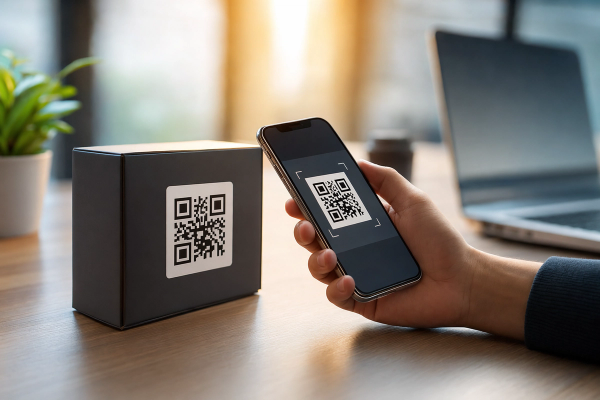
Start with the simple stuff: update the DigiYatra app, switch from airport Wi-Fi to mobile data, and check whether your airport and terminal actually support DigiYatra. If your boarding pass isn’t uploading, try using a clear screenshot of the QR code instead of the PDF. If the face scan fails at the airport gate, remove your mask, sunglasses, cap, or anything covering your face, then look straight into the camera and stay still for a few seconds.
And if you’re stuck with Aadhaar OTP issues, name mismatch errors, or repeated scan failures, don’t keep fighting with the app at the entrance. Go to the regular entry queue. DigiYatra is useful, but it is not mandatory.
Quick Fixes
#- DigiYatra app not opening: Update the app, restart your phone, and switch to mobile data.
- Boarding pass not uploading: Upload a clear screenshot of the boarding pass QR code.
- Face scan failing at the gate: Remove face coverings, stand properly, and look straight at the camera.
- Aadhaar OTP not coming: Check whether your Aadhaar-linked mobile number is active and has network.
- Name mismatch error: If ticket and Aadhaar names differ too much, use regular airport entry.
- Still stuck at the airport: Stop retrying and use the regular queue with ID and boarding pass.
Who This Guide Is For
#This guide is for domestic flyers in India who are trying to use DigiYatra and running into problems either before leaving home or at the airport.
It will help if:
- You are using DigiYatra for the first time.
- Your boarding pass is not uploading after web check-in.
- The face scan is failing at the airport e-gate.
- You are getting Aadhaar OTP, app crash, or name mismatch errors.
- You just want a quick checklist before heading to the airport.
DigiYatra is designed to make airport entry smoother using facial biometric verification. When everything works, it can save time. But like any airport tech, it can fail because of app bugs, poor internet, unclear QR codes, mismatched details, or issues at the e-gate.
The good news: you are never “stuck” just because DigiYatra fails. You can still enter the airport through the normal manual process using your boarding pass and valid ID.
When DigiYatra Works Best
#DigiYatra usually works well when:
- Your departure airport and terminal support DigiYatra.
- Your Aadhaar verification is complete.
- Your registration selfie is clear.
- Your boarding pass QR code is readable.
- Your ticket name and Aadhaar name match closely.
- Your boarding pass has been uploaded and shared before you reach the airport.
Basically, DigiYatra works best when you set it up calmly at home, not while standing at the airport entrance with luggage in one hand and your flight time getting closer.
Don’t Rely Only on DigiYatra If…
#Avoid depending only on DigiYatra if:
- You are already running late.
- Your phone battery is low.
- The app keeps crashing.
- Your Aadhaar-linked mobile number is not active.
- Your ticket has a major name mismatch.
- Your departure terminal does not support DigiYatra.
- You are not sure whether the boarding pass was shared with the airport.
In these cases, keep your regular boarding pass and original ID ready. It’s not over-planning — it’s just common sense.
First Things to Check
#Before trying complicated fixes, go through these basics. A lot of DigiYatra issues get solved here.
1. Check Whether Your Airport and Terminal Support DigiYatra
#DigiYatra is available at many Indian airports, but not every airport, terminal, or gate supports it.
Sometimes the app is fine — you may just be at the wrong entry gate.
Look for DigiYatra signs at the airport or ask airport staff before spending too much time in the DigiYatra queue.
2. Update the DigiYatra App
#If the app is freezing, showing a blank screen, crashing, or failing during boarding pass upload, check the Play Store or App Store for an update.
App bugs do happen, and updating the app is one of the easiest first fixes.
3. Switch From Airport Wi-Fi to Mobile Data
#Airport Wi-Fi can be slow, crowded, or stuck behind a login page. If DigiYatra is not loading properly, switch to 4G or 5G and try again.
Also check that your phone has:
- Working internet
- Enough battery
- Camera permission enabled
- Photo or storage permission enabled, especially if you are uploading a boarding pass image
4. Keep Your Regular Documents Ready
#Even if DigiYatra is working, keep these handy:
- Digital or printed boarding pass
- Original valid ID
- Phone with enough charge
If the e-gate rejects your scan, you’ll still have a backup.
Fix 1: DigiYatra Boarding Pass Upload Not Working
#This is one of the most common DigiYatra problems. The app may fail to read the QR code, reject the file, or not detect the boarding pass correctly.
Try this:
- Complete web check-in on your airline’s website or app.
- Open the actual boarding pass, not just the booking confirmation.
- Make sure the boarding pass has a clear QR code or barcode.
- Save it to your phone.
- If the PDF does not upload, take a clean screenshot of the boarding pass.
- Make sure the QR code is fully visible and not cut off.
- Upload the screenshot from your gallery.
A very common mistake is uploading a booking confirmation, itinerary, or payment receipt. DigiYatra needs the actual boarding pass generated after check-in.
If You Are Scanning From Another Screen
#If you are scanning the boarding pass from a laptop, tablet, or another phone:
- Increase the screen brightness.
- Keep the QR code flat and fully visible.
- Avoid glare on the screen.
- Don’t scan a folded, blurry, or low-quality printout.
- If scanning keeps failing, use the screenshot upload method instead.
The screenshot method often works better because the app gets a clean image of the QR code.
Fix 2: DigiYatra Face Scan Not Working at the Airport
#If the DigiYatra face scan is failing at the e-gate, don’t panic. Small things can confuse the camera.
Try this:
- Stand where the floor marking or airport staff tells you to stand.
- Remove your mask, sunglasses, cap, or anything covering your face.
- Look directly into the camera.
- Don’t look down at your phone.
- Keep your face still for a few seconds.
- Step back slightly if you are too close to the camera.
- Try again once if the gate allows it.
Spectacles may work, but reflections can sometimes cause issues. If the scan fails repeatedly, remove them and try again.
Check Your Registration Selfie
#The airport face scan is compared with the face profile created during registration. If your original selfie was blurry, dark, tilted, or taken with your face partly covered, verification may fail more often.
If you still have time before travel, redo the setup properly.
For a better selfie:
- Face the camera directly.
- Use good lighting.
- Avoid masks, sunglasses, caps, and heavy shadows.
- Keep the background simple.
- Don’t rush the photo.
Fix 3: DigiYatra Aadhaar OTP Not Coming
#DigiYatra registration uses Aadhaar-based verification. If the OTP is not coming, the issue is usually with network, SMS delivery, or the mobile number linked to Aadhaar.
Try this:
- Check the mobile network on the phone receiving the OTP.
- Make sure you are using the mobile number linked with Aadhaar.
- Wait a little before requesting another OTP.
- Restart your phone if SMS delivery seems delayed.
- Try again using mobile data instead of Wi-Fi.
If your current number is not linked to Aadhaar, you may not be able to complete DigiYatra registration through OTP. If you are already at the airport, don’t waste time. Use the regular manual entry process for that flight.
Fix 5: DigiYatra App Crashing, Freezing, or Showing Blank Screen
#If the app itself is acting up, try these steps in order.
Step 1: Close and Reopen the App
#Fully close DigiYatra from recent apps and open it again.
Step 2: Restart Your Phone
#A restart can clear small camera, storage, and network glitches.
Step 3: Update the App
#Go to the Play Store or App Store and check whether an update is available.
Step 4: Check App Permissions
#Make sure DigiYatra has the permissions it needs, especially:
- Camera
- Photos or storage
- SMS or phone permissions, depending on your device
- Internet access
Step 5: Clear Cache
#On Android, you can try:
Settings > Apps > DigiYatra > Storage > Clear Cache
Avoid clearing app data unless you are ready to set up DigiYatra again, because it may remove saved information from your phone.
Step 6: Reinstall the App
#If nothing else works, uninstall and reinstall DigiYatra. Then register again and upload your boarding pass.
If possible, do this at home — not while standing outside the airport entrance.
Fix 6: Boarding Pass Uploaded but DigiYatra Gate Still Not Working
#Sometimes the boarding pass is uploaded, but the final sharing step is still pending.
After uploading, check if the app asks you to share the boarding pass with the airport. If that step is not complete, the e-gate may not recognise you.
Before leaving home, open DigiYatra and confirm:
- Your profile is active.
- Your flight is visible.
- Your boarding pass is uploaded.
- Your boarding pass has been shared with the airport, if required.
- The travel date and airport are correct.
Also make sure you did not upload the wrong boarding pass, an old flight, or your return flight by mistake.
What to Do If DigiYatra Fails at the Airport
#If you are already at the airport and DigiYatra still refuses to work, don’t keep trying endlessly.
Do this instead:
- Move aside from the DigiYatra gate so you are not blocking others.
- Keep your boarding pass and original ID ready.
- Ask airport staff where the regular entry queue is.
- Use manual verification.
- Try app fixes later, once you are safely inside or if you have enough time.
DigiYatra is supposed to save time. If it starts costing you time, switch to the normal process.
Common Mistakes to Avoid
#1. Registering for DigiYatra for the First Time at the Airport
#This is where many people get stuck. Airport entrances are crowded, mobile networks can be patchy, and you may rush through the selfie or OTP step.
Set up DigiYatra at home before leaving for the airport.
2. Uploading the Wrong Document
#A booking email is not a boarding pass. A payment receipt is not a boarding pass either.
Upload the boarding pass generated after web check-in, with a readable QR code or barcode.
3. Taking a Poor Registration Selfie
#A blurry, dark, or angled selfie can cause face scan problems later.
Take the selfie in good light with your full face visible.
4. Forgetting to Share the Boarding Pass
#Uploading may not be the last step. If the app asks you to share the boarding pass with the airport, complete that step before reaching the gate.
5. Depending Only on DigiYatra
#Always keep your ID and boarding pass ready. If DigiYatra works, great. If not, you can still use the standard airport process.
Quick DigiYatra Checklist Before Leaving for the Airport
#Before you leave home, quickly check:
- DigiYatra app opens properly.
- App is updated.
- Aadhaar verification is complete.
- Selfie is clear.
- Web check-in is done.
- Boarding pass QR code is visible.
- Boarding pass is uploaded.
- Boarding pass is shared with the airport, if required.
- Your departure airport and terminal support DigiYatra.
- Phone battery is sufficient.
- Original ID is packed.
This takes two minutes, but it can save you a lot of stress at the terminal.
Helpful Related Guides
#- Domestic Flight Web Check-In Problems India: Quick Fixes
- Portable Fan & Power Bank Rules for Indian Flights
- Travel Tech 2025: Apps, Gadgets & Packing Tips for Indian Travellers
- Airport Checklist for Elderly Parents in India