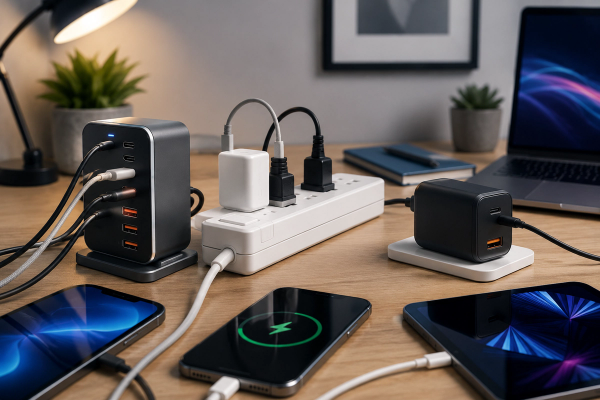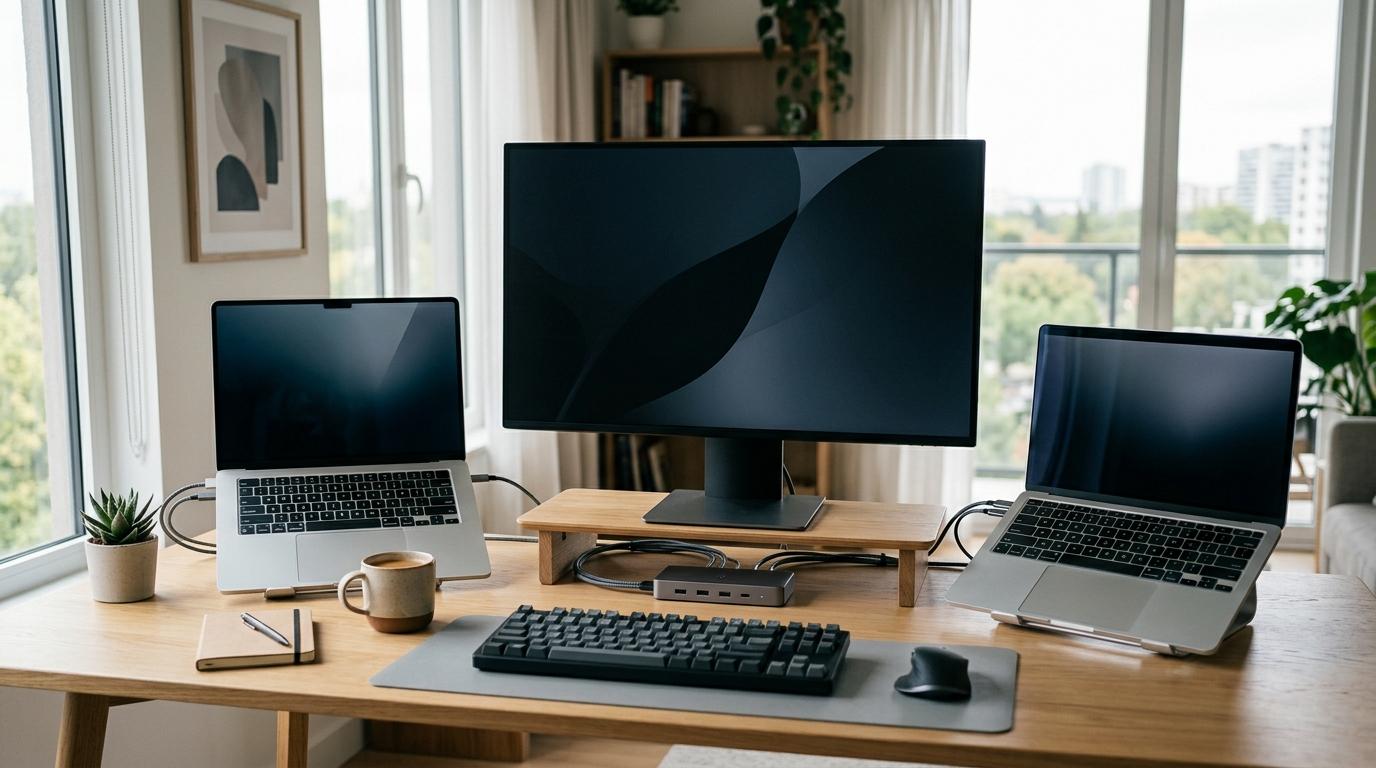
If you bounce between two computers and want to use the same monitor, keyboard and mouse, you are probably looking for a KVM switch. If you mostly use one laptop and just need more ports, you probably need a docking station. And if your setup is two modern laptops on one desk, a USB-C KVM dock may be the cleanest option.
Quick Answer
#- Docking station: Best for turning one laptop into a full desk setup.
- USB-C hub: Best for simple, portable port expansion.
- KVM switch: Best for sharing one monitor, keyboard and mouse between two computers.
- USB-C KVM dock: Best for a tidy two-laptop desk with charging and switching in one box.
The key difference is simple: a docking station expands one computer, while a KVM switch lets multiple computers share the same desk accessories.
Who This Is For
#This guide is for people who use a work laptop and personal laptop, a laptop plus desktop, or two laptops at the same desk. It is especially useful if you are tired of moving HDMI cables, keyboard receivers, webcams and chargers every time you switch devices.
Docking Station: Best When You Use One Main Laptop
#A docking station is mainly about convenience and extra ports. You plug one cable into your laptop, usually USB-C or Thunderbolt, and the dock gives you connections for your monitor, keyboard, mouse, Ethernet, speakers, storage, SD card reader or charger.
Buy a docking station if you mostly use one laptop at your desk, want one-cable convenience, need more ports, or use a permanent monitor setup.
Skip a normal docking station if you switch between two laptops many times a day. A regular dock usually does not switch your whole desk between computers. You still unplug the dock from one laptop and plug it into the other.
USB-C Hub: Best for Simple Port Expansion
#A USB-C hub is a smaller, more portable version of a dock. It is useful for students, travelers, hot-desk workers and anyone who only needs a few extra ports.
Buy a USB-C hub if you use one laptop, move around often, and only need basic HDMI, USB-A, Ethernet, SD card or charging pass-through.
Avoid a hub if your main problem is switching between two computers. A hub solves the “not enough ports” problem, not the “two computers, one desk” problem.
KVM Switch: Best for Sharing One Desk Between Two Computers
#KVM stands for keyboard, video and mouse. A KVM switch lets two or more computers share the same monitor, keyboard and mouse. You connect your computers to the KVM, connect your monitor and USB devices to the KVM, then press a button or use a shortcut to switch control.
Buy a KVM switch if you use a work laptop and a personal desktop, want one monitor and keyboard setup for two computers, and care more about switching than laptop charging.
A traditional KVM is often best for a desktop plus laptop setup because desktops usually connect through HDMI or DisplayPort from the graphics card.
Avoid a basic KVM if you have two laptops and expect the device to charge both laptops or replace a dock. Many traditional KVM switches share video and USB devices, but do not provide laptop charging.
USB-C KVM Dock: Best for a Clean Two-Laptop Desk
#A USB-C KVM dock combines the ideas of a docking station and a KVM switch. It can add ports, connect to monitors, charge laptops and switch shared accessories between two laptops.
For a modern two-laptop desk setup, this is often the neatest option. Instead of two docks, two chargers and a separate switch, you may be able to use one central device.
Buy a USB-C KVM dock if both computers are laptops, you want to share one monitor setup, keyboard, mouse and webcam, and you want charging plus switching in one box.
Avoid it if one computer is a desktop tower, if your laptops do not support video over USB-C, or if your laptops need more charging power than the dock can provide.
What to Check Before Buying
#1. How many computers do you need to control?
#If you use one laptop, look at a USB-C hub or docking station. If you use two computers, look at a KVM switch or USB-C KVM dock.
2. Are both computers laptops?
#Two laptops often fit a USB-C KVM dock. A laptop plus desktop usually fits a traditional KVM switch better.
3. What do your USB-C ports support?
#USB-C is the connector shape, not a guarantee. Your laptop port may or may not support video output, charging, Thunderbolt, USB4 or high-speed data. Check your laptop specifications before buying.
4. What monitor resolution and refresh rate do you need?
#Do not buy based on “4K” alone. Check resolution and refresh rate together. If you use an ultrawide or high-refresh monitor, make sure the KVM or dock supports your exact display needs.
5. How much charging power does your laptop need?
#If you buy a USB-C KVM dock, check Power Delivery wattage. Some laptops are fine with 65W or 100W, while larger performance laptops may need more.
6. Do you really need video switching?
#If your monitor already has easy input switching, you may only need a USB switch for your keyboard, mouse and webcam. A USB switch is simpler than a full KVM when video is already handled.
Best Choice by Setup
#One laptop, one monitor, a few accessories
#Choose a USB-C hub if you want portability. Choose a docking station if the setup stays on your desk.
One laptop, dual monitors, keyboard, mouse and Ethernet
#Choose a docking station, but check monitor and laptop compatibility carefully.
Work laptop plus personal desktop
#Choose a traditional KVM switch. Add a dock on the laptop side only if the laptop needs extra ports.
Two laptops, one shared desk
#Choose a USB-C KVM dock if both laptops support the required USB-C video, charging and data features.
Two computers, but only keyboard and mouse need switching
#Choose a USB switch. You do not need a full KVM if your monitor input switching is already easy.
Mistakes to Avoid
#- Buying a docking station when your real problem is switching between two computers.
- Buying two separate docks when one USB-C KVM dock would make the desk cleaner.
- Ignoring monitor refresh rate and resolution.
- Assuming every USB-C port supports charging and video.
- Using a USB-C KVM dock for a desktop setup that would work better with HDMI or DisplayPort KVM.
- Buying a full KVM when a simple USB switch would solve the problem.
Final Takeaway
#If you use one laptop and need more ports, buy a USB-C hub or docking station. If you use two computers and want to share one monitor, keyboard and mouse, buy a KVM switch. If you use two modern laptops and want the cleanest setup with charging, display output and switching in one device, buy a USB-C KVM dock.