If your home Wi-Fi is driving you mad, it’s tempting to buy the first “signal booster” you see online and hope for the best.
But mesh Wi-Fi, Wi-Fi extenders, and powerline adapters solve slightly different problems. Pick the wrong one, and you might end up with more lights blinking in your house but not much better internet.
Here’s the simple version:
- A Wi-Fi extender is usually fine for one awkward room.
- A powerline adapter can be better for one fixed spot, especially if walls are blocking the signal.
- A mesh Wi-Fi system is the bigger upgrade for homes where Wi-Fi is patchy in several places.
Before you buy anything, test your internet right next to the router. If it’s slow there too, you probably don’t have a coverage problem. You may have a router, modem, internet plan, or provider problem.
Quick Answer: Which One Should You Buy?
#- Buy a Wi-Fi extender if you have one small dead zone, like a bedroom, study corner, or balcony.
- Buy a powerline adapter if you need a steadier connection in one fixed place, like a desk, TV, or game console.
- Buy mesh Wi-Fi if several rooms have weak Wi-Fi or you want one smoother network across the whole home.
- Don’t buy anything yet if your internet is slow even beside the router.
That last point matters. A better Wi-Fi setup can improve coverage inside your home, but it won’t magically make a slow internet plan faster.
Who This Is For
#This guide is for everyday readers who want a practical home internet fix before spending money on networking gear. It is especially useful if you work from home, study online, stream in different rooms, share Wi-Fi with family, or live in a rental where running Ethernet cables is not realistic.
It is not meant to replace your internet provider’s troubleshooting if the connection is slow everywhere, including beside the router.
Why Your Home Wi-Fi Feels Weak
#Weak Wi-Fi can happen for a bunch of very normal reasons.
Maybe your router is in a bad spot. Maybe the signal has to pass through thick walls. Maybe your router is old. Maybe there are too many devices fighting for bandwidth. Or maybe your internet provider simply isn’t giving you the speed you expect.
Common signs of a Wi-Fi coverage problem include:
- Video calls work in one room but freeze in another.
- Netflix or YouTube buffers in the bedroom but works near the router.
- Your phone shows full signal in the living room and one bar in the kitchen.
- Your laptop drops connection at your desk.
- Your smart TV struggles even though other devices seem fine.
That’s where the choice comes in: mesh Wi-Fi vs Wi-Fi extender vs powerline adapter.
They all try to help, but they don’t work the same way.
Option 1: Wi-Fi Extender
#A Wi-Fi extender catches your existing Wi-Fi signal and rebroadcasts it farther into your home.
Think of it like a middleman. Your router sends Wi-Fi to the extender, and the extender passes that signal along to the problem area.
It’s simple, usually affordable, and often good enough for a small fix.
Best for
#A Wi-Fi extender makes sense if:
- You only have one weak room.
- Your home is small or medium-sized.
- The rest of your Wi-Fi works fine.
- You want a cheap and simple fix.
- You don’t need maximum speed in that area.
For example, if your living room Wi-Fi is strong but the spare bedroom barely connects, an extender might do the job.
Who should buy a Wi-Fi extender?
#A Wi-Fi extender is a good fit if you are:
- A student trying to improve Wi-Fi in one room.
- A renter who wants a simple fix.
- Living in a small apartment with one annoying weak spot.
- Trying to connect a phone, tablet, or basic laptop in a low-demand area.
- Not ready to spend money on a full mesh system.
Who should avoid a Wi-Fi extender?
#A Wi-Fi extender probably isn’t the right choice if you:
- Need strong Wi-Fi across the whole home.
- Move around during video calls.
- Have lots of devices connected at once.
- Need reliable internet for gaming, uploads, or full-time remote work.
- Already have weak Wi-Fi in several rooms.
The main drawback
#Extenders can improve signal, but they often don’t give you the same performance as connecting directly to the router.
Some extenders also create a separate network name, like Home_EXT. That can be annoying because your phone or laptop may cling to the wrong network instead of switching smoothly.
Placement is also huge. If you plug an extender inside the dead zone, it just repeats a weak signal. You want it somewhere between the router and the bad area, where it can still receive a decent connection.
Option 2: Powerline Adapter
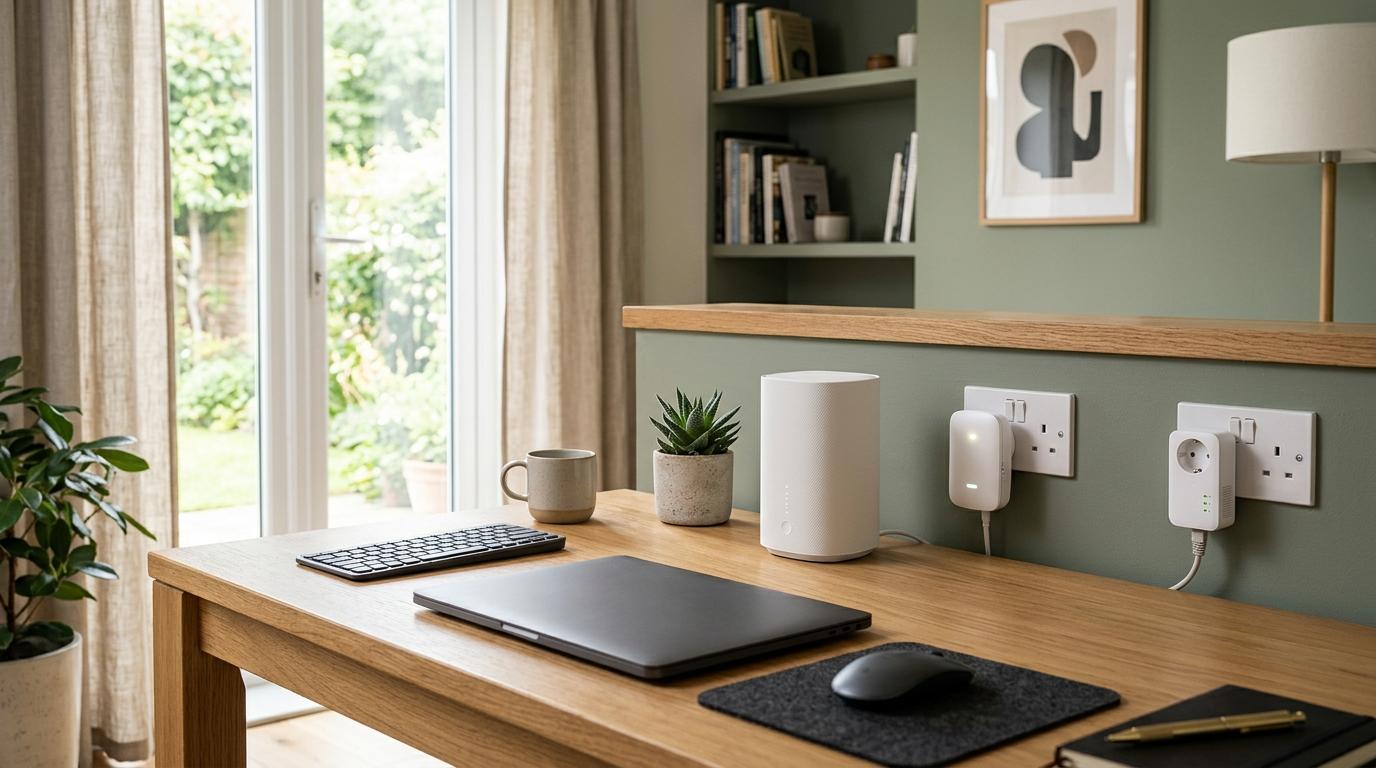
#A powerline adapter uses your home’s electrical wiring to carry internet data from one room to another.
Most kits come with two adapters:
- One plugs into a wall outlet near your router and connects to the router with an Ethernet cable.
- The other plugs into a wall outlet in the room where you need better internet.
Some powerline adapters only give you an Ethernet port. Others also create a small Wi-Fi hotspot in the second room.
Best for
#A powerline adapter makes sense if:
- Thick walls are hurting your Wi-Fi.
- Your home office is far from the router.
- You want a steadier connection for a desktop, smart TV, or console.
- Running Ethernet cables isn’t realistic.
- You rent and can’t drill holes or run cables through walls.
Powerline can be especially useful in homes with concrete, brick, or odd layouts where Wi-Fi just doesn’t travel well.
Who should buy a powerline adapter?
#A powerline adapter is a good fit if you are:
- A remote worker with one fixed desk.
- A student with a regular study setup.
- Using a smart TV, console, or desktop in a room with bad Wi-Fi.
- Living somewhere with thick walls.
- Looking for something more stable than a basic extender.
Who should avoid a powerline adapter?
#A powerline adapter may not be ideal if:
- Your home has very old or unreliable electrical wiring.
- The two rooms are on circuits that don’t communicate well.
- You need strong Wi-Fi everywhere, not just one spot.
- You can only plug it into a power strip or surge protector.
The main drawback
#Powerline adapters depend heavily on your home’s wiring.
In some homes, they work surprisingly well. In others, they’re inconsistent or disappointing. Old wiring, noisy appliances, and certain electrical layouts can all affect performance.
Also, powerline adapters should be plugged directly into wall outlets. Avoid power strips and surge protectors, because they can interfere with the connection.
Option 3: Mesh Wi-Fi
#A mesh Wi-Fi system uses multiple units, often called nodes, to spread Wi-Fi around your home.
Instead of one router trying to cover everything, mesh uses several access points that work together. You usually get one network name, and your devices move between the nodes more smoothly as you walk around.
Mesh is the “stop patching the problem and rebuild the coverage properly” option.
Best for
#Mesh Wi-Fi makes sense if:
- Several rooms have weak Wi-Fi.
- You live in a larger home.
- You have multiple floors.
- Your family has lots of connected devices.
- You want smoother roaming from room to room.
- You’re ready for a proper home network upgrade.
Mesh is usually the best choice for whole-home coverage, but it also tends to cost more than a basic extender or powerline kit.
Who should buy mesh Wi-Fi?
#Mesh Wi-Fi is a good fit if you are:
- A family with many phones, laptops, TVs, tablets, and smart devices.
- A remote worker who moves around the house.
- Living in a large or multi-story home.
- Tired of switching between different Wi-Fi names.
- Looking for a longer-term solution.
Who should avoid mesh Wi-Fi?
#Mesh may be overkill if:
- You only have one small weak spot.
- You live in a compact apartment.
- Your main problem is a slow internet plan.
- You don’t want to change your current Wi-Fi setup.
- You need the cheapest possible fix.
The main drawback
#Mesh systems cost more, and setup can take a little longer. You may need to replace your current router’s Wi-Fi or adjust some settings so everything works cleanly.
Also, mesh is not magic. The nodes still need good placement. If you hide them in bad spots or place them too far apart, performance can suffer.
Mesh Wi-Fi vs Wi-Fi Extender vs Powerline Adapter: Real-World Comparison
#Here’s how the three options compare in normal home situations.
Best for one weak room
#Winner: Wi-Fi extender
If the issue is one bedroom, one study corner, or one balcony, start simple. A Wi-Fi extender is often enough when the rest of your home Wi-Fi works well.
A powerline adapter can also be a good choice if that room has a desk, TV, or console that stays in one place.
Mesh is usually more than you need for one small dead zone.
Best for whole-home coverage
#Winner: Mesh Wi-Fi
Mesh is built for homes where Wi-Fi is weak in multiple areas.
It’s also more convenient because your devices usually stay on one network name as you move around. You’re not constantly switching between your main Wi-Fi and an extender network.
Best for thick walls
#Winner: Powerline adapter, if your wiring is good
If thick walls are the main problem, repeating Wi-Fi through those same walls may not help much.
A powerline adapter can sometimes avoid the wireless issue by using your electrical wiring instead. But the key word is “sometimes.” Powerline performance depends on your home’s wiring.
Best for remote work
#Winner: Powerline adapter or mesh Wi-Fi
If you work at one fixed desk, a powerline adapter with Ethernet can be a very practical option.
If you work from different rooms, take calls around the house, or share the network with several people, mesh Wi-Fi is usually better.
Best for renters
#Winner: Depends on the problem
Renters often can’t drill holes or run Ethernet cables, so all three options can make sense.
- Use a Wi-Fi extender for one simple weak spot.
- Use a powerline adapter for a fixed desk, TV, or console.
- Use mesh Wi-Fi if the whole rental has uneven coverage.
Just make sure you have access to the router settings before buying anything that needs setup changes.
Best for gaming and streaming
#Winner: Powerline for fixed devices, mesh for wider coverage
For a console, desktop, or smart TV that stays in one place, powerline with Ethernet can work well if your wiring supports it.
For streaming across phones, tablets, laptops, and TVs in different rooms, mesh is more convenient.
A basic extender may help with signal strength, but it’s not always the best option for low-latency gaming or heavy use.
Easiest to set up
#Winner: Wi-Fi extender or powerline adapter
Extenders are usually easy to install, though placement can be tricky.
Powerline adapters are also simple in theory: plug one in near the router, plug the other in where you need internet, and connect the cables. But again, the wiring decides how well it works.
Mesh setup takes a little longer, but many modern systems have apps that walk you through it.
Best long-term upgrade
#Winner: Mesh Wi-Fi
If you’re tired of fixing one dead zone at a time, mesh is the cleaner long-term solution.
It’s better for larger homes, families, and people with lots of devices. But if your problem is small, don’t overbuy. An extender or powerline adapter may be all you need.
What to Check Before Buying Anything
#Before you spend money, do a few quick checks. They can save you from buying the wrong thing.
1. Test speed near the router
#Stand close to your router and run a speed test on your phone or laptop.
If the speed is bad right beside the router, your issue probably isn’t Wi-Fi range. It could be your internet plan, router, modem, cable connection, or provider.
If the speed is good near the router but bad in another room, then coverage is likely the problem.
2. Find where the signal gets weak
#Walk from the router toward the problem room while watching your Wi-Fi signal and speed.
Try to figure out what’s causing the drop:
- Distance.
- A thick wall.
- A floor between rooms.
- A large appliance.
- A metal door or mirror.
- General poor coverage across the home.
One weak room and five weak rooms need different solutions.
3. Check your router placement
#Router placement matters more than people think.
Avoid putting your router:
- Inside a cabinet.
- Behind a TV.
- On the floor.
- In a far corner of the home.
- Near large metal objects.
- Next to appliances or crowded electronics.
A central, open, slightly raised spot is usually better.
4. Check your wiring if you’re considering powerline
#Powerline adapters work best when the outlets communicate well through your home’s electrical wiring.
They may perform worse in older buildings, across certain circuits, or near noisy appliances.
And again: plug them directly into wall outlets, not power strips.
5. See if your router supports mesh-style expansion
#Some routers support compatible add-on units that work more like mesh nodes than old-style extenders.
Check your router model before buying. Don’t assume any extender can become part of a seamless mesh network.
6. Count your devices
#A home with two phones and a laptop has very different needs from a home with laptops, tablets, smart TVs, cameras, speakers, consoles, and smart home devices.
The more devices you have, the more likely you are to benefit from a stronger router or mesh system instead of a basic extender.
Home Wi-Fi Checklist: Try This Before You Buy
#Use this quick checklist before ordering anything.
Step 1: Restart your modem and router
#Unplug both devices, wait about a minute, then plug them back in.
It’s basic, but it can clear temporary glitches.
Step 2: Test speed near the router and in the weak room
#Run a speed test close to the router. Then run the same test in the problem area.
If both results are slow, the problem probably isn’t just Wi-Fi range.
If the router area is fast and the weak room is slow, you likely have a coverage issue.
Step 3: Move the router if you can
#Try putting the router somewhere more open and central.
Even a small move can help if it’s currently hidden behind furniture, sitting on the floor, or tucked into a corner.
Step 4: Check 2.4 GHz and 5 GHz Wi-Fi
#Many routers use both bands:
- 2.4 GHz reaches farther but is usually slower.
- 5 GHz is faster but has shorter range and struggles more through walls.
For distant rooms, 2.4 GHz may be more reliable. For nearby devices, 5 GHz is usually better.
Step 5: Reduce obvious interference
#Keep the router away from large appliances, thick furniture, metal surfaces, and crowded electronics where possible.
If you live in an apartment, nearby Wi-Fi networks can also cause congestion.
Step 6: Don’t use an extender to fix bad router placement
#If the router is in a terrible spot, an extender may only repeat a poor signal.
Fix the router location first. Then decide whether you still need extra hardware.
Step 7: Map the problem
#Make a quick note of where Wi-Fi is strong, weak, and unusable.
- One weak room: consider a Wi-Fi extender.
- One fixed desk or TV area: consider a powerline adapter.
- Several weak rooms: consider mesh Wi-Fi.
- Slow everywhere: check your router, modem, internet plan, or provider.
Common Mistakes to Avoid
#Mistake 1: Putting the extender in the dead zone
#A Wi-Fi extender can’t repeat a signal it can barely receive.
Place it between the router and the dead zone, not inside the dead zone itself.
Mistake 2: Buying mesh when your internet plan is the problem
#Mesh improves Wi-Fi coverage inside your home. It does not increase the speed coming from your internet provider.
If your connection is slow beside the router, fix that first.
Mistake 3: Plugging powerline adapters into surge protectors
#Powerline adapters should go straight into wall outlets.
Power strips and surge protectors can block or weaken the signal.
Mistake 4: Chaining extenders together
#Connecting one extender to another extender usually makes things worse. Each hop can reduce speed and add delay.
If you need that much coverage, mesh is usually the better choice.
Mistake 5: Thinking more bars always means better internet
#A stronger signal helps, but it’s not the whole story.
Speed, latency, interference, router quality, device limits, and your internet plan all matter too.
Mistake 6: Buying for the wrong use case
#A powerline adapter may be great for a fixed desk but not very helpful for phones moving around the house.
Mesh may be excellent for roaming, but unnecessary for one stationary TV.
Buy for how you actually use the internet.
Simple Buying Guide by Home Type
#Small apartment with one weak corner
#Start by moving the router if possible.
If that doesn’t help, try a Wi-Fi extender. If the weak corner is a desk or TV area, a powerline adapter may be better.
Apartment with thick concrete walls
#A powerline adapter can be useful for fixed devices.
If several rooms are affected and you want smooth Wi-Fi everywhere, consider mesh.
Multi-story home
#Mesh Wi-Fi is usually the best fit.
Place the nodes carefully so each one can still communicate well with the others. A powerline adapter may still be useful for a fixed office or TV room.
Student room or shared rental
#A Wi-Fi extender can be enough if you have access to the router and can place the extender properly.
If you don’t control the router, check what you’re allowed to change before buying anything.
Remote worker with one fixed desk
#Test the speed near the router and at your desk.
If the desk is the only problem area, a powerline adapter can be a practical choice. If you work from different rooms, mesh may be more comfortable.
Family with many devices
#Mesh Wi-Fi is usually the better long-term option, especially if multiple people stream, work, study, game, and use smart devices at the same time.
Related AllBlogs Reading
#If you are improving a work-from-home or travel-tech setup, these guides may help next:
- Small Apartment Work From Home Setup: Desk & Focus Tips
- Mini UPS vs Power Bank for Wi-Fi Router
- Password Manager vs Passkeys: Which Is Safer in 2026?
Final Recommendation
#If you want the plain answer:
- Choose a Wi-Fi extender for one small dead zone.
- Choose a powerline adapter for one fixed room where Wi-Fi struggles through walls.
- Choose mesh Wi-Fi for whole-home coverage and multiple weak rooms.
The right choice depends on the size of the problem.
One room? Don’t overbuy.
One desk behind thick walls? Try powerline.
The whole house feels unreliable? Mesh is probably the better upgrade.
And if your internet is slow even when you’re right beside the router, pause before buying anything. That’s probably not a Wi-Fi coverage issue. It’s more likely your router, modem, internet plan, or provider.