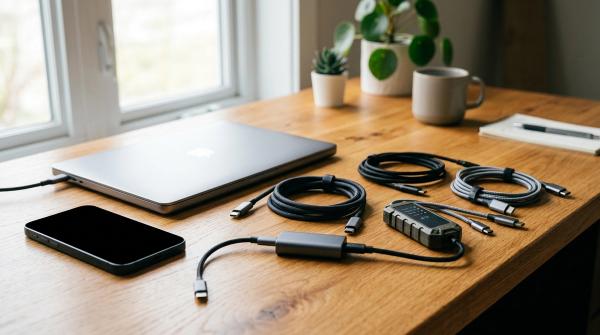
A password manager should make your digital life easier. It should not become the one locked door between you and every account you care about. Before you fully depend on a password manager, passkeys, or hardware security keys, set up recovery first: save backup codes outside your vault, create an offline emergency kit, add emergency access where supported, and test sign-in on a new device before wiping the old one.
Quick Answer
#Before you rely on a password manager, set up these recovery basics:
- Create an offline emergency kit. Include the details you would need if your phone, laptop, or memory failed you.
- Store backup codes outside your vault. Do not keep the codes for unlocking your password manager only inside that same password manager.
- Use emergency access if your password manager offers it. Choose someone you truly trust, and understand what kind of access they will get.
- Add passkeys and security keys after your recovery plan is ready. They are great security tools, but losing a device can still create problems.
- Test your setup. Sign in on a new device before trading in, wiping, or factory-resetting the old one.
Who This Guide Is For
#This guide is for regular people who use the internet every day and have accounts they cannot afford to lose.
That includes:
- Remote workers
- Students
- Parents
- Freelancers
- Small-business owners
- Travelers
- Anyone managing family, work, banking, school, or personal accounts
It is also for anyone who has ever dealt with one of those frustrating account moments, like an app suddenly refusing to open, a login that worked yesterday but fails today, a code being sent to a phone you no longer have, or a password vault that suddenly feels impossible to unlock.
The account may change, but the lesson is the same: recovery has to be planned before there is an emergency.
Why People Get Locked Out
#Most people think of a password manager as a security tool. And it is.
But it is also an access tool.
A password manager helps you use long, unique passwords instead of reusing the same weak one everywhere. That is a good thing. The problem is that if your entire vault depends on one master password and one phone-based authenticator app, your setup may be more fragile than it feels.
Common lockout situations include:
- Forgetting your master password
- Losing your phone before moving authenticator codes
- Getting a new phone and assuming everything transferred correctly
- Wiping an old laptop too soon
- Saving backup codes inside the account they are supposed to recover
- Setting up passkeys without understanding recovery
- Using only one security key
- Tying a family or business vault to one person’s account
The solution is not to avoid password managers. The solution is to build recovery into your setup from the start.
Backup Codes vs Emergency Access vs Passkeys vs Security Keys
#Before you pay for a password manager or buy a hardware security key, it helps to understand what each tool actually does.
- Backup codes: One-time codes you can use when your normal two-factor method is unavailable. Best for email, password managers, work accounts, banking, finance, and important apps. Be careful if you plan to store them only inside the locked account.
- Password manager emergency kit: A printed or offline record of key recovery information. Best for individuals, couples, families, freelancers, and small businesses. Be careful if you have no safe place to store physical documents.
- Emergency access: Lets a trusted person request access to your vault in an emergency. Best for spouses, family members, business partners, and continuity planning. Be careful if you do not have someone you truly trust.
- Passkeys: Let you sign in using a phone, computer, biometric prompt, PIN, password manager, or hardware key. Best for easier sign-in and better protection against fake login pages. Be careful if you have not checked recovery options first.
- Security keys: Physical keys used as strong sign-in factors. Best for high-value accounts like email, work, finance, cloud storage, and admin tools. Be careful if you plan to use only one key with no backup method.
Best For and Avoid If
#Backup Codes
#Best for: Anyone who wants a simple offline way to recover access when their phone, authenticator app, passkey, or trusted device is unavailable.
Avoid if: You are going to screenshot the codes, leave them in your downloads folder, email them to yourself, or store them only inside the vault they are supposed to unlock.
Emergency Access
#Best for: Families, couples, small-business owners, and anyone who wants a trusted person to help if they are unavailable, sick, injured, traveling, or unable to access their own accounts.
Some password managers, including Bitwarden, offer emergency access. A trusted contact can request access to your vault, and depending on your settings, they may get either “View” access or “Takeover” access.
Avoid if: You are not completely sure who to trust, or you do not understand what kind of access that person will receive.
Passkeys
#Best for: People who want easier sign-in on supported accounts using a phone, computer, device PIN, biometric prompt, password manager, or hardware security key.
Avoid if: You are replacing passwords with passkeys before saving backup codes or learning how account recovery works.
Security Keys
#Best for: People protecting important accounts such as primary email, business admin accounts, cloud storage, payroll, finance tools, or domain registrar accounts.
Avoid if: You are going to buy one key, attach it to everything important, and never create a backup route. That is a lockout waiting to happen.
The Password Manager Recovery Checklist
#Use this checklist before you switch password managers, reset vault security, add passkeys, buy a security key, or wipe an old phone or laptop.
1. Create a Master Passphrase You Can Actually Remember
#Your master password protects your vault, so it needs to be strong. But it also needs to be realistic.
A good target is a passphrase of at least 16 characters. Longer is usually better, as long as you can remember it without constantly needing to reset it.
Avoid obvious choices like your name, birthday, pet’s name, school, company, a quote you post online, or a password you have used before.
The goal is not to create something so complicated that you lock yourself out. The goal is to create something memorable to you and hard for someone else to guess.
2. Make an Offline Password Manager Emergency Kit
#A password manager emergency kit is a simple offline record that helps you, or someone you trust, recover access if something goes wrong.
It may include:
- The password manager you use
- The email address connected to the account
- Your master passphrase, if you choose to store it offline
- Recovery key or recovery code details, if your password manager provides them
- Instructions for where backup codes are stored
- Emergency access instructions
- Notes about shared vaults, family accounts, or business accounts
Keep this offline. A printed copy in a safe, lockbox, or secure file is usually much better than a cloud document named “passwords.” Please do not do that.
3. Generate Backup Codes for Important Accounts
#Go through your most important accounts and create official backup codes wherever they are available.
Start with:
- Primary email
- Password manager account
- Apple, Google, or Microsoft account
- Banking and finance accounts
- Work or school accounts
- Cloud storage
- Business tools
- Website admin accounts
- Domain registrar accounts
- Travel accounts
- Identity or government-related apps you rely on
Backup codes are usually single-use. If you use one, mark it as used. If the service lets you generate a fresh set, do that after using a code.
4. Store Backup Codes Somewhere Separate
#This is the part people often get wrong: do not store the recovery codes for your password manager only inside that same password manager.
If the vault is locked, the codes are locked too. That does not help you.
Better options include:
- A printed copy in a safe place
- A locked physical file
- A secure handoff to a trusted family member
- A secure handoff to a business partner
- A separate offline emergency kit
The exact method depends on your life, your home, your work, and your risk level. The important thing is separation. Your recovery plan should not depend on the same thing that failed.
5. Set Up Emergency Access Carefully
#If your password manager supports emergency access, review it before you need it.
For example, Bitwarden describes emergency access as a way to choose trusted emergency contacts who can request access to your vault. Depending on your settings, that person may receive “View” access or “Takeover” access.
Before turning it on, ask yourself:
- Who do I truly trust with this?
- Should this person only be able to view items?
- Should this person be able to take over the account?
- How long should the waiting period be before access is granted?
- Does this make sense for my family, work, or business setup?
- Do I know how to revoke or change this access later?
For families and small businesses, emergency access can prevent a major mess. If one person controls every login and that person becomes unreachable, everyone else may be stuck.
6. Add Passkeys After Your Recovery Plan Is Ready
#Passkeys can make signing in easier and safer. Instead of typing a password into a website, you approve the login using something like your phone, computer, biometric prompt, device PIN, password manager, or hardware security key.
That is useful. Very useful.
But passkeys are not magic.
Before adding passkeys to important accounts, confirm that:
- You have saved backup codes
- You know how to recover the account if your device is lost
- You have another trusted device or recovery method
- You understand where the passkey is stored
- You know whether it lives on your device, in your password manager, or on a hardware key
Start small. Add passkeys to a few important accounts first. Do not convert every login you own in one afternoon. If something goes wrong, it can get confusing fast.
7. Use Security Keys With a Backup Plan
#A hardware security key can be excellent for protecting important accounts. But it is still a physical object.
You can lose it. Break it. Forget it. Leave it in a hotel room. Drop it in a bag you cannot find.
Before relying on one:
- Check whether your account supports security keys
- Register more than one recovery method if possible
- Store backup codes separately
- Add clear notes to your emergency kit
- Do not make one key your only path into every critical account
If you are buying your first security key, think about recovery before convenience.
8. Check Shared Vault Ownership
#This matters a lot for families, remote teams, and small businesses.
Ask:
- Who owns the shared vault?
- Who has admin access?
- What happens if the owner leaves, loses access, or is unavailable?
- Are business passwords mixed with personal passwords?
- Can another trusted person recover essential accounts?
A shared vault should not depend on one person’s memory, one phone, or one laptop. That might seem fine today. It will not feel fine when that person is unreachable and everyone needs access.
9. Test Sign-In on a New Device Before Wiping the Old One
#Do not trade in, factory reset, or wipe your old phone until you have confirmed access on the new one.
Before wiping the old device:
- Install your password manager on the new device
- Sign in successfully
- Confirm two-factor authentication works
- Confirm passkeys moved, if needed
- Confirm authenticator apps moved, if needed
- Open your primary email account
- Test a few important logins
This one habit prevents a lot of avoidable lockouts. It feels boring in the moment. But if something did not transfer correctly, you will be very glad you checked.
10. Test Export and Import Before a Full Password Manager Switch
#If you are switching password managers, do not move your entire real vault blindly.
Test the export and import process with fake data first.
Do not paste real vault exports, recovery codes, master passwords, secret keys, or private notes into random online tools. Vault exports can contain extremely sensitive information.
Before switching fully:
- Create a few fake test logins
- Export them
- Import them into the new password manager
- Check the formatting
- Confirm notes and custom fields look right
- Make sure folders, collections, or labels behave as expected
- Only then plan the real migration
A little testing upfront can save you from a messy cleanup later.
Common Mistakes to Avoid
#Storing Backup Codes in the Account They Recover
#This is probably the most common mistake. If you need a code to unlock your password manager, that code should not live only inside the password manager.
The same idea applies to email, authenticator recovery, banking, work accounts, and anything else important.
Depending on One Phone for Everything
#If your authenticator app, passkeys, email access, password manager approval, and trusted-device prompts all depend on one phone, that phone has become a single point of failure.
Have another way in.
Wiping an Old Device Too Soon
#People often reset an old phone and then realize their authenticator app, passkeys, or trusted-device approvals did not transfer.
Keep the old device until the new setup is fully tested. Even if the trade-in reminder emails are annoying you.
Giving Emergency Access Without Thinking It Through
#Emergency access is powerful. Do not add someone just because they are nearby, convenient, or “probably fine.”
Choose carefully. Review permissions. Update your emergency contact if your family, relationship, or business situation changes.
Buying a Security Key Without a Recovery Plan
#A security key can improve account protection, but it does not remove the need for backup codes or recovery planning.
Do not make one physical key the only way into your most important accounts.
Ignoring the Official Recovery Rules
#Every password manager and online account has its own recovery limits.
Some companies cannot reset your master password for you. Some recovery codes are shown only once. Some passkeys work differently depending on whether they are stored on a device, in a password manager, or on a hardware key.
Always check the official recovery documentation for the services you use.
Before You Pay for a Password Manager or Security Key
#If you are comparing paid password managers, do not look only at the monthly price.
Check whether the tool supports:
- Two-factor authentication backup codes
- Account recovery options
- Emergency access or trusted contacts
- Secure vault export
- Shared vaults or family plans, if needed
- Passkey storage, if you plan to use passkeys
- Clear documentation on lockouts
- Device transfer guidance
If you are buying a security key, check:
- Which accounts support it
- Whether you can register a second key
- Whether you can add another backup method
- How recovery works if the key is lost
- Whether your phone, laptop, and browser support that key type
- Where you will store backup codes
The best setup is not always the most expensive one. It is the one you can actually recover when something goes wrong.