If you just want a simple answer, here it is:
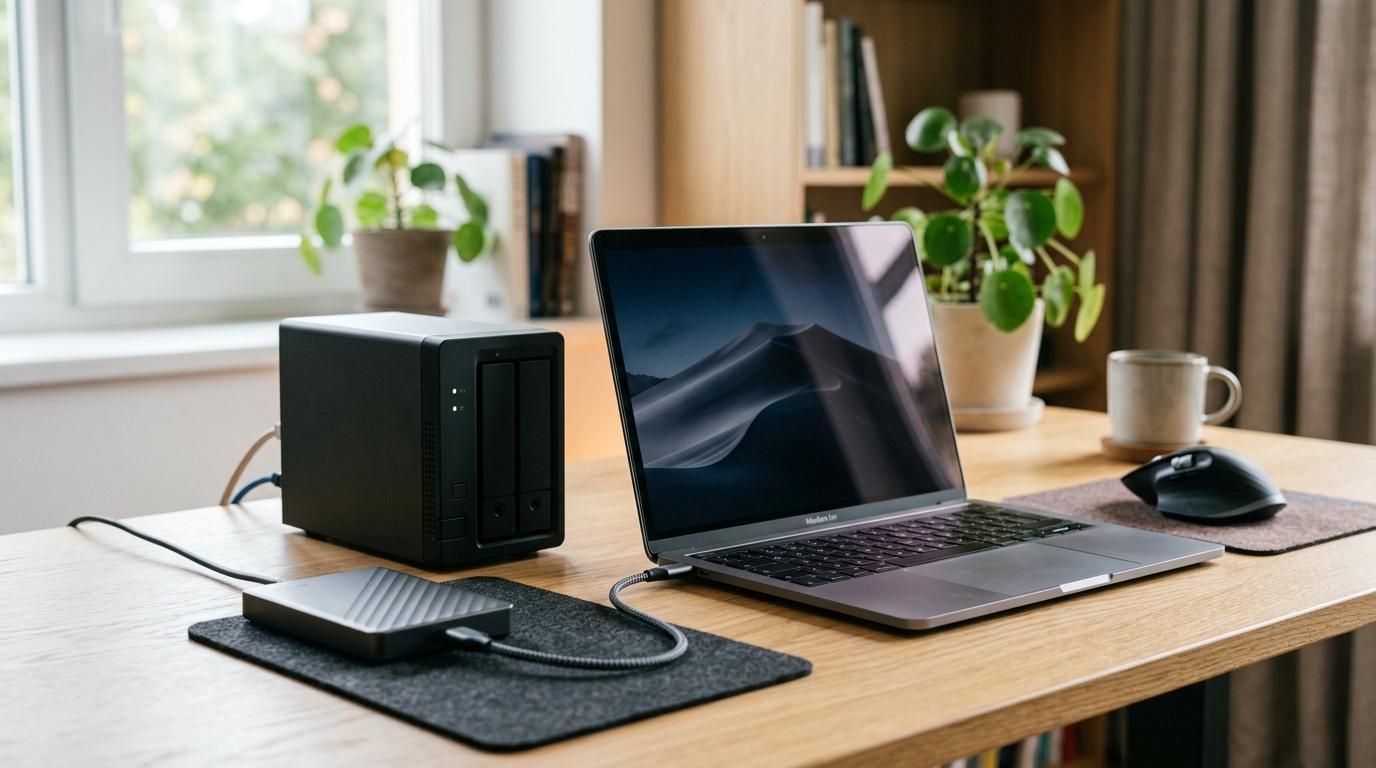
For most homes, the best backup setup is an external hard drive for a quick local copy and cloud storage for an automatic off-site copy.
That combination covers the two things that matter most:
- You can restore files quickly if your laptop dies.
- You still have a copy somewhere else if something happens at home.
A NAS is worth considering when your storage needs get bigger. Maybe several people in your house need access to the same files. Maybe you have years of photos and videos. Maybe you work from home and want one central place for everything.
So when people compare NAS vs external hard drive vs cloud storage, there is not one perfect winner. The right answer is usually a mix.
Short Answer: Which One Should You Use?
#- External hard drive: best for the cheapest and simplest local backup for one laptop or desktop.
- Cloud storage: best for automatic off-site backup, phone photo sync and access from anywhere.
- NAS: best for shared home storage for families, creators, remote workers and home offices.
Simple recommendation: If you are not sure what to buy, start with an external hard drive and cloud storage for your most important files. Add a NAS later if your household has multiple users, a large media library, or you want one main storage hub at home.
Who This Is For
#This guide is for regular people who have files they would be upset to lose.
Maybe you are:
- Backing up a laptop before it eventually dies
- Trying to keep phone photos from taking over every device
- Organizing years of family pictures and videos
- Working from home with important client files
- Creating videos, podcasts, designs, or large project folders
- Running a small home office
- Wondering if a NAS is overkill, or if a simple drive is enough
If you want a practical backup setup before spending money on hardware, cloud plans, or storage upgrades, this comparison should help.
The Big Difference, In Plain English
#An external hard drive is a storage device you plug into your computer. You copy your files to it, or use backup software to do it for you. It is simple, local, and usually the easiest physical backup to understand.
Cloud storage keeps your files on remote servers run by a company like Apple, Google, Microsoft, Dropbox, or another provider. It is great for automatic syncing, phone backups, sharing and keeping a copy away from your home.
A NAS, short for Network Attached Storage, is a storage box connected to your home network. Think of it as your own private storage hub. Laptops, phones, tablets and other devices in the house can connect to it. Some NAS systems can also be accessed remotely.
The real question is not, “Which one is best?”
It is more like:
Which one fits how I actually use my files, how much I want to spend, how good my internet is, and how much setup I am willing to deal with?
Quick Comparison: NAS vs External Hard Drive vs Cloud Storage
#External hard drive
#- Ease of setup: very easy
- Best for: simple local backup
- Works without internet: yes
- Remote access: no, unless connected to another device
- Cost pattern: usually lowest upfront, no regular subscription except future drive replacement
- Good for phone photos: possible, but not always smooth
- Good for large video files: good for one user
- Multi-user access: limited
- Off-site protection: only if stored away from home
- Main weakness: easy to forget backups
Cloud storage
#- Ease of setup: easy
- Best for: automatic off-site access
- Works without internet: no
- Remote access: yes
- Cost pattern: usually low to start, often subscription-based as storage grows
- Good for phone photos: very convenient
- Good for large video files: can be slow or expensive depending on internet and plan
- Multi-user access: good
- Off-site protection: yes
- Main weakness: depends on internet and provider settings
NAS
#- Ease of setup: moderate
- Best for: shared home storage
- Works without internet: yes for local access
- Remote access: yes, if configured safely
- Cost pattern: usually highest upfront, plus electricity and future drive replacement
- Good for phone photos: good if set up properly
- Good for large video files: good for local sharing and storage
- Multi-user access: very good
- Off-site protection: no, unless backed up elsewhere
- Main weakness: needs setup and maintenance
Option 1: External Hard Drive
#An external hard drive is the most straightforward backup option.
You plug it in, copy your files, and unplug it when you are done. For a lot of people, this is the first backup purchase that actually makes sense.
It is especially useful if you have one main computer and want a second copy of your documents, photos, downloads, work files and personal folders.
Best for
#- One laptop or desktop
- Manual backups
- Moving files between computers
- Keeping a local copy of important folders
- Budget-conscious users
- People who do not want a monthly subscription
Avoid if
#- You regularly forget to back up
- Multiple people need access to the same files
- You want automatic phone photo backup
- You need access from outside your home
- You plan to leave it plugged in forever and never check it
The catch
#An external drive is easy, but it depends on you.
If you do not plug it in and run backups, nothing happens. If the drive is lost, damaged, stolen, or fails, anything stored only on that drive may be gone.
An external hard drive is useful as one copy. It should not be your entire backup plan.
Also, if the drive is sitting next to your laptop, it does not protect you from theft, fire, flooding, or other damage at home. For important files, keep another copy somewhere else, such as cloud storage or a drive stored in another safe location.
Option 2: Cloud Storage
#Cloud storage is the most convenient option for many people, especially if you use a phone as your main camera.
Your files are stored on remote servers, and you can access them through apps or a web browser. Common examples include Google Drive, iCloud, OneDrive and Dropbox.
Cloud storage is especially helpful for phone photos, everyday documents and files you want to access across multiple devices.
Best for
#- Automatic backup and syncing
- Phone photos and videos
- People who use multiple devices
- Remote workers who need files away from home
- Sharing files with family, clients, or teammates
- Off-site protection if your computer or phone fails
Avoid if
#- Your internet connection is slow or unreliable
- You have very large video or project files
- You do not want recurring payments
- You are uncomfortable storing sensitive files with a third-party provider
- You need fast access to huge files at home
The catch
#Cloud storage is convenient, but it depends on your internet connection and your provider’s policies.
Large uploads can take a long time. If your internet has slow upload speeds, backing up a big photo or video library can feel painfully slow. Subscription costs can also add up as your storage needs grow.
There is also one important thing people often miss:
Sync is not always the same as backup.
If a file is synced across your devices and you delete it on one device, that deletion may sync everywhere. Some services offer file recovery or version history, but you should know how your cloud service handles deleted and changed files before you fully rely on it.
Option 3: NAS
#A NAS, or Network Attached Storage, is like having your own private storage server at home.
It connects to your router or home network. Then your laptops, phones, tablets and other devices can access it. Instead of passing around drives or storing everything on one computer, the NAS becomes the central place for shared files.
A NAS is popular with families, creators, remote workers and small home offices that want more storage and more control than a cloud-only setup.
Best for
#- Families with large photo and video collections
- Homes with multiple laptops and phones
- Creators working with large files
- Remote workers who want central storage
- Small home offices
- People who want more local control over their data
- Users who are comfortable with some setup and maintenance
Avoid if
#- You want the simplest possible backup method
- You have a tight upfront budget
- You do not want to manage hardware
- You only need to back up one laptop occasionally
- You expect it to replace off-site backup completely
The catch
#A NAS is powerful, but it is not magic.
It needs setup. You may need to create user accounts, folders, permissions, backup jobs, remote access settings and security updates. Modern NAS systems are much easier than they used to be, but they still require more attention than an external drive or cloud app.
A NAS may also support multiple drives and redundancy, depending on the model and setup. That can help protect you if one drive fails.
But it does not protect you from every kind of data loss.
Accidental deletion, ransomware, theft, power problems, fire, water damage, or a bad configuration can still put your files at risk.
Important rule:
RAID or drive redundancy is not the same as backup.
What to Check Before Buying Anything
#Before choosing between a NAS, external hard drive, or cloud storage, take a few minutes to think about how you actually use your files.
1. How much data do you have?
#Check the storage use on your laptop, phone, desktop and any old drives.
Photos and videos usually take up the most space. Documents are often much smaller than people expect.
Ask yourself:
- How much storage am I using now?
- How quickly is it growing?
- Am I backing up one device or several?
- Do I need to keep everything, or only the important files?
Do not buy only for what you need today. Leave room to grow, because storage fills up faster than expected.
2. How good is your internet?
#Cloud storage depends heavily on your internet connection, especially upload speed.
Download speed gets most of the attention, but upload speed matters when you are backing up photos, videos and work files.
If your internet is slow, cloud backup can still work, but the first backup may take a long time. For large local files, an external drive or NAS will usually feel much faster.
3. Do you need access outside your home?
#If yes, cloud storage is usually the simplest option.
A NAS can also offer remote access, but it takes more setup and comes with extra security responsibilities. An external hard drive is not naturally remote-friendly unless it is connected to another computer or system.
4. How many people need the storage?
#For one person, an external drive plus cloud storage may be enough.
For a family or small home office, a NAS can be more useful because everyone can store and access files from one central place.
5. Will you actually remember to back up?
#Be honest with yourself.
If you know you will forget to plug in a drive every week, do not build your whole backup plan around manual backups.
Cloud backup or automated NAS backups may be a better fit because they require less ongoing effort.
6. How sensitive are your files?
#For personal documents, financial records, client files, family archives, or private photos, think about security.
That means:
- Strong passwords
- Two-factor authentication
- File permissions
- Encryption where appropriate
- Separate backups for important data
Cloud storage can be safe when configured properly, but you are trusting a provider. A NAS gives you more local control, but you are responsible for securing it. That control is useful, but it also means more work.
Best Setup by User Type
#If you are an everyday laptop user
#Use an external hard drive for local backups and cloud storage for your most important files.
This gives you a quick local copy and an off-site copy. You probably do not need a NAS unless your files are growing quickly or multiple people need access.
If you mostly care about phone photos
#Cloud storage is usually the easiest place to start.
It can automatically sync photos, protect memories if your phone breaks, and make your pictures available across your devices.
If your photo library gets very large, you can add an external drive or NAS later.
If you are a family with years of photos and videos
#A NAS can make a lot of sense if everyone needs one shared place for photos, videos and documents.
It can become the family storage hub instead of having files scattered across old laptops, phones, drives and cloud accounts.
Still, keep an off-site copy of the most important files. A NAS at home is not enough by itself, even if it feels like a serious setup.
If you are a creator
#If you work with video, audio, photography, design, or other large project files, external drives and NAS devices are often more practical for local storage.
Cloud storage can still be useful for final exports, collaboration and off-site backup. But moving huge working files through the cloud can be slow, depending on your internet and storage plan.
If you work remotely from home
#Cloud storage is useful for access and sharing. An external drive gives you a local backup. A NAS may be worth it if you manage large files, multiple computers, or shared work folders at home.
If your work includes client data, be extra careful with permissions, account security and backup separation.
Related AllBlogs Reads
#If you are cleaning up storage or protecting files across devices, these related guides may help:
- Cloud Storage vs External SSD for Travel Photos
- Phone Storage Before Travel: Backup & Offline Checklist
- How to Wipe Your Phone Before Selling It Safely
- USB-C Hub vs Docking Station: Laptop Buying Guide
A Practical Home Backup Plan
#For most people, the best setup is not one tool. It is a combination.
A simple, strong home backup setup looks like this:
- Main copy: Your laptop, phone, or desktop
- Local backup: External hard drive or NAS
- Off-site backup: Cloud storage or another copy stored away from home
This follows the common 3-2-1 backup idea:
- 3 copies of important data
- 2 different storage types
- 1 copy stored off-site
You do not need to make this complicated. Even a basic version is much better than keeping everything on one phone, one laptop, or one old hard drive in a drawer.
When an External Hard Drive Is Enough
#An external hard drive may be enough if:
- You have one main computer
- You do not need remote access
- You can remember to back up regularly
- Your files are not changing constantly
- You also keep critical files in the cloud or another safe place
It is the simplest first step.
If you currently have no backup at all, buying an external drive and actually using it is already a big improvement.
Just do not treat it as permanent, failure-proof storage. Drives fail. Cables break. People lose things. Keep another copy of anything you cannot afford to lose.
When Cloud Storage Is Enough
#Cloud storage may be enough if:
- Your files are mostly documents, photos and everyday media
- You want automatic syncing
- You use your phone as your main device
- You often switch between laptop, tablet and phone
- You want access while traveling or working remotely
It is especially useful for people who do not want to think about backups all the time.
But check your settings. Make sure you understand whether the app is backing up, syncing, or only freeing up local space. Those are not always the same thing, and it can be confusing until something goes wrong.
When a NAS Is Worth It
#A NAS becomes more attractive when your storage needs are bigger, more shared, or more complicated.
It may be worth it if:
- Several people in your home need shared storage
- You have a large photo or video archive
- You work with big creative files
- You want fast access inside your home network
- You want more control than a cloud-only setup
- You are comfortable doing basic setup and maintenance
A NAS is usually not the best first purchase for someone with one laptop, a small file collection, and no interest in managing hardware.
It shines when storage becomes a household system, not just one person’s backup drive.
Mistakes to Avoid
#1. Keeping only one copy
#If your only copy is on your laptop, phone, external drive, NAS, or cloud account, it is not truly safe.
Every storage method can fail in some way. The goal is not to find a perfect device. The goal is to avoid having one single point of failure.
2. Confusing sync with backup
#Sync keeps files matched across devices.
Backup protects a separate copy.
If you delete a synced file by mistake, that deletion may spread everywhere. If the file matters, look for version history, deleted file recovery, or a proper backup feature.
3. Buying a NAS when you only need a simple backup
#A NAS is useful, but not everyone needs one.
If you only need to back up one laptop once a week, an external drive and cloud storage may be easier, cheaper and less stressful.
4. Using an external drive once, then forgetting it
#A drive in a drawer is not a backup habit.
Set a reminder. Use backup software if available. Check that files are actually being copied. A backup you never update becomes less useful every month.
5. Assuming a NAS replaces cloud backup
#A NAS is still inside your home.
It can be affected by theft, electrical problems, accidental deletion, ransomware, fire, water damage, or simple human error.
For critical files, pair a NAS with off-site backup.
6. Ignoring account security
#For cloud storage and remote NAS access, weak passwords are a real risk.
Use strong passwords. Turn on two-factor authentication where available. Do not casually share accounts, especially if they contain work files or sensitive personal documents.
Final Recommendation
#If you want the simplest safe setup, use cloud storage for automatic off-site backup and an external hard drive for a local copy.
If your home has multiple users, large media libraries, or shared work folders, consider a NAS as your central storage hub. Just remember that a NAS should still be backed up somewhere else.
In the NAS vs external hard drive vs cloud storage choice:
- External hard drive is best for simple, low-cost local backup.
- Cloud storage is best for automatic off-site access and phone-friendly backup.
- NAS is best for shared home storage and larger local file libraries.
The best home backup setup is the one you will actually keep using. Not the fanciest one. Not the one with the most features. The one you will trust, maintain and use consistently.
Before buying, check current capacity, connector type, app support, drive warranty and cloud plan terms because storage products and subscription features can change.