The weird little audit that made my phone feel less creepy
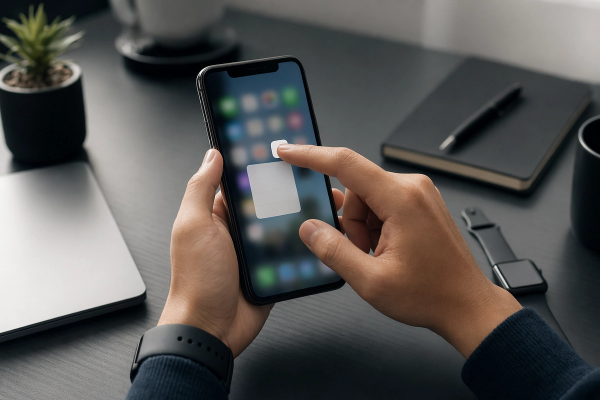
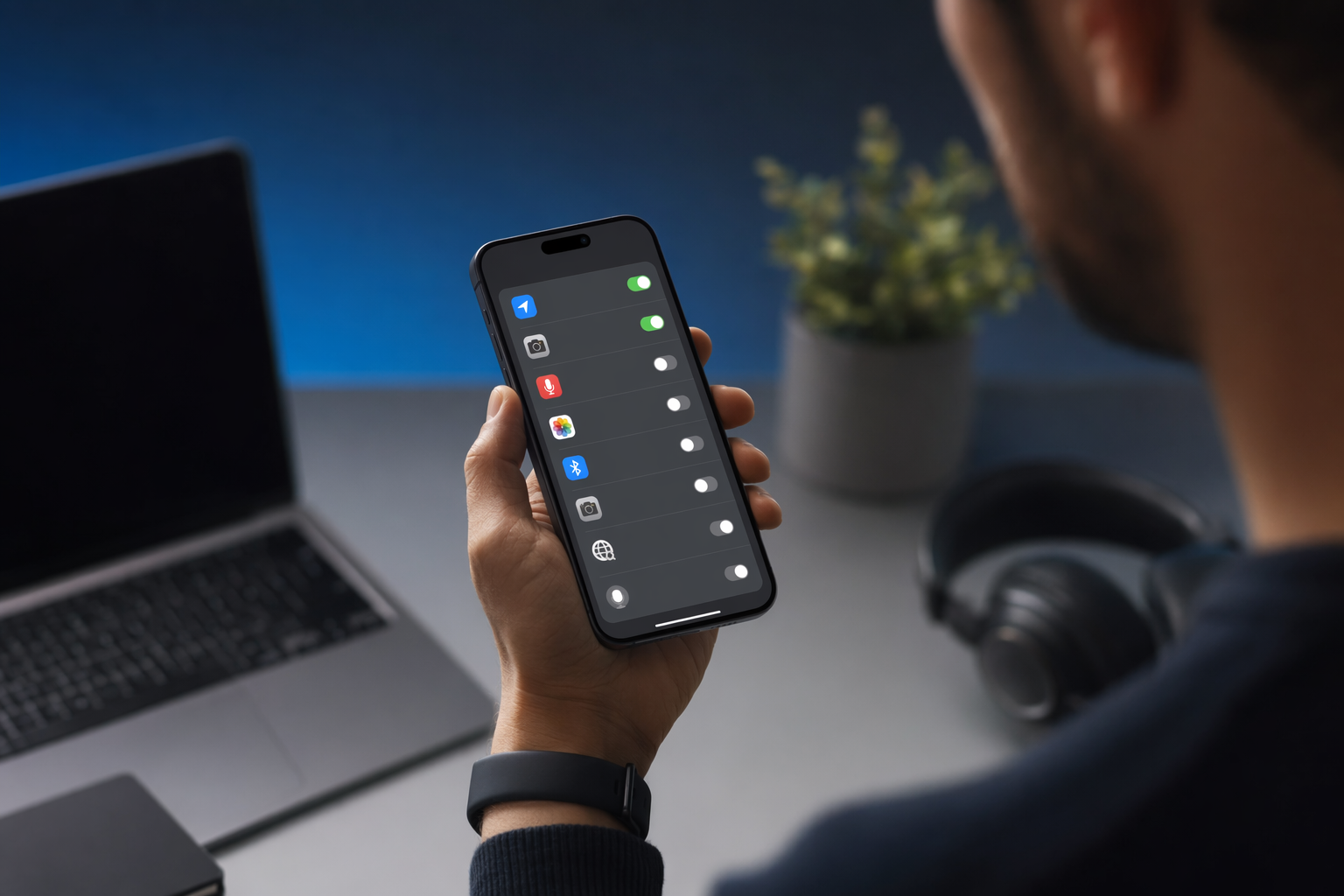
#So, I did an app permissions audit last weekend because I was avoiding cleaning my desk. Classic. I opened my phone settings thinking, yeah yeah, I’m pretty careful, I don’t install sketchy stuff, I know what I’m doing. Ten minutes later I’m staring at a shopping app that had access to my location “all the time” and a random photo editing app that could read my entire photo library. Like... why. Why does a coupon app need to know where I am at 2:17 AM? Is it worried I’m cheating on it with another supermarket?
And honestly, app permissions are one of those boring-sounding tech topics that become suddenly VERY interesting when you realize how much of your digital life is just sitting there behind little toggles you tapped two years ago without thinking. Camera. Mic. Contacts. Location. Files. Bluetooth. Notifications. Health data. Calendar. Accessibility. The whole thing is basically a tiny contract between you and every app you use, except the contract is written in vague popups while you’re half asleep and trying to order tacos.
This isn’t meant to be paranoid doom blogging. I like apps. I love apps. I am the person who installs a new notes app because the icon looks cozy. But after years of being the “tech person” in my family and fixing phones for relatives, I’ve learned one rule that never really fails: if an app doesn’t need a permission to do the thing you use it for, deny it. Not because every developer is evil. Most aren’t. But data has a way of wandering around, getting stored, synced, shared, leaked, analyzed, forgotten about, then rediscovered during some security incident. Better to not hand it over in the first place.
What an app permissions audit actually is, without the corporate security vibes
#An app permissions audit is just you going through your phone, tablet, laptop, or browser and asking: “Does this app still deserve the access I gave it?” That’s it. You don’t need a security cert. You don’t need a Linux hoodie. You just need 20 minutes and enough caffeine to not get distracted by every app icon you forgot existed.
Modern Android and iOS both have privacy dashboards and permission pages now, and Windows and macOS have gotten much better too. You can usually see which apps have used location, camera, microphone, contacts, photos, and other sensitive stuff. On phones, you’ll also see those little camera/microphone indicators when something is actively using them. Are these systems perfect? Nah. But they’re genuinely useful, and I think people ignore them because the settings menus feel like a junk drawer. Everything is in there, somewhere, next to Bluetooth weirdness and printer settings from 2016.
The audit mindset is simple: allow what makes sense, deny what feels excessive, and choose “ask every time” or “while using the app” when available. I know that sounds obvious, but I swear most privacy wins are just obvious things done regularly. Like flossing. But for your phone. And somehow even less fun.
My basic rule: permission should match the job
#This is the test I use. If the app’s core feature breaks without the permission, it’s probably reasonable. If the permission only helps with convenience, ads, tracking, or some bonus feature I don’t care about, I deny it. If I can’t explain the permission in one sentence, I deny it first and see what happens.
A permission is not a personality test. You’re allowed to say no and change your mind later.
For example, a map app asking for location while you’re navigating? Sure. A weather app asking for approximate location? Fine, maybe. A wallpaper app asking for precise location in the background? Absolutely not, mate. A translation app asking for microphone access because you want live voice translation? That’s normal. The same translation app asking for contacts? Uh, no thanks. Actually this is a good example where context matters a lot: travel tools can reasonably need camera, mic, and downloaded offline language packs, and I talked about that kind of use case more when comparing Offline Translation Apps for Travel Compared. Permissions aren’t automatically bad. Random permissions are bad.
Camera permission: allow it for creation, deny it for curiosity
#Camera access is one of the easiest permissions to understand and somehow one of the easiest to over-grant. If an app lets you take photos, scan documents, record videos, join video calls, deposit checks, scan QR codes, or use AR features, camera access makes sense. But it doesn’t always need permanent access. Most of the time, “ask every time” is perfect. You tap scan, it asks, you approve, done.
I’m a little dramatic about camera permission because years ago I installed some bargain-bin scanner app that asked for camera access, storage access, contacts, location, and I think maybe my soul. I gave it camera because, well, scanning. Then forgot about it. Months later I found it still sitting there, with full camera permission, even though I’d used it twice. That’s the part people miss. The problem isn’t always granting access once. It’s leaving access around forever like an unlocked side door.
On laptops, the camera conversation gets extra spicy because software settings and physical blockers are different things. A permission toggle tells the OS whether an app can use the camera. A webcam cover physically blocks the lens. I use both, because I am paranoid in a very lazy way. If you’re deciding between those two approaches, I wrote through the tradeoffs here: Webcam Cover vs Camera Privacy Settings: What Should You Use for Laptop Privacy?. Short version: software controls are flexible, physical covers are dumb in the best possible way.
Also, camera access often shows up when scanning QR codes, and that’s not automatically unsafe, but it can lead you to sketchy pages if you don’t pay attention. Restaurant menus are the classic example now. Camera permission is only step one, the link you open matters too. If you’re reviewing camera behavior on your phone, it’s worth thinking about QR habits as well, especially stuff like Restaurant QR Code Menu Safety: Scam & Privacy Checks. I still scan menus, by the way. I just don’t tap every weird redirect like a raccoon with Wi-Fi.
Microphone permission: be stricter than you think
#Mic access is where I get picky. Voice recorder? Allow. Video meeting app? Allow while using. Language learning app? Probably allow, if I’m doing pronunciation stuff. Social app that wants voice messages? Fine, but only if you use that feature. A flashlight app asking for microphone access? Delete it. Don’t even bother denying, just escort it off the premises.
What makes the mic tricky is that some apps ask early, before you’ve used the feature that needs it. You install a messaging app, it asks for microphone because it supports voice notes, even though you only want text chat. That doesn’t mean the app is malicious, it just means the onboarding flow is needy. Deny it. If later you tap the voice note button, it’ll ask again. This is such a simple habit and it saves so much unnecessary access.
On phones and laptops, watch for the mic indicator. If it lights up when you weren’t expecting it, don’t immediately panic, because sometimes it’s keyboard dictation or a tab in the browser or some meeting app hanging around. But do investigate. I once had a browser tab keeping mic permission alive because I left a web meeting open in a forgotten workspace. Not evil. Still annoying. I closed it and felt like I had defeated a small ghost.
Location: precise, approximate, while using, always... this one matters a lot
#Location permission is probably the biggest everyday privacy leak for normal people. Not because your coordinates are magical, but because location patterns are intimate. Home. Work. Gym. Doctor. Friend’s house. Places you visit once and don’t want turned into an advertising category. It’s not just “where are you?” It’s “what does your routine say about you?”
Here’s my personal setup: maps get precise location while using. Ride share gets precise while using. Food delivery gets precise while using, though I turn it off for apps I don’t use often. Weather gets approximate location, not precise, because the cloud does not need my apartment number. Social media gets no location unless I’m actively tagging something, and even then I usually don’t. Shopping apps almost always get denied. Games get denied unless there’s a real local multiplayer or AR reason, and even then I’m suspicious because games can be data vacuums.
- Allow precise location for navigation, ride share, emergency/safety features, and delivery apps when actively using them.
- Use approximate location for weather, local news, event discovery, and stuff where the city or neighborhood is enough.
- Deny background location unless the app truly needs it, like trusted fitness tracking, family safety, lost-device tools, or smart home geofencing you actually use.
- Revoke location from apps you haven’t opened in months. They don’t need to know your life story from the bench.
The “always allow” option is powerful and should be rare. I know people who give it to everything because popups annoy them. I get it, popups are horrible little mosquitoes. But background location is not a small ask. If you allow it, you should be able to say exactly why.
Photos and files: the permission that quietly exposes way too much
#Photo library access used to be one of those all-or-nothing things that made me wince. Now, thankfully, major mobile platforms let you choose selected photos for many apps. Use that option. Seriously. If you’re uploading one profile picture, the app does not need your entire camera roll going back to that blurry concert in 2014.
Photos contain more than images. They can include location metadata, screenshots of receipts, IDs, medical paperwork, kids, home interiors, whiteboards from work, random screenshots with passwords because yes, people do that, I have done that, let’s not pretend. Giving a meme generator or collage app full library access is basically giving it a messy drawer full of your private life.
For files on desktop, same idea. macOS and Windows both have controls for folders, documents, downloads, removable drives, screen recording, and other sensitive areas depending on the app and system version. Don’t just click allow because you’re in a hurry. If a PDF editor needs access to a PDF you opened, okay. If it wants broad disk access forever, I want an explanation and maybe a handwritten apology.
Contacts and calendar: convenience with a social blast radius
#Contacts permission is sneaky because it doesn’t only expose you. It exposes everyone who trusted you with their phone number or email. That’s the part that bugs me. When an app asks to “find friends,” what it often means is upload or compare your address book so it can map relationships. Sometimes that’s useful. Usually it’s just growth hacking wearing a friendly hat.
I deny contacts by default. Messaging apps may need contacts if I want easy discovery, but even there I think twice. Banking apps sometimes ask contacts for payments, and that can be reasonable if you use person-to-person transfers. Social apps? Nope, unless you are very sure. Games? Absolutely not. Photo apps? Usually no. Dating apps? Hah. No. Let me type manually like it’s 2009.
Calendar is similar. A scheduling app needs calendar access. A travel app might need it if it imports flights and reservations. A random productivity timer does not need full calendar access unless its whole feature is calendar blocking. And if an app asks to edit your calendar, not just read it, be more careful. Read access is already sensitive, write access can create chaos. I once tested an automation app that duplicated half my events and sent me into this weird meeting-time panic for two days. User error? Mostly. Did I blame the app anyway? Obviously.
Bluetooth, nearby devices, and local network: boring names, real tracking risk
#Bluetooth permission sounds harmless because we associate it with headphones. But on phones, Bluetooth and nearby-device access can reveal what devices are around you, help with pairing, enable trackers, connect to wearables, or interact with smart home gear. That’s useful when it’s useful. It’s weird when it isn’t.
Allow Bluetooth for earbuds apps, fitness bands, smartwatches, car apps, device trackers, printers if you still suffer like that, and smart home setup tools. Deny it for random apps that have no business discovering nearby devices. Same with local network access. A streaming remote app needs to find your TV. A smart speaker app needs to find the speaker. A calculator app wanting local network access is either broken, nosy, or doing something I don’t like. Maybe all three.
This is one of those areas where the permission name doesn’t always explain the privacy impact. “Nearby devices” sounds cute. Like your phone is making friends. But it can reveal patterns about where you are and what hardware you use. So yeah, I’m not saying panic, I’m saying don’t approve it just because the wording feels technical and boring.
Notifications: not privacy in the obvious way, but still a permission worth auditing
#Notifications are not usually framed as privacy permissions, but I think they belong in the audit. A notification can expose private content on your lock screen, train you into opening an app constantly, and honestly just ruin your brain a little. Maybe that last one isn’t “security,” but it’s real.
My rule is brutal: only humans and urgent systems get to interrupt me. Messaging from family, calendar alerts, banking fraud alerts, delivery updates when I ordered something, authenticator prompts, security cameras if I’m using them. Everything else goes silent or gets turned off. Shopping apps do not need to buzz me because socks are 12% off. Games do not need to tell me my energy refilled. News apps get summaries, not panic sirens. Social media gets almost nothing, because if I let it tap me on the shoulder all day I become a worse version of myself.
Also check lock screen previews. If your texts, emails, bank alerts, and 2FA codes show full content when the phone is locked, anyone near your desk can read more than they should. I prefer hidden previews until unlocked. It’s one of those settings that feels annoying for two days and then you stop noticing.
The scary permissions: accessibility, screen recording, VPN, admin, and keyboard access
#Okay, this is the part where I get properly serious. Some permissions are not like the others. Accessibility access can let an app read what’s on screen, click buttons, control interactions, or monitor activity depending on the platform and permission. It’s incredibly important for assistive technology, password managers, automation tools, and certain legit utilities. It’s also extremely powerful. Only grant it to apps you deeply trust.
Screen recording and screen sharing permissions are similar. Video call apps need it when you share your screen. Screenshot tools need it. Remote support tools need it. But if an app has screen recording permission, assume it may see sensitive stuff when active: passwords, messages, documents, work data, everything. After a call or remote session, I sometimes go back and revoke screen recording from apps I don’t use often. Is that overkill? Maybe. But it takes like 30 seconds and makes me feel less haunted.
VPN permissions deserve a special mention. A real VPN app routes your network traffic through its service, which can protect you on sketchy networks but also means you’re trusting that provider a lot. Don’t install random free VPNs because an ad said “private browsing.” Free VPNs have to make money somehow, and I don’t like when I’m the product and the product also includes my browsing traffic. Use reputable providers, or don’t use one. Same with device administrator permissions on Android or management profiles on iOS. If you don’t understand why an app needs management-level control, stop.
Third-party keyboards are another one people forget. A keyboard can see what you type unless the OS limits it in certain secure fields. Some keyboards are great. Some are sketchy. If you use one, understand its privacy settings, cloud features, personalization, and whether it sends typing data back for predictions. I use the default keyboard most of the time because, boring as it is, boring is sometimes safer.
My quick allow/deny cheat sheet, because we all need one
#| Permission | Usually allow when | Usually deny when |
|---|---|---|
| Camera | Scanning, video calls, taking photos, AR features | App has no visual capture feature or only wants it “just in case” |
| Microphone | Calls, voice notes, recording, translation, dictation | Shopping, flashlight, wallpaper, most games |
| Location | Maps, rides, delivery, weather with approximate location | Background access for apps that don’t truly need it |
| Photos | Uploading selected images or editing specific files | Full library access for casual or one-time use |
| Contacts | Messaging, payments, trusted communication apps | Social discovery, games, random utilities |
| Calendar | Scheduling, travel planning, meeting tools | Apps that only need reminders or have no calendar feature |
| Bluetooth / Nearby | Wearables, headphones, smart home, car apps | Apps with no device-pairing purpose |
| Notifications | People, money, security, deliveries, calendar | Promos, engagement bait, noisy apps |
| Accessibility | Trusted assistive tools, password managers, automation | Unknown apps, cleaners, boosters, anything vague |
| VPN / Admin | Trusted security tools or work-managed devices | Free mystery VPNs, apps asking for control without a clear reason |
The cheat sheet isn’t law. It’s just a starting point. Sometimes a weird permission has a good reason. Sometimes a normal permission is being abused. The real skill is slowing down for three seconds before tapping allow, which sounds easy but apparently is not, because app designers are very good at making the “yes” button feel like the path of least resistance.
How I actually do a permissions audit without turning it into a whole project
#- Open the privacy or permissions dashboard on your phone first. Start with location, camera, microphone, photos, and contacts because those are the juicy ones.
- Sort mentally by apps you don’t use. If you forgot an app existed, it probably doesn’t need sensitive access. Revoke or uninstall.
- Change “always” location to “while using” unless there’s a very specific reason. For weather, try approximate location.
- Switch photo access from full library to selected photos where your device supports it. This one feels so good once you get used to it.
- Check desktop permissions too, especially camera, mic, screen recording, accessibility, files, login items, and browser extensions.
- Review browser site permissions. Websites can have camera, mic, location, notifications, and clipboard access too, and old permissions linger like crumbs in a keyboard.
- Set a reminder to do it again every few months. Or do what I do and audit when you’re procrastinating something worse.
Browser extensions deserve their own mini-rant. They can be amazing, but some can read and change data on websites you visit. If an extension says it can access all sites, ask if it really needs that. A password manager? Sure. A coupon extension? Maybe, but understand the trade. A random theme extension? Absolutely not. I’ve removed extensions that I used for years after realizing they had broad access and hadn’t been updated in ages. It felt like kicking out a weird roommate.
What to do when denying breaks something
#Here’s the part privacy advice sometimes gets wrong: if you deny everything, some apps become annoying or useless. That doesn’t mean the app is bad. It means features need inputs. Camera apps need camera. Maps need location. Voice memos need mic. Password managers may need accessibility or autofill integrations to work smoothly. Security is not about saying no to everything. It’s about saying yes on purpose.
When something breaks, don’t panic. Re-enable the permission temporarily and see if the app works. Then decide whether it deserves ongoing access. I like temporary permissions whenever possible. “Allow once” and “ask next time” are underrated. They let you use the feature without leaving the door open forever.
Also, uninstalling is a valid privacy control. People forget that. You don’t have to negotiate with every app. If a basic utility refuses to work unless you grant five sensitive permissions, find another utility. There are usually alternatives. Not always, but often enough. I’ve replaced weather apps, scanner apps, file managers, launchers, note apps, and even banking helper apps because the permission vibes were off. Very scientific method: vibes plus settings screen.
The tiny habit that changed how I install apps
#Now when I install something new, I don’t just tap through the prompts. I let the app ask only when I use a feature. If it asks for everything on launch, I get suspicious. Not angry, just suspicious. Good apps increasingly request permissions in context: tap “scan receipt,” then camera prompt. Tap “find nearby speaker,” then local network or Bluetooth prompt. That feels respectful. Asking for contacts, location, camera, mic, and notifications before I’ve even seen the home screen feels like someone asking for my house keys during a first handshake.
I also check the app’s privacy labels or data safety info in the app store, but I treat that as a clue, not gospel. The settings on your actual device matter more. Store disclosures can be helpful, but the real permission state is what your OS shows. And if an app’s business model is advertising, social engagement, or “personalization,” I assume data collection is part of the machine unless proven otherwise. Not always evil. Just incentives doing incentive things.
Final thoughts, from one permission-tired nerd to another
#An app permissions audit is not glamorous. Nobody is going to make a movie where the hero saves the world by changing a weather app from precise location to approximate. But this stuff matters because privacy is mostly made of small boring choices stacked over time. Deny a mic here. Limit photos there. Remove an old extension. Turn off lock screen previews. Delete that app you haven’t opened since the pandemic banana bread era.
And honestly, it feels good. It makes your devices feel like yours again. Not perfectly private, not magically secure, but a little less leaky and a little more intentional. That’s enough for me. Tech should be useful without being creepy, and sometimes the difference is just a few toggles buried in settings.
So yeah, grab your phone tonight and do a 20-minute audit. Start with camera, mic, location, photos, contacts. Be ruthless with old apps. Be reasonable with apps that clearly need access. And if you’re into practical tech rabbit holes like this, I’d definitely poke around AllBlogs.in too, because there’s always another setting hiding somewhere waiting to make you go “wait... why was that on?”