If you’re trying to decide between an external webcam, your phone as a webcam, or your laptop’s built-in camera, the honest answer is: it depends on how often you’re on calls and how much setup you’re willing to deal with.
For a lot of people, the laptop camera is fine once the lighting and angle are fixed. If you want the best-looking video without buying another device, your phone can be a great webcam. And if you’re on calls every day from the same desk, an external webcam is usually the easiest long-term choice.
Here’s the simple version:
- Laptop camera: Best if you have a newer laptop, decent lighting and mostly casual or internal calls. Watch out for older laptop cameras that look soft, grainy or poorly angled.
- Phone as webcam: Best if you want better image quality using something you already own. Watch out for mount stability, battery use and setup time.
- External webcam: Best if you take lots of calls from a desk or use an external monitor. Watch out for extra cost and the fact that it still needs good lighting.
Quick rule: Try improving your current setup first. Raise the camera, face a light source, and test again. If it still looks bad, then decide whether a phone setup or external webcam makes more sense.
Who This Guide Is For
#This guide is for anyone who spends time on Zoom, Microsoft Teams, Google Meet, or similar video-call apps and wants to look clearer without overbuying.
That includes:
- Remote workers
- Students
- Freelancers
- Teachers and tutors
- Small business owners
- Creators
- Anyone doing interviews, client calls, or online meetings
You might be wondering:
- Is my laptop camera good enough?
- Should I buy a webcam for work?
- Is using my phone as a webcam better than buying one?
- What should I check before spending money?
- What’s the real difference between a laptop camera and a webcam?
The goal here is not to convince you to buy the most expensive camera. In many cases, the best upgrade is not a new camera at all. It’s better lighting, a better angle, or clearer audio.
Before You Buy Anything, Fix These First
#A lot of webcam problems are not really camera problems. They’re setup problems.
Before spending money, check these things.
1. Improve your lighting
#Bad lighting makes almost every camera look worse.
If your face looks dark, grainy, dull, or washed out, the camera might not be the issue. Try sitting so you’re facing a window or a soft lamp. Avoid having a bright window behind you, because that usually makes your face look like a shadow.
A basic camera in good lighting often looks better than a fancy camera in a dark room.
2. Test your laptop camera properly
#Laptop cameras vary a lot.
Older laptops often have 720p cameras that look soft and noisy. Newer laptops, especially premium ones, may have 1080p or better cameras that are perfectly fine for normal meetings.
Don’t judge only from your computer’s camera app. Test your camera inside the app you actually use for calls. Zoom, Teams, and Google Meet all process and compress video, so the final result can look different.
If your laptop camera looks clear in good lighting, you may not need to upgrade.
3. Raise the camera to eye level
#Camera angle matters more than people think.
If your laptop is flat on your desk, the camera is probably looking up at you. That angle rarely looks flattering or natural.
Put your laptop on a stand or a stack of books so the camera is closer to eye level. This one change can make your video feel much more professional.
4. Don’t forget audio
#People can tolerate slightly imperfect video. Bad audio is much harder to ignore.
An external webcam will not fix echo, background noise, or a weak laptop microphone. If people often say “Can you repeat that?” or your voice sounds distant, a headset or USB microphone may be a better first upgrade than a new camera.
For work calls, clear sound usually matters more than sharper video.
5. Be honest about your routine
#The best setup is the one you’ll actually use.
Your phone might look amazing as a webcam, but if you hate mounting it before every meeting, you’ll probably stop using it. An external webcam may not beat a modern phone camera in raw image quality, but it can stay on your monitor and be ready all day.
Convenience matters.
Laptop Camera vs Phone as Webcam vs External Webcam
#Let’s break down each option in a practical way.
1. Laptop Built-In Camera
#Your laptop camera is the easiest option because it’s already there. No mount, no extra cable, no separate device, and no setup before a meeting.
For many people, especially with newer laptops and decent lighting, it’s good enough.
Pros
#- Costs nothing extra
- Always available
- Easy when traveling or working from different places
- No battery or mounting issues
- Works naturally with video-call apps
- Simple and reliable
Cons
#- Older laptop cameras can look blurry, soft, or grainy
- Small sensors often struggle in low light
- The angle can be awkward if the laptop sits low
- Not ideal if you use an external monitor
- Limited control over framing and placement
Best for
#- Internal team meetings
- Online classes
- Casual work calls
- People who move between locations
- Anyone with a newer laptop and decent lighting
- Users who want the simplest possible setup
Avoid if
#- Your laptop has an older 720p camera
- Your video looks noisy even with good lighting
- You regularly speak to clients or teach online
- You record calls or presentations
- You use your laptop closed with an external monitor
Bottom line
#Stick with your laptop camera if it looks decent after you fix the lighting and raise the screen. Don’t buy a webcam just because it feels like the “professional” thing to do.
2. Phone as Webcam
#Using your phone as a webcam can look surprisingly good. In fact, many modern phones have better cameras and image processing than basic webcams or older laptop cameras.
Depending on your devices, you may be able to use built-in features, such as Apple’s Continuity Camera, or a third-party webcam app.
Pros
#- Often the best image quality of the three options
- Better low-light performance than many laptop cameras
- Uses a device you may already own
- Great for important calls, teaching, content creation, or interviews
- A smart way to test whether you really need a dedicated webcam
Cons
#- Needs a stable phone mount
- Uses battery during calls
- Adds a setup step before meetings
- Makes it harder to use your phone during the call
- Can be annoying for last-minute meetings
- May require extra software depending on your setup
Best for
#- People who want better video without buying a webcam
- Freelancers preparing for client calls
- Teachers, tutors, and creators
- Anyone with a good smartphone and a reliable mount
- Occasional high-quality calls or recordings
Avoid if
#- You dislike setting things up before meetings
- You need your phone during calls
- You take lots of spontaneous calls
- You don’t have a good place to mount the phone
- You want a permanent desk setup that is always ready
Bottom line
#Your phone can beat many webcams for image quality. The trade-off is convenience. If you don’t mind setting it up and can spare your phone during calls, try this before buying a dedicated webcam.
3. Dedicated External Webcam
#An external webcam sits somewhere in the middle. It’s usually easier than using your phone and often better than an older laptop camera.
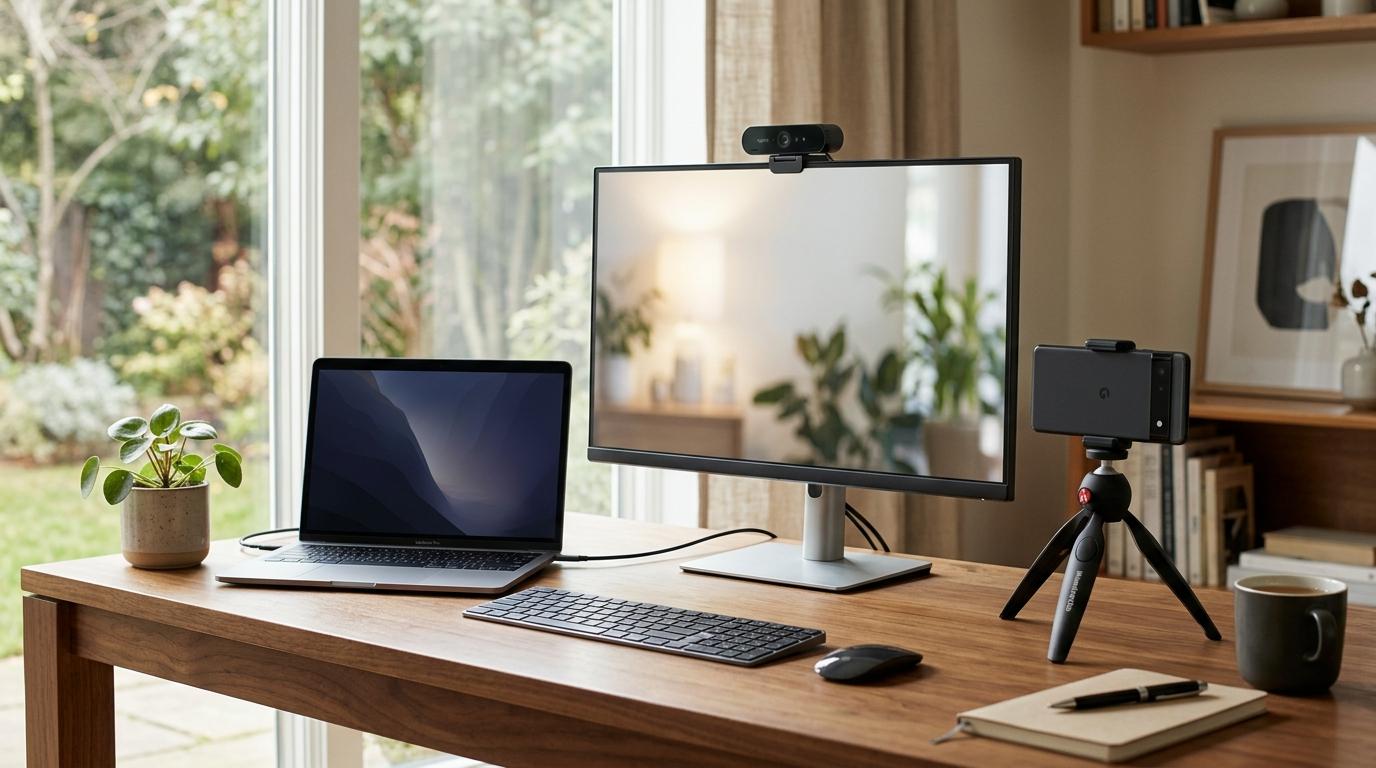
It makes the most sense if you work from the same desk most days, use an external monitor, or spend a lot of time on video calls.
Pros
#- Can stay mounted on your monitor
- Better placement and framing than many laptop cameras
- Usually better than older built-in laptop cameras
- More convenient than setting up a phone every time
- Great for external monitor setups
- Reliable for frequent daily calls
Cons
#- Costs extra
- Still needs good lighting
- Another device to pack if you travel
- Built-in webcam microphones are usually not great
- May not be a big upgrade if your laptop camera is already good
Best for
#- Home office setups
- Remote workers with daily meetings
- Teachers, trainers, and coaches
- Freelancers who regularly meet clients
- People using external monitors
- Anyone who wants a camera that is always ready
Avoid if
#- Your real problem is poor lighting
- Your laptop camera already looks good
- You only take occasional casual calls
- You travel often and want less gear
- Your audio needs improvement more than your video
Bottom line
#Buy an external webcam if you want a simple, dependable setup for regular work calls. It may not always beat a phone for image quality, but it is usually much easier to live with every day.
Quick Decision Guide
#Use your laptop camera if:
#- Your laptop is fairly modern
- Your video looks clear in good lighting
- You mostly join internal calls or classes
- You work from different places
- You want the least complicated option
Use your phone as a webcam if:
#- You want better image quality without buying a webcam
- You already have a good smartphone
- You can mount it securely
- You don’t need your phone during meetings
- You’re okay with a little setup before calls
Buy an external webcam if:
#- You work from a fixed desk
- You use an external monitor
- Your built-in camera looks bad
- You take frequent work, client, or teaching calls
- You want something that is always plugged in and ready
Laptop Camera vs Webcam: What Actually Improves?
#The difference is not only resolution.
An external webcam can help because you can put it in a better position, usually on top of your monitor at eye level. That alone can make you look more natural and engaged.
A webcam may also perform better in low light than an older laptop camera. But if your laptop already has a good 1080p camera and your lighting is decent, the improvement might not be huge.
So before buying, ask yourself:
What problem am I actually trying to solve?
- If your image is dark or grainy, improve the lighting first.
- If the angle is awkward, raise your laptop or move the camera.
- If you want the easiest daily setup, an external webcam is usually best.
- If you want the sharpest image, your phone may be the better choice.
External Webcam vs Phone as Webcam: Which Is Better?
#For pure image quality, a phone often wins. Smartphone cameras are designed for high-quality photos and video, and the software processing is usually very good.
For everyday convenience, an external webcam usually wins. It stays in place, turns on when your meeting starts, and doesn’t take over your phone.
A simple breakdown:
- Best image quality: phone as webcam
- Best everyday convenience: external webcam
- Best no-cost option: laptop camera
- Best permanent desk setup: external webcam
- Best occasional upgrade for important calls: phone as webcam
If you only have one or two important calls a week, using your phone may be worth the extra setup. If you’re on calls all day, an external webcam will probably feel less annoying.
Common Mistakes to Avoid
#1. Buying more resolution to fix bad lighting
#A 4K webcam will not magically fix a dark room.
Video-call apps also compress video, so lighting and framing often matter more than the resolution number on the box. Start with better light, then decide whether the camera is still a problem.
2. Ignoring the microphone
#Many webcams include microphones, but they’re usually only okay as a backup.
If your voice sounds echoey, muffled, or far away, people will notice that more than slightly soft video. A headset or USB microphone may make a bigger difference than a new camera.
3. Keeping the camera too low
#A better camera at a bad angle still looks bad.
Before buying anything, raise your laptop or monitor so the camera is closer to eye level. Good framing can make even an average camera look much better.
4. Using your phone when you need your phone
#A phone webcam setup can be awkward if you regularly need your phone for messages, notes, authentication codes, or quick checks during meetings.
If your phone is part of your meeting workflow, think carefully before turning it into your main camera.
5. Making your setup too complicated
#A setup that looks great but takes five minutes to prepare can get old fast.
If you join unexpected meetings often, choose something simple and reliable. For many people, that means either improving the laptop camera setup or leaving an external webcam mounted on the monitor.
Final Recommendation
#If your laptop camera is fairly modern, start there. Improve the lighting, raise the camera to eye level, and test it in your actual meeting app before buying anything.
If you want the best image quality from gear you already own, try using your phone as a webcam. Just make sure you have a stable mount and that you’re okay not using your phone during the call.
If you take frequent work calls from the same desk, buy an external webcam. It’s the most balanced option for daily use because it’s simple, stable, and ready whenever you need it.
The smartest choice is not always the most expensive camera. It’s the setup that helps you look and sound clear with the least hassle.