The tiny desk problem nobody warns you about
#My first “proper” home office desk was 39 inches wide, wobbly, and shoved into the corner of a bedroom where the door hit the chair if I leaned back too far. Very glamorous stuff. I had a laptop, a monitor, a USB hub, a charger, a lamp, a keyboard, a mouse, a cheap webcam, headphones, and somehow twelve cables for seven things. I still don’t understand the math there. The whole setup worked, technically, but it looked like a robot had coughed behind my desk. And honestly, it wasn’t just ugly. It was annoying and kinda unsafe. Cables were warm, plugs were half-hidden, my chair kept rolling over the laptop charger, and every time I wanted to clean the desk I had to unplug half my life. That’s when I got weirdly obsessed with small desk cable management. Not the Instagram version with perfect white walls and one plant. The real version. The version where you need your stuff to work, not catch fire, and not make you swear every Tuesday morning.
Before making it pretty, make it not-dangerous
#I know, I know, safety talk sounds like the part everyone skips. I used to skip it too, until I noticed one of my old extension cords had this slightly melted smell near the plug. Not dramatic smoke or sparks or anything, just that warm plastic smell that makes your brain go, um, maybe stop being an idiot. The basic rules are boring because they’re true: use UL, ETL, or similarly listed power gear, don’t daisy-chain power strips into other power strips, don’t run power cords under rugs, and don’t keep using cables with cracked jackets, bent prongs, or exposed wire. Most normal home office power strips in the US are rated around 15 amps, often 1800 watts max, but that does not mean you should treat the thing like a mini power station. A laptop, monitor, lamp, speakers, and phone charger is usually fine. A space heater on the same strip? Nope. Please don’t. Those things pull a lot and they belong straight in the wall if the manufacturer says so.
Cable management isn’t just “hide the mess.” It’s really “make the mess predictable, reachable, and boring enough that nothing overheats or gets yanked out mid-meeting.”
My small-desk rule now: fewer gadgets first, cleaner cables second
#This took me way too long to learn. I kept buying cable clips and sleeves and little magnetic things, but the real mess was that I had too much gear for the space. A small desk doesn’t forgive extra accessories. If you add a webcam, mic, dock, light bar, Stream Deck, speakers, charger, and two monitors, congratulations, you now own a cable aquarium. So before you route anything, decide what actually earns its spot. For work calls, for example, I eventually stopped using a separate webcam on my laptop-only days because it was one more cable and one more clamp. If you’re still choosing, this comparison of External Webcam vs Phone as Webcam vs Laptop Camera: What Should You Use for Work Calls? is exactly the kind of decision that affects cable clutter more than people admit. Same with audio. A USB mic sounds nice, but it can mean a stand, cable, and desk space. A headset may be less fancy, but tidier. There’s a good breakdown here: USB Microphone vs Headset: Which One Should You Buy for Work Calls?.
- Keep the things you touch daily on the desk: keyboard, mouse, maybe a notebook, maybe headphones. Everything else needs to justify itself like it’s paying rent.
- If a device has a cable that crosses your writing space, it’s in the wrong place. I don’t care how cool it looks in product photos, it will drive you nuts by Friday.
- One good dock or hub can simplify a laptop desk, but a cheap mystery hub with loose ports can also create random disconnects. Ask me how I know. Actually don’t, I’m still annoyed.
Map your desk like a tiny city
#This sounds overkill, but I swear it helps. I treat a small desk like a tiny city with zones. Power zone, data zone, human zone, and “stuff I’ll regret buying” zone. The power zone is where the surge protector, chargers, and power bricks live. The data zone is USB, HDMI, DisplayPort, Ethernet, audio, and whatever else connects devices together. The human zone is the area your hands, knees, feet, chair wheels, and coffee mug occupy. The goal is simple: power and data can cross if they must, but they should not create traps in the human zone. My first mistake was mounting a power strip right where my knee went. Every time I sat down, I bumped the switch and killed my monitor. For like two weeks I blamed Windows sleep settings. Nope. Just my knee being an absolute menace.
Power zone: accessible beats invisible
#A lot of cable management photos hide the power strip so well you’d need a dentist mirror to find it. Looks clean, but I don’t love that. If a plug gets hot, if you need to unplug during a storm, or if something starts making a wierd buzzing noise, you want access. I like mounting the power strip under the desk near the back edge, switch facing outward or down where I can reach it without crawling like a raccoon. Use proper screws if the strip has mounting slots, or a rated under-desk tray. Adhesive strips can work for light stuff, but heat, dust, and humidity eventually win. Mine fell off at 1:13 AM once and it sounded like the desk exploded. For power bricks, don’t stack them all in a sealed box. They need airflow. Laptop chargers and USB-C PD chargers can get warm under load, and warm is fine, hot-to-touch is a warning sign.
Data zone: give cables a calm little highway
#Data cables are usually safer than power cords, but they still deserve respect. HDMI and DisplayPort cables hate sharp bends. USB-C cables are tougher than they look until they suddenly aren’t. Ethernet cables can be coiled loosely, but don’t kink them into sad origami. I try to run data cables along the back underside of the desk with Velcro ties, not zip ties. Zip ties are cheap and neat, sure, but people crank them down like they’re restraining a wild animal. That can pinch cable jackets and make swapping gear painful. Velcro is forgiving. Also, keep a tiny slack loop near moving things like monitor arms or laptop stands. If your monitor arm rises and the cable is pulled tight, the port takes the stress. Ports are expensive to fix and emotionally devestating when they break because you wanted the desk to look “clean.”
| Thing I use | Why it helps on a small desk | Safety note I learned the hard way |
|---|---|---|
| Velcro cable ties | Easy to reopen when you change gear | Don’t cinch them super tight |
| Under-desk cable tray | Gets bricks and extra length off the floor | Leave ventilation around chargers |
| Adhesive cable clips | Great for mouse, keyboard, and USB cables | Clean the surface first or they fall off |
| Surge protector with mounting holes | Keeps plugs in one reachable place | Use a listed model and don’t chain strips |
| Cable sleeves | Makes several cables act like one route | Don’t hide damaged power cords inside them |
My actual reset process, when the desk is already a disaster
#When my desk gets messy, I don’t try to fix it while everything is plugged in. That way lies madness. I do a full reset, and yeah it takes an hour or two, but it saves me months of irritation. First, I take photos of the current setup from the front, back, and underneath. This is not for nostalgia. It’s because I will absolutely forget which USB cable went where. Then I shut everything down properly and unplug from the wall before moving power stuff. I lay every cable on the floor and sort by purpose: power, display, USB, audio, network. Then I ask the rude question: do I still need this? I once found an old printer USB cable plugged into nothing. Just living there. Paying no rent. Causing chaos.
- Start with the wall outlet and power strip placement. Put power somewhere reachable, dry, and away from chair wheels. Don’t put power bricks where your feet rest. It’s uncomfortable and also just dumb, which I say with love because I did it.
- Route the thickest cables first. Monitor power, laptop charger, dock power, and display cables decide the shape of the whole setup. Small USB cables can adapt later, like little obedient noodles.
- Add service loops. That means a little extra cable length near devices so you can pull the laptop forward, raise the monitor, or unplug something without ripping the entire cable bundle apart.
- Label both ends if you have more than three similar cables. Masking tape works. Fancy labels are nice, but a handwritten “MONITOR USB” tag has saved me from crawling under the desk so many times.
- Test everything before making it beautiful. I repeat: before. I once sleeved four cables perfectly, clipped them under the desk, stood back proud as anything, then realized the webcam cable wasn’t plugged into the dock. Pain.
What to do with routers, modems, and network spaghetti
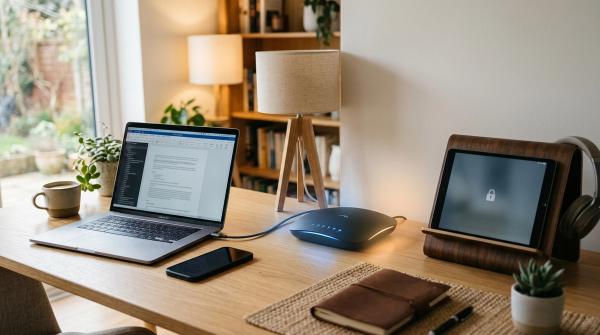
#Some people have the router on the same small desk because the apartment layout leaves no choice. I’ve been there. The modem lived beside my monitor for a whole year, blinking like a tiny judgemental spaceship. If network gear has to sit on or near your desk, give it air and keep it upright if the design expects that. Don’t bury it in a cable box with warm power bricks. Heat can make networking gear flaky, and flaky Wi-Fi is one of those problems that makes you question your whole life. Use a short Ethernet cable if the router is right there, not a 25-foot coil behind the monitor. And after you tidy the cables, it’s honestly a good moment to check the digital side too, like passwords, firmware updates, guest networks, and connected devices. This Home Wi‑Fi Security Checklist: Router Settings to Change First fits nicely after the physical cleanup because tidy cables and messy router settings is a very “I fixed half the problem” situation.
Cable boxes are useful, but they can become little ovens
#I have mixed feelings about cable boxes. They look great. They hide the ugly power strip and the chunky laptop brick and the extra cable loops. But some people treat them like magic safety containers, and they are not that. If you use one, don’t overstuff it. Make sure there are vents. Keep fabric, paper, and random clutter out of it. Don’t put a hot power supply under a pile of coiled cords and then close the lid like you’ve solved science. Also, cable boxes on the floor collect dust, pet hair, and the occasional lost snack crumb. Dust plus heat is not my favorite combo. I prefer an open under-desk tray for power and a sleeve or raceway for the visible cable drop. It’s less “Pinterest perfect,” but it’s easier to inspect. And inspection matters. Every few months, I run my hand near plugs and bricks after the setup has been working for a while. Warm is normal. Hot, buzzing, discoloration, or a burnt smell means stop using it and figure out why.
Standing desks and moving parts need slack, not hope
#If you use a sit-stand desk, cable management gets extra spicy. The desk moves, but the wall outlet does not, which is apparently something my brain forgot the first time I raised mine. The monitor blinked off, the dock shifted, and the power strip made a very rude clunk. For standing desks, put the desk at its highest position before you finalize cable lengths. Route the main cable bundle along a flexible path, usually down one leg, with enough slack for the full travel. Some desks come with cable trays and clips, but they’re often minimal, like the manufacturer gave you four clips and a prayer. A cable spine can help if you have multiple cords going down to the floor, but again, don’t pack it so tight that cables can’t move gently. Moving cables should glide, not tug. And check it again after a week because cables settle into new positions in a way that feels almost suspicious.
The under-desk setup that finally worked for me
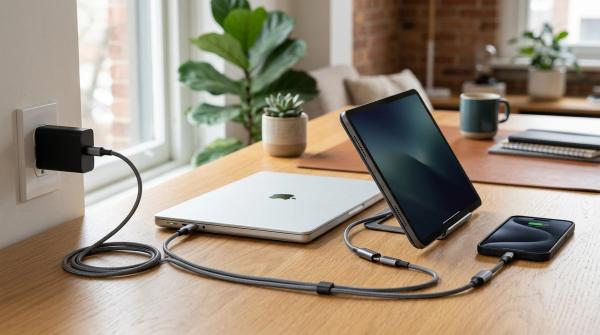
#My current small desk is not perfect, but it’s the first one that doesn’t make me angry. I mounted a metal cable tray under the back edge. The surge protector sits in that tray with the switch facing the side where I can reach it. Laptop charger and monitor power brick sit beside it with space around them. Display cable and USB-C cable run from the monitor arm down into the tray, then one USB-C cable comes forward to the laptop stand. Keyboard and mouse are wireless now, partly because it’s cleaner and partly because I got tired of dragging cables across notebooks. Headphones hang on a side hook, and their charging cable is clipped to the back corner so it doesn’t wander off. There’s one visible cable drop to the outlet. One. I’m weirdly proud of that. Like, I have achieved adulthood, but only in this very specific cable-related category.
Tiny desk upgrades that are actually worth it
#You don’t need to buy a giant kit. In fact, some of those huge cable management bundles are mostly filler. For a small desk, I’d rather buy fewer, better pieces. A solid clamp-on power strip holder or screw-mounted tray beats twenty plastic clips you’ll never use. A monitor arm with cable channels can free up desk space and hide display cables nicely, though cheap arms can wobble if your monitor is heavy, so check weight limits. A laptop stand helps airflow and gives cables a consistent exit point, but make sure it doesn’t block vents. Shorter cables are nice when they fit, but don’t buy everything short. Too-short cables create tension, and tension is what slowly damages ports. My boring favorite purchase is still a pack of reusable Velcro ties. Not sexy. Not smart-home. Not app-controlled. Just useful, which is honestly what half of tech should aspire to be.
Stuff I stopped doing because it was dumb
#I stopped wrapping cables around power bricks super tight. It looks neat, but it stresses the cable right where it enters the brick, which is usually the weak spot. I stopped leaving chargers plugged in on the floor where my chair could roll over them. I stopped buying six-foot cables for devices sitting six inches apart. I also stopped pretending every cable needed to be hidden. Some visible cables are fine if they’re safe, tidy, and easy to unplug. This is where I contradict myself a little: yes, I love a clean desk, but I don’t want a setup so hidden that troubleshooting becomes archaeology. If your monitor stops waking up and you need to remove a drawer, cut three zip ties, and whisper a prayer to reach the HDMI cable, the cable management has failed. Pretty is not the same as good. Good means safe, stable, and understandable by future-you, who will be tired and probably holding coffee.
Quick safety checks I do now and then
#Every month or so, usually when I’m already procrastinating, I do a lazy safety check. I look for pinched cables behind the desk. I check that the power strip hasn’t slipped or loosened. I touch power bricks to see if any are hotter than usual. I make sure the cable drop to the wall has not become a foot trap. I vacuum dust from the floor area because dust bunnies love cable corners like it’s their ancestral home. I also check that plugs are fully seated. Half-plugged adapters freak me out, especially heavy wall warts that sag out of outlets. If you see browning, melting, cracking, buzzing, sparks, or smell burning plastic, don’t “keep an eye on it.” Unplug it safely and replace the bad part. That sounds obvious, but people, including me, ignore obvious things when the setup is otherwise working.
A small desk can still feel like a proper command center
#That’s the thing I love about this whole nerdy process. Cable management isn’t just cleaning. It changes how the desk feels. When cables stop snagging, when the laptop connects with one cable, when the floor is clear and you can actually vacuum without unplugging the internet, the whole workspace feels calmer. I’m more likely to sit down and build stuff, write, edit photos, mess with hardware, whatever. And yeah, I still have days where a new gadget ruins the whole system. Tech setups are living things, basically. You add one USB light and suddenly everything needs rethinking. But if you build around safety first, access second, and aesthetics third, it’s much easier to adjust without starting from zero. If you’re staring at a tiny desk right now with cables hanging like vines, don’t try to make it perfect tonight. Unplug safely, remove what you don’t need, route power carefully, give cables slack, and make it better than yesterday. That’s enough. And if you’re into practical tech rabbit holes like this, I’ve been finding more good reads over on AllBlogs.in, so yeah, worth a look when you’re done wrestling the cable monster.