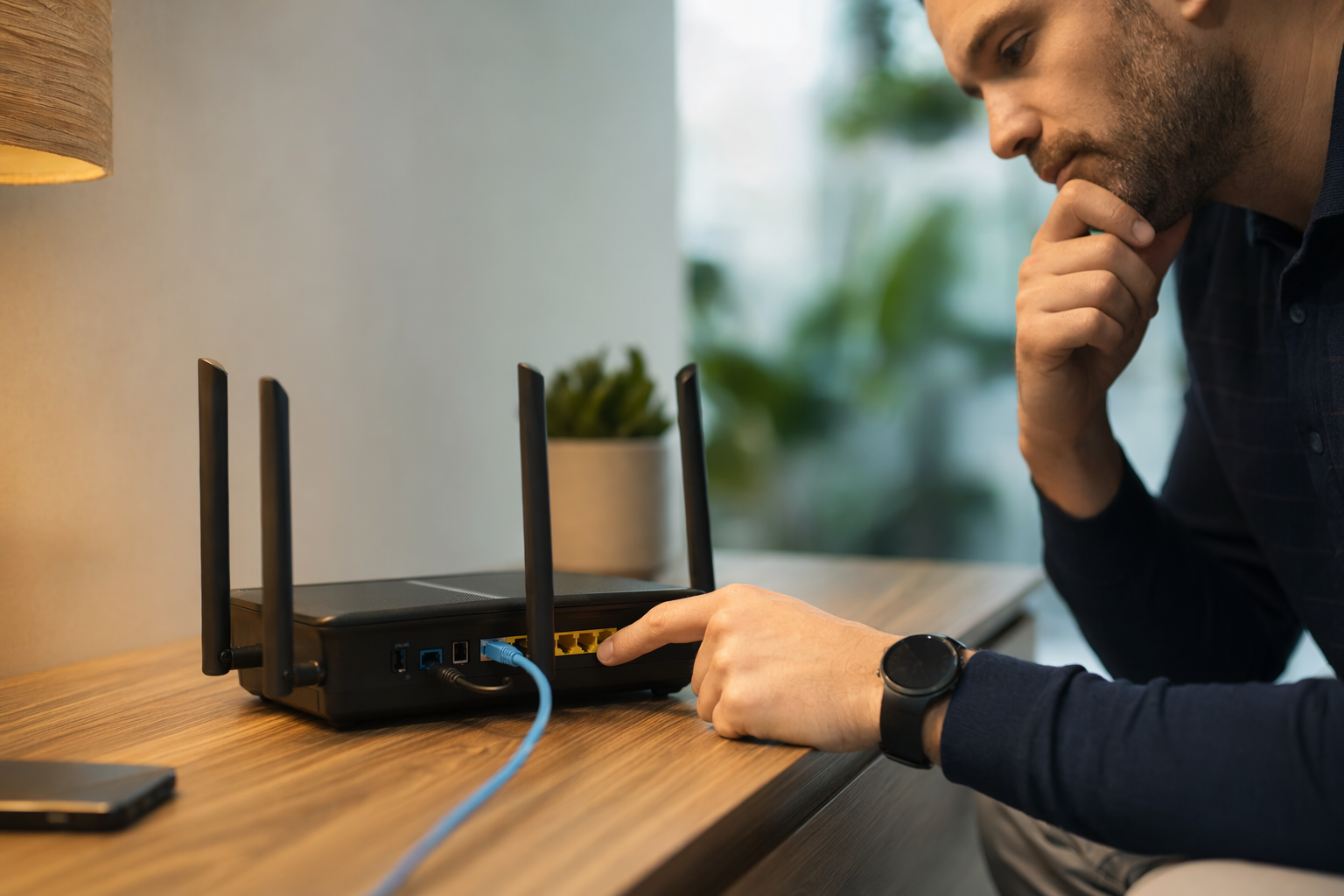
The router is boring… until it’s suddenly the most important box in your house
#I used to treat my router like a toaster. Plug it in, curse at it when it stops working, maybe reboot it by yanking the power cable like some kind of caveman IT department. That was basically my whole “network security strategy” for years, and honestly, I’m a little embarrassed about it now. The funny thing is, the router is the front door to everything. Your laptop, phone, smart TV, baby monitor, work stuff, that weird Wi‑Fi plug you bought during a sale and forgot about… all of it is hanging off that one little plastic box blinking in the corner.
And no, I’m not saying you need to become a cybersecurity wizard or start running enterprise firewalls in your laundry room. Please don’t. I’ve done the overkill thing, and it turns into a hobby that eats weekends. But there are a bunch of router settings you should change first, like right after setup, before you start worrying about fancy stuff. Some of them take two minutes. Some are buried in menus with names that sound like they were translated three times. Still worth it.
A lot of the advice here lines up with the boring-but-correct guidance you’ll see from places like CISA, the FTC, and router makers themselves: update firmware, use strong encryption, change default passwords, disable risky remote access, and segment untrusted devices. Nothing mystical. Just basic hygiene that people skip because the router “already works.” I skipped it too. Then I found an unknown device on my network named something like android-3f9d2 and spent a whole evening being paranoid. Fun night.
Start here: log into the router and change the admin password
#This is the first thing. Not the Wi‑Fi password yet, the router admin password. They’re different, and this trips people up all the time. Your Wi‑Fi password lets devices join your network. Your admin password lets someone change the router settings. If that admin password is still admin/admin, admin/password, or whatever came printed on a sticker from 2017, that’s bad. Like, really bad.
I helped a relative with this once and their router still had the factory admin login. The Wi‑Fi password had been changed, sure, but the admin panel was wide open to anyone already connected. So a neighbor’s kid, a sketchy IoT device, or malware on one laptop could theoretically mess with DNS settings, port forwarding, guest access, all of it. And the person thought they were secure because “the password is long.” Wrong password, wrong door.
- Use a unique admin password that you don’t use anywhere else. A password manager is perfect for this, even if you only use it for boring infrastructure stuff.
- If your router supports separate admin usernames, change the default username too. Not magic security, but it removes the easiest guess.
- Turn on two-factor authentication for the router app or cloud account if your brand offers it. A few modern routers do, especially mesh systems.
Also write down where the setting lives, because future-you will not remember. Future-you is always overly confident and always wrong. Mine was.
Update the firmware before you trust anything else
#Firmware updates are the vegetables of home networking. Nobody gets excited about them, but skipping them is how things get gross. Router firmware fixes security holes, stability bugs, weird Wi‑Fi dropouts, and occasionally adds better security options like WPA3 support or improved device controls. The problem is routers often sit there for years, quietly becoming ancient.
Go into the router admin page or app and look for Firmware, Software Update, System Update, or something close. If there’s an auto-update option from a reputable manufacturer, I usually turn it on. I know some people hate auto-updates because “what if it breaks something,” and yeah, fair. I’ve had one update mess with port forwarding. But for normal households, the security benefit is usually worth it. If you don’t enable automatic updates, put a reminder on your calendar every couple months. Actually do it, not just the pretend productivity thing where you create the reminder and ignore it forever.
One important thing: if your router hasn’t recieved updates in years, it may be time to replace it. That sounds wasteful, I know. But unsupported networking gear is like leaving an old phone on the internet forever. It might still work, but “works” and “safe” are not the same thing. This is especially true if your router was provided by an ISP ages ago and has been sitting under a shelf collecting dust and heat.
Change the Wi‑Fi network name, but don’t get too clever
#The network name, or SSID, is not a password. It’s just the name people see when they browse nearby Wi‑Fi. I still change it from the default though. Default names can reveal the router brand or model, and while that isn’t instant doom, it gives attackers or bored neighbors a hint. “NETGEAR47” or “TP-Link2.4GABC” tells more than it needs to.
But don’t name it after your full address, your last name, or “FBI Surveillance Van” because somehow that joke will never die. I like boring names. Something random-ish, not personal, not scary, not funny enough to attract attention. My current one is just a short phrase that means nothing to anyone else. Kind of ugly, honestly, but that’s fine. Wi‑Fi names are not where I need to express my personality.
And if you have separate 2.4 GHz and 5 GHz networks, you can either name them separately or let the router combine them with band steering. I go back and forth on this. Combined is cleaner for normal people. Separate is nice when you have smart-home junk that only works on 2.4 GHz and acts like 5 GHz is a personal insult. There’s no one perfect answer here, which is annoying but true.
Use WPA3 if you can, WPA2-AES if you can’t
#This is probably the most important Wi‑Fi setting after passwords. Look for the security mode. You want WPA3-Personal if all your devices support it. If not, WPA2-Personal with AES is still the normal safe baseline for many homes. What you do not want is WEP, WPA, or WPA2 with TKIP. If you see WEP, I’m sorry, your router is basically a museum exhibit.
Some routers have a mixed WPA2/WPA3 mode, which can be useful if you’ve got older devices. I used mixed mode for a while because one ancient printer refused to connect otherwise. Printers are, in my deeply held opinion, cursed objects. But if everything you own supports WPA3, great, go WPA3-only. If something breaks, you can troubleshoot from there.
Now the Wi‑Fi password itself. Make it long. Don’t do clever substitutions like P@ssw0rd123 because attackers have known that trick since forever. A long passphrase is easier to type and harder to guess. Think four or five random words, maybe with numbers, but not a quote everyone knows. The longer the better, within reason. I once used a password so annoying that guests would sigh before typing it, and that was maybe too much. Security should not make your own house miserable.
Tiny encryption checklist, because this one matters
#- Best option: WPA3-Personal, if your devices behave with it.
- Good fallback: WPA2-Personal using AES.
- Avoid: WEP, WPA, TKIP, or “open” networks unless it’s a very intentional guest setup with isolation.
- Use a long Wi‑Fi passphrase and don’t reuse your router admin password. Seriously don’t.
Turn off WPS, even if the button looks harmless
#WPS is the feature that lets you connect devices by pressing a button or entering a short PIN. It sounds convenient because it is convenient. That’s the trap. The PIN method in particular has a long history of being weak, and many security guides recommend disabling WPS completely. I turn it off on every router I touch. Button-based WPS is less awful than PIN-based, but I still don’t like leaving it on because I know somebody in the house will press random buttons while “fixing the internet.”
The setting is usually called WPS, Wi‑Fi Protected Setup, Push Button Connect, or something weirdly cheerful. Disable it. If a device is so old or badly designed that it only supports WPS and not typing a password, I’d question whether that device deserves a spot on your network. Harsh? Maybe. But I’ve been burned by cheap smart gadgets before, and now I’m grumpy about it.
Create a guest network before anyone asks for your password
#Guest Wi‑Fi is one of those features people ignore until they really need it. Then they panic and give out the main password to a contractor, cousin, neighbor, kid’s friend, or someone who “just needs to check one thing.” I’m not judging. I’ve done it. But once your main Wi‑Fi password spreads, it never really comes back. It lives in phones, tablets, old laptops, and probably one Nintendo Switch under a couch somewhere.
Set up a guest network with a different password. Turn on guest isolation if your router offers it, sometimes called “access intranet,” “local network access,” or “allow guests to see each other.” The wording is terrible, but the idea is simple: guests should get internet, not your printer, NAS, laptop shares, or smart-home hubs. If you want a deeper practical walkthrough, I’d point people to Guest Wi‑Fi vs. Sharing Your Main Password: A Safer Home Network Checklist, because this is exactly the kind of everyday decision that sounds small and then matters later.
I also use the guest network for some smart-home devices. Not everything, because certain hubs need local control and then it becomes a whole thing. But random bulbs, bargain plugs, old tablets used as dashboards… those go on the less trusted side if I can manage it. This isn’t perfect segmentation like you’d do with VLANs, but it’s way better than dumping every gadget into one big happy soup.
Disable remote administration unless you truly need it
#Remote administration means you can log into your router from outside your house. Sounds powerful. Also sounds like a thing most people do not need. If it’s enabled and badly secured, it gives attackers a login page to poke at from the internet, and that’s not the vibe we want. Go look for Remote Management, Web Access from WAN, Remote Admin, or Cloud Management settings.
Now, this gets a bit nuanced. Some mesh routers use cloud accounts for app-based management, and you may not be able to fully disable the cloud part without losing features. In that case, secure the account with a strong unique password and two-factor authentication if available. But old-school “access my router admin page from anywhere on port 8080” stuff? I turn that off. If I need to manage my home network while away, I’d rather use a VPN into my home network than expose the router admin panel. And even that is probably more than most households need.
Also check for open ports and port forwarding rules you don’t recognize. If you never set up a game server, camera system, media server, or remote desktop, there probably shouldn’t be a bunch of forwarded ports. Delete unknown rules, but take a screenshot first if you’re nervous. Screenshots have saved me from my own confidence more times than I want to admit.
UPnP: convenient, messy, and worth thinking about
#UPnP lets devices automatically open ports on your router. Game consoles love it. Some chat apps and smart devices use it. It can make things “just work,” which is why turning it off can cause headaches. But from a security perspective, UPnP is risky because malware or sketchy devices inside your network may ask the router to expose services without you noticing.
My personal take: if your household doesn’t game online or run apps that need it, turn UPnP off. If you do game, test before and after. You may decide the convenience is worth it, and I won’t yell at you. I used to leave UPnP on because my console got fussy without it. Later I replaced it with manual rules for the one device that needed help. That’s more work, yes, but also cleaner. Home security always has this annoying tradeoff between “safe” and “nobody complains at dinner.”
Check DNS settings, because this is where sneaky stuff gets ugly
#DNS is basically the phonebook your devices use to turn names into addresses. If a router gets compromised, attackers sometimes change DNS settings so you get sent to fake pages or weird ad networks. This is one of those settings nobody checks until something feels haunted. Like searches redirecting, bank sites acting odd, or every device getting the same sketchy pop-up.
Open your router’s internet settings and see what DNS servers are listed. If they’re set automatically by your ISP, that’s common. You can also choose reputable public DNS providers if you prefer, especially ones with malware filtering or family filtering. I’m not going to declare one “best” because people get strangely religious about DNS, and it depends on privacy, speed, filtering, and location. The important part is knowing what’s there. Unknown DNS entries are a red flag.
If you find weird DNS settings, unknown devices, or router changes you didn’t make, assume your accounts might need attention too. Your email is especially important because it resets everything else. I’d check the inbox tied to your router, ISP, and smart-home accounts, and this Recovery Email Security Checklist: Protect the Inbox That Protects Your Accounts fits that moment really well. If Gmail is acting suspicious after a scare, filters and forwarding rules are another sneaky place to look, and Gmail Forwarding and Filters Checklist: What to Check After a Hacked Gmail Scare is worth keeping handy.
Look at the connected devices list, even if it’s annoying
#Most routers have a device list: clients, connected devices, attached devices, network map, whatever. This list is both useful and deeply irritating, because half the devices identify themselves like “ESP_02A91C” or “unknown.” Still, check it. You should roughly know what’s on your network. Phones, laptops, TVs, consoles, speakers, thermostats, cameras, printers, maybe a washing machine if your appliances are too ambitious.
The first time I did a proper audit, I found three devices I couldn’t place. One was an old tablet in a drawer. One was a smart plug behind a bookshelf. One was my neighbor’s phone because I had shared the password months earlier and forgot. That last one made me rotate the Wi‑Fi password, which was mildly painful but also satisfying in that “cleaning out a junk drawer” way.
When you’re cleaning this up, don’t instantly panic over every unknown device. Modern phones use private or randomized MAC addresses, so the same phone may appear differently on different networks or after changes. That’s good for privacy, but annoying for home inventory. Rename devices in your router app when you identify them. “Living room TV” beats “unknown vendor 8C:whatever” by a mile.
Separate smart-home devices if your router makes it easy
#Smart-home gear is where home Wi‑Fi security gets messy. I love this stuff, maybe too much. Automations are fun. Lights that turn on when I walk in? Great. A sensor that tells me if the freezer door is open? Weirdly thrilling. But cheap IoT devices are not always built with security as priority number one. Or priority number five. Sometimes it feels like the priority list was “ship it, make app, collect email, done.”
If your router has an IoT network option, use it. Some newer consumer routers and mesh systems now include a dedicated IoT network or device isolation settings, which is a nice trend because normal people are not going to configure VLANs. If you don’t have that, use the guest network for devices that only need internet. Keep computers, phones, and storage devices on the main network.
This isn’t foolproof. Some smart-home ecosystems need your phone and device to be on the same local network for setup or control, and then you’ll be temporarily switching networks and muttering at an app that says “device not found” while the device is clearly blinking at you. Been there. But even partial separation helps. The goal is reducing blast radius, not building Fort Knox in a rented apartment.
Turn off features you don’t use: file sharing, media servers, and random extras
#Routers have gotten weirdly feature-packed. USB file sharing, DLNA media servers, print servers, FTP, built-in download managers, VPN servers, parental controls, cloud storage tie-ins, analytics, voice assistant integrations… some are useful, some are fine, and some feel like they were added because a product manager needed a bullet on the box.
My rule is simple: if I don’t use it, I disable it. Especially anything that shares files or exposes management features. A USB drive plugged into a router can be handy, but if it’s configured poorly, it can turn into a network share you forgot existed. Same with media servers. Same with router cloud features. Less stuff running means fewer things to update, fewer settings to misconfigure, and fewer surprises when you’re half asleep trying to figure out why the internet is slow.
While you’re in there, check notifications and logs. Some routers can alert you when a new device joins or when admin settings change. I love this feature when it works and hate it when it screams about every randomized MAC address like the sky is falling. Still, alerts are useful. You can tune them later.
Change the default LAN settings only if you know why
#There’s a common tip that says to change your router’s default IP range, like from 192.168.1.1 to something less common. Is it mandatory? No. Does it help a tiny bit in certain attacks or with VPN conflicts? Sometimes. I’ve changed mine mostly because I tinker with VPNs and lab gear, not because I think 192.168.1.1 is evil.
For most people, this is lower priority than passwords, firmware, WPA settings, WPS, guest Wi‑Fi, and remote admin. I’m mentioning it because people love to include it in checklists and make it sound critical. It’s not first-hour critical. If you’re comfortable, sure, change the LAN subnet and write it down. If you’re not, don’t break your network chasing tiny gains while leaving WPS on. That would be like installing a fancy lock on the garage while the front door is open.
Back up your router settings after you clean it up
#Once you’ve got everything configured, look for a backup or export settings option. Not every router has it, especially some app-only systems, but many do. Save the backup somewhere safe, ideally not just on the one laptop that is already making a clicking sound. This is boring until the router factory-resets itself during a storm or you replace hardware and can’t remember your carefully chosen settings.
Also take screenshots of important pages: Wi‑Fi settings, guest network, port forwarding, DNS, DHCP reservations. I know screenshots are not glamorous, but they work. I have a folder called “network stuff” and it is not organized beautifully, because I am a person with flaws, but it has saved me repeatedly.
My quick “change these first” checklist
#- Change the router admin password. Make it unique and store it somewhere sane.
- Update firmware, then enable automatic updates if your router supports it and you’re comfortable with that.
- Change the SSID from the default, but don’t use personal info like your name or address.
- Use WPA3-Personal if possible, or WPA2-Personal with AES as the fallback.
- Set a long Wi‑Fi passphrase. Not cute, not reused, not written on a sticky note in the window. Please.
- Disable WPS, especially PIN-based WPS.
- Create a guest network with device isolation, and stop handing out your main password like candy.
- Disable remote administration from the internet unless you have a real reason and know how it’s secured.
- Review UPnP, port forwarding, DNS settings, and connected devices.
- Put smart-home and guest devices on a separate network when practical.
Final thought: don’t let perfect security stop you from doing basic security
#This is the part I wish someone had told me earlier. Home Wi‑Fi security doesn’t have to be perfect to be worth doing. You don’t need a rack-mounted firewall, three VLANs, custom DNS filtering, and a spreadsheet of MAC addresses to be safer than you were yesterday. Honestly, most homes would be massively better off just changing the admin password, updating firmware, using WPA2/WPA3 properly, disabling WPS, and setting up guest Wi‑Fi.
The router is easy to ignore because it’s quiet. It doesn’t ask for attention unless the internet dies, and then everybody in the house suddenly becomes a network critic. But spend one evening on these settings and you’ll sleep a little better. Or at least you’ll stop wondering why there’s a device named “unknown” eating bandwidth at 2 a.m. Maybe.
I still make mistakes with this stuff. I still forget where a vendor hid a setting. I still occasionally unplug the wrong cable and create a tiny household crisis. But learning how your home network works is genuinely empowering, in a nerdy but practical way. If you’re on a tech-cleanup kick, keep going, and maybe browse AllBlogs.in too, because casual checklists like this are honestly how most of us learn without turning everything into a certification course.