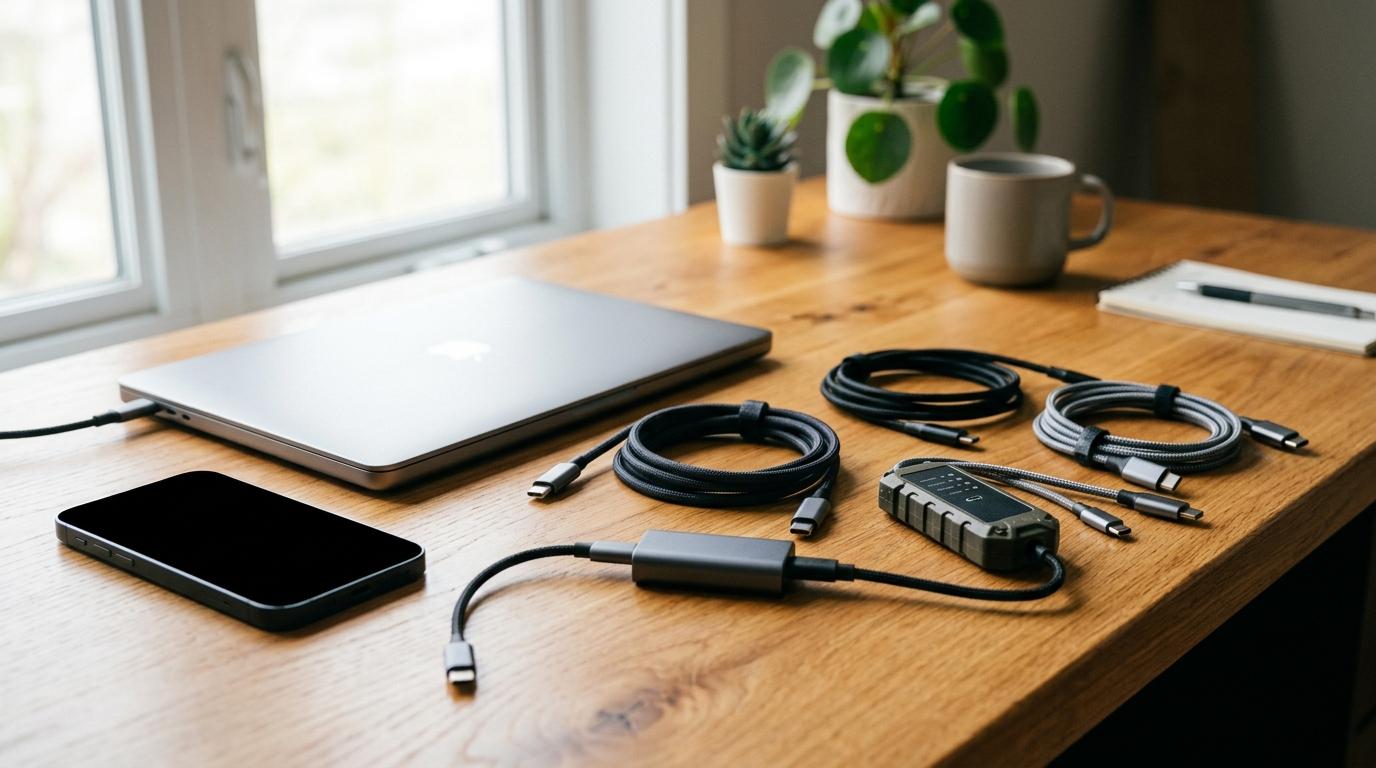
If you’re trying to choose between a USB-C cable tester and a USB power meter, here’s the honest answer:
- Buy a USB power meter if your device is charging slowly and you want to see what’s really happening.
- Buy a USB-C cable tester if you have a drawer full of mystery cables and want to sort the good ones from the bad.
- Buy a replacement cable if you only have one suspect cable.
- Buy nothing yet if you haven’t tried the basic checks first.
Most charging problems don’t need fancy tools. Often, the fix is boring but effective: clean the port, try a charger you know works, and swap in a properly rated cable.
Short answer
#If your problem is slow charging, buy a USB power meter because it shows live watts, volts and amps. If your problem is a drawer full of unknown cables, buy a USB-C cable tester because it checks basic wiring and continuity. If only one cable is damaged, replace the cable first.
Who this guide is for
#This guide is useful if you are:
- A remote worker whose laptop charges slowly from a USB-C charger.
- A student trying to figure out why a tablet or power bank takes forever to charge.
- A creator using phones, cameras, SSDs, hubs and USB-C monitors.
- A family with a messy drawer full of random USB-C cables.
- Someone buying a GaN charger, power bank or new USB-C cable and trying to avoid trial and error.
What to check before buying any tool
#Before you spend money on testers, do the simple checks first. Many USB-C charging problems come from dust, heat, cheap cables, charger mismatch or battery settings.
Check the USB-C port
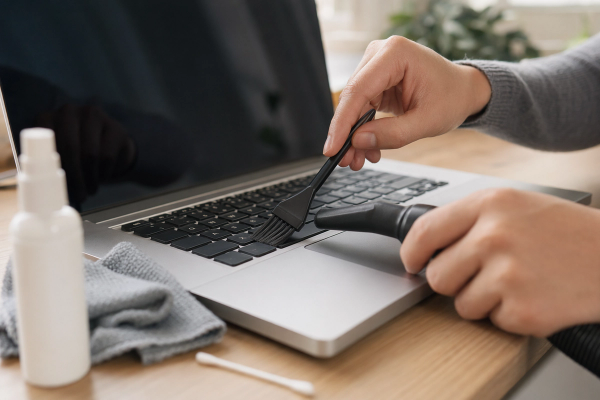
#Pocket lint can pack itself deep inside a phone or laptop port. Use something non-metal, like a wooden toothpick or plastic pick, and clean gently.
Do not scrape hard. Do not use metal pins. Do not keep testing if the port looks burnt, wet, loose or physically damaged.
Try a known-good charger and cable
#Use a charger and cable that already work properly with another device. If your phone or laptop charges normally with that setup, your old cable or charger is probably the problem.
Check battery level and heat
#Charging speed is not constant. Devices often charge faster when the battery is low and slow down as the battery fills. Heat can also slow charging. Test again when the device is cool and not already near full battery.
Confirm the charger and cable rating
#A laptop that needs 65W or 100W will not charge properly from a small phone charger. Many basic USB-C cables support up to 60W. Some laptops need a 100W cable, while newer high-power setups may need a 240W cable.
For higher power levels, the cable usually needs an e-Marker chip.
If you’re already replacing your cable, read our USB-C Cable Buying Guide India: Fast Charging, Data Speed and Safety Checks.
USB-C cable tester vs USB power meter vs multimeter vs replacement cable
#USB power meter
#A USB power meter is an inline tool. You plug it between the charger and your device, and it shows live charging information such as voltage, current and watts.
In plain English, it tells you what is happening while your device is charging.
Best for
#- Diagnosing slow charging.
- Comparing wall chargers, laptop chargers and power banks.
- Checking whether a device is drawing 15W, 30W, 65W, 100W or less.
- Watching how charging speed changes as the battery fills.
- Testing whether a new charger upgrade actually helps.
Avoid if
#- You want to check every internal wire inside a cable.
- You want to confirm data speed or video support.
- You expect it to fully certify a USB-C cable.
- You plan to leave it plugged in every day.
A basic USB-C power meter is a diagnostic tool. It is not something you should use as a permanent adapter.
If you think your charger may be the weak link, see our GaN Charger Buying Guide: 30W vs 65W vs 100W.
USB-C cable tester
#A USB-C cable tester is usually a small board or standalone device. You plug both ends of a cable into it, and it checks the cable’s internal wiring.
It can show whether important pins are connected, whether data wires are missing or whether the cable has an internal break.
Best for
#- Sorting a box of unknown USB-C cables.
- Finding damaged cables with broken internal connections.
- Checking whether a cable is charge-only or has data wiring.
- Finding cables that should be thrown away.
- People who regularly test accessories, hubs, chargers or repair setups.
Avoid if
#- You only want to know why one phone charges slowly.
- You want live charging wattage.
- You want a guarantee that a cable supports a certain fast-charging speed.
- You want full USB-C certification testing.
A USB-C cable tester can be useful, but it is not magic. Most basic testers mainly check wiring continuity. They do not replace careful buying or real-world charging tests.
Multimeter
#A digital multimeter can measure voltage, continuity and resistance. It is a common electronics tool, but USB-C is not the easiest thing to test directly.
USB-C connectors are tiny and packed with pins. If you poke around carelessly, it is easy to short something. To test USB-C safely, you usually need breakout boards that expose the pins properly.
Best for
#- Electronics hobbyists.
- Repair technicians.
- Engineers.
- People who already know how to test voltage and continuity safely.
Avoid if
#- You are just trying to fix one slow-charging phone.
- You do not understand basic electrical testing.
- You do not have USB-C breakout boards.
- You might probe a live USB-C port directly with sharp metal tips.
For normal charging problems, a multimeter is usually too much work and too easy to misuse.
Replacement USB-C cable
#Sometimes the best “tool” is just a better cable.
If one old cable is unreliable, frayed, loose, heating up or slow, replacing it is often cheaper and safer than buying a tester.
Best for
#- One bad or suspicious cable.
- A cable that disconnects when moved.
- A cable with visible damage.
- A laptop that needs more power than a basic cable supports.
- People who want the simplest fix.
Avoid if
#- You have many unknown cables and want to sort them.
- Multiple devices, chargers and cables are all acting weird.
- You need to compare real charging performance across setups.
If you are replacing a cable, choose it based on power rating, data needs and video needs. Do not buy only because the connector shape matches.
Quick decision guide
#- Buy a USB power meter if you want to know how much power your device is actually receiving.
- Buy a USB-C cable tester if you want to sort multiple cables and find broken or incomplete wiring.
- Buy a multimeter only if you already know how to test electronics safely.
- Buy a replacement cable if you have one obviously damaged or unreliable cable.
- Buy nothing yet if you have not tried a known-good charger and cable.
Step-by-step USB-C charging troubleshooting checklist
#- Inspect the cable for fraying, bent tips, loose fit, discoloration, heat marks or cracks.
- Clean and inspect the device port with a non-metal tool.
- Try a known-good cable while keeping the same charger.
- Try a known-good charger while keeping the better cable.
- Test when the device is cool and not already near full battery.
- Use a USB power meter if charging speed is still unclear.
- Use a USB-C cable tester if you have multiple mystery cables.
- Replace only the weak part once you identify it.
For more general charging behavior, you can also read 5 reasons your device might stop charging.
Common mistakes to avoid
#Assuming a power meter can certify a cable
#A basic USB-C power meter shows live electrical readings. It does not fully certify a cable or prove it meets every USB-C requirement.
Confusing charging speed with data speed
#A cable can support fast charging but still have slow data transfer. Some charging cables only support basic data. Some may not support video output at all.
Expecting maximum wattage all the time
#A 100W charger does not always deliver 100W. The device requests what it needs. Battery level, temperature, cable rating, charger support and device limits all affect the final number.
Buying a cable only because it says “fast charging”
#Look for the actual rating, such as 60W, 100W or 240W. Also check whether you need data transfer or video support.
Using cheap unknown testers at high power for long periods
#A low-cost meter can be fine for short checks, but do not push high sustained loads through poorly rated tools. If you are testing laptop-level charging, buy a meter rated for the power you plan to measure.
Leaving an inline meter connected every day
#A USB power meter adds length and leverage to the port. Use it for testing, then remove it.
Final takeaway
#For most USB-C charging problems, start simple.
Clean the port, try a known-good charger, try a known-good cable, and check whether the device is hot or nearly full. If one cable is the problem, replace it with a properly rated one.
If you still want a tool, choose based on the question you need answered:
- USB power meter: “How much power is my device actually receiving?”
- USB-C cable tester: “Is this cable wired correctly or damaged?”
- Multimeter: “Do I need deeper electronics-level testing?”
- Replacement cable: “Do I just need a reliable fix?”
For slow charging, get the power meter. For sorting mystery cables, get the cable tester. For one bad cable, save the money and replace it.