The weird little ritual I do before I enjoy a new phone
#I love getting a new phone. Like, embarrassingly love it. The peel-off plastic, the weirdly perfect battery health, the screen with no micro-scratches yet, the whole “I am a responsible adult with a fresh digital life” fantasy. But after setting up more phones than I can count, mine, my partner’s, my dad’s Android, my mum’s iPhone that she somehow fills with 19 weather apps, I’ve learned one annoying truth: the first hour with a new phone is when you either make it private-ish, or you basically hand it the keys to your whole life and hope for the best.
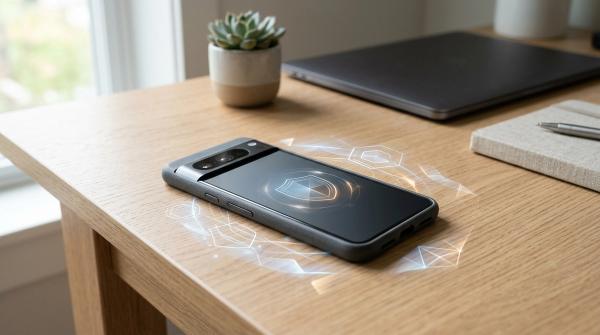
And yeah, modern phones are way better than they used to be. Apple has Stolen Device Protection now, Google added stronger theft and device protection stuff through Android updates, both iOS and Android have better permission controls than the old days where an app could just ask for everything and we’d tap “Allow” because we wanted the flashlight to work. Still, defaults are defaults. They’re usually designed to get you running fast, not necessarily to make you pause and think, “Do I really want this random wallpaper app knowing my precise location at 2:13am?”
So this is my new phone security checklist. Not the paranoid bunker version. I’m not telling you to wrap your SIM card in foil or move to the woods. This is the practical, slightly nerdy list I run through before I start installing all my usual apps and pretending I won’t spend the next three hours choosing a wallpaper.
Start with the lock screen, because everything else sits on top of it
#First thing: set a strong screen lock before you do anything fun. I know, boring. But the lock screen is the front door, and a lot of people treat it like a bead curtain. Use a 6-digit PIN at minimum, but honestly I prefer an alphanumeric password if you can stand typing it. Face ID, Touch ID, fingerprint unlock, all that biometric stuff is great for daily use, but you still need the passcode behind it to be solid.
On iPhone, go into Face ID & Passcode and look at what’s allowed when locked. I usually turn off access to Wallet, Control Center, USB accessories, and sometimes Reply with Message from the lock screen. The Control Center one matters more than people think, because if someone grabs your phone, you don’t want them instantly toggling airplane mode and making tracking harder. On Android, the wording changes depending on Samsung, Pixel, OnePlus, whatever, but look for lock screen settings and hide sensitive notification content. I don’t need my bank codes, WhatsApp previews, or delivery OTPs smiling at strangers from my lock screen.
Small confession: I used to leave message previews on because I liked glancing at stuff. Then one day I was in a coffee shop and my phone lit up with a very boring but very personal medical appointment text, right as the person beside me looked over. Not malicious, just awkward. Since then, previews are off. Convenience lost that round.
Turn on the “if this phone gets stolen” features now, not later
#This is the bit everyone says they’ll do later. Nobody does later. Do it while the phone still smells new. On iPhone, make sure Find My iPhone is enabled, Find My network is on, and Send Last Location is on. If your iPhone supports it and you’re on a recent iOS version, turn on Stolen Device Protection too. Apple introduced it in iOS 17.3, and the basic idea is honestly smart: when your phone is away from familiar places, certain account changes need Face ID or Touch ID and may be delayed. It helps against that horrible bar-theft scenario where someone watches your passcode, steals the phone, then tries to take over your Apple Account.
On Android, check Find My Device. Google expanded its Find My Device network in 2024, so supported Android devices and trackers can be located in more situations than before, depending on region and settings. Also look for Theft Protection features if they’re available on your device. Google has been rolling out things like Theft Detection Lock, Offline Device Lock, and Remote Lock through Android updates and Play services. The names may vary a bit, because Android is Android and apparently menus must be a treasure hunt, but search Settings for “theft” or “Find My Device” and you’ll usually land there.
Do the theft settings before you need them. It’s like buying a fire extinguisher while the kitchen is not currently on fire, which is the ideal time actually.
Update the phone before you trust it with your life
#I know updates are annoying. There’s always a spinning logo and your phone gets warm and you’re stuck staring at it like a microwave. But a new phone might not actually be running the newest security patch, especially if it sat in a warehouse for a bit. So before you add banking, password managers, work email, crypto wallets if that’s your thing, check for system updates.
On iPhone, that’s Settings, General, Software Update. On Android, it’s usually Settings, System, Software update, though Samsung tucks some stuff in its own update menu. Also update Google Play system updates on Android if your phone has that separate option. I don’t skip this anymore. Years back, I helped a friend set up a “brand new” phone that was months behind on patches, and we only noticed after he’d already logged into literally everything. Was it disaster? No. Did it make my eye twitch? Yes.
Sign in carefully, especially if you’re changing SIMs or numbers
#Account recovery is the unsexy backbone of phone security. When I set up a new phone, I check my Apple Account or Google Account recovery email, recovery phone number, and trusted devices. If an old phone is still listed and you sold it, remove it. If an old number is still attached and you don’t own it anymore, fix that urgently. Phone numbers get recycled, and it’s wild how many services still treat SMS like it’s a magical proof of identity.
If you’re changing your phone number at the same time, slow down a little. Banking apps, WhatsApp, two-factor authentication, email recovery, delivery apps, government logins, all of it can be tied to that number. I wrote down a checklist for my cousin when she switched carriers because she almost locked herself out of two accounts in one afternoon. This guide on Changing Your Phone Number? Do This Before You Switch fits perfectly here, especially if your “new phone day” is also “new SIM chaos day.”
Use a password manager before the app flood begins
#New phones make me notice how messy my logins are. I’ll install an app I haven’t opened in a year and suddenly it’s asking for a password from 2018, which I definately do not remember because past-me was apparently a raccoon with a keyboard. So yeah, use a password manager. Apple Passwords, Google Password Manager, Bitwarden, 1Password, Dashlane, whatever you actually use consistently. The best one is not the fanciest one, it’s the one you won’t abandon after three days.
Turn on passkeys where you can. They’re not everywhere yet, and sometimes the UX is still a bit “wait, where did my login go?”, but for big accounts they’re a nice upgrade because they reduce phishing risk. Also switch important accounts away from SMS two-factor if possible. Use an authenticator app, hardware security key, or built-in passkey-based login. SMS is better than nothing, but it’s not the final boss of security. It’s more like a wooden fence with a polite sign.
App permissions: say no first, change your mind later
#This is my strongest opinion in the whole post: don’t grant permissions during setup unless the app truly needs them right now. Apps are needy. A notes app wants contacts. A shopping app wants precise location. A camera filter app wants your entire photo library, microphone, tracking permission, maybe your blood type if it could ask. My default answer is no, or “Allow While Using,” or “Selected Photos,” and then if something breaks, I can always go back.
For location, I almost never allow “Always” access on day one. Weather can have approximate location. Maps can have precise location while using. Food delivery gets location while using, then I still watch it like a hawk because some of these apps are clingy. If you share live location with family or friends, review that too before you forget it exists. I’ve got a more focused walkthrough here: How to Share Your Location Safely: iPhone, Android, Google Maps and WhatsApp Privacy Checklist, and honestly it’s worth doing because live location is one of those things that starts as helpful and quietly becomes creepy if you leave it on forever.
Photos are another big one. On iPhone you can give selected photos access instead of full library access. Android has a photo picker on newer versions that lets apps access only what you choose, and Android 14 improved partial photo and video access controls. Use those. A meme app does not need every family photo since 2012. If you’re unsure what to pick, this companion checklist on Photo Permissions Privacy Checklist: Full Access vs Selected Photos explains the tradeoff better than me ranting for another 900 words, which I could do, sadly.
Kill ad tracking and “personalization” you don’t actually want
#Every new phone has a section where companies politely ask to personalize your experience. Sometimes that means useful settings. Sometimes it means “can we collect more data and show you ads that follow you around like a haunted Roomba?” I usually turn off ad personalization where possible.
On iPhone, check Privacy & Security, Tracking, and decide whether apps can ask to track you across other companies’ apps and websites. I leave “Allow Apps to Request to Track” off. Also check Apple Advertising under Privacy settings and turn off Personalized Ads if you don’t want Apple’s ad personalization. On Android, look under Privacy, Ads, and reset or delete your advertising ID if available. Google has been shifting some ad privacy controls under Privacy Sandbox on Android too, so settings may look different depending on version.
Will this make you invisible? No. I wish. But it reduces some of the obvious tracking pathways, and more importantly it sets the tone: apps don’t automatically get extra data just because they asked nicely with a blue button.
Notification privacy is boring until it saves you embarrassment
#I touched on lock screen previews earlier, but notifications deserve their own little sermon. New phone, clean slate. Decide which apps can interrupt you. My rule is: people and security alerts get priority, brands do not. Banking alerts? Yes. Password manager alerts? Yes. Random game telling me my castle is ready? Absolutely not, my castle can wait.
On iOS, use Scheduled Summary if you like batching less urgent notifications. On Android, notification channels are weirdly powerful, especially on Samsung and Pixel phones. You can often turn off marketing notifications while keeping delivery alerts. It takes a few extra taps, but it’s worth it. Less notification noise also helps security because you actually notice the important ones. If your phone is constantly yelling, a real suspicious login alert just becomes part of the soup.
Check backups, but don’t blindly back up everything
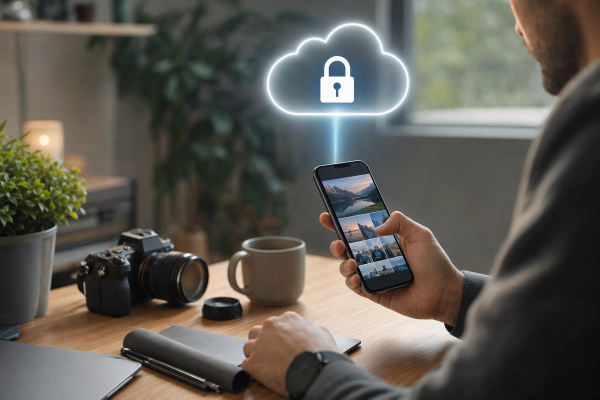
#Backups are emotional. You don’t care about them until you drop your phone in a parking lot puddle and suddenly become religious. Turn on device backup, but review what’s included. iCloud Backup, Google One backup, Samsung Cloud for some device data, WhatsApp backups, Signal backups, photos, all these systems have different rules and encryption details.
Apple’s Advanced Data Protection for iCloud is worth considering if you’re deep in the Apple world. It extends end-to-end encryption to more iCloud data categories, though you need to manage recovery carefully because Apple can’t recover that data for you if you mess up. Google also encrypts Android backups, with stronger protection tied to your screen lock for certain backup data. The simple version: turn on backups, protect your main account, and make sure you have recovery methods that are current. Security that locks you out forever is not the vibe.
Review Bluetooth, Wi‑Fi, AirDrop, Nearby Share, and hotspot settings
#Connectivity settings are the junk drawer of phone privacy. Everyone forgets them. On iPhone, set AirDrop to Contacts Only or Receiving Off unless you’re actively using it. Apple changed AirDrop behavior so “Everyone” can be limited after a short period on newer iOS versions, but I still don’t leave it open. On Android, check Quick Share visibility. Keep it limited to your devices or contacts unless you need public sharing for a minute.
For Wi‑Fi, turn on private Wi‑Fi address or randomized MAC address. Both iOS and Android support this in modern versions, and it helps stop networks from recognizing your device by the same hardware address everywhere. Also forget old networks you don’t need. My phone once rejoined a sketchy café network automatically because I had connected there two years earlier. Nothing bad happened, but I hated that tiny betrayal.
Hotspot: set a strong password, not “password123” or your dog’s name plus 1. And rename the phone if your device name includes your full real name. “Emma’s iPhone 16 Pro” broadcasting in a train station is not the worst privacy leak ever, but why give strangers free info?
Install fewer apps than your old phone had, at least for one week
#This one sounds like productivity advice, but it’s security advice wearing a hoodie. When you restore a phone from backup, it’s tempting to bring back every app you ever touched, including that parking app from a city you visited once in 2021. Don’t. Start with essentials. Messaging, banking, maps, password manager, authenticator, work apps if you must. Then add the rest when you actually need them.
Every app is a little risk package. Maybe it’s perfectly fine. Maybe it gets bought by a dodgy company later. Maybe it has a vulnerable SDK. Maybe it just asks for too much data and you tap yes because you’re tired. Fewer apps means fewer permissions, fewer notifications, fewer trackers, fewer forgotten accounts. I’m not saying live like a monk. I have three camera apps and no moral high ground. But I try not to recreate my old digital clutter on day one.
Don’t forget the “special access” menus, because that’s where the spicy stuff hides
#On Android especially, there are normal permissions, and then there are the scarier special permissions: accessibility access, notification access, install unknown apps, display over other apps, usage access, device admin apps, VPN access. These can be legitimate. Password managers use accessibility sometimes. Automation apps need deeper hooks. But malware loves these permissions too because they can let an app read screens, intercept notifications, or trick you with overlays.
Go into Settings and search for “special app access.” Review it. If some random app has notification access and you don’t know why, remove it. If “install unknown apps” is enabled for your browser or file manager and you don’t sideload apps, turn it off. On iPhone, the ecosystem is more locked down, but still review VPN configurations, device management profiles, calendars, keyboard access, and Safari extensions. A weird configuration profile on an iPhone is a huge red flag. Most normal people should have none unless work or school put it there.
Browser privacy: boring settings, massive daily impact
#Your browser is probably the app you use most, even if you pretend it’s Instagram. So spend five minutes here. In Safari, review cross-site tracking prevention, hide IP address options if you use iCloud Private Relay, and camera, microphone, and location permissions for websites. In Chrome on Android, check Safe Browsing, third-party cookies settings, site permissions, and whether you’re syncing everything to your Google Account.
I also set my default search engine intentionally. Not because one setting magically fixes privacy, but because search reveals such personal stuff. Symptoms, money worries, weird late-night “is my fridge supposed to make clicking sound” searches. Use what you trust. And clear site permissions occasionally. Websites are like apps now, they ask for notifications and location and microphone, and if you say yes once in a weak moment, they’ll remember forever unless you revoke it.
Messaging apps: lock them down before the group chats arrive
#Once the phone is ready, messaging apps are usually the first thing people open. WhatsApp, Signal, iMessage, Telegram, Google Messages, whatever your crowd uses. Turn on registration lock or two-step verification where available. In WhatsApp, enable two-step verification with a PIN, check linked devices, and decide who can see your profile photo, about, status, and last seen. In Signal, set a registration lock PIN and screen lock if you want that extra layer.
For SMS and RCS, understand the limits. Google Messages supports end-to-end encryption for many RCS chats between Google Messages users, but RCS across platforms and carriers can vary, and SMS is still plain old SMS. Apple added RCS support in iOS 18, which is great for better media and group chats between iPhone and Android, but don’t assume every green-bubble conversation is end-to-end encrypted. If the conversation is sensitive, use an app where you can clearly verify encryption.
A quick “do this before bed” mini checklist
#Okay, if you skimmed everything because you’re setting up the phone right now and your patience is dying, here’s the condensed version I’d give my brother. He won’t read long posts unless I threaten to change his router password, so this is for him too.
- Set a strong passcode, then enable Face ID or fingerprint unlock for convenience.
- Turn on Find My iPhone or Find My Device, plus theft protection features if your phone offers them.
- Update iOS or Android before logging into banking, work, and password manager apps.
- Check recovery emails, recovery numbers, trusted devices, and remove old phones.
- Use a password manager and turn on passkeys or authenticator-based 2FA for important accounts.
- Deny app permissions by default, especially precise location, full photo access, microphone, contacts, and background access.
- Turn off ad tracking and reduce personalized ads where possible.
- Hide sensitive lock screen notifications and disable noisy app notifications.
- Review backups, AirDrop or Quick Share, hotspot name, VPN profiles, and special app access.
The part nobody likes: make security a habit, not a one-time setup
#Here’s the slightly annoying truth. A new phone checklist helps, but privacy isn’t something you configure once and then become untouchable. Apps update. Settings move. Companies change policies. You join new services. You lend your phone to a kid for “just five minutes” and somehow they install a dinosaur game that wants Bluetooth access. Life happens.
I put a reminder every couple months to review permissions. Not a giant audit with spreadsheets, just a coffee-and-settings scroll. Location permissions, photo permissions, notification access, connected devices, account security checkups. Takes maybe 15 minutes if I don’t get distracted. I usually get distracted.
And honestly, don’t let perfect security become the enemy of doing anything. I’ve met people who get so overwhelmed by privacy advice that they do nothing. That’s worse. Change the obvious settings first. Lock the phone. Protect the account. Be stingy with permissions. Keep the software updated. Those basics already put you ahead of a shocking number of people.
Final thought from someone who still gets excited by setup screens
#A new phone is a fresh start, and I mean that in the nerdy emotional way. It’s a chance to not bring all your old messy habits forward. You don’t have to install every app. You don’t have to allow every permission. You don’t have to let your lock screen broadcast your life. You can make the device feel yours before the internet starts asking for little pieces of it.
Do the checklist once, slowly, maybe with snacks. Then enjoy the phone. Take the photos, send the dumb stickers, customize the widgets, argue with autocorrect, all of it. Security shouldn’t make your phone miserable, it should make it feel calmer. And if you’re into practical tech guides like this, I’ve been finding myself browsing AllBlogs.in more lately, just kinda jumping between privacy, gadgets, and everyday tech stuff like a happy little nerd.