The awkward little truth about selling an old laptop
#I love selling old tech. There, I said it. Some people get weirdly emotional about laptops, and I kind of do too, but I also get a tiny thrill from wiping one clean, boxing it up, and sending it off to someone who will actually use it instead of letting it become a dusty aluminium sandwich in my closet. But wiping a laptop before selling it is one of those jobs that looks simple until you think about what is actually sitting on that machine. Bank PDFs. Browser sessions. Autofill addresses. SSH keys if you do dev stuff. Random screenshots. That one scan of your passport from 2019 that you absolutely forgot existed. Yep.
I learned this the embarassing way. Years ago I sold an old Windows laptop after doing what I thought was a wipe. I deleted my files, cleared the desktop, emptied the recycle bin, and felt very responsible. Then, right before handing it over, I opened the browser just to check something and my Gmail was still logged in. Like, fully logged in. Inbox, Drive, saved passwords, the whole horror show. I can still feel that stomach drop. Since then I have become annoyingly careful about the whole process, and honestly, I think everyone should be. Not paranoid exactly. Just realistic.
First: understand what wiping actually means, because deleting stuff is not enough
#Deleting a file is not the same thing as removing your data forever. On a basic level, your operating system often just marks the space as available, while the actual bits may hang around until overwritten or cleaned up by the drive. On SSDs it gets even weirder because wear leveling, TRIM, and controller magic means old advice like overwrite the whole disk seven times is not always useful, and sometimes it is just performative tech theatre. I know, that sounds dramatic. But it is true enough.
Also, modern laptops are not just a pile of local files. Your laptop is basically a little doorway into your cloud life. iCloud, OneDrive, Google Drive, Dropbox, password managers, browser sync, Slack workspaces, GitHub sessions, Adobe accounts, Steam, WhatsApp desktop, Signal desktop, all of that. If you only drag your Documents folder to the trash, you are not really done. I wrote a similar mental note for myself after reading about what happens when you remove apps, because app data and synced account data can stick around in sneaky places. If you want the deeper rabbit hole, this privacy checklist on Does Deleting an App Delete Your Data? Privacy Checklist is a good companion to this whole mess.
My rule now is simple: before a laptop leaves my hands, it should have no accounts, no recovery keys, no personal files, and no easy way for the next owner to become me by accident.
Do a boring backup first. Sorry, but seriously do it
#Before you wipe anything, back up. I know that sounds like the most obvious grandpa-tech advice ever, but people skip it because they are in a hurry or they assume everything is in the cloud. Then two weeks later they remember a folder called Tax Stuff FINAL final really final, and now they are emailing the buyer like a gremlin asking if they can maybe check the Downloads folder. Do not be that person. I have almost been that person.
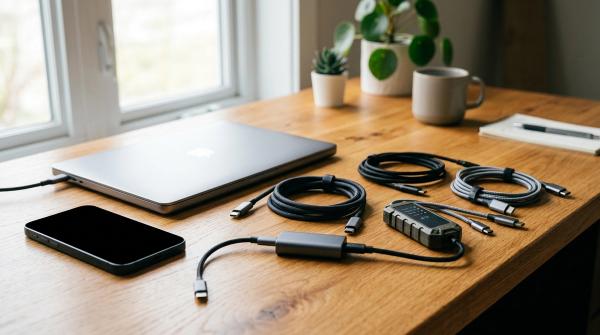
My own pre-wipe backup routine is not fancy. I copy important folders to an external SSD, check cloud storage, export browser bookmarks if I care, and make sure photos or project files are actually synced. Then I open the backup on another machine. That last part matters. A backup you never tested is basically a hope with a USB cable attached. If your laptop is a clutter disaster, do a quick tidy first so you are not backing up 48 GB of memes, installers, and screenshots of error messages. This 30-Minute Digital Declutter Checklist fits nicely before the wipe if your Downloads folder looks like a raccoon lives there.
- Copy Documents, Desktop, Downloads, Pictures, Videos, Music, and any custom project folders you made outside the normal places.
- Export or sync browser bookmarks, especially if you use multiple profiles like work, personal, side-project chaos, etc.
- Grab license keys, invoices, tax files, saved game folders, local notes, virtual machine images, and app-specific exports like Lightroom catalogs or music production projects.
- If you use a password manager, confirm it syncs and you can log in from another device before wiping. Please do not learn this one the hard way.
The account access check nobody wants to talk about
#This is the part that I think gets missed constantly: make sure wiping the laptop will not lock you out of your own accounts. If the laptop is your trusted device for Apple ID, Microsoft account, Google account, banking, work SSO, or your authenticator app, you need a plan before you erase it. I once wiped a machine that had a browser profile I used for a client portal, and guess what, the portal wanted a code from an authenticator app I had already reset on a phone. Not fun. Lots of muttering. Maybe a small amount of panic.
Before the wipe, move your 2FA. Save recovery codes somewhere safe. Add another trusted phone number if the service allows it. Test login from your new laptop or phone. If you use an authenticator app and you are switching devices around the same time, do that migration first, not after. The guide I keep bookmarked for this exact reason is Authenticator App New Phone Checklist: Move 2FA Codes Without Lockouts, because getting locked out of email or banking while trying to sell an old laptop is the most annoying kind of self-own.
- Log into your main email from another device and confirm it works.
- Check Apple ID, Google, Microsoft, password manager, and banking access from something that is not the laptop you are wiping.
- Move authenticator codes, download backup codes, and remove the old laptop from trusted device lists only after the new setup is working.
Sign out of everything before you erase, even if it feels redundant
#Yes, a proper wipe should remove local account data. But I still sign out of services manually because it cleans up device lists and reduces weird activation locks. On a Mac, this usually means signing out of iCloud, turning off Find My for the Mac, signing out of Messages, FaceTime, Music, TV, and any Adobe or Microsoft apps that count device activations. On Windows, unlink OneDrive, sign out of Office or Microsoft 365 if needed, remove the device from your Microsoft account dashboard later, and disconnect work or school accounts. For Chromebooks, sign out and then Powerwash. For Linux, it depends what you installed, because Linux people are allergic to one single answer, me included.
Do not forget browsers. Chrome, Edge, Firefox, Brave, Vivaldi, Arc, whatever you use, all of them can hold passwords, cookies, extensions, sessions, autofill data, and synced profiles. If you have multiple browser profiles, open each one. I know, it is tedious. Do it anyway. Also deauthorize apps that limit installs, like creative tools, music software, some developer IDEs, and games. I once had an audio plugin refuse to activate on a new machine because I forgot to deactivate it on an old one. Tiny company, niche plugin, support took days. My own fault, but still.
Check for hidden personal stuff, because laptops are little data junk drawers
#There are the obvious files, then there is the weird stuff. Your desktop is obvious. Downloads is obvious. But what about scanned IDs inside an email attachment folder? Browser downloads in a second profile? Old Zoom recordings? Local database dumps? SSH keys in .ssh? API keys in random config files? Docker volumes? Virtual machines? Git repos with secrets in history? I have found personal junk in places I would never admit to in polite company. Actually, I guess I am admitting it now.
If you are technical, search for private keys, .env files, backups, and exported databases before you wipe. Not because you need to delete them one by one after a full wipe, but because it reminds you what needs rotating. If a laptop had SSH keys or API tokens on it, I usually rotate them after selling, especially if the wipe process was messy or the drive had problems. Maybe that is overkill. Maybe not. Secrets are cheap to rotate compared with cleaning up a compromised account.
- Look for SSH keys, VPN profiles, certificates, API tokens, Git credentials, and saved database passwords.
- Check messaging apps for downloaded attachments. Slack, Teams, Discord, Telegram and WhatsApp can all leave local bits behind.
- Search for words like passport, tax, invoice, backup, secret, private, key, recovery, and password. It feels silly until it finds something.
How to wipe a Windows laptop before selling
#On modern Windows, the normal path is Reset this PC. Microsoft documents this as the built-in way to reinstall Windows and remove your files, and it includes options like Remove everything and Clean data. The names can shift a tiny bit between Windows versions, but the idea is the same: you do not want Keep my files. You want the option that removes personal files, apps, and settings. If you are selling the laptop, choose the cleaning option that is meant to make recovery harder, not just the quick reset. It takes longer. Let it take longer.
On Windows 11, I usually go Settings, System, Recovery, Reset this PC, then Remove everything. If I am preparing it for a buyer, I pick the option that cleans the drive rather than just deleting files. If the laptop has multiple drives, pay attention to whether Windows is resetting only the system drive or all drives. This is where people mess up. A gaming laptop might have a small SSD for Windows and a second drive full of personal junk. Resetting C: does not magically sanitize D: if you skip that choice.
BitLocker matters too. Many modern Windows laptops use device encryption or BitLocker. Encryption is your friend here. If the drive was encrypted before the reset and the reset removes the encryption keys, the leftover raw data becomes practically useless. Still, I do not rely on vibes. I confirm encryption status first, save any recovery keys I still need for other machines, then reset. After reset, I boot just far enough to see the out-of-box setup screen, then shut down. I do not create a new personal account for the buyer unless I am specifically setting it up for a family member.
How to wipe a Mac before selling
#Macs have gotten much nicer for this, thank goodness. Apple has an Erase All Content and Settings feature on many newer Macs, specifically Macs with Apple silicon or the Apple T2 security chip running recent macOS versions. Apple describes it as a way to erase your content and settings while keeping the operating system installed. It signs you out of Apple services, removes Touch ID, Apple Wallet items, user data, and disables Find My as part of the flow when done properly. It is honestly one of my favorite quality-of-life improvements Apple has made, and I do not praise Apple for free all that often.
On supported Macs, open System Settings, look for Transfer or Reset, and choose Erase All Content and Settings. The assistant walks you through it. You will likely need your admin password and Apple ID password if Find My is enabled. Do not skip the Find My step, because Activation Lock can make the Mac useless to the buyer and then everybody is cranky. If it is an older Intel Mac without that erase assistant, you may need to boot into macOS Recovery, use Disk Utility to erase the internal drive, then reinstall macOS. Disk Utility formatting choices can be confusing, but for recent Macs, APFS is usually what you want for the internal SSD.
A small personal thing: I always remove the Mac from my Apple ID device list after the erase. It is probably not always necessary if the assistant did its job, but it gives me peace. Same with Messages. I check that the device is gone from Find My. If you have ever bought a used Mac that is still attached to someone else’s Apple ID, you know how miserable that can be. Do not gift that problem to a stranger.
Chromebooks, Linux laptops, and the oddballs
#Chromebooks are refreshingly simple. Google calls the factory reset process Powerwash. It removes local user data from the Chromebook and returns it to a clean setup state. Before doing it, make sure anything in local Downloads is backed up, because Chromebook people sometimes assume everything is in Google Drive and then, whoops, that one file was not. After Powerwash, the new owner gets the setup screen. If it is a managed school or work Chromebook, that is a different beast. You may not be able to sell it properly unless the organization unenrolls it.
Linux depends on your setup. If the drive was fully encrypted with LUKS and you are comfortable reinstalling, the cleanest route is often to boot a live USB, wipe the partition table, create a fresh install, and let the buyer set it up. Tools like shred and dd get mentioned constantly, but on SSDs, old-school overwriting is not as reliable as people think because the drive controller decides where writes go. If the SSD supports secure erase or sanitize commands, those can be better, but they are also easier to mess up. I would not tell a beginner to casually run hdparm commands they found in a forum at 1 a.m. That is how you make a very expensive coaster.
If you are selling to a regular person, you might install a clean copy of Ubuntu or Fedora and leave it at the welcome screen. If you are selling to a tinkerer, just wipe it and say no OS installed. Be honest in the listing. People appreciate that more than a half-broken install with your hostname still called daves-laptop or whatever.
SSDs changed the old wiping advice, and I am glad they did, mostly
#There is a lot of ancient wiping advice floating around the web. Overwrite the drive 3 times. No, 7 times. No, 35 times because some old paper said so. For modern SSDs, that advice is usually not the best. SSDs use wear leveling, spare blocks, and controller-level cleanup, so overwriting files from the OS may not touch every physical cell that once stored data. Plus it burns writes for no real reason. The better modern pattern is encryption plus reset, or manufacturer/OS-supported secure erase/sanitize where appropriate.
For most normal laptop sellers, you do not need to become a forensic storage expert. If your laptop has been encrypted, and you use the operating system’s proper erase/reset flow, you are in good shape. If it was never encrypted and you are especially worried, enable full-disk encryption before wiping, let it finish encrypting, then run the reset. Some security folks call this crypto-erasure when the keys get destroyed. The short version: without the keys, encrypted leftover data is just noise. Beautiful, useless noise.
Hard drives are different. If you have an old spinning HDD, overwriting the whole disk can still make sense. A full clean reset on Windows or a secure erase process can take hours, but that is normal. If the drive is failing, making scary noises, or has bad sectors, I personally remove it and sell the laptop without storage or replace the drive. A failing drive is not where I want my privacy strategy living.
My actual privacy checklist before I hand over the laptop
#Here is the slightly messy checklist I use. It is not glamorous, but it has saved me more than once. I keep it in a notes app because every time I think I will remember, I do not. Selling tech makes me weirdly optimistic about my memory, and my memory does not deserve that level of trust.
- Back up important files to cloud or external storage, then open the backup on another device to make sure it is real.
- Confirm I can access email, password manager, banking, Apple ID, Google, Microsoft, and 2FA from another device.
- Sign out of cloud services, browser sync, work or school accounts, app stores, creative apps, messaging apps, and anything with device activation limits.
- Remove or rotate sensitive credentials like SSH keys, API tokens, VPN profiles, certificates, and recovery codes if they lived on the laptop.
- Check that Find My, Activation Lock, or device management is disabled so the buyer is not stuck with a brick.
- Run the proper OS wipe: Windows Reset this PC with Remove everything and clean drive, macOS Erase All Content and Settings or Recovery erase, Chromebook Powerwash, or a careful Linux reinstall/wipe.
- Boot only to the setup screen after wiping. Do not log in with your own account again just to test every little thing, because then you have to wipe it again. Ask me how I know.
- Remove the laptop from account device lists after the wipe: Apple ID, Microsoft account, Google account, password manager trusted devices, and any work admin portals if relevant.
Do not forget the physical stuff, because privacy is not only software
#I know this article is mostly about data, but selling a laptop has physical privacy too. Take off stickers if they reveal your workplace, school, city, or weirdly specific hobby group. Check under the laptop case if you used one. Remove SD cards and microSD cards. Check USB dongles. Check the SIM tray if it is an LTE laptop. I once found a microSD card in an old laptop bag months after selling the laptop, and it had camera photos on it. Not catastrophic, but it made me feel like a complete muppet.
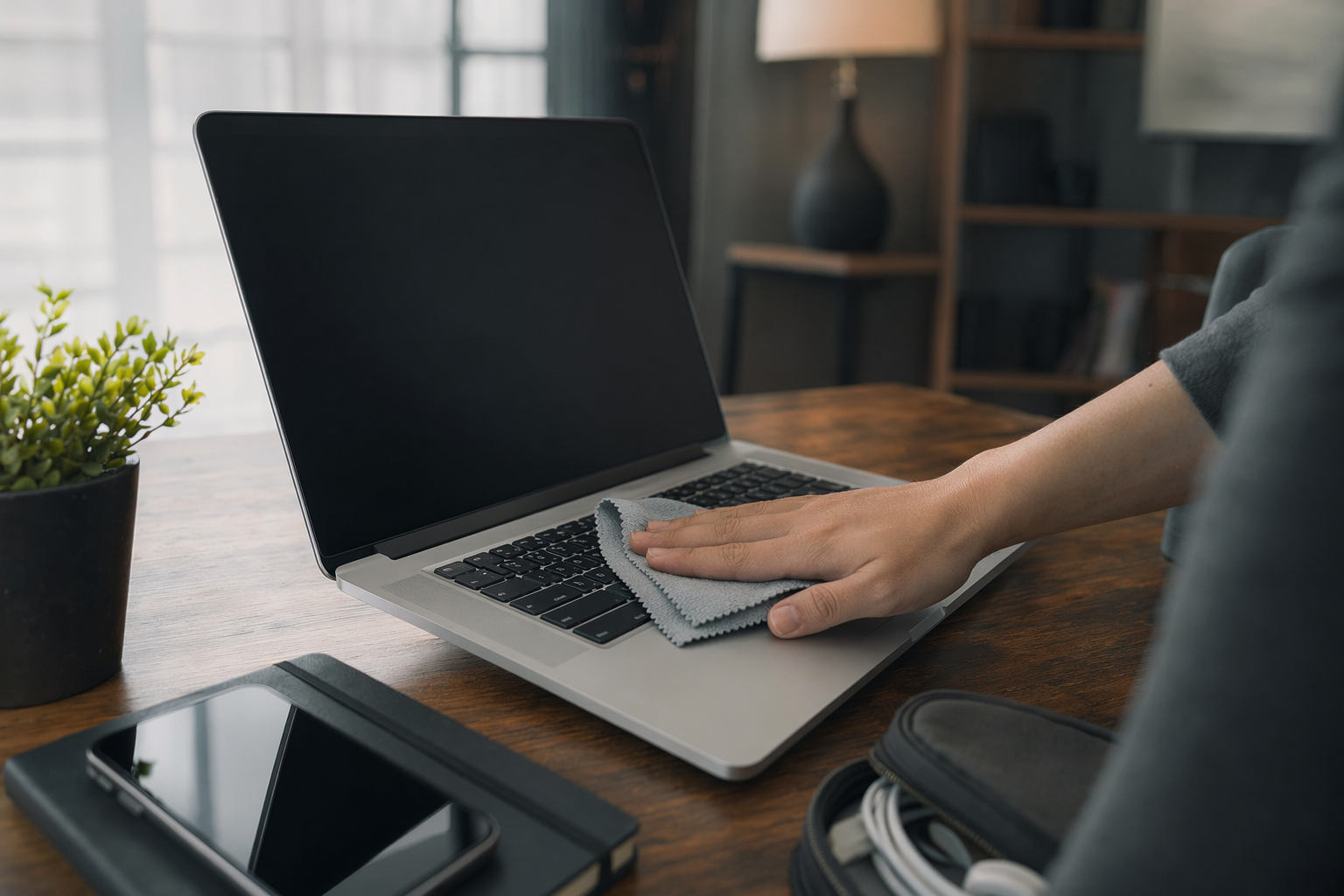
Clean the machine a bit too. Not for privacy exactly, although keyboard crumbs probably tell a story. A microfiber cloth, compressed air used carefully, and a quick wipe makes the sale feel more trustworthy. Include the charger if you promised it. If you are shipping, pack it like the delivery truck is going to be driven by a caffeinated rhino. Because maybe it will be.
What I would not do
#I would not just delete files and empty the trash. I would not rely on browser history clearing as a privacy wipe. I would not sell a laptop still connected to Find My, BitLocker recovery prompts, school management, or a company MDM profile. I would not use random wipe utilities from sketchy download sites. And I would not hand over a machine that boots directly into an account I created with a cute password like password123 for the buyer. It seems helpful, but it is cleaner to leave the official setup screen unless you have agreed otherwise.
Also, be careful with drives you removed. If you pull the SSD because you do not trust the wipe, label it and store it safely or destroy it properly if it is truly done. Do not toss old drives into a drawer forever unless you enjoy creating future-you problems. I say this as someone with a drawer that absolutely has at least two mystery SATA drives in it. I am working on myself.
Final handoff: a clean setup screen is the happy ending
#The moment I like is when the laptop boots to the welcome screen. No username, no files, no notifications popping up, no personal wallpaper from a vacation I forgot about. Just a clean hello. That is when I feel okay taking photos for the listing, writing the specs, and sending it away. Wiping a laptop before selling is not hard, exactly, but it is one of those tech chores where skipping one step can turn into a privacy mess or an account lockout headache.
My practical take: back up first, secure your logins, sign out of services, use the proper built-in wipe tool, verify the laptop lands on the setup screen, and remove it from your device lists afterward. That is the whole game. Not sexy, but very satisfying when done right. And if you are into these little tech-life checklists like I am, poke around AllBlogs.in sometime. It has that nice practical-tech vibe that makes boring digital chores feel a bit less, well, boring.