The tiny Google Photos privacy check I wish I did years ago
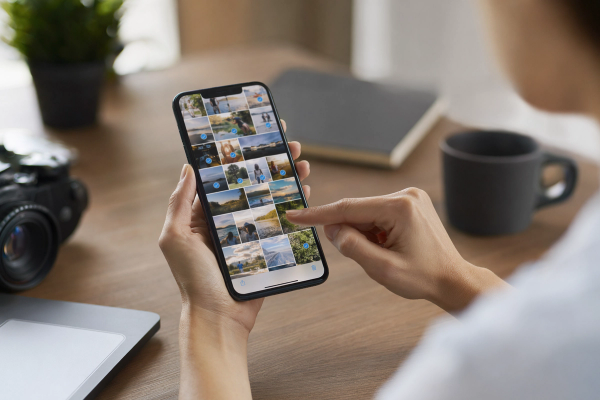
#I love Google Photos. Like, genuinely. It’s one of those apps I open when I’m waiting for coffee and suddenly I’m looking at a blurry picture of my dog from 2017 and getting emotional in public, which is mildly embarassing but also kind of beautiful. But the weird thing is, Google Photos is also one of the most sensitive apps on my phone. It knows my family, my house, my vacations, screenshots of receipts, random whiteboard notes from work, passport photos I really should not have taken, and about 48 almost-identical photos of a sandwich I thought was important at the time. So yeah, backups and sharing matter. A lot. And if you’ve never really gone through your Google Photos privacy settings, it’s worth doing before you accidentally share half your life with someone because one little album link stayed active forever.
First, understand what’s actually being backed up
#The first privacy mistake I made with Google Photos was assuming I knew what was uploading. I did not. I had backup turned on, and in my head that meant “camera photos only.” Nope. Depending on your settings and device folders, Google Photos can back up screenshots, downloads, WhatsApp images, Instagram edits, scanned documents, memes people send you, and other random junk that lands in image folders. On Android especially, this is something to check because Google Photos lets you choose which device folders get backed up. On iPhone, the backup situation is usually more tied to your camera roll permissions, but the principle is the same. If Google Photos can see it and backup is enabled, you should assume it might end up in the cloud unless you’ve checked.
My personal rule now is boring but it works: once a month, I open Google Photos, tap my profile picture, go into Photos settings, then Backup, and I look at what’s enabled. I also check device folders on Android phones. This is not glamorous tech wizard stuff. It’s just housekeeping. But it catches things. I once found an old “Downloads” folder backing up screenshots of bank transfers because I had been lazy setting up a new phone. Nothing bad happened, thankfully, but I had that cold little stomach drop where you think, oh wow, I’ve been casually uploading my entire admin life.
Backup quality and storage are privacy settings too, sort of
#People usually talk about backup quality like it’s only about storage space, but I think it’s also a privacy-adjacent decision. Google Photos used to have a much more generous free storage situation, but Google ended unlimited “High quality” storage for most users on June 1, 2021, and now uploads generally count toward your Google account storage. That changed how I behave. I delete more. I back up less junk. And honestly that’s a privacy win. If you’re paying for Google One storage, it’s tempting to just keep everything forever, but “forever” is a long time for old screenshots, exes, medical paperwork, school documents, and screenshots of two-factor codes you swore you deleted.
- Check whether Backup is on for the account you actually use, not an old Gmail you forgot about.
- Look at backup quality, because keeping less junk can be just as useful as encrypting everything after the fact.
- Review device folders, especially screenshots, messaging apps, downloads, scanners, and edited photo folders.
- Delete sensitive photos from Google Photos and then empty Trash if you really want them gone sooner, since deleted items can sit there for a while before permanent removal.
The account problem: your photos are only as private as your Google login
#This is the part nobody wants to hear because it’s not fun. Your Google Photos privacy is not just inside Google Photos. It’s your whole Google account. If someone has your phone unlocked, your Gmail password, a logged-in browser session on your old laptop, or your recovery email, then your carefully organized privacy settings don’t mean much. I learned this after selling an old Android phone years ago and then realizing, later that night, that I had removed the screen lock but hadn’t properly checked every account session. I did a frantic password change and sign-out from devices, and I probably overreacted, but still. Not my proudest tech moment.
So before you even fuss with albums, turn on two-step verification for your Google account. Check your signed-in devices in Google account security. Remove anything you don’t recognize or don’t use. Set a strong lock screen on every phone that has Google Photos installed. And if you’re the kind of person who upgrades phones and leaves the old one in a drawer for “backup,” please actually protect that thing. Old phones are sneaky privacy risks because they feel dead, but they’re basically little memory vaults with Wi-Fi. I wrote myself a note after my own scare: if a phone can still open Photos, Gmail, or Messages, it needs a lock screen and account hygiene. The same thinking applies in this Stolen Phone Protection Checklist: iPhone and Android Settings to Turn On, especially if you’re worried about someone grabbing a device that already has your account signed in.
Shared albums are convenient, and also kind of terrifying
#Shared albums are the Google Photos feature I both love and side-eye constantly. They’re perfect for family trips, baby photos, weddings, renovation progress, pet chaos, all of that. But they can become these long-running private-ish spaces where people forget who has access. A cousin’s partner joins. Someone adds an old work email. A link gets pasted into a group chat. Three years later, you’re uploading beach photos into an album that has 19 members and you only recognize 11 of them. Not saying this happened to me. Okay, it happened to me.
Here’s the practical bit: open the shared album, tap the people or sharing options, and check who is in there. Look for link sharing. If link sharing is on, anyone with the link may be able to view it depending on the album’s settings. That doesn’t mean the album is public on Google Search or anything dramatic like that, but it does mean the link can travel. And links travel in the most annoying ways. They get forwarded, saved in old chats, indexed in someone’s personal notes app, dropped into Slack by accident, whatever. If the album is meant for a small group, I prefer inviting specific people instead of relying on a link.
My shared album cleanup routine
#- Open Google Photos and go to Sharing, then scan every shared album like you’re checking who has keys to your apartment.
- Remove people who don’t need access anymore. This feels awkward for about four seconds, then you forget.
- Turn off link sharing for albums that are personal, family-only, kid-related, medical, school-related, or honestly anything you’d be upset seeing outside the group.
- Check whether collaborators can add photos. This is useful, but it also means other people can add stuff you didn’t expect to be in the album.
- Leave shared albums you no longer need. Seriously, you don’t need to carry every 2018 group trip album around forever.
Partner Sharing deserves its own little privacy panic
#Partner Sharing is powerful. Too powerful, maybe. It lets you automatically share photos with another person, often a spouse or partner, and you can choose things like date ranges or photos of specific people if face groups are available. For some families this is fantastic. My partner and I used it for pet photos for a while, and it was genuinely nice because we stopped texting the same dog picture back and forth like weirdos. But automatic sharing needs review, because relationships change, kids grow up, and what felt fine two years ago may feel way too open now.
If you use Partner Sharing, check exactly what is shared. Is it all photos after a certain date? Photos containing certain face groups? Are screenshots accidentally included? Are saved partner photos going into the other person’s library? Google Photos has settings around saving partner-shared photos, and these matter because once something is saved into someone else’s library, your future changes may not claw it back the way you imagine. That’s the human problem with digital sharing: we think in terms of access, but copies are their own thing.
My rule: if I would feel weird explaining the sharing setting out loud to the person in the photo, I tighten it.
Face grouping, people labels, and the “oh wow Google knows everyone” moment
#Face grouping is one of the most magical and creepy parts of Google Photos. It clusters similar faces so you can search for people, make albums, and find memories fast. I use it. I’d be lying if I said I don’t. When it works, it feels like future tech in the best way. But it’s also sensitive biometric-ish information in the everyday sense, even if the exact legal definitions vary by region and product setting. Google lets users turn face grouping on or off where the feature is available, and if you’re privacy cautious, this is a setting to think about, not just accept because the app nudged you.
For kids, I’m stricter. I don’t auto-share huge face-based albums of children unless I really trust the group and understand the settings. Not because I’m paranoid all the time, although maybe a little, but because children can’t really consent to a decade of searchable photo organization. Also, face labels can make accidental sharing worse. A normal album is one thing. An album that automatically gathers every photo of a person can become much broader than you meant. So if you use face-based sharing, review it like it’s alive, because in a way it is. It keeps updating.
Location data: the quiet detail hiding in your memories
#Photos can reveal location in a few different ways. Some photos have camera location metadata, some get estimated locations based on Google’s signals, and some locations come from your own edits or history. Even if you strip metadata, the image itself can show a street sign, school logo, hotel balcony, or that one extremely recognizable cafe wall everyone photographs. I know, annoying. Privacy is never just one toggle.
In Google Photos settings, look for location-related options, especially around sharing photos with location information. Google Photos has had controls that let you hide photo location data in shared links, which is very worth enabling if you share outside close family. Also check your camera app settings if you don’t want new photos tagged with precise GPS. I keep location on for travel sometimes because I love the map view and the “where was this?” nostalgia hit, but I turn it off when I’m doing everyday home-life stuff. That’s a contradiction, sure, but it’s my contradiction and it works for me. If you’re cleaning up Google privacy more broadly, the same mindset applies to location history too, and this Google Maps Timeline Privacy Checklist: Location History, Backups and Auto-Delete pairs nicely with the Photos side of the problem.
Locked Folder is useful, but don’t treat it like a magic vault
#Locked Folder is one of those features I’m glad exists, but I don’t want people misunderstanding it. In Google Photos, Locked Folder is designed to hide sensitive photos and videos behind device authentication, so they don’t show up in your main photo grid, memories, or other casual browsing areas. Google has also supported backing up Locked Folder items for users who enable that option, which is convenient if you switch phones, but it changes the risk model. Local-only feels different than cloud-backed. Neither is automatically “right.” You just need to choose on purpose.
I use Locked Folder for boring stuff mostly: IDs, private screenshots I need temporarily, photos of documents, that sort of thing. But I also delete from it aggressively. Locked Folder should not become a second junk drawer. If you move sensitive stuff there and forget it for five years, you haven’t solved privacy, you’ve just hidden the mess from yourself. Also remember that if someone can unlock your phone, they may be able to unlock the folder depending on your device setup. So again, phone security matters.
The accidental exposure problem: casting, presenting, and “wait don’t look” moments
#One underrated privacy risk is not hackers. It’s you opening Google Photos on a big screen while trying to show one vacation picture and swiping one photo too far. Or screen sharing in a meeting and your browser tab previews show a private album. Or casting to a TV at a family party and notifications pop over everything like tiny chaos gremlins. I have done the “wait, don’t look, one sec” panic swipe enough times to have a whole ritual now.
Before presenting or screen sharing, close Google Photos tabs unless you need them. If you do need them, put the exact photo or album in a clean window. Turn on Do Not Disturb. Hide bookmarks if they reveal album names. And don’t rely on your reflexes, because your reflexes will betray you right when your boss is watching. This is basically the same habit set as the Screen Sharing Privacy Checklist: Hide Alerts, Tabs, and Files Before You Present, just with more emotionally loaded thumbnails.
A realistic Google Photos privacy checklist I actually use
#Okay, here’s the checklist version, but not the fake perfect productivity-guru version. This is the one I use when I’m sitting on the couch with a low battery and half paying attention to a show. It still helps.
- Open Backup settings and confirm the Google account, backup status, quality setting, and mobile data behavior. I keep mobile data backup conservative because surprise uploads on bad networks annoy me, and also because it makes me pause.
- On Android, review device folders. Screenshots and messaging app folders are the big ones. If a folder contains private admin life, don’t auto-back it up unless you truly want that.
- Review Sharing and Shared albums. Turn off link sharing where possible, remove random people, and leave old albums you don’t care about.
- Check Partner Sharing. Confirm the date range, face groups, and whether the other person is saving shared photos automatically.
- Review face grouping settings. If you use face labels, be more careful with automatic albums, especially for kids.
- Check location settings in Google Photos and your camera app. Hide location in shared links if that fits your threat model. I know “threat model” sounds dramatic, but it just means “what are you actually worried about?”
- Use Locked Folder for sensitive items, but clean it out. Decide whether Locked Folder backup is something you want or not.
- Go to your Google Account security page and remove old devices. Turn on two-step verification. Do not skip this and then pretend your Photos settings are enough.
- Search for risky words once in a while: passport, license, bank, password, screenshot, receipt, medical, school. You’ll be surprised what shows up.
- Empty Trash after deleting truly sensitive stuff, if you’re sure. Don’t do this casually with sentimental photos unless you enjoy regret.
What I don’t worry about as much anymore
#I used to think privacy meant turning everything off and living like a digital monk. That lasted maybe three days. The truth is I like cloud backup. I like search. I like being able to type “blue car” or “beach 2019” and have Google Photos find some random memory I’d forgotten. I’m not trying to scare anyone away from using it. The backup has saved me multiple times, including one phone that died in the most dramatic way possible after a rainstorm. If my photos were local-only, I would’ve lost years of stuff. So the goal is not “never use cloud.” The goal is use it deliberately.
I also don’t obsess over every single shared vacation album. Some photos are low-risk. Some links are fine. Privacy doesn’t have to become a second job. But there’s a big difference between knowingly sharing a beach album with ten friends and unknowingly having link sharing enabled on a family album for four years. That difference is the whole point of the checklist.
My final take: Google Photos is amazing, but it needs adult supervision
#Google Photos is one of the best consumer tech products ever made, in my opinion. It quietly handles backup, search, organization, memories, editing, sharing, printing, all this stuff that would’ve felt impossible not that long ago. But because it’s so smooth, it makes privacy feel invisible. And invisible settings are the ones that bite you later.
So give yourself 20 minutes. Check backups. Check sharing. Check partner access. Check location. Lock down your Google account. Delete the junk. Keep the memories you actually care about. And maybe don’t upload every screenshot of every weird thing your phone has ever seen. Future you will be grateful, probably while looking at old dog photos and pretending not to cry in a coffee shop. If you’re into practical privacy and tech cleanup stuff like this, I’d also poke around AllBlogs.in sometime, because that’s exactly the kind of rabbit hole I keep falling into lately.