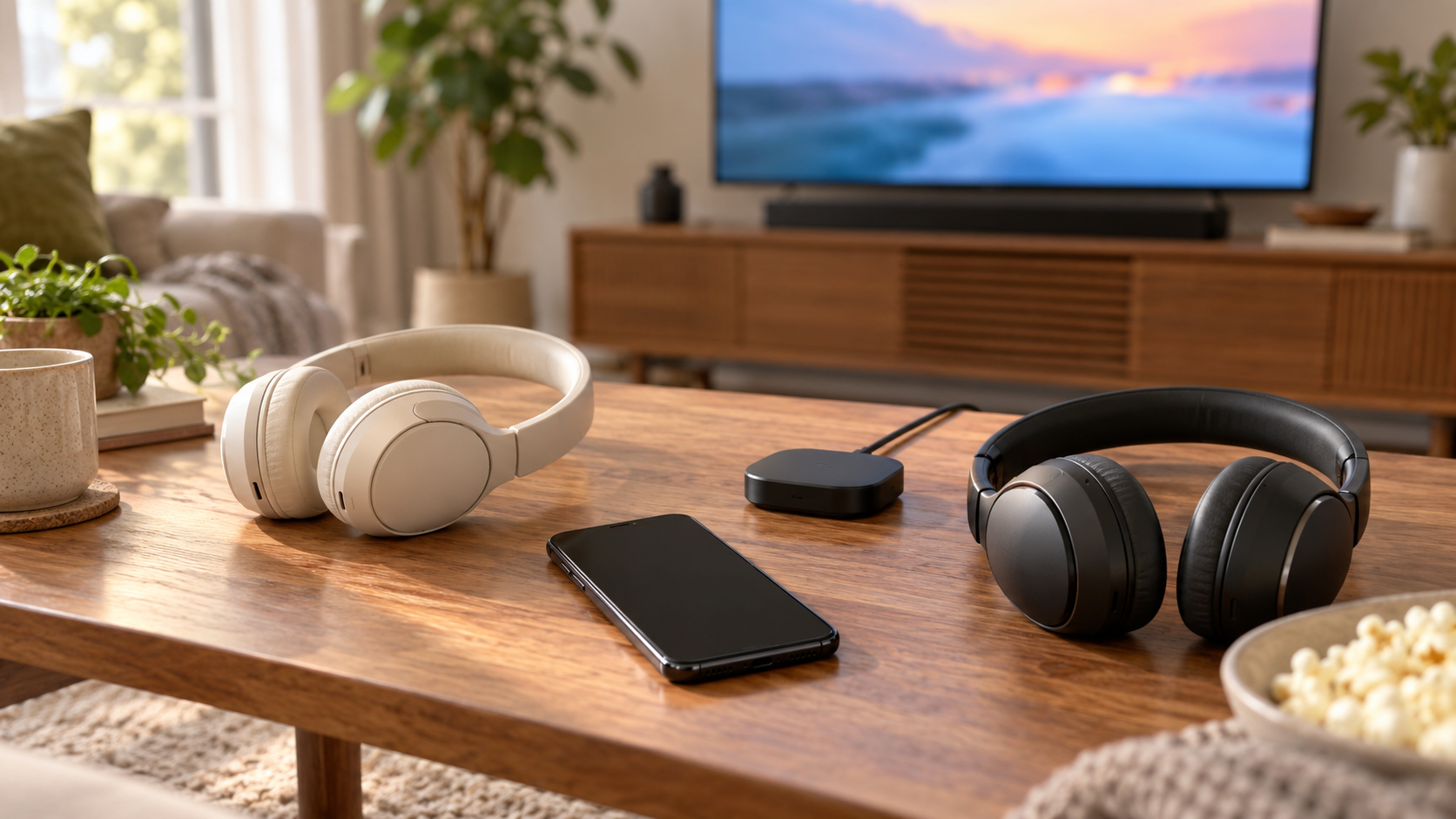
Auracast lets one device broadcast audio to several compatible listeners nearby. You could share a film with another person wearing their own headphones, or join the sound from a television in a public space. The important word is compatible: having Bluetooth on every device does not establish that the whole arrangement will work.
Before buying anything, identify three jobs: the device sending the broadcast, the headphones or other device receiving it, and the controls used to select it. Then check the exact models and their current software. That small exercise is more useful than comparing Bluetooth version numbers alone.
What Auracast changes about Bluetooth listening
#Think of an ordinary listening session: a phone sends music to your headphones through their paired connection. Auracast adds a broadcast arrangement. A source makes audio available nearby, and supported receivers join that broadcast.
The distinction matters when several people want the same sound. You are no longer trying to make one person's headphones act as a bridge for everyone else's. Each compatible receiver can join the source's broadcast.
Bluetooth SIG describes uses including shared personal audio, listening to otherwise silent public televisions, and assistive listening in venues. These are possible uses of the technology, not a promise that a particular airport, cinema or café has installed it. Ask about the actual location before relying on it.
For a home setup, begin with one specific goal. “Two people want to watch this television through separate headphones” is a useful requirement. “We want newer Bluetooth” leaves too much unanswered. The first statement tells you which output, transmitter and receivers must work together.
The three roles you need to understand
#The transmitter sends the sound
#An Auracast transmitter starts the broadcast. Depending on the product, that might be a supported phone, a television with the feature built in, a venue's audio equipment, or an external transmitter connected to an existing source.
Do not assume that any Bluetooth transmitter is an Auracast transmitter. An accessory that sends conventional Bluetooth audio to headphones may use a different connection method. Its manual should explicitly describe Auracast broadcasting and the inputs you intend to use.
If the source is a television, look at its available audio outputs before considering an accessory. A transmitter with an input your television cannot supply creates another compatibility problem. Write down the actual connection rather than relying on a photograph of a similar-looking socket.
The receiver is what each listener uses
#The receiver takes in the broadcast. Compatible headphones, earbuds, speakers and hearing devices can fill this role. Every listener's equipment needs its own supported receiving path; one compatible pair does not make an older pair compatible beside it.
“Supports Auracast” still needs a second question: in which role? Bluetooth SIG's product listing separates transmitters, receivers and products that perform more than one role. A device sold for sharing sound outward is not automatically suitable for joining an unrelated broadcast.
This is especially useful when comparing speakers. Decide whether you want a speaker to send sound to other devices or receive sound from a venue. Those are different requirements even if both descriptions use the same technology name.
The assistant helps you choose a broadcast
#An Auracast assistant provides the controls for finding and selecting broadcasts and gives the receiver the information needed to join. The controls may live in a phone's operating system or in a supported companion app.
Here, “assistant” means a Bluetooth role, not a voice assistant or an AI chatbot. You do not need to ask a chatbot to connect your headphones. You need a documented way to choose the broadcast for that receiver.
For a practical check, ask the seller to show the joining process with your intended headphones. A specification sheet that names the receiver role is useful, but the selection controls must also be accessible to the person who will use them.
Bluetooth version, LE Audio and Auracast are different checks
#A version number describes a Bluetooth specification level. It does not list every feature implemented in a finished device. Bluetooth SIG explains that Auracast requires particular capabilities introduced in Bluetooth Core 5.2 and support for the Public Broadcast Profile within the LE Audio specifications.
That does not mean every Bluetooth 5.2 or later product supports Auracast. Treat the number as background information. Look for explicit support for broadcasting or receiving, as appropriate, and the software requirements in the manufacturer's documentation.
Likewise, a general LE Audio claim is not enough to settle your full use case. Ask whether the product supports the Auracast role you need today. “Ready” language or a possible future update deserves a separate check: has the feature actually been enabled for this exact model?
Use a short equipment record before spending money:
| Part of the setup | What to record | What does not settle it |
|---|---|---|
| Audio source | Exact model and usable audio output | A generic Bluetooth logo |
| Transmitter | Explicit Auracast broadcast support and input | A description saying only wireless transmitter |
| Each receiver | Explicit Auracast receiving support | Bluetooth version alone |
| Selection controls | Supported phone, app or documented device controls | An assumption that every phone has the same menu |
| Software | Required updates and currently enabled features | A promise about a future release |
This record also helps support staff. “The broadcast is visible, but this receiver cannot join through this app” gives them something concrete to investigate. “Bluetooth is broken” does not identify the missing part.
Auracast versus multipoint and other audio sharing
#Multipoint usually addresses one listener moving between source devices. For example, supported headphones can connect to a phone and a computer and switch between them. JBL's multipoint guidance describes switching between connected devices. That is a different job from sending one programme to several listeners.
Auracast addresses the broadcast side: a source makes audio available to compatible receivers nearby. If your goal is to move your own headphones between a laptop and a phone, multipoint may be the relevant feature. If your goal is for friends to hear one source together, investigate sharing or broadcasting support.
“Audio sharing” is a broader product label. Read what a particular implementation allows instead of assuming the label establishes Auracast compatibility. The useful questions remain the same: which source, which listeners, which joining method and which software?
A simple decision example makes the difference clear. Maya works at a laptop and answers calls on a phone; she needs convenient source switching for one headset. Later, Maya and Sam want to watch the same film using two separate pairs. That second task needs a supported shared-audio arrangement. Buying a multipoint headset alone does not answer it.
A practical way to join your first broadcast
#Confirm the setup before opening settings
#Check that the source can broadcast and that the receiving equipment can join. Install the manufacturer's supported updates and identify the correct companion app where one is required. Keep a note of the model names and software versions while doing this.
For a venue, ask whether the broadcast is active, what it is called, and how guests should join. For a home session, choose one source and one receiver first. Introducing several receivers at once makes it harder to identify which part needs attention.
Start the source and identify its name
#Use the source manufacturer's broadcast instructions. If the product offers a broadcast name, choose something that your intended listeners can recognise without including unnecessary personal information. If the sharing feature provides password protection, configure it before inviting others.
Start an ordinary piece of media and make sure the source is actually playing it. There is little value diagnosing the receiver while the selected video is paused or a different source has been chosen on the television.
Select the broadcast using the supported controls
#Open the receiving device's documented broadcast-selection workflow. This may be different from the ordinary list used to pair a Bluetooth accessory. Choose the intended stream and supply its password when required.
Listen through one receiver, then add the next. Ask each person to confirm that they hear the intended programme. This is a basic acceptance check, not a laboratory measurement: it establishes whether your actual combination does the job you bought it for.
End the session deliberately
#Find both controls before you need them: leaving the broadcast as a listener and stopping it at the source. They are different actions. At the end of a shared session, stop broadcasting if you no longer intend to share the source's sound.
Keep the successful setup notes. A brief record of the source, joining menu and receiver is easier to reuse than trying to remember which of several similar Bluetooth screens worked.
Why the same instructions may look different on another phone
#Manufacturers change names and menus. Samsung's current support instructions, checked in October 2026, distinguish the older Auracast menus from Audio broadcast, the name used from One UI 8.5. Its documented newer workflow starts in Quick Settings and separates sharing from listening.
That is a useful example of why a screenshot from an older guide may not match your phone. Check the phone model and software version before concluding that a feature has disappeared. A menu described for supported Galaxy devices also does not establish support on every Android phone.
Oticon's audio-sharing instructions give another product-specific example: they describe selected Android devices with LE Audio, a sharing workflow and a QR code containing joining information. Use that as evidence of a supported arrangement, not a universal sequence for all headphones or hearing aids.
The reliable habit is to follow the current instructions for both ends of your setup. If the phone's guide and the receiver's guide describe different requirements, resolve the mismatch with their manufacturers before buying replacement hardware.
A worked example: two people sharing television audio
#Suppose two people want to watch the same programme at home, each using their own headphones. This is an illustrative planning exercise, not a claim that any particular television or headphones were tested.
Start with the television. Does its manual explicitly describe Auracast broadcasting? If it does, record how to start the broadcast and which receiving equipment the manufacturer supports. If it does not, investigate whether an external Auracast transmitter can accept an available television audio output.
Next, check both headphone models separately. If only one supports receiving broadcasts, the pair of listeners does not yet have a complete setup. Keeping the older headphones may still be a reasonable priority, but ask whether a documented receiver accessory can serve them or whether another shared-listening arrangement is simpler.
Then establish the controls. Can each listener independently choose the television broadcast? Does either person need help using a companion app? A setup that technically connects but is difficult to repeat may be a poor fit for daily use.
Finally, try the whole arrangement while it is still returnable. Check programme sound, speech against the picture, comfortable volume control and reconnecting after stopping. Confirm separately whether television speakers can remain active if that matters to the household; do not infer this from Auracast support alone.
Write the result as a short decision: “Both receivers join this source using these controls, and this playback arrangement suits us.” If one part remains unverified, the next action is a specific support question, not another purchase based on a newer Bluetooth number.
Troubleshoot the missing stage
#If no broadcast appears, check that the transmitter is actually in broadcast mode, the selection workflow is correct and you are within usable range. Confirm the feature is enabled for the exact software version. Ordinary Bluetooth pairing success does not verify broadcast discovery.
If the broadcast appears but joining fails, verify the password and the receiver's supported role. Compare the required app and software versions. Work with one receiver first so a problem on the second device does not obscure a functioning source.
If joining succeeds but you hear nothing useful, confirm that the source is playing the intended audio and check the receiver's volume. Compare with a known working receiver if one is available. Record whether the failure occurs with every source or only this broadcast.
If sound drops out as you move, return closer and retest. Avoid treating any advertised range as a guarantee for your room or venue. The practical question is whether listening remains reliable where the user will actually sit or move.
Avoid factory resets as the automatic first step. First identify which stage fails and follow the manufacturer's specific recovery advice. A reset can erase a working arrangement without establishing that the missing capability exists.
When Auracast is worth considering
#Auracast is worth investigating when several people need the same nearby audio and the source, receivers and joining controls have documented support. It is also relevant when a venue explicitly offers an Auracast listening service that suits your equipment.
There is less reason to replace a working setup merely for the name. If one person already listens comfortably, the new feature needs a concrete purpose. If the intended venue has no confirmed broadcast, purchasing compatible headphones alone cannot create its service.
Choose the listening arrangement first, then check every role. A complete supported path from programme to listener is the feature that matters.