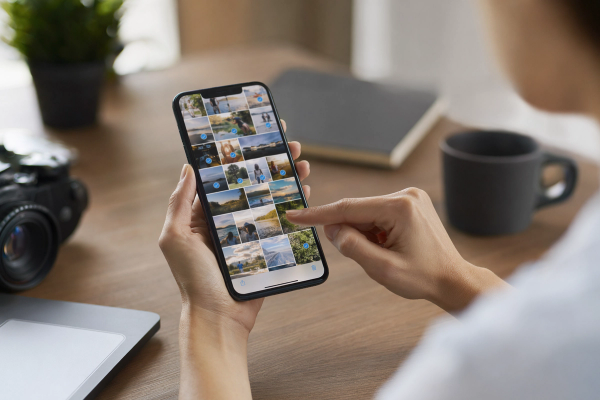
To move WhatsApp chats from Android to iPhone, use Move to iOS during iPhone setup and select WhatsApp when the transfer options appear. Keep the Android phone and access to the same WhatsApp number until you’ve opened your chats and checked the media on the iPhone.
If your iPhone is already set up, pause before doing anything to either phone. Apple’s documented Move to iOS process starts from the setup screen. Getting back to that screen by erasing your iPhone can remove the things you’ve added since opening the box. Take stock of what each phone holds first.
Check what you want to keep on both phones
#On the Android, open WhatsApp and check that the messages you care about are there. Pick a few things you’ll recognize after the move. You might choose a family group with photos, a chat that has a voice note from last year and a document you need for work. You’re giving yourself something specific to verify later.
On the iPhone, check whether it’s fresh out of the box or already in use. Look for new photos, app data, notes, messages and accounts you’ve set up. If you’ve started using WhatsApp on it, decide which conversations matter before you choose a path. Treat Android history and chats created on the iPhone as two separate histories. The documented transfer procedure gives you a way to import the Android history. It doesn’t give you a supported merge of the two histories.
Check which number WhatsApp is using on Android and whether you can still receive verification for it. If you’re moving the SIM or eSIM too, work out when the carrier will activate the number on the iPhone. Having a new phone in your hand can feel like the whole job is done. The number can still be the piece you need to finish.
Check storage before you start the transfer
#Compare available space on the iPhone with everything you plan to move. WhatsApp media can be part of a much larger transfer if you also select your camera roll and files. Apple asks you to account for content from Android, including an external microSD card where applicable.
For example, say you mainly care about your chats and have a large photo library. Decide whether the photo library also needs to move in this session. Keep an accessible copy of anything you leave on the Android. If space is tight, moving fewer separate categories can make the main task easier to follow. Keep the WhatsApp selection if chat history is the reason you started.
Use a time when you can leave both devices alone. Plug them in, turn on Wi-Fi on Android and check that you can update the relevant apps and software through official channels. Keep both phones close. If you’re considering a cable, follow Apple’s instructions for the ports and devices you have. A cable that charges a phone may still need to support the data connection you want.
Move the chats during iPhone setup
#Start with the iPhone’s setup screens. At Transfer Your Apps & Data, choose From Android. If Apple offers a choice, pick the transfer with the Move to iOS app for this WhatsApp workflow. On Android, open Move to iOS and follow the pairing prompts. You may see a code on the iPhone and a request for Android to join a temporary Wi-Fi connection.
Apple also describes an app-free transfer on compatible devices. Its documentation lists categories such as contacts and photos for that route. For WhatsApp, use the documented Move to iOS app workflow unless the current official instructions for your devices specifically include the WhatsApp history in another route. A transfer option for your general phone data can leave out the app data you came for.
When the transfer list appears, select WhatsApp. Android may hand you to WhatsApp to prepare the data. Follow those prompts, return to Move to iOS when it asks, and continue the transfer. If you’re looking at a percentage, give it time. Leave the transfer app in the foreground on Android during the move.
Use the loading bar on the iPhone as your finish line. Apple tells you to wait for that bar even if Android reports that it’s done. When it finishes, complete iPhone setup. Install the current official WhatsApp app if it’s missing, open it and register the number you used on Android. Follow the prompt to start the chat import and wait for it to finish.
Give the iPhone time to open the history before you decide what worked. Don’t hand over or reset the Android as soon as you see a WhatsApp icon on the new home screen. Seeing the app and seeing your conversations are two different checkpoints.
If the iPhone is already set up
#Apple says you need to erase the iPhone and start setup again to use its documented Move to iOS setup process once setup is complete. Check which content on that iPhone you would lose and make an appropriate backup or separate copy before choosing to erase anything. Open the copy for important photos or documents if you can. Knowing that a backup exists and knowing what you can retrieve from it are different levels of certainty.
Suppose the iPhone arrived yesterday and the only thing you’ve done is sign in. You may have a short list to check before restarting. Now imagine you’ve used the iPhone for a month, added work apps and started new WhatsApp chats. The same reset has a much bigger cost. Think through how you’ll retain those things before you choose to start over.
| Situation | What to do first |
|---|---|
| New iPhone still at setup | Select From Android and plan to include WhatsApp. |
| Set-up iPhone with little new data | Check what’s on it and how to keep it before deciding whether to restart setup. |
| Set-up iPhone with important files or newer WhatsApp chats | Preserve them separately and confirm your options before erasing. Assume no merge unless the official process explicitly says otherwise. |
| Android already traded in or erased | Check what remains in official backups and whether you can restore it on a compatible device before planning a cross-platform move. |
If all you need is a copy of one file or a few photos, it may make sense to move those items manually and keep the Android history available separately. If you need the conversations to open inside WhatsApp on your iPhone, plan around the documented chat migration. A document or exported copy you can open elsewhere serves a different purpose from a live chat history inside the app.
If WhatsApp is missing, stop at the failed step
#Start with where the problem happened. When WhatsApp is absent from the transfer list, check the Android app, the data selection and whether you chose the documented app-based transfer. Update through the official stores where needed and check the device requirements. If you skipped the selection and completed setup, go back to the decision about preserving the iPhone’s new data before considering another attempt.
If the two phones stop talking midway, start with Apple’s connection checks. Keep the transfer app onscreen, check that both phones have power and consider restarting both. Apple suggests turning off Android cellular data when retrying a connection problem. Watch for Android Wi-Fi features that leave the temporary network because it has no internet access. Change only the setting relevant to the retry so you know what to put back afterwards.
If the iPhone runs out of space, check what transferred and how much data you selected. Keep the original Android intact. A fresh retry may be necessary, but check both phones before you erase either one. Freeing room by deleting the only copy of the material you’re trying to move makes the original problem much worse.
If the app opens without the expected import prompt, check the registered phone number and whether the WhatsApp preparation and Move to iOS transfer both reached completion. Try the official support path for that specific condition. Be careful with tools that promise to convert a backup or bypass the setup requirement. A tool you give access to may be able to read the conversations and photos you want to keep private.
Make different backups for different jobs
#An Android backup and an iPhone backup solve problems on their own platforms. If you still have your Android phone, the supported migration uses that phone and the setup process to move the WhatsApp history. Looking for a Google Drive restore button on the iPhone is a different path from the one described here. Keep the Android backup available in case you need to get back to a working Android copy.
If you’re preserving the iPhone before a restart, look at photos, documents and chats one by one. Think about what a full iPhone restoration would mean after you import the Android chat history. Don’t count on restoring an entire earlier state and keeping a newer imported state at the same time. Where a file matters, keep a separate copy you can verify without restoring the whole phone.
Write down the three places you expect to find information after the move. For example, Android stays available until validation, photos from the iPhone have a separate verified copy, and the imported history is checked on the iPhone before you switch on its backup. If the process stops after any step, that note tells you which copy is still available and which step to check next.
Check the history before you retire the Android
#Open the oldest conversation you picked earlier and scroll to the messages you expected. Check a group, open a photo and play a voice note that matters to you. Tap the document itself. A preview tells you there’s an entry for it. Opening it tells you whether you can actually read the file on the new phone.
Check the last messages you expected from before the move. If you missed a call or made a payment through WhatsApp, don’t assume every category of account activity accompanies the chat history. Keep a separate record of anything essential before replacing the old phone, and check the current list of supported transfer items for your version.
Once you’re happy with the result, set up the backup you want to use on the iPhone and check its status inside WhatsApp. The Google account you used for an Android backup can still be useful on the Android side. The iPhone’s future WhatsApp backup uses its own settings and account. The WhatsApp backup privacy guide explains what to check before you rely on that copy.
If you’re trading the Android in at a shop, do the verification before the handover. A few minutes checking chat history, media and number access can save you from trying to recover everything after the old phone has left your hands.