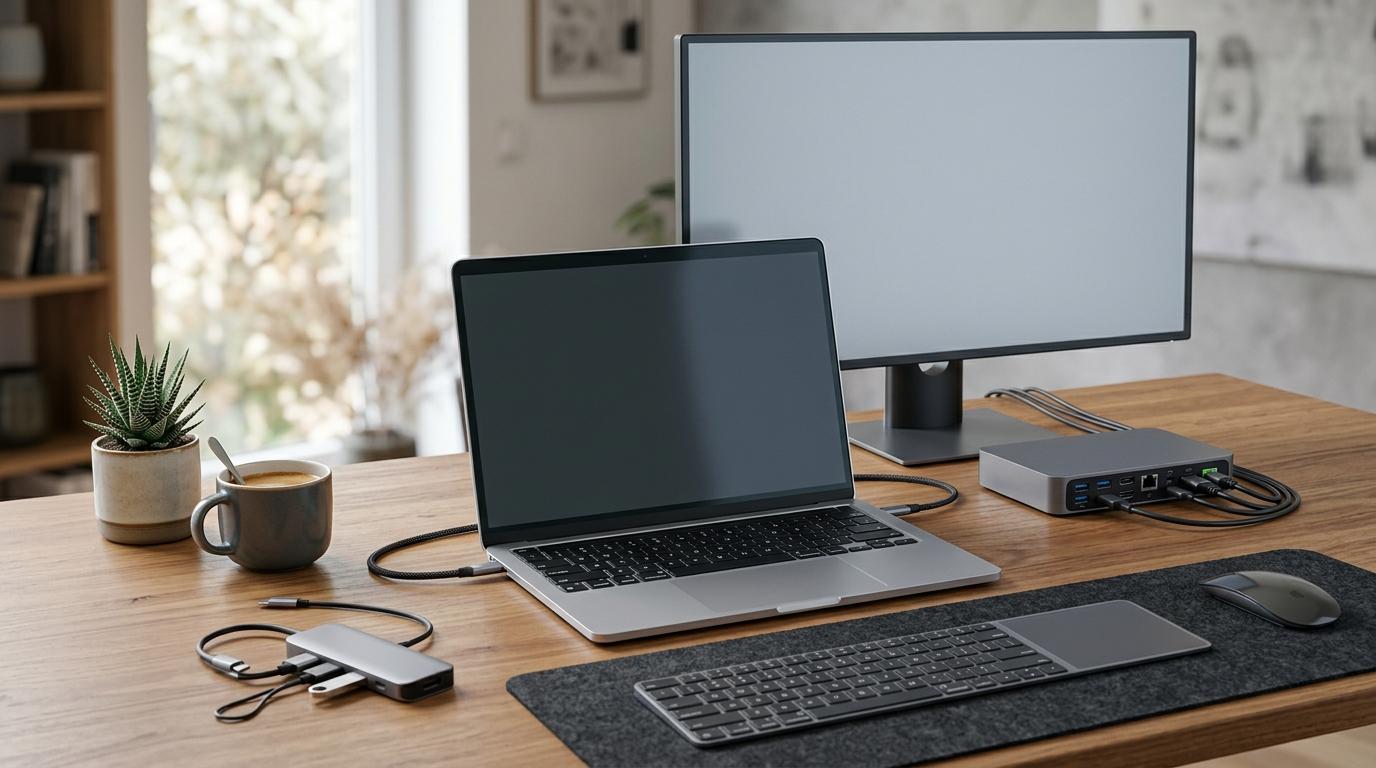
Buy a USB-C hub if you need a small adapter you can throw in your bag and use when your laptop is missing a port. Buy a docking station if you want a cleaner desk setup where one cable connects your laptop to your monitor, charger, keyboard, mouse, Ethernet, storage, and everything else.
That’s really the heart of the USB-C hub vs docking station decision: are you trying to stay mobile, or are you trying to turn your laptop into a desktop?
Modern laptops are great to carry around. They’re thin, light, and often beautifully designed.
But then reality shows up.
You need to connect a monitor.Then a mouse.Then a keyboard.Maybe an SD card.Maybe Ethernet because the Wi-Fi is acting up.Maybe an external drive because your laptop storage is full.
Suddenly, those two USB-C ports don’t feel so generous.
That’s where a USB-C hub, USB-C dock, Thunderbolt dock, or full laptop docking station comes in. They all add ports, but they’re not all built for the same kind of user.
Choose the wrong one and you might end up with a dangling mess of cables, a monitor stuck at 30Hz, slow file transfers, or a dock that doesn’t charge your laptop properly.
So let’s make this simple.
Quick Answer
#The Simple Version: Hub for Moving Around, Dock for Staying Put
#A USB-C hub is usually the better choice if you move around a lot.
It’s the little adapter you keep in your laptop bag for moments when you need HDMI, USB-A, an SD card reader, or Ethernet. It’s useful at school, in meetings, while travelling, or when you’re working from different places.
A docking station makes more sense if your laptop sits at the same desk most days.
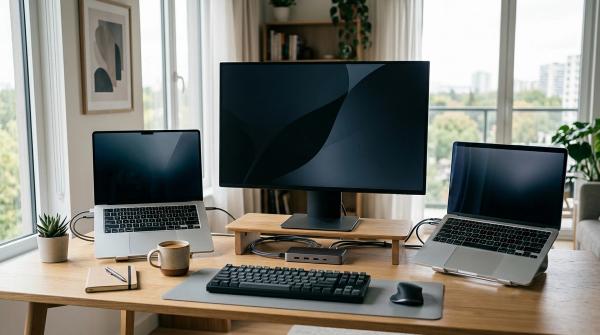
With a dock, you can leave your monitor, charger, keyboard, mouse, webcam, Ethernet cable, and external storage plugged in all the time. When you sit down, you connect one cable to your laptop and you’re ready to work.
That’s the dream: one cable instead of five.
But there’s one annoying detail you need to know.
Just because a laptop has a USB-C port doesn’t mean that port can do everything. Some USB-C ports support charging, video, and fast data. Others only support basic data. Two laptops can have ports that look identical but behave very differently.
So yes, the cable might fit. That doesn’t guarantee everything will work.
What Is a USB-C Hub?
#A USB-C hub is a small adapter that turns one USB-C port into several other ports.
A typical USB-C hub might include:
- USB-A ports for older accessories
- HDMI for a monitor, TV, or projector
- SD or microSD card reader
- Ethernet
- USB-C power passthrough
- Extra USB-C data ports, depending on the model
Think of a hub as a handy problem solver.
Your laptop doesn’t have HDMI? Use the hub.Need to plug in a flash drive? Use the hub.Need to import photos from an SD card? Use the hub.
It’s not really meant to become your entire desk setup. It’s more of a compact adapter for those “I just need this one port” moments.
Most USB-C hubs are powered by your laptop. Some also support Power Delivery passthrough, often called PD passthrough. That means you can plug your laptop charger into the hub, then plug the hub into your laptop, so you can charge while using the extra ports.
That’s useful, but it’s not the same as a full powered docking station with its own power supply.
Who Should Buy a USB-C Hub?
#A USB-C hub is a good choice for:
- Students moving between classrooms, libraries, dorms, and home
- Remote or hybrid workers who use different desks during the week
- Travellers who need HDMI, USB-A, or Ethernet without carrying bulky gear
- Presenters connecting to projectors, TVs, or meeting room screens
- Creators who mainly need an SD card reader, one monitor, and a few basic ports
- Everyday laptop users who occasionally need to connect a mouse, drive, or display
If your setup changes often, a hub is usually the easier buy.
It’s small, simple, affordable, and does the job without taking over your bag.
Who Should Avoid a USB-C Hub?
#A basic USB-C hub might not be enough if you need:
- Two or more external monitors with reliable extended display support
- A permanent desk setup with many accessories connected all day
- Fast external storage, Ethernet, webcam, charging, and monitors running at the same time
- A clean one-cable workstation
- More stable power for power-hungry devices
A hub can be incredibly useful, but it has limits.
Some product photos make hubs look like they can run a full office desk with no problem. In real life, that depends heavily on the hub, your laptop, your charger, and what you’re connecting.
What Is a Docking Station?
#A docking station is built for a desk.
It connects multiple accessories to your laptop through one main cable and usually has its own power adapter.
A typical laptop docking station may support:
- One or more external monitors
- USB-A and USB-C accessories
- Ethernet
- Audio devices
- External storage
- Keyboard and mouse
- Laptop charging
- Thunderbolt, depending on the model
The main benefit is convenience.
You leave everything plugged into the dock: monitor, keyboard, mouse, charger, webcam, Ethernet, speakers, external drive, whatever you use daily.
Then, when you sit down, you plug one cable into your laptop.
When you’re done, you unplug one cable and leave.
That’s the whole point of a docking station. It turns your laptop into the centre of a proper workstation without making you rebuild the setup every morning.
Who Should Buy a Docking Station?
#A docking station makes sense for:
- Home office workers who use the same desk most days
- Small teams that want cleaner and more consistent desk setups
- Creators using monitors, cameras, external drives, card readers, and audio gear
- Programmers, analysts, and editors who work better with larger or multiple screens
- Anyone tired of plugging in several cables every time they sit down
- Users who want charging and accessories through one connection
If your laptop is your main computer, but you want it to behave like a desktop at your desk, a dock is usually the better choice.
Who Should Avoid a Docking Station?
#A docking station may be too much if:
- You mostly work from cafes, classrooms, coworking spaces, or while travelling
- You only need one HDMI port and one USB-A port
- You don’t have a fixed desk
- You don’t want another power adapter on the floor
- Your laptop’s USB-C port doesn’t support the features the dock needs
A dock is great in the right environment.
That environment is usually your desk, not your backpack.
USB-C Hub vs Docking Station: Full Comparison
#Here’s the practical difference most laptop users need to understand.
The Real Difference Isn’t Just Size
#It’s easy to think the difference is simple: hubs are small, docks are big.
That’s partly true, but it’s not the full story.
The real difference is what you expect the device to handle.
A USB-C hub is great when you need a few extra ports for light use. A docking station is better when you expect one laptop connection to manage charging, displays, Ethernet, storage, webcam, keyboard, mouse, and audio all at once.
That’s a much heavier workload.
A small travel hub might technically have many of those ports, but that doesn’t mean it’s the best tool for running them all day, every day.
What to Check Before Buying
#Before you buy any USB-C hub, USB-C dock, Thunderbolt dock, or laptop docking station, check these details first.
It only takes a few minutes, and it can save you from buying something that looks right but doesn’t actually work with your laptop.
2. Does Your Laptop Support USB-C Charging?
#Some laptops charge through USB-C. Some don’t.
And some laptops, especially gaming laptops or higher-performance models, may support USB-C for data and displays but still need their original charger for full power.
If you want a one-cable setup, confirm that your laptop supports USB-C Power Delivery charging.
Also check how much wattage it needs. A thin work laptop might be fine with 45W or 65W. A more powerful laptop may need much more.
3. Is the Power Delivery Rating High Enough?
#Don’t assume every hub or dock can charge your laptop properly.
If your laptop came with a 65W charger, a hub that supports “100W PD passthrough” sounds safe. But some hubs reserve part of that power for themselves, meaning your laptop may receive less than the full amount.
For example, your charger might provide 65W, but after passing through the hub, your laptop may receive less than 65W.
That may be fine for light use. But during heavier work, your battery could still slowly drain.
With docking stations, check the actual charging output too. A dock that doesn’t provide enough power can become annoying quickly.
4. How Many Monitors Do You Need?
#If you only need one external display, many USB-C hubs will do the job, assuming your laptop supports video over USB-C.
If you need two or more monitors, be more careful.
Multi-monitor support depends on several things:
- Your laptop
- Your operating system
- The hub or dock
- The connection type
- Monitor resolution
- Monitor refresh rate
- Whether your laptop supports MST, Thunderbolt, or DisplayLink
This is where a proper USB-C dock or Thunderbolt dock often makes more sense than a basic hub.
5. Do You Need 4K at 60Hz?
#Many listings say “supports 4K,” but that can be misleading.
Sometimes “4K support” means 4K at 30Hz, not 4K at 60Hz.
That difference matters.
At 30Hz, your mouse movement can feel less smooth. Dragging windows around can feel choppy. Working in large spreadsheets, timelines, design apps, or editing software can become tiring.
If you care about smooth display output, look specifically for 4K at 60Hz support.
And again, make sure your laptop can support it too.
6. Are You Using a Mac?
#Mac users need to be extra careful with multi-monitor setups.
Many Windows laptops support MST over USB-C, which can help run multiple extended displays from one connection. macOS does not handle MST in the same way.
That means a cheap USB-C hub with two HDMI ports may simply mirror the same image on both screens instead of giving you two separate extended displays.
If you use a Mac and want multiple external monitors, check:
- Your exact Mac model
- How many external displays it supports
- Whether you need Thunderbolt
- Whether you need a DisplayLink-based solution
- Whether the dock officially supports your setup
This is especially important for MacBook Air and base-model MacBook Pro users, where external display support can be more limited than expected.
7. Do You Need Thunderbolt?
#Thunderbolt uses the same USB-C connector shape, but it is not the same as regular USB-C.
A Thunderbolt dock can offer stronger display support, faster data transfer, and better performance for demanding desk setups.
It can be useful if you use:
- Multiple high-resolution monitors
- Fast external SSDs
- Audio or video production gear
- A more advanced workstation setup
But there’s a catch: your laptop needs to support Thunderbolt.
If your laptop only has standard USB-C, a Thunderbolt dock may still connect in some cases, but you probably won’t get the full benefits.
Look for the Thunderbolt symbol near the port or check your laptop’s spec sheet.
Common Buying Mistakes to Avoid
#Mistake 1: Buying Based Only on the Number of Ports
#More ports doesn’t automatically mean better.
A cheap hub with lots of ports might still have weak power handling, limited bandwidth, or poor monitor support.
It may look impressive in the product photo, but that won’t help if your external drive keeps disconnecting or your monitor only runs at 30Hz.
Buy based on what you actually need, not the longest list of ports.
Mistake 2: Assuming Every USB-C Port Does Everything
#USB-C is a connector shape. It is not a guarantee.
A USB-C port may support:
- Charging
- Video output
- Fast data transfer
- Thunderbolt
- Basic data only
This is probably the biggest source of confusion.
The cable fits, so people assume everything should work. Unfortunately, that’s not always true.
Mistake 3: Ignoring Refresh Rate
#“4K support” sounds good, but 4K at 30Hz and 4K at 60Hz are not the same experience.
If you use your monitor all day, refresh rate matters more than you might think.
A 30Hz display can feel laggy and uncomfortable, especially if you’re used to smoother screens.
Mistake 4: Expecting a Travel Hub to Run a Full Desk Setup
#A small hub can connect a monitor, mouse, keyboard, and drive.
But that doesn’t mean it’s ideal for running all of them all day while also charging your laptop.
If devices disconnect, storage speeds drop, or charging feels unreliable, the hub may simply be doing more than it was designed to do.
That’s when a docking station starts to make more sense.
Mistake 5: Forgetting About Cable Length
#Many USB-C hubs have very short built-in cables.
That’s fine when your laptop is flat on a table. But if your laptop is on a stand, the hub may hang awkwardly from the side.
That can stress the cable, pull on the laptop port, and make your desk look messy.
A docking station is usually better for raised laptop stands and cleaner cable routing.
Mistake 6: Buying a Thunderbolt Dock Without Checking Support
#Thunderbolt docks can be excellent, but only if your laptop supports Thunderbolt.
If it doesn’t, you may be paying extra for features you can’t use.
Check first, then buy.
It sounds obvious, but it’s an easy mistake to make when a dock looks premium and has great reviews.
USB-C Hub Buying Guide: When a Hub Is the Smarter Choice
#Choose a USB-C hub if:
- You want something small enough to carry every day
- You mostly need HDMI, USB-A, Ethernet, or an SD card reader
- You use one external monitor at a time
- You work from different places
- You don’t want a big power brick
- You need a practical adapter, not a full workstation
A good USB-C hub is one of the most useful laptop accessories you can buy.
It solves the missing-port problem without turning your bag into a cable drawer.
For students, travellers, presenters, and casual remote workers, a hub is often enough.
Laptop Docking Station Buying Guide: When a Dock Is Worth It
#Choose a docking station if:
- You sit at the same desk most days
- You want one cable going into your laptop
- You use several accessories every day
- You need reliable charging while working
- You want Ethernet, monitors, keyboard, mouse, webcam, and storage connected all the time
- You care about having a cleaner desk
- Your laptop is your main computer
A dock is not really about portability.
It’s about routine.
It saves you from plugging in the same five cables every morning and unplugging them again every evening. If you work at a desk often, that convenience adds up.
For home office workers, creators, programmers, editors, analysts, and small teams, a docking station can be absolutely worth it.
USB-C Dock vs Thunderbolt Dock
#A USB-C dock and a Thunderbolt dock can look almost identical, but they are not always equal.
A USB-C dock is usually enough for a basic desk setup. It can work well if you need one monitor, Ethernet, USB accessories, and laptop charging.
A Thunderbolt dock is better for heavier setups. It makes more sense if you need multiple high-resolution displays, faster external storage, or a more powerful workstation arrangement.
But don’t buy Thunderbolt just because it sounds more premium.
Buy it because your laptop supports it and your setup actually needs it.
If you’re not sure, start with your laptop’s official specifications. That will tell you whether Thunderbolt is even an option.
Simple Decision Guide
#Here’s the easiest way to decide:
- If it goes in your bag, buy a USB-C hub
- If it stays on your desk, buy a docking station
- If you need multiple high-resolution monitors or fast external storage, consider a Thunderbolt dock
- If you only need one HDMI port and one USB-A port, don’t overbuy
- If your laptop doesn’t support video over USB-C, a hub or dock won’t magically fix that
1. Can a USB-C hub charge my laptop?
#Yes, but only if the hub supports USB-C Power Delivery passthrough and you plug in a compatible charger.
The hub usually does not provide wall power on its own. It passes power from your charger through to your laptop.
Also check the wattage. Your laptop may need more power than the hub can deliver.
2. Is a docking station better than a USB-C hub?
#A docking station is better for a permanent desk setup with monitors, charging, Ethernet, keyboard, mouse, webcam, and other accessories.
A USB-C hub is better for portability and occasional use.
Neither one is automatically better for everyone. It depends on how and where you work.
3. Do I need a Thunderbolt dock?
#You may need a Thunderbolt dock if your laptop supports Thunderbolt and you want better performance for multiple displays, fast external drives, or a more demanding workstation.
If your needs are basic, a regular USB-C hub or USB-C dock may be enough.
4. Why won’t my USB-C hub show anything on my monitor?
#Your laptop’s USB-C port may not support video output.
For HDMI or DisplayPort through USB-C, your laptop usually needs DisplayPort Alt Mode or Thunderbolt.
Also check the cable, monitor input setting, display settings, and whether the hub itself supports the resolution and refresh rate you want.
5. Can I use a docking station with any laptop?
#Not always.
You need to check whether the dock is compatible with your laptop’s USB-C or Thunderbolt port, charging requirements, display support, and operating system.
The connector may fit, but that doesn’t mean every feature will work.
Final Takeaway
#The USB-C hub vs docking station choice mostly comes down to your work style.
If you move around, study in different places, travel often, give presentations, or just need a few missing ports, buy a USB-C hub.
It’s small, practical, and easy to carry.
If you work from the same desk and want your laptop to connect to your monitor, charger, Ethernet, keyboard, mouse, webcam, and storage with one cable, buy a laptop docking station.
And if your setup is more demanding, especially with multiple displays or fast external storage, check whether your laptop supports Thunderbolt before buying a Thunderbolt dock.
Simple rule: hub for mobility, dock for the desk. Compatibility decides the rest.