The airport panic that made me build a proper offline wallet
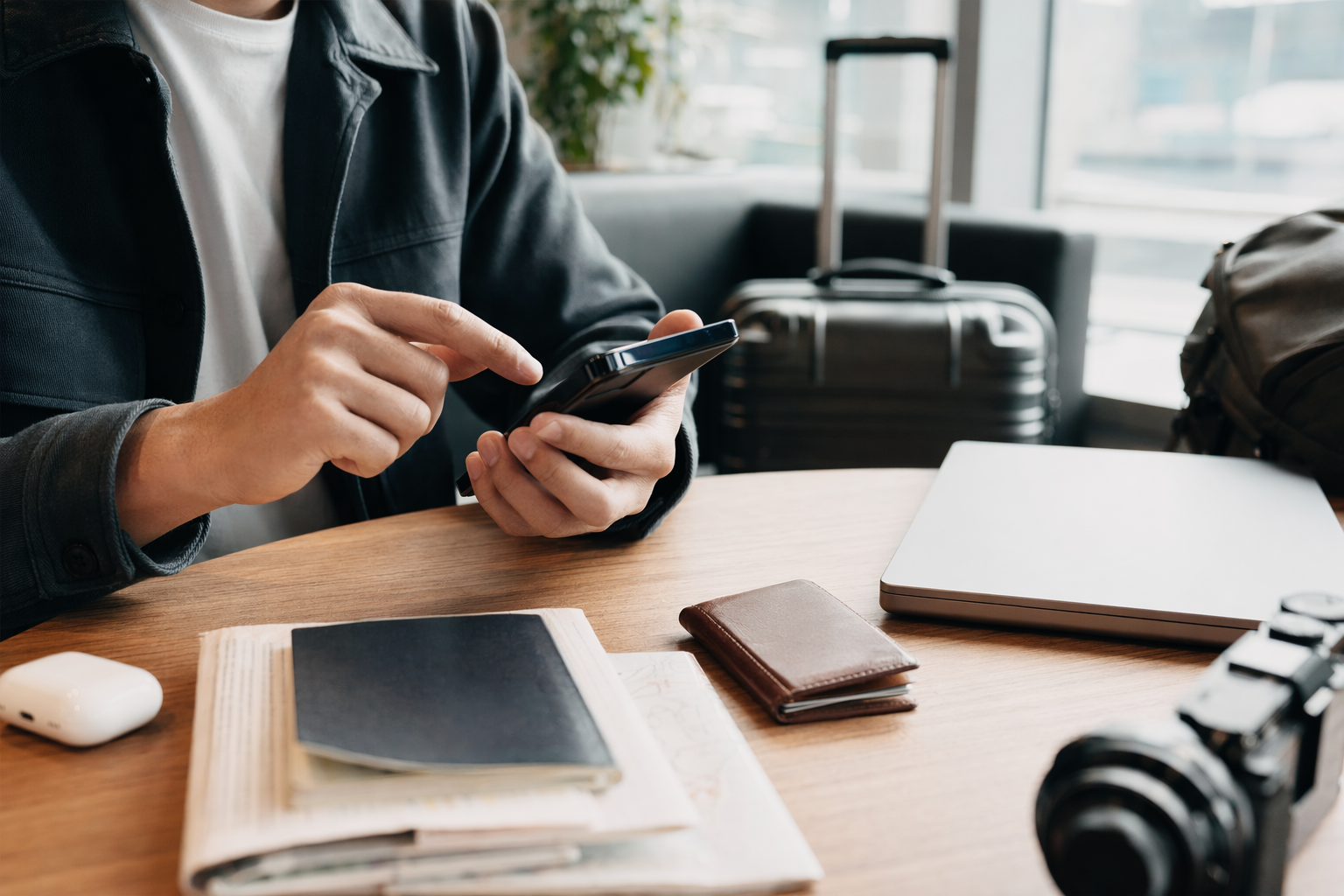
#I got weirdly passionate about digital travel wallets because of one stupid little moment in an airport queue. Not dramatic, not movie-level, just me standing there with a dying phone, airport Wi‑Fi doing that fake connected-but-not-really thing, and the airline app spinning like it was contemplating life. My boarding pass was somewhere in the app. My hotel address was in Gmail. My travel insurance PDF was in a cloud folder that, of course, needed internet to open properly because I hadn’t marked it offline. Classic me.
That was the day I stopped treating “I have it on my phone” as a plan. Because it isn’t. It’s a wish. A digital travel wallet only counts if the important stuff is saved offline, easy to find, and protected enough that losing your phone doesn’t become a whole second vacation disaster. I’m a tech person, I love apps, automations, cloud sync, all that nerdy goodness. But travel has taught me that the best setup is boring. Boring works when you’re jet-lagged and the border officer is waiting.
What I mean by a digital travel wallet, because it’s not just Apple Wallet or Google Wallet
#When I say digital travel wallet, I don’t only mean the wallet app on your phone. Apple Wallet and Google Wallet are useful for boarding passes, train tickets, event passes, and sometimes payment cards or IDs depending on your country and what’s supported. Great. Love that. But a real travel wallet is more like a little offline command center: documents, PDFs, screenshots, notes, emergency info, booking terms, maps, and backup copies, all arranged so your half-asleep brain can find them.
And yeah, this sounds obsessive until you’re in a taxi in a city where your mobile data hasn’t kicked in yet and the driver asks for the hotel address. Or the rental car desk wants the reservation number. Or immigration asks where you’re staying and your inbox decides now is a good time to refresh forever. I’ve been there. You don’t want to be scrolling through 3,000 screenshots called IMG_4927 at 1 a.m.
The rule I use now is simple: if I would be annoyed, delayed, stranded, fined, or extremely stressed without it, it goes into my offline travel wallet.
The boring-but-brilliant folder structure I use before every trip
#I used to dump everything into one folder named “Japan trip” or “Europe stuff” and feel very organized for about 9 minutes. Then I’d need one document and couldn’t tell if “booking-final-final.pdf” was the hotel, train, or insurance thing. So now I use a folder system that is almost embarrassingly basic. It’s not fancy productivity guru stuff. It just works.
My top folder is named with the trip date and destination, like “2026-03 Lisbon” or “Thailand Jan”. Inside that, I make a few subfolders: ID and visas, flights, accommodation, transport, insurance and health, money, emergency, and local info. Sometimes I add “activities” if it’s a big itinerary trip. Sometimes I don’t because, honestly, I get lazy too. But the core folders stay the same.
- ID and visas: passport scan, visa approval, residence permit if needed, extra passport photo scan
- Flights: boarding passes, e-ticket receipts, baggage allowance screenshots, airline support numbers
- Accommodation: hotel confirmations, address in local language if useful, check-in instructions, cancellation terms
- Transport: train tickets, bus QR codes, rental car booking, driving permit scan if relevant
- Insurance and health: policy PDF, emergency claim number, prescriptions, allergy info, vaccine records if the destination requires them
- Money: backup card info note, bank support numbers, currency notes, ATM fee reminders if I’ve researched them
Step one: save documents as files, not just screenshots
#Screenshots are fast, and I still use them, but they’re not enough. A screenshot can cut off the booking reference, blur a QR code, or get buried in your camera roll between coffee photos and random airport ceiling pics. PDFs are usually better. If an airline, hotel, insurer, or embassy site gives me a PDF, I save the PDF. If they only send an email, I print or export the email to PDF. On iPhone, that usually means share, print, pinch out, then save to Files. On Android, the print menu usually lets you save as PDF. Not glamorous. Very useful.
For the stuff that lives in apps, like airline boarding passes, I do both: add it to the wallet app and save a screenshot of the pass. I know some QR codes update or expire, so the app version is still the “real” one when required, but the screenshot often gets me through the awkward moment where the app won’t load and the gate agent just needs to see the details. Also, airplane mode is a nice way to test this. Before I leave home, I turn on airplane mode and try to open everything. If I can’t open it on my couch, I definately won’t magically open it at a chaotic airport.
The files I always save offline now
#This is my personal checklist, and it’s grown from actual little failures. I didn’t add prescriptions because I’m organized. I added them because once I had to explain a medication in a pharmacy with bad signal and worse pronunciation. Fun times.
- Passport photo page scan, saved as a PDF and also as an image, but never as the only copy of my passport. A digital copy helps with hotel check-ins or lost passport reports, but it is not a replacement for the physical passport.
- Visa, eVisa, ESTA-style approvals, entry forms, invitation letters, or anything the country asked for during application. If the official page says print it, I print it too. I don’t argue with border processes.
- Flight itinerary and ticket receipt, not just the boarding pass. Boarding passes change. Receipts show booking reference, ticket number, route, and sometimes baggage details.
- Hotel or apartment confirmation with address, phone number, check-in instructions, and cancellation rules. If you booked something flexible, keep the deadline visible. I’ve missed one before and I was so mad at myself.
- Travel insurance policy, emergency assistance number, claim steps, and exclusions page. Not the whole 38-page beast if you hate reading, but at least the parts you’ll actually need when stressed.
- Prescriptions, doctor notes for controlled meds if needed, glasses prescription, allergies, blood type if you track it, and emergency contacts.
- Local transport tickets, rental car voucher, international driving permit scan, parking booking, ferry confirmation, rail pass, basically anything with a QR code or reservation number.
- eSIM QR code or activation instructions. This one is funny because you often need internet to set up internet, which is such a tech industry joke it hurts.
Where to store it: my slightly paranoid setup
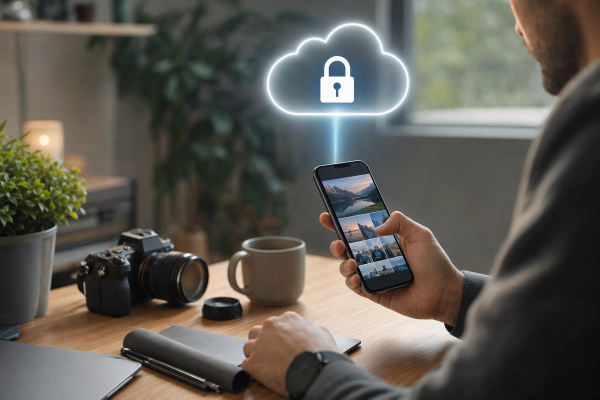
#I use layers. One copy in my phone’s local file storage. One copy in a cloud folder marked for offline access. One copy shared with my travel partner if I’m not solo. And for big trips, I keep a tiny encrypted backup on a USB-C drive or external SSD. Is that overkill? Maybe. But phones get stolen, dropped, water-damaged, locked, or just decide to update at the worst possible time. If you’ve ever watched a phone battery fall from 12% to 3% in a cold airport, you know the fear.
The phone-only approach is the one that scares me most. I love my phone, but it is a single point of failure with a shiny screen. If you’re also carrying tons of travel photos and videos, the backup question gets bigger than documents. I wrote my own notes after comparing options, and this guide on Cloud Storage vs External SSD for Travel Photos is exactly the kind of thing I wish I’d read before trying to back up 4K clips over hotel Wi‑Fi that had the speed of soup.
My actual storage stack, no fancy diagram needed
#On iPhone, I keep a trip folder in Files and mark it downloaded. On Android, I’d do the same with the local Files app or a reputable cloud drive app with offline access turned on. I also add critical passes to Apple Wallet or Google Wallet because they’re fast at gates and stations. For sensitive stuff, I prefer an encrypted password manager note or secure vault, not a random photo album called “Passport lol”. Please don’t do that. Past me did that. Past me was an idiot.
A password manager is honestly one of the best travel tools nobody talks about enough. Not just for passwords, but secure notes: passport number, insurance hotline, bank phone numbers, backup card last four digits, embassy contact, frequent flyer numbers. You can often set important items to be available offline, protected by biometrics and your master password. Just make sure you know the master password without Face ID, because if your camera breaks or your face is swollen from allergies or whatever, you still need in.
Security: useful paranoia, not spy movie nonsense
#There’s a balance here. Saving passport scans, visas, and insurance documents offline is practical. Leaving them unprotected in your downloads folder is… less practical. Travel documents are identity gold. If someone gets your phone unlocked, they can learn a lot about you really fast. So I try to treat the digital wallet like a wallet-wallet. I wouldn’t leave my passport open on a café table. Same vibe.
- Use a strong phone passcode, not 123456 or your birthday. I know, obvious, but people still do it.
- Turn on biometrics, but make sure you remember the actual passcode and password too.
- Enable remote find, lock, and wipe features before the trip, not after the phone is gone.
- Keep sensitive scans inside an encrypted app, password manager, or locked folder when possible.
- Don’t send your whole passport scan over random public Wi‑Fi unless you absolutely must. Use mobile data or a trusted connection when you can.
Also, don’t upload your passport to every “travel organizer” app that looks cute in the app store. I’m not saying all of them are bad. Some are excellent. But read the privacy basics: who runs it, what data they collect, whether documents are encrypted, whether it works offline, and whether you can export your stuff. If an app makes it hard to leave, I get suspicious. Maybe that’s the grumpy tech part of my brain talking, but still.
The offline test: my favorite 10-minute pre-trip ritual
#The best trick is painfully simple. The night before the trip, put your phone in airplane mode and pretend the internet no longer exists. Then try to do the travel day from your offline wallet. Open your boarding pass. Find your hotel address. Pull up the insurance emergency number. Show the visa PDF. Open the eSIM instructions. Search the folder without using cloud search. If anything fails, fix it while you’re still at home with snacks and Wi‑Fi.
I do this with my partner sometimes and it turns into a weird little drill. “Okay, your phone is dead, where’s the hotel?” “Okay, my wallet app won’t open, what’s the booking reference?” It sounds dramatic but it has saved us. Once in Italy, the apartment host sent check-in instructions as three photos inside a messaging app, and I had only saved one of them. The one with the door code? Nope. Not saved. We ended up standing outside like two confused pigeons. Since then, every message with a code becomes a PDF or screenshot immediately.
Don’t forget maps, because documents without location are half useful
#A travel wallet isn’t only documents. Addresses are part of it too. I save the hotel address in English and sometimes local script, plus a pinned map and the route from airport or station. If I’m landing late, I screenshot the route. I also download the offline map area before I go. Google Maps offline maps are useful in many places, Apple Maps has improved offline support in supported regions, and Maps.me is still loved by lots of backpacker types because it’s very offline-first. I’m not religious about one app. I use whatever works for that destination.
After saving tickets and bookings, downloading maps is the next thing I’d do, especially if your roaming plan is sketchy or expensive. If you want a proper comparison, Offline Maps for Travel: Google vs Apple vs Maps.me fits right into this whole prep routine. Because having the hotel confirmation is nice, but having the hotel location when your data refuses to data? Much nicer.
Hotels, insurance, refunds, and the tiny print you’ll wish you saved
#This is the part I used to ignore because it felt boring. Save the cancellation terms. Save the refundable booking rules. Save the insurance coverage summary. Save the part that says what to do if a flight is delayed, a bag is lost, or you need medical help. You don’t need to memorize it. You just need it offline when you’re tired and maybe a bit panicky.
There’s also a difference between “I can cancel this hotel” and “insurance will cover this problem” and those two things get mixed up in people’s heads. Mine included. If you’re deciding how much backup you need, it helps to understand what each one actually does, and this piece on Refundable Hotel Booking vs Travel Insurance is a good rabbit hole for that. I now save hotel cancellation deadlines as a calendar reminder too, because apparently my brain thinks dates are decorative.
My favorite little tech tricks that feel almost too simple
#One thing I love is making a single “START HERE” PDF or note. It has the trip overview: flight numbers, hotel address, emergency contacts, insurance hotline, and links or filenames for the big documents. Not a 20-page itinerary. Just the “oh no, I need the basics” page. I make it available offline and pin it if the app allows. This saves me from opening eight folders while balancing a backpack and a sad airport sandwich.
Another trick: rename files like a person who will be stressed later. “PassportJaneExpires2031.pdf” is better than “scan0008.pdf”. “HotelTokyoCheckinCode.pdf” beats “reservation.pdf”. I include dates in file names when it matters, like “TrainKyotoOsaka_2026-04-12.pdf”. Search works better. Humans work better. Everyone wins.
- Take screenshots of QR codes at full brightness, then check they’re not blurry.
- Star or favorite the trip folder so you don’t dig through file trees at the counter.
- Save important emails as PDFs, because email apps love needing signal at the worst time.
- Add emergency numbers to contacts with obvious names like “Insurance Emergency” and “Bank Lost Card”.
- Keep a paper backup of the absolute essentials. Sorry, paper haters. Paper still slaps when batteries die.
The paper backup debate, where I annoy both tech people and minimalists
#I’m a digital-first person, but I still print a tiny backup pack for bigger trips. Passport copy, visa approval, first hotel address, insurance emergency number, and maybe the first flight itinerary. Not every booking. I’m not carrying a binder like it’s 2007. But a few folded pages can be magic if your phone is gone or border staff ask for something physical. Some destinations and airlines still prefer printed proof for certain documents, and official travel pages often say to carry physical copies where required. I take that seriously.
The trick is not to put too much personal data in one obvious pouch. I keep paper copies separate from the actual passport. If I’m traveling with someone, we split backups. Me and my partner have each other’s key docs in our offline folders too, which sounds unromantic but is actually one of the most romantic things we do. Nothing says love like “I can access your travel insurance number if you faint in a ferry terminal.”
Common mistakes I still see people make, and yes I’ve done some of them
#The biggest mistake is assuming cloud sync equals offline access. It doesn’t. A file can appear in your cloud drive app and still not be downloaded. You need to mark it offline or open it while connected and verify it stays open with data off. Another mistake is trusting airline apps too much. Airline apps are great until they log you out, update, glitch, or require a text message code that you can’t recieve because your SIM isn’t active abroad.
People also save documents in too many places without a naming system. That feels safer, but it becomes chaos. Three copies is good. Three mystery copies with different versions is bad. I try to keep one “truth” folder and then backups of that folder. If something changes, like a new hotel or rebooked flight, I delete or archive the old one. Otherwise you get to the desk and confidently show the wrong booking, which I have absolutely never done except I have.
A quick reality check on digital IDs and wallet apps
#Wallet apps are getting more powerful, and I’m genuinely excited about that. Some regions support digital driver’s licenses or IDs, some airports accept certain digital credentials in specific situations, and airlines keep improving mobile passes. But for international travel, your physical passport is still the boss. A scan can help you report a lost passport or fill in forms, but it won’t magically get you across borders. I know that sounds obvious, but tech marketing sometimes makes everything feel more official than it is.
So my approach is: use wallet apps for speed, use offline files for resilience, use encrypted notes for sensitive reference, and carry the real documents that authorities require. It’s not either-or. It’s a stack. A boring, beautiful, panic-reducing stack.
My final digital travel wallet checklist
#Here’s the version I run through before leaving. It’s not perfect, and I tweak it depending on the trip, but it catches most of the dumb stuff. I usually do it two days before travel, then one final airplane-mode test the night before. If I leave it until the morning of, I become a goblin and forget things.
- Create one trip folder with clear subfolders and human-readable file names.
- Save passport, visa, entry forms, flight tickets, hotel confirmations, transport bookings, insurance documents, and health info as PDFs where possible.
- Add boarding passes and tickets to your phone wallet, then screenshot important details as backup.
- Mark the full trip folder for offline access and confirm files open in airplane mode.
- Store sensitive scans in an encrypted vault, locked folder, or password manager, not loose in your photo roll.
- Download offline maps for your destination, plus screenshots of routes from airport or station to your first stay.
- Save eSIM setup instructions, local emergency numbers, embassy or consulate contact, bank lost-card numbers, and insurance hotline.
- Share a backup copy with a trusted travel partner or trusted person at home, depending on your comfort level.
- Make a tiny paper backup for the documents that would ruin your day if your phone died.
- Do the airplane-mode test. Seriously. It takes 10 minutes and exposes so many fake preparations.
The nerdy joy of being prepared without being boring
#What I like about a digital travel wallet is that it turns travel tech into something actually useful. Not just shiny apps and clever widgets, but real-world resilience. You’re building a small system for future-you, the tired version of you, the version with one hand on a suitcase and the other hand trying to open a PDF while someone behind you sighs loudly. Future-you deserves better.
And no, you don’t need to become a spreadsheet monster or carry three encrypted drives and a laminated binder. Start with the essentials. Save them offline. Test them. Protect them. Add maps. Add insurance and hotel terms. Give files names that make sense. That’s basically it. The setup gets easier every trip, and after a while it becomes this calm little ritual before the fun starts.
I still forget things sometimes. I still take too many screenshots. I still overpack chargers like I’m powering a small village. But I don’t stand in airport queues praying for Wi‑Fi anymore, and that feels like a genuine tech win. If you’re into practical travel tech stuff like this, I’d keep an eye on AllBlogs.in too. It’s the kind of place I’d browse with coffee while pretending I’m not already planning the next trip.