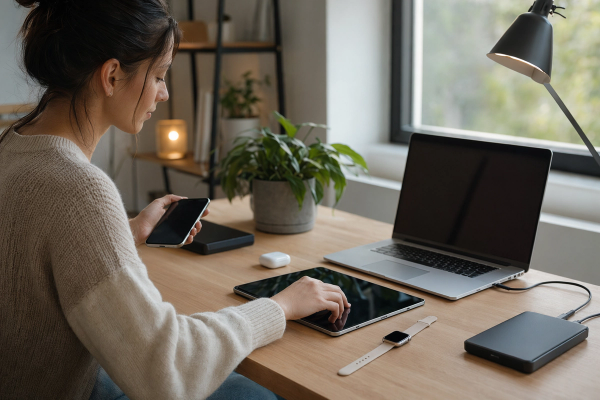
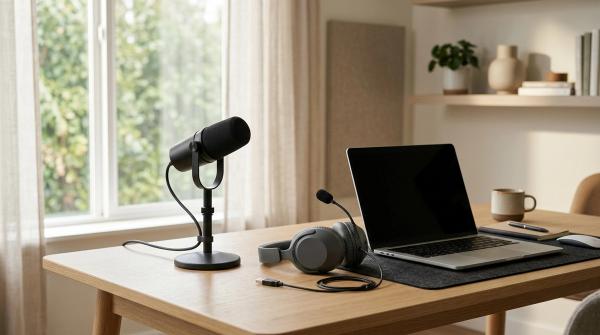
If you use your laptop anywhere people can sit beside you, a laptop privacy filter is usually the first thing to buy.
It solves the privacy problem most people actually run into: someone glancing at your screen in a cafe, library, airport, classroom, coworking space, train, or open office.
A webcam cover can be useful too, but check your camera and microphone settings first. And a laptop lock only makes sense if you leave your laptop unattended and your device has the right lock slot.
The Short Answer
#Priority 1: Check camera and microphone privacy settings. Best for everyone.
Priority 2: Buy a laptop privacy filter. Best for public work, travel, shared desks and coworking spaces.
Priority 3: Use a webcam cover only if it is safe for your laptop. Best for laptops without a built-in camera shutter.
Priority 4: Buy a laptop lock. Best for libraries, coworking spaces, offices and shared areas where you step away.
Quick buying rule: If people can see your screen, buy a laptop privacy screen first. If your camera has no built-in shutter, use a very thin, safe cover or rely on camera privacy controls. If you regularly walk away from your laptop in public or shared spaces, consider a laptop lock.
Working on a laptop in public feels normal now. You open your laptop, connect to Wi-Fi, answer emails, join calls, and get things done.
But a lot can be exposed without you noticing.
Someone at the next table might see your inbox. A person behind you could catch part of a client document. A video meeting might open with your camera on. Or, if you leave your laptop “just for a minute,” it may not be there when you get back.
That does not mean you need to buy every privacy gadget you see online. Most people only need one or two small upgrades.
The key is choosing the accessory that matches your real risk.
This guide compares a laptop privacy filter vs webcam cover vs laptop lock so you can decide what to buy first, what can wait, and what to check before spending money.
First, Match the Accessory to the Problem
#These accessories are often talked about together, but they do completely different jobs.
A laptop privacy filter protects what is visible on your screen.
A webcam cover blocks your camera when you do not want video showing.
A laptop lock helps stop someone from quickly walking away with your device.
They are not interchangeable.
A webcam cover will not stop someone from reading your screen. A privacy filter will not stop someone from stealing your laptop. A laptop lock will not hide sensitive information from the person sitting next to you.
So the right first purchase depends on how and where you use your laptop.
1. Laptop Privacy Filter: The Best First Buy for Shared Spaces
#If you work in cafes, libraries, airports, trains, classrooms, coworking spaces, or open offices, a laptop privacy filter is usually the most useful physical privacy accessory.
It helps reduce “visual hacking,” which is just a fancy way of saying someone nearby can see something on your screen that they should not see.
That could include:
- Client names
- Financial information
- HR or student records
- Private messages
- Work dashboards
- Password fields
- Personal emails
- Travel bookings
- Business documents
A laptop privacy screen narrows the viewing angle of your display. You can still see your screen when you are sitting in front of it, but people off to the side usually see a darkened or blurred view.
It is not perfect. If someone is standing directly behind you, they may still see what you are doing. You still need to pay attention to where you sit and what is open on your screen.
But for everyday shared workspace privacy, this is usually the accessory that protects the thing most exposed in public: your display.
When a Laptop Privacy Screen Makes Sense
#Buy one first if:
- You work with sensitive documents in public
- You travel often with your laptop
- You handle client, student, employee, or customer information
- You work in coworking spaces or shared offices
- You often sit with people beside or behind you
- You want a simple privacy upgrade that does not change your workflow much
When It May Not Be Ideal
#A privacy filter can make your screen look a little darker. It can also affect colors, which matters if your work depends on visual accuracy.
You may want to avoid one, or choose a removable version, if you are a:
- Designer
- Photographer
- Video editor
- Illustrator
- Color-grading professional
- Anyone who needs accurate screen color for long stretches of the day
For most students, remote workers, freelancers, business travelers, and office workers, the trade-off is manageable. But if you do color-sensitive work, removable is usually better than permanent.
2. Webcam Cover: Useful, but Do Not Rush Into Buying One
#A webcam cover feels like the obvious privacy accessory. It is cheap, easy to understand, and gives you a clear physical block.
Slide it closed, and the camera is covered.
Simple.
But it is not always the first thing you should buy.
Before buying a webcam cover, check whether your laptop already has:
- A built-in camera shutter
- A keyboard shortcut to disable the camera
- A camera indicator light
- Operating system camera permission controls
- App-level camera settings
Many modern business laptops already include a tiny built-in shutter. It can be easy to miss, but if your laptop has one, use it. You probably do not need to stick anything extra over the camera.
If your laptop does not have a shutter, a physical cover can still be useful. You just need to be careful about what kind you use.
Be Careful With Hard Plastic Webcam Sliders
#Many thin laptops have very little space between the screen and keyboard when closed. A thick plastic webcam cover can press against the display and may damage it.
This matters especially for thin-and-light laptops, including many MacBooks, Dell XPS-style ultrabooks, slim Chromebooks, and other modern laptops with tight lid clearance.
If you want a physical camera block, choose the thinnest safe option for your device. In many cases, a small piece of removable tape or a sticky note is safer than a bulky plastic slider.
It may not look as neat, but it can be easier on your screen.
Camera Settings Still Matter
#A webcam cover only blocks video. It does not block your microphone.
That is why your first step should be checking your camera and microphone settings.
A basic remote work privacy checklist should include:
- Reviewing which apps can access your camera
- Reviewing which apps can access your microphone
- Removing permissions from apps you no longer use
- Checking video meeting settings before joining calls
- Using a built-in shutter or safe physical cover as an extra layer
A webcam cover is useful for peace of mind, but it should not replace basic permission checks.
3. Laptop Lock: Helpful If Theft Is a Real Risk
#A laptop lock is different from the other two accessories. It is not about hiding your screen or blocking your camera. It is about reducing the chance of quick physical theft.
A laptop lock connects to a lock slot on your laptop and loops around a desk, table leg, or fixed object. It can make it harder for someone to casually grab your device and walk away.
But it only makes sense if you actually leave your laptop unattended.
If you always take your laptop with you when you go to the counter, restroom, printer, or meeting room, a lock may not be necessary.
If you often work in a library, coworking space, shared office, training room, or event booth and step away for short periods, a laptop lock becomes much more useful.
The Big Catch: Not Every Laptop Supports One
#Many older business laptops have a Kensington-style lock slot. Some newer laptops use smaller Nano slots or wedge-style slots. Many ultra-thin laptops and MacBooks may not have a standard lock slot at all.
Before buying a laptop lock, check your exact laptop model.
Do not guess.
A lock that does not fit your laptop is useless.
Also, remember that a laptop lock is a deterrent, not a guarantee. It can help prevent casual theft, but it does not make your laptop impossible to steal. If you can take your laptop with you, that is still the better option.
Laptop Privacy Filter vs Webcam Cover vs Laptop Lock: Side-by-Side Comparison
#Laptop privacy filter
- Protects against: people seeing your screen from the side
- Best first buy for: public and shared-space workers
- Main limitation: can reduce brightness and affect color
Webcam cover
- Protects against: unwanted camera visibility
- Best first buy for: laptops without a built-in shutter
- Main limitation: does not block the microphone; thick covers may damage screens
Laptop lock
- Protects against: quick physical theft
- Best first buy for: people who leave laptops unattended
- Main limitation: needs a compatible lock slot and is not theft-proof
Camera and mic settings
- Protects against: unnecessary app access to camera and microphone
- Best first step for: everyone
- Main limitation: needs to be checked regularly
Best Overall First Purchase
#For most people who work around others, the laptop privacy filter is the best first purchase.
It protects the information most likely to be exposed in everyday laptop use: your screen.
Best Free First Step
#Before buying anything, check your camera and microphone permissions.
It costs nothing, takes only a few minutes, and is often more useful than rushing into a webcam cover.
Best Situational Buy
#A laptop lock is useful if your routine includes stepping away from your laptop in semi-public spaces.
If your laptop is always with you, it is probably not your first priority.
Who Should Buy or Avoid Each Accessory?
#Laptop Privacy Filter
#Who should buy it:
- Remote workers in cafes or coworking spaces
- Students working in libraries or classrooms
- Freelancers handling client files
- HR, finance, healthcare, legal, or admin workers
- Business travelers using laptops in airports or trains
- Small teams working from shared offices
Who should avoid it or choose removable:
- Designers and editors who need accurate colors
- People who rarely work outside a private room
- Anyone who often needs to show their screen to others
- Users who already struggle with low screen brightness
Webcam Cover
#Who should buy it:
- People whose laptops do not have a built-in shutter
- Users who want a visible physical camera block
- People using older laptops with enough screen clearance
- Anyone who wants a simple backup to software settings
Who should avoid hard plastic sliders:
- Thin-and-light laptop users
- MacBook users with tight screen clearance
- Anyone whose laptop manufacturer warns against thick camera covers
- People who already have a built-in camera shutter
Better alternative for many users: Use the built-in shutter if your laptop has one. If not, choose a very thin removable cover and keep your camera permissions locked down.
Laptop Lock
#Who should buy it:
- Students in busy libraries
- Coworking space users who step away from their desks
- Small teams in shared offices
- People using laptops at events, booths, or training rooms
- Anyone whose laptop has a compatible lock slot and is sometimes left unattended
Who should avoid it:
- People who work mainly from home
- Users who never leave their laptop unattended
- Anyone whose laptop has no compatible lock slot
- Travelers who prefer to keep their laptop in their bag at all times
What to Check Before Buying
#1. Check Your Screen Size and Aspect Ratio
#For a laptop privacy screen, do not buy based only on a “13-inch,” “14-inch,” or “15-inch” label.
Check:
- Exact screen size
- Aspect ratio
- Bezel shape
- Whether the screen is touch-enabled
- Whether the laptop closes properly with a filter attached
A filter that almost fits can still be annoying. It might block part of the screen, cover sensors, interfere with the webcam area, or look awkward.
2. Decide Between Removable and Adhesive Privacy Filters
#A removable privacy filter is better if you switch between public and private work.
Choose removable if:
- You sometimes edit photos or videos
- You share your screen with teammates
- You want normal brightness at home
- You do not want anything permanently attached
Choose adhesive if:
- You always need screen privacy
- You rarely need to remove it
- You are comfortable with a more permanent setup
For most people, removable is the safer choice.
3. Expect Some Brightness Loss
#Privacy filters work by limiting the viewing angle, so they usually make the display look a bit darker.
In bright rooms or outdoor seating, you may need to turn your screen brightness up. That can affect battery life.
It is not usually a dealbreaker, but it is worth knowing before you buy.
4. Check Whether Your Webcam Already Has a Shutter
#Look closely around your laptop camera. Some built-in shutters are tiny and easy to miss.
If your laptop already has one, you probably do not need an extra webcam cover.
5. Check Laptop Lid Clearance Before Using a Webcam Cover
#This is especially important on slim laptops.
If a webcam cover is too thick, it can press into the screen when you close the lid. That pressure can damage the display.
When in doubt, skip the hard plastic slider and use a thinner option.
6. Check Your Lock Slot Type
#For a laptop lock, check your laptop’s product page or manual before ordering anything.
Common possibilities include:
- Kensington-style slot
- Nano security slot
- Wedge-style slot
- No lock slot at all
A cable lock only helps if it actually fits your laptop.
7. Check Your Real Work Habits
#This is the most practical step.
Ask yourself:
- Do I work with people sitting beside me?
- Do I handle sensitive information in public?
- Do I often join video calls?
- Do I leave my laptop unattended?
- Do I work mostly from home?
- Do I need accurate screen color?
Your answers usually make the buying decision pretty obvious.
Mistakes to Avoid
#Mistake 1: Buying a Webcam Cover Before Checking Built-In Settings
#Camera and microphone permissions are free. Check them first.
A cover can be useful, but it does not replace software privacy controls. It also does nothing for microphone access.
Mistake 2: Using a Thick Webcam Slider on a Thin Laptop
#A hard plastic cover may look harmless, but thin laptops often close with very tight tolerances.
If the cover is too thick, it can put pressure on the display.
Mistake 3: Thinking a Privacy Filter Hides Your Screen From Everyone
#A privacy filter helps from side angles. It does not make your screen invisible.
Someone directly behind you may still see what you are doing. You still need to sit smart, avoid opening sensitive files in crowded places when possible, and lock your screen when stepping away.
Mistake 4: Forgetting About the Microphone
#A covered camera does not mean your meeting setup is private.
Review microphone permissions, especially for apps you no longer use. This is a key part of any remote work privacy checklist.
Mistake 5: Buying a Laptop Lock Without Checking Compatibility
#Not every laptop has a lock slot. Not every lock fits every slot.
Check your laptop model first. Buy second.
Mistake 6: Trusting a Laptop Lock Too Much
#A laptop lock can deter quick theft, but it should not make you careless.
If you can take the laptop with you, take it with you.
Mistake 7: Ignoring Color and Brightness Trade-Offs
#A laptop privacy filter can make your screen dimmer and may affect color.
If your work depends on visual accuracy, choose a removable filter or take it off during color-critical work.
A Practical Buying Priority for Different Users
#If You Are a Student
#Buy first: Laptop privacy filter, especially if you work in libraries or classrooms.Consider later: Laptop lock, if you leave your laptop at a study table.Webcam step: Use camera settings and a built-in shutter if available.
If You Are a Remote Worker
#Buy first: Laptop privacy filter, especially if you work from cafes or coworking spaces.Consider later: Webcam cover, but only if your laptop has no shutter and the cover is safe.Laptop lock: Useful only if you leave your laptop unattended.
If You Are a Freelancer
#Buy first: Laptop privacy screen, especially if you handle client work in public.Webcam step: Check app permissions before buying a cover.Laptop lock: Buy only if your setup involves stepping away often.
If You Work Mostly From Home
#Buy first: Probably nothing physical yet.Start with: Camera, microphone, lock screen, and account settings.Consider: Webcam cover if you want a physical camera block.Skip for now: Laptop lock and privacy filter unless your home workspace is shared.
If You Work in a Shared Office or Small Team
#Buy first: Laptop privacy filter, if screens are visible to others.Consider: Laptop locks for shared desks, event spaces, or semi-public office areas.Webcam step: Use built-in shutters and permission controls.
Final Takeaway
#If you are choosing between a laptop privacy filter vs webcam cover vs laptop lock, start with your real work environment.
For most people in shared spaces, the best first purchase is a laptop privacy filter. It protects the thing most likely to be exposed during everyday laptop use: your screen.
Before buying a webcam cover, check your camera and microphone settings. If your laptop already has a built-in shutter, use it. If you still want a physical cover, choose something thin and safe for your screen.
Buy a laptop lock last, and only if you often leave your laptop unattended and your laptop has a compatible lock slot.
Simple priority: check settings first, get a privacy screen next, add a webcam cover only if needed, and buy a laptop lock only if your routine actually calls for one.