If your laptop is running hot, sounding like a tiny jet engine, or slowing down for no obvious reason, it’s tempting to buy a cooling pad right away.
But hold on for a second.
In most cases, the first thing you should do is not buy anything. Check the vents. Look for dust. Make sure the laptop is sitting on a hard surface. A lot of overheating problems come down to blocked airflow, not a lack of accessories.
When it comes to the laptop cooling pad vs stand decision, a laptop stand is usually the better everyday choice. It improves airflow, raises your screen, keeps your desk setup cleaner, and does all of that silently.
A cooling pad is more useful for gaming laptops, creator laptops, and workstation machines that get hot during long, demanding sessions.
And if the heat problem appeared suddenly, or your fan sounds rough, don’t treat it like an accessory problem. Cleaning or repair may be the real fix.
Short Answer Box
#Quick answer: A cooling pad can be worth it, but only for the right laptop. For normal daily use, a stand is usually the simpler and smarter buy. Cleaning should come first, because clogged vents can make any cooling accessory feel useless.
Who This Is For
#This guide is for anyone dealing with a laptop that feels too hot, gets loud, slows down, or randomly struggles during normal use.
It’s especially helpful if you are:
- Working remotely from a laptop all day
- Studying with lots of tabs, calls, notes, and apps open
- Gaming and seeing frame drops after a while
- Editing photos, videos, audio, or 3D projects
- Using your laptop on a bed, couch, blanket, pillow, or lap
- Wondering if laptop cooling accessories are actually worth buying
The goal is simple: help you avoid wasting money.
A cooling pad, a laptop stand, and cleaning all help with heat in different ways. They are not interchangeable. If you pick the wrong fix, your laptop may run just as hot as before.
What to Check Before Buying Anything
#Before you spend money on anything in the laptop cooling pad vs stand category, take a few minutes to understand how your laptop handles airflow.
1. Find the intake and exhaust vents
#Look at the bottom, sides, back edge, and hinge area of your laptop.
Many laptops pull cool air in from the bottom and push hot air out through the sides or rear. If your laptop has bottom intake vents, lifting it with a stand or using a cooling pad can help.
But if the bottom is mostly sealed, a cooling pad blowing air upward may not do much at all.
2. Check whether software is causing the heat
#Sometimes the laptop is not overheating because of bad airflow. It’s overheating because something is working hard in the background.
Open Task Manager on Windows or Activity Monitor on macOS. Look for apps using a lot of CPU, memory, or GPU power. A stuck browser tab, game launcher, cloud sync app, update process, or editing program can make a laptop hot even when you think it is idle.
If software is the problem, a cooling accessory might hide the symptom, but it will not fix the cause.
3. Think about where you use the laptop
#If you use your laptop on a bed, couch, pillow, blanket, or your lap, airflow can get blocked very quickly.
Move it to a hard, flat surface first. A desk or table is best.
If the fan gets quieter after that, you may not need a cooling pad. You may just need to stop using the laptop on soft surfaces.
4. Listen to the fan
#A steady loud “whoosh” during gaming, editing, rendering, or heavy multitasking can be normal.
But clicking, grinding, rattling, scraping, or pulsing sounds are different. Those can point to dust inside the fan, a worn-out fan, or another hardware problem.
A cooling pad will not fix a failing fan.
5. Watch for warning signs
#Stop troubleshooting and get help if you notice:
- The laptop shuts down suddenly
- The bottom gets extremely hot
- The keyboard, trackpad, or palm rest is bulging
- The trackpad is lifting
- You smell burning, chemicals, or melting plastic
- The fan is grinding, scraping, or rattling
These are not “buy a cooling pad” problems. They are service problems.
Step-by-Step Overheating Checklist
#Before adding anything to your cart, run through this quick checklist.
Step 1: Put the laptop on a hard, flat desk
#Do not test it on a bed, pillow, sofa, blanket, carpet, or your lap. Those surfaces can block vents and make the laptop look worse than it really is.
Start with proper airflow.
Step 2: Use your normal heavy workload for 15 minutes
#Open the apps that usually make your laptop heat up: a game, video editor, design tool, coding setup, 3D program or a giant mess of browser tabs.
Give it enough time to warm up so you can judge what is actually happening.
Step 3: Listen to the fan
#Ask yourself:
- Is it just a steady rush of air?
- Is it clicking, grinding, buzzing, or pulsing?
- Did it suddenly become much louder than usual?
Smooth fan noise under load is often normal. Rough or uneven mechanical noise is a warning sign.
Step 4: Check the vents with a flashlight
#Look into the bottom, side, and rear vents. If you see dust, lint, pet hair, or fuzzy buildup, clean the laptop before buying a cooling accessory.
A cooling pad cannot do much if the air has nowhere to go.
Step 5: Try raising the laptop slightly
#If you already have a stable laptop stand, try it.
Do not balance your laptop on random objects. A little extra airflow is not worth dropping the machine.
If lifting the rear of the laptop makes the fan quieter or the laptop feel cooler, a laptop stand for airflow may be enough.
Step 6: Notice when the heat happens
#If your laptop is fine during browsing but gets hot during gaming, editing, or rendering, a cooling pad may help, especially if the laptop has bottom intake vents.
If it overheats while doing almost nothing, start with cleaning, software checks, or service.
Cooling Pad vs Laptop Stand vs Cleaning: The Real Difference
#Option 1: Cleaning Laptop Vents, the Baseline Fix
#Cleaning is the first thing to consider because dust can quietly ruin your laptop’s cooling.
Your laptop already has a cooling system. It pulls in cool air, moves that air across hot internal parts, and pushes warm air out. Over time, dust, lint, and pet hair can build up around the vents and fans.
When that happens, the laptop has to work harder to cool itself. The fan gets louder. The body gets hotter. Performance may drop.
Cleaning removes the blockage so the laptop’s built-in cooling system can work properly again. It does not turn your laptop into a high-end gaming machine. It simply gives the original cooling system a fair chance to do its job.
You should at least check the vents if the laptop used to run cooler, fan noise has slowly increased, the laptop gets hot during basic tasks, you have pets, your room gets dusty, you often use the laptop on fabric surfaces, or the laptop is a few years old.
Avoid DIY internal cleaning if you are not comfortable opening the laptop, the screws are difficult to remove, the device is under warranty, the fan is grinding, or the battery looks swollen. You can still clean external vents gently, but if the dust is deep inside, professional service is safer.
Use short, gentle bursts of compressed air. Do not shove the nozzle deep into the vents. If the laptop is open and you can access the fan, hold the fan blades still while cleaning. Letting the fan spin wildly from compressed air can damage it.
Option 2: Laptop Stand for Airflow
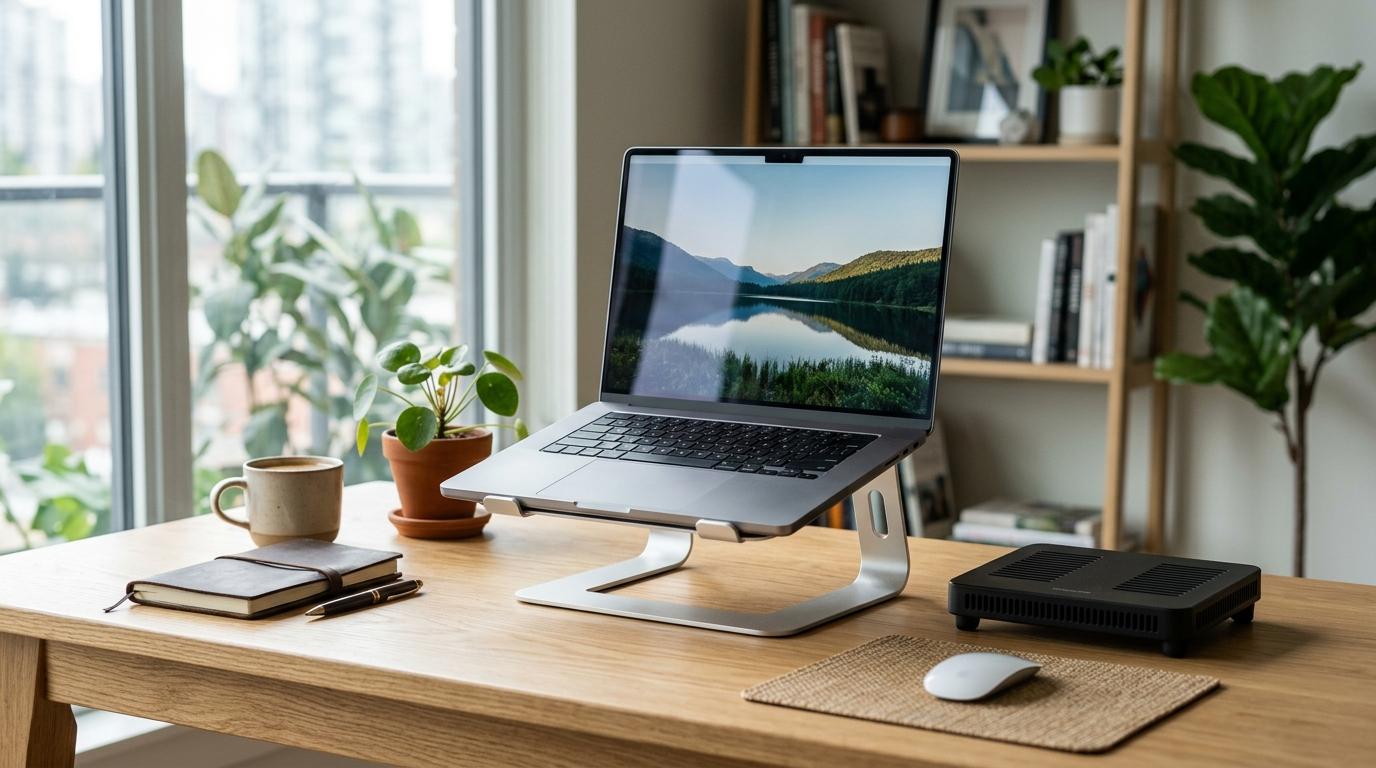
#A laptop stand lifts your laptop off the desk. That’s it. No fans, no USB cable, no extra noise.
And for many people, that is exactly why it is the best first purchase.
A stand helps in two simple ways: it creates more space under the laptop, so bottom vents are less restricted, and it raises the screen, which can make your desk setup more comfortable.
That second point matters more than people expect. A stand can help your posture, especially if you use an external keyboard and mouse.
A laptop stand is a good choice for remote workers, students, writers, office users, people on video calls, anyone who uses a laptop at a desk for hours, and users who want quiet, passive airflow.
If your laptop gets warm but not dangerously hot, a stand is often enough.
A stand may not be enough if you game for long sessions, render video or 3D projects often, have high-performance hardware, already cleaned the vents and it still overheats, or the fan is constantly maxed out under heavy workloads.
Option 3: Laptop Cooling Pad
#A laptop cooling pad is a base with one or more USB-powered fans. You place your laptop on top, and the fans push air upward toward the bottom of the laptop.
This is the accessory many people think of first when their laptop gets hot. Sometimes it helps. Sometimes it barely does anything.
The difference usually comes down to your laptop’s vent design.
A cooling pad supports your laptop’s internal cooling by moving extra air toward the intake area. It works best when your laptop has bottom intake vents, the cooling pad fans line up reasonably well with those vents, the laptop gets hot during sustained heavy workloads, and the internal vents are already clean.
A laptop cooling pad is worth it if your laptop runs hot under heavy load, has bottom intake vents, is used for gaming, editing, rendering, or other demanding work, and you do not mind extra fan noise.
It is less useful if your laptop is thin, sealed, lightly used, dusty, or hot because something is wrong internally.
Laptop Cooling Pad vs Stand: Which Should You Buy?
#Buy a laptop stand if your main goals are better airflow, better desk posture, silent operation, less heat during everyday use, a cleaner setup, and something useful even when the laptop is not overheating.
For most remote workers, students, writers, and general users, a stand is the better buy.
Buy a cooling pad if your laptop gets hot during gaming, video editing, 3D work, long exports, heavy multitasking, demanding creative apps, or other sustained workloads.
But check the vents first. If your laptop is dirty, clean it before deciding whether a cooling pad is worth it.
If your laptop used to be fine and now runs hot, that usually points to dust, blocked vents, background software, or aging hardware. In that case, do not start with accessories. Start with cleaning and basic checks.
Who Should Buy What?
#Buy cleaning supplies or book service if:
#- Fan noise has slowly become worse
- The laptop is hot during basic use
- You see dust in the vents
- The laptop is older
- You have pets
- Your room gets dusty
- The fan sounds rough
- The laptop used to run cooler than it does now
Buy a laptop stand if:
#- You use your laptop at a desk
- You want silent cooling support
- You care about screen height and comfort
- Your laptop has bottom vents
- The laptop gets warm, but not dangerously hot
- You want one accessory you will use every day
Buy a laptop cooling pad if:
#- You game or create content for long sessions
- Your laptop has bottom intake vents
- The laptop gets hot even on a desk
- You already cleaned the vents
- You are okay with USB power use
- You do not mind extra fan noise
- You mainly use the laptop in one place
Mistakes to Avoid
#- Buying a cooling pad before checking dust. If the vents are clogged, a cooling pad may just blow air at a blockage.
- Using a laptop on a bed or pillow. Soft surfaces block airflow fast.
- Ignoring vent placement. Not every laptop breathes from the bottom.
- Buying the wrong size. A cooling pad or stand that is too small can make the laptop unstable.
- Assuming more fans always means better cooling. Fan placement, airflow direction, vent design, and laptop size all matter.
- Blasting compressed air carelessly. Use short, controlled bursts and do not overspin the fan.
- Ignoring swollen battery signs. If the laptop body is bulging, stop using it and get it checked.
- Treating a cooling accessory like a repair. A stand or cooling pad can help with airflow. It cannot repair a failing fan, blocked internal heatsink, dried-out thermal material, swollen battery, or electrical problem.
Related Tech Buying Guides
#If you are improving a laptop setup, these AllBlogs guides may also help:
- Laptop Stand vs Monitor Arm vs Monitor Riser: What Should You Buy for a Small Desk?
- USB-C Hub vs Docking Station: Which One Should You Actually Buy?
- GaN Charger Buying Guide: 30W vs 65W vs 100W
Final Buying Recommendation
#For most people, the best order is:
- Check software and clean laptop vents
- Use the laptop on a hard, flat surface
- Buy a laptop stand for airflow if you work at a desk
- Buy a cooling pad only if heavy workloads still make the laptop run hot
- Seek service if the laptop shuts down, makes rough fan noises, smells strange, or shows battery swelling
So, in the laptop cooling pad vs stand choice, the stand wins for everyday use. The cooling pad wins for gaming and sustained heavy work, but only when your laptop’s vent design supports it.
Cleaning comes before both.