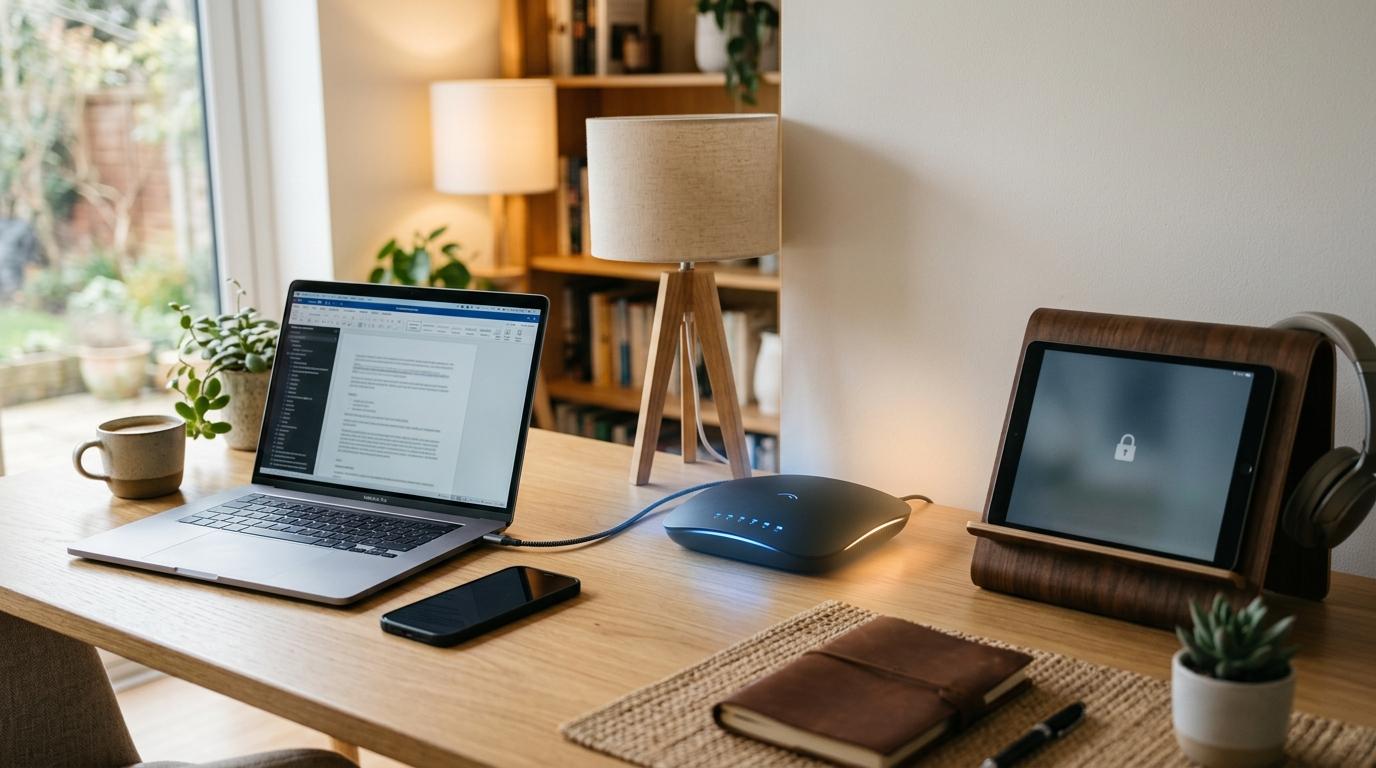
If someone asks for your Wi‑Fi password, the safer default is usually guest Wi‑Fi, not your main network password. A properly configured guest network gives visitors internet access while keeping them away from your personal devices, work laptop, smart home gear, printers, and shared storage. The key is to use a separate password and block guest access to your local network.
Quick Summary
#- Best default choice: Use a guest Wi‑Fi network for visitors, contractors, short-term renters, babysitters, and any device you do not fully trust.
- Why it matters: Your main Wi‑Fi is where your personal devices live. Guest Wi‑Fi keeps visitors separate while still letting them get online.
- Security benefit: If a guest device is infected, poorly secured, or loaded with risky apps, a guest network can reduce the chance that it sees your personal devices.
- Convenience benefit: You can change the guest password without reconnecting every phone, laptop, TV, printer, speaker, and smart device in your home.
- Important catch: Guest Wi‑Fi only really helps if guest isolation, client isolation, or local network blocking is turned on.
Who This Is For
#This is basic home network hygiene, not paranoia.
Guest Wi‑Fi is especially useful if you are:
- A remote worker with a work laptop or sensitive files at home.
- A family that has people over often, like relatives, babysitters, tutors, friends, cleaners, or repair workers.
- A renter or apartment resident sharing internet with roommates, guests, or temporary visitors.
- A privacy-conscious person who does not want every visitor’s device mixed in with personal devices.
- A smart home user with cameras, plugs, bulbs, speakers, thermostats, TVs, or other connected gadgets.
- Someone who hates changing Wi‑Fi passwords, because reconnecting every device in the house is no one’s idea of fun.
If you only have one or two trusted people over once in a while, guest Wi‑Fi can still help. But the more people and devices that connect to your internet, the more useful it becomes.
What to Check First
#Before changing anything, take a few minutes to see what your router can actually do.
1. Can you access your router settings?
#You usually manage your router in one of two ways:
- Through a router app from the manufacturer or your internet provider.
- Through a web browser using a local router address such as
192.168.1.1or192.168.0.1.
You need the router admin password, not just the Wi‑Fi password. If you do not know it, avoid repeated guessing because some routers may temporarily lock you out.
2. Does your router support guest Wi‑Fi?
#Most newer routers have some type of guest network feature. It may be called:
- Guest Wi‑Fi
- Guest Network
- Guest Access
- Wireless Guest
- Visitor Network
If your router does not have this feature at all, that is a good reason to consider upgrading, especially if you share Wi‑Fi often.
3. Can the guest network block local access?
#This is the setting that matters most.
Look for wording like:
- Allow guests to access local network
- Allow guests to see each other
- AP isolation
- Client isolation
- Intranet access
- Local network access
- Access to LAN
For safer guest Wi‑Fi, visitors should be able to use the internet, but they should not be able to browse around your home network.
4. What security options are available?
#Use WPA2 or WPA3 if your router offers them.
Do not leave guest Wi‑Fi open with no password unless you have a very specific reason. Most homes do not need an open network.
5. Are you buying or replacing a router?
#If you are shopping for a new router, check for:
- Guest Wi‑Fi support.
- WPA2 or WPA3 security.
- Easy app or web management.
- A clear setting to block guest access to your local network.
- Optional guest bandwidth limits, especially if you host people often.
Guest Wi‑Fi vs. Main Password: The Practical Difference
#The biggest difference is not the password itself. It is what a device can reach after it connects.
When someone joins your main Wi‑Fi, their device is usually on the same home network as your own devices. Depending on your setup, they may be able to discover printers, smart TVs, speakers, shared folders, storage drives, or other connected gear.
When someone joins a properly configured guest Wi‑Fi network, they get internet access without the same level of access to your private devices.
- Internet access: Both main Wi‑Fi and guest Wi‑Fi can provide internet access.
- Access to home devices: Main Wi‑Fi is more likely to expose printers, TVs, speakers, or shared storage. Guest Wi‑Fi should block this if isolation is enabled.
- Privacy: Main Wi‑Fi mixes visitor devices with personal devices. Guest Wi‑Fi separates them.
- Password changes: Changing the main password is annoying because every home device may need updating. Changing the guest password is much easier.
- Smart home safety: Guest Wi‑Fi can help separate devices that do not need local access, but some smart devices may need the main network to work properly.
- Best use case: Use main Wi‑Fi for your own trusted devices. Use guest Wi‑Fi for visitors, temporary users, and devices you do not fully trust.
A simple way to think about it: sharing your main password is like handing someone a key to the whole house. Guest Wi‑Fi is more like letting them sit in the front room and use the internet, without opening every door and cupboard.
Step-by-Step Home Network Checklist
#Use this checklist to set up safer guest access at home.
1. Log in to your router
#Open your router app, or go to the router admin page in a browser.
If your router still uses a default admin password, change that first. A guest network is not much help if someone can easily get into the router settings.
2. Find the guest network setting
#Look under sections like:
- Wireless
- Wi‑Fi
- Network
- Advanced settings
- Guest Network
- Guest Access
Some routers make this obvious. Others hide it in advanced settings.
3. Turn on the guest Wi‑Fi network
#Enable the guest network and give it a clear name.
Good examples:
HomeName_GuestFamilyGuestApartmentGuest
Avoid names that reveal too much personal information, such as your full name, apartment number, phone number, or exact address.
4. Use a different password from your main Wi‑Fi
#Do not reuse your main Wi‑Fi password.
Choose something guests can type without struggling, but do not make it obvious. The important thing is that the guest password is separate. That way, you can change it later without touching your main devices.
5. Choose WPA2 or WPA3 security
#If your router gives you options, use WPA2 or WPA3.
Avoid open guest Wi‑Fi unless you truly need it. An open network may let nearby people connect without asking, which can create privacy, speed, and security problems.
6. Block guest access to your local network
#This is the most important step.
Look for a setting that says something like:
- Allow guests to access my local network.
- Allow access to LAN.
- Allow intranet access.
- Let guests see each other.
- Enable guest isolation.
- Enable client isolation.
For safer guest Wi‑Fi, guests should not have access to your local network.
Read the wording carefully because routers are not always consistent. One router might say “Allow guests to access local network” and you want that turned off. Another might say “Enable guest isolation” and you want that turned on.
7. Test the guest network
#Connect your phone to the guest Wi‑Fi and test whether you can:
- Open a normal website.
- Access your router admin page.
- Print to a Wi‑Fi printer.
- Cast to a TV or speaker.
- Browse shared folders or local storage, if you use them.
On a properly isolated guest network, the internet should work, but your local devices should not be easy to reach.
8. Move only the right devices
#Guest Wi‑Fi is great for visitors. It can also be useful for some smart home devices, especially devices that only need internet access and do not need to talk directly to your phone or other local devices.
But do not move everything blindly. Some devices need to be on the same network as your phone, hub, TV, speaker, or computer to work properly.
9. Change the guest password when needed
#Good times to change it include:
- After short-term renters leave.
- After a big party or gathering.
- After contractors or repair workers used it.
- When you do not want past guests reconnecting.
- If the password was posted, shared widely, or written somewhere public.
Best For / Avoid If
#Best for
#Guest Wi‑Fi is best for:
- Friends and family visiting your home.
- Babysitters, tutors, cleaners, and repair workers.
- Short-term renters or temporary guests.
- Parties or gatherings where lots of people ask for Wi‑Fi.
- Keeping visitor devices away from your personal laptops and work devices.
- Separating some smart home devices, if they do not need local network access.
- Homes where changing the main Wi‑Fi password would be a huge hassle.
Avoid if
#Avoid putting a device on guest Wi‑Fi if it needs to talk to other devices in your home.
Examples may include:
- A wireless printer you use from your laptop.
- A casting device controlled from your phone.
- A speaker system that depends on local network discovery.
- A storage drive or NAS used by your computers.
- A smart home hub that needs to communicate with nearby devices.
In those cases, the device may need to stay on your main network, or you may need a more careful setup.
Mistakes to Avoid
#Reusing your main Wi‑Fi password
#This defeats a lot of the purpose. If the guest password is the same as your main password, changing one does not really protect the other.
Leaving guest Wi‑Fi open
#A guest network should still have a password. Isolation helps, but it does not mean you should invite every nearby phone, laptop, and random device to connect.
Forgetting to block local access
#Some routers block local access by default. Others allow it unless you turn it off. Do not assume. Check it.
Giving guests the admin password by mistake
#Your router admin password and your Wi‑Fi password are not the same thing. Guests only need the guest Wi‑Fi password.
Not testing after setup
#A guest network may sound safe, but router settings vary. After you create it, connect a phone to it and test whether your local devices are still reachable.
Putting everything on guest Wi‑Fi
#Guest Wi‑Fi is useful, but it is not the right place for every device. If a printer, speaker, TV, or smart device needs local communication, guest isolation may break some features.
Keeping an old router forever
#If your router does not support guest Wi‑Fi, modern security options, or basic isolation settings, it may be time to replace it.
Related AllBlogs Reads
#If you are improving your digital privacy setup, these guides pair well with this checklist:
- Travel Router vs Mobile Hotspot for Safer Hotel Wi‑Fi
- Airport Public Wi‑Fi Safety vs Mobile Hotspot
- App Permissions Audit: What to Allow or Deny
- Mesh Wi‑Fi vs Wi‑Fi Extender vs Powerline Adapter
Final Takeaway
#For most homes, guest Wi‑Fi is the smarter default for visitors. It keeps your main network cleaner, makes password changes easier, and reduces unnecessary exposure for personal devices. Just remember the important part: turn on guest isolation or block local network access, then test it once before trusting the setup.