The second-screen rabbit hole I accidentally fell into
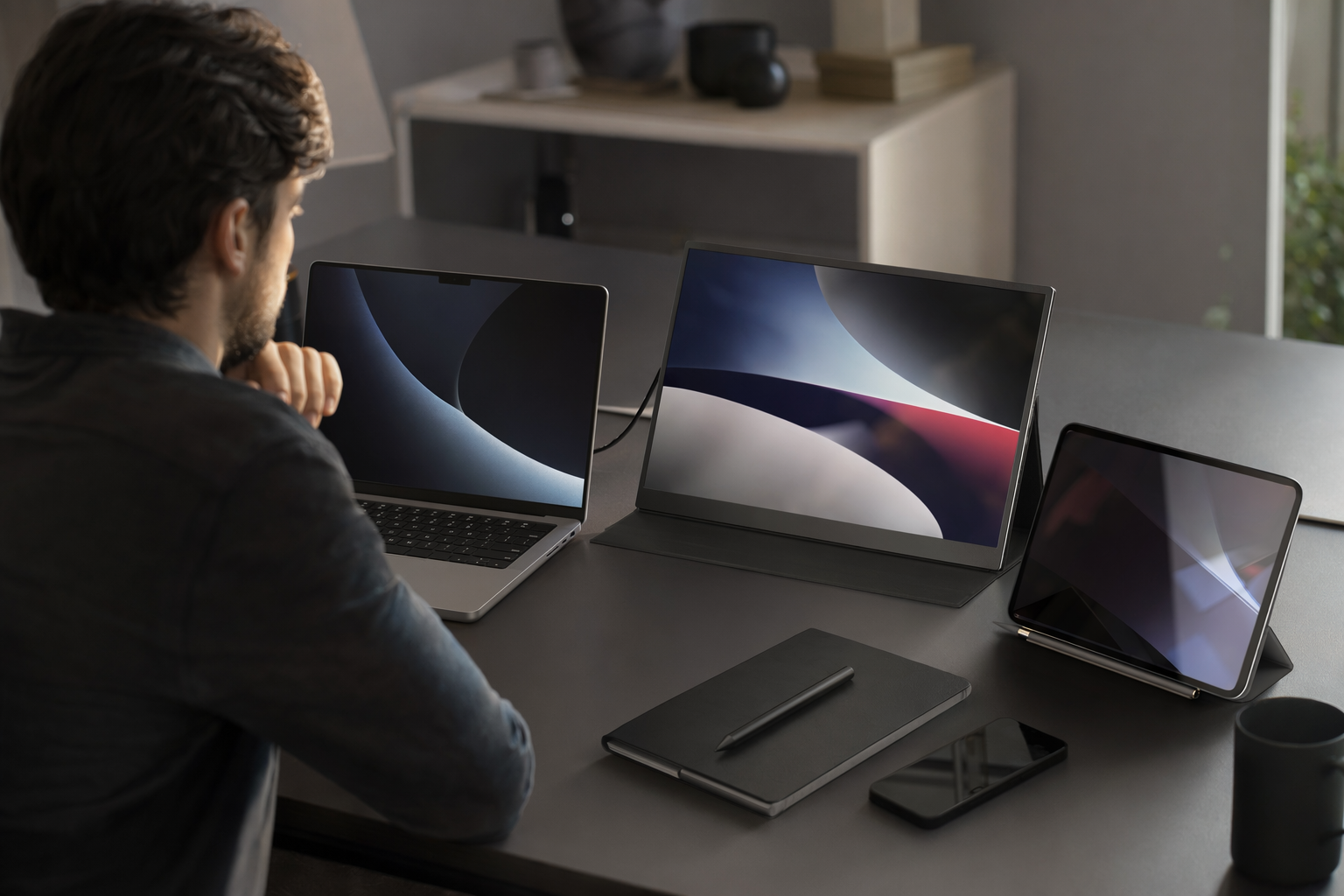
#I didn’t plan to become weirdly opinionated about this, but here we are. A few years ago I was the person balancing Slack, Chrome, VS Code, Spotify, and a half-dead Google Meet window on one 13-inch laptop screen like some kind of productivity circus clown. Then I borrowed a friend’s portable monitor for a weekend trip and, honestly, it kinda ruined single-screen laptop life for me. Not in a dramatic “I can never go back” way, but close enough that I started looking at every flat rectangle in my house and thinking, wait, can I use this as a second screen too?
That’s where the portable monitor vs tablet debate gets interesting. Because on paper, a tablet seems like the obvious winner. It has a battery, apps, touch, speakers, maybe a gorgeous OLED or mini-LED display if you bought the fancy one. But a portable monitor is basically built for one job: plug in, become a screen, shut up, don’t ask questions. And sometimes that boring little honesty is exactly what you want when you’re working from a cafe table that wobbles every time someone walks past.
What I actually mean by “portable monitor” and “tablet as second screen”
#A portable monitor is usually a slim 13 to 16-inch display that connects to your laptop with USB-C, HDMI, mini HDMI, or sometimes DisplayLink. Many of the newer ones can take video and power over a single USB-C cable if your laptop supports DisplayPort Alt Mode. That last bit matters more than people think, because not every USB-C port is equal. Some charge only, some transfer data, some output video, and some do all of it while making you question your sanity. If you’ve ever plugged in a cable and got absolutely nothing, you know the feeling. I’ve had entire “tech support sessions” with myself that were solved by using the other cable in the drawer.
A tablet as a second screen means using an iPad, Android tablet, or Windows tablet beside your computer. On Mac, Apple’s Sidecar can turn compatible iPads into second displays, and Universal Control lets you use one keyboard and mouse across devices, though that’s not exactly the same as an extended monitor. On Windows, Samsung tablets have a Second Screen feature on some Galaxy Tab models, and apps like Duet Display, spacedesk, SuperDisplay, and Luna Display can do the job depending on your devices. Some work over USB, some over Wi-Fi, some feel magical, and some feel like you’re streaming your desktop through a potato. Depends.
My first portable monitor setup was ugly, but it worked
#The first portable monitor I seriously used was not glamorous. It had a floppy magnetic cover that pretended to be a stand, a mini HDMI cable that was too short, and brightness that looked okay indoors but gave up instantly near a window. But it did one thing very well: it showed my second desktop with basically no fuss. I plugged USB-C into my laptop, waited one second, and there it was. Email on the left, actual work on the laptop screen. Very adult. Very productive. For about 20 minutes, anyway, until I opened YouTube “just for background music” and lost the plot.
Still, that setup taught me the biggest portable monitor advantage: reliability. It doesn’t need an app subscription. It doesn’t care if iPadOS changed something. It doesn’t have notifications popping up from your group chat. It is not trying to be your notebook, Netflix machine, recipe book, gaming device, and digital sketchpad at the same time. It’s just a screen. I didn’t appreciate that until I started using a tablet as a second screen and realized how many tiny layers are involved.
Using a tablet feels smarter, until it doesn’t
#I love tablets. Like, probably too much. I’ve used iPads, Android tablets, cheap tablets that should not have been sold to human beings, and one Windows tablet that cooked itself during Teams calls. A good tablet as a second screen can feel incredibly slick. If you already own one, it’s hard to argue with the price: free-ish. You download the app, pair the device, maybe plug in a cable, and now your iPad or Galaxy Tab is showing your laptop desktop. The screen is often sharper than a budget portable monitor, the touch support can be useful, and if you’re an artist or note-taker, the stylus support is a big deal.
But here’s where I get a bit grumpy. A tablet second-screen setup is only as good as the software bridge between your computer and the tablet. Sidecar is great when you’re fully in Apple land, especially if your Mac and iPad are compatible and signed into the same Apple ID. But if you mix Windows laptop plus iPad, or Mac plus Android, or work laptop with locked-down permissions, suddenly you’re installing apps, approving drivers, checking network rules, and wondering why your corporate VPN has decided your tablet is suspicious. Me and my patience are not built for that every Monday morning.
The latency thing is real, and gamers will notice immediately
#For normal office work, latency on a tablet second screen may not bother you. Putting Slack, documentation, a calendar, or Spotify over there? Fine. Even reading PDFs is usually fine. But if you drag a window and it trails behind your mouse by a fraction of a second, you’ll feel it. Maybe not consciously at first, but it’s there. With wireless tablet setups, the lag can change depending on your Wi-Fi, battery settings, resolution, and whatever else is fighting for bandwidth in your room.
A wired portable monitor usually feels closer to a “real” monitor because, well, it basically is one. USB-C DisplayPort Alt Mode or HDMI is direct video output, not a compressed stream in most common setups. That means lower latency and fewer weird artifacts. I wouldn’t use most portable monitors for competitive gaming unless the specs are right, but for coding, editing, spreadsheets, writing, browser testing, or even light gaming, they generally feel more predictable. Predictable is underrated. Boring tech is sometimes the best tech.
Screen quality: tablets often win, but not always in the way that matters
#This is where tablets flex. A modern iPad Pro, iPad Air, Samsung Galaxy Tab S-series, or Lenovo higher-end tablet can have a bright, color-rich display that makes many cheap portable monitors look washed out and sad. Apple’s M4 iPad Pro models launched in 2024 with very high-end OLED displays, and Samsung has been pushing AMOLED tablets for years. If your second screen is for photo previewing, drawing references, media, or color-sensitive-ish work, the tablet can look beautiful. I say “ish” because serious color work still needs calibration and workflow discipline, not just a pretty panel.
Portable monitors vary wildly. Some budget models are 1080p IPS panels that are totally decent. Some are dim. Some have weird color temperatures where white looks like old paper. Higher-end portable monitors now come in 2.5K, 4K, OLED, high-refresh options, touch versions, and even dual-screen foldable-ish designs. But prices climb fast. Also, specs on shopping pages can be a little slippery. “HDR” on a small portable monitor does not always mean what normal people think HDR means. Sometimes it means “we put three letters on the box.” Sorry, but it’s true.
Power is the part nobody thinks about until everything starts dying
#Here’s my very unscientific rule: if your second screen needs power, your bag gets 20% more annoying. Portable monitors often pull power from your laptop over USB-C. That’s convenient, but now your laptop battery drains faster. Some portable monitors have built-in batteries, but then you have another thing to charge. Tablets already have batteries, which is a legit advantage, especially if you’re working somewhere without outlets. I’ve used an iPad as a second screen on a train and felt smug for exactly 47 minutes, until my laptop battery started dropping like a stone because I forgot the charger.
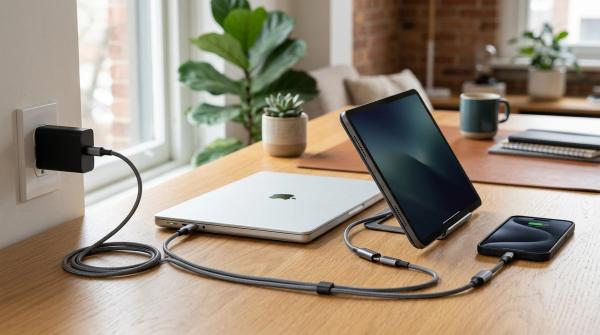
If you travel a lot, the charger setup matters almost as much as the screen choice. A 30W charger might be fine for a tablet, but not enough for a laptop plus accessories. A 65W or 100W GaN charger can make the whole setup way less messy, assuming your laptop supports that wattage. I wrote myself a little mental checklist after too many dumb charging mistakes, and if you’re building a travel desk setup, the GaN Charger Buying Guide: 30W vs 65W vs 100W is exactly the kind of thing I’d read before buying yet another cute tiny charger that can’t actually keep up.
Cables are stupidly important. Sorry, they just are
#I know cable talk sounds boring. It’s not why anyone gets excited about a second screen. But the cable can make or break the whole setup. A portable monitor might need a USB-C cable that supports video, not just charging. Some USB-C cables are basically power-only. Some support USB 2.0 data. Some support high-speed data but not enough power. Some are thunderbolt-capable and cost more than lunch for two people. And the worst part? They all look almost identical when they’re tangled in your backpack.
With tablets, cables still matter if you’re using wired Duet Display, SuperDisplay, or similar apps. A flaky cable can cause dropouts or weird connection loops. With portable monitors, the problem is even more obvious: no video, no screen. If you’re confused about why “USB-C” doesn’t automatically mean “does everything,” the USB-C Cable Buying Guide India: Fast Charging, Data Speed and Safety Checks explains the annoying details better than I can while ranting at my desk.
Desk setup vs travel setup: these are not the same thing
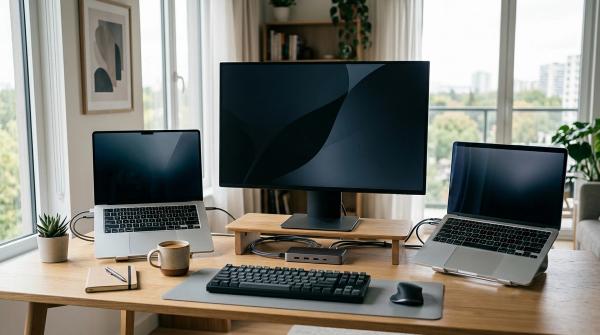
#At a desk, I prefer a normal external monitor or a portable monitor on a proper stand. A tablet feels slightly awkward unless I’m using it for notes, chat, or reference material. The screen size is usually smaller, the aspect ratio can be less desktop-friendly, and the stand situation becomes a whole personality trait. Yes, you can buy nice tablet stands. Yes, magnetic cases are better now. But a portable monitor often lines up beside a laptop more naturally, especially 15.6-inch models that match the height of many laptop screens decently well.
For travel, it gets messier. A tablet is more versatile. You can use it on the flight, watch stuff, read, draw, sign documents, and then use it as a second screen at the hotel. A portable monitor is dead weight unless you’re actively working. But that dead weight can be very good at work. If your job involves spreadsheets, coding, design reviews, analytics dashboards, or any workflow where you constantly compare two things, the portable monitor pays for itself in reduced window shuffling. That sounds dramatic, but window shuffling is the silent productivity killer. I will die on this tiny hill.
The connection mess: USB-C hubs, docks, and why your laptop ports matter
#If your laptop has one sad USB-C port and that same port is also your charger, connecting a portable monitor can turn into a puzzle. Some monitors support power passthrough, some don’t. Some laptops can output video from one port while charging from another. Some need a hub or dock. And if you’re using HDMI, now you might need a power cable for the monitor too. This is why I always tell people to look at their ports before they look at screen specs. Not as fun, but way more practical.
At a semi-permanent desk, a docking station can make a portable monitor setup feel clean. For travel, a small USB-C hub might be enough, but only if it supports the display output and power delivery you need. There’s a whole separate buying decision hiding inside this one, honestly. If you’re stuck between “tiny hub” and “proper dock,” the USB-C Hub vs Docking Station: Which One Should You Actually Buy? fits right into this rabbit hole, because one wrong adapter can turn your elegant mobile workstation into cable soup.
Quick comparison, because my brain likes messy tables sometimes
#| Thing | Portable monitor | Tablet as second screen |
|---|---|---|
| Setup speed | Usually fast if the cable and port support video | Can be fast, but depends heavily on app, OS, Wi-Fi, permissions |
| Screen quality | Varies a lot from cheap 1080p to fancy OLED or 4K | Often excellent on premium tablets |
| Latency | Usually lower with direct USB-C or HDMI | Can be great wired, can be laggy wireless |
| Power | May drain laptop or need separate power | Has its own battery, but still needs charging |
| Best for | Work travel, coding, spreadsheets, presentations, stable extended desktop | People who already own tablets, note-taking, stylus work, casual second screen |
| Annoying bits | Cable compatibility, stands, brightness on cheap models | Software quirks, subscriptions, compatibility, notifications |
That table is a little too neat, because real life is not neat. For example, a premium tablet you already own can be a better deal than buying a mediocre portable monitor. But if you’re shopping from zero and your main goal is only “I need more screen space for my laptop,” I’d usually lean portable monitor. Not always. But usually. The dedicated tool wins when the job is specific.
Where tablets genuinely beat portable monitors
#Let’s not pretend portable monitors are perfect. Tablets beat them in a bunch of real ways. First, battery. Second, standalone usefulness. Third, touch and pen input. Fourth, speakers and cameras, if you care about those. Fifth, app flexibility. A tablet can be your second screen at 10 AM, your notebook at noon, your Kindle-ish reader at 6 PM, and your Netflix thing in bed. A portable monitor at 6 PM is just sitting there, looking thin and unemployed.
If you use a stylus, the tablet argument becomes much stronger. Sidecar with Apple Pencil can be genuinely handy for markup and certain creative workflows. Android tablets with good pens can be great for notes, sketches, or whiteboarding while your laptop does the heavy lifting. I’ve used a tablet beside my laptop for research notes and it felt more natural than dragging a notes app to another monitor. Sometimes a second device is better than a second display. That sounds contradictory, but it’s true.
Where portable monitors quietly destroy tablets
#Portable monitors win when you need consistency. They don’t depend as much on wireless conditions. They don’t need the same app ecosystem. They behave like monitors, so your operating system treats them like monitors. That means display scaling, arrangement, refresh rate, and window management are usually more straightforward. Also, most work laptops are happier with a monitor than with third-party screen-sharing drivers, especially in locked corporate environments where installing anything requires approval from someone named Rajesh in IT who replies after 3 business days. No shade to Rajesh. He’s busy.
There’s also screen size. A 15.6-inch portable monitor gives you a more laptop-like canvas than many tablets. A 12.9-inch iPad is lovely, but desktop UI can feel cramped depending on scaling. A 16-inch portable monitor at 1080p or 2.5K can be a sweet spot for travel work. If you’re doing spreadsheets or comparing docs, those extra inches matter. It’s not glamorous, it’s just physics.
My buying advice, after spending too much time testing this stuff
#If you already own a decent tablet, try it first. Seriously. Don’t buy anything yet. Test it for a full week, not just one afternoon when you’re excited. Use it in your actual workflow. Take calls. Open your normal apps. Work from a cafe if that’s your thing. See if the lag bothers you, see if the stand annoys you, see if your work laptop lets the software run without throwing a security tantrum. A lot of people can stop right there and save money.
If you don’t own a tablet and you mainly want a second screen for laptop work, buy a portable monitor. Look for USB-C video support, decent brightness, a stand that doesn’t make you angry, and the right size for your bag. I’d personally rather have a good 15.6-inch 1080p IPS monitor with a sturdy stand than a spec-sheet monster that falls over when someone sneezes. If you’re doing color work or gaming, then yeah, dig deeper into resolution, refresh rate, color gamut, and panel type. But for most people? Ergonomics and reliability matter more than marketing numbers.
- Choose a tablet if you already own one, need pen input, want battery-powered flexibility, or like having a multipurpose device.
- Choose a portable monitor if you want the least drama as an extended laptop display, especially over USB-C or HDMI.
- Don’t cheap out blindly on cables. I hate that this is true, but it is.
- Check your laptop ports before buying anything. Please. Future you will be so thankful.
The emotional truth: the best second screen is the one you’ll actually carry
#This is the part specs don’t capture. The best setup is not the one that wins a YouTube comparison. It’s the one you will actually put in your bag. I had a portable monitor I loved on paper, but it was just a bit too heavy with its case, so I slowly stopped carrying it. Then I used a tablet for months because it was already in my bag. Then I got annoyed by app weirdness and went back to a lighter portable monitor. Very scientific. Very consistent. Not really.
Your tolerance for friction matters. Some people don’t mind opening an app, pairing a device, adjusting settings, and fiddling with display scaling. Other people want one cable and instant pixels. I am mostly the second type, though I pretend to be the first when I’m feeling optimistic. If I’m writing, coding, or editing on a deadline, I don’t want my screen setup to have a mood. I want it to work.
So, portable monitor or tablet?
#My honest answer: if you already have a good tablet, use it as your second screen first and see if it fits your life. It might be all you need, especially if you’re in the Apple ecosystem or you use a Samsung tablet with a compatible Windows machine. But if you’re buying something specifically for second-screen productivity, I’d pick a portable monitor most of the time. It’s less cool, maybe, but it’s more direct. And direct is beautiful when you’re tired, travelling, and trying to finish a deck before hotel Wi-Fi collapses.
The funny thing is, both options are kinda amazing compared to where we were not that long ago. The fact that I can sit in a random cafe with a laptop, a thin extra display, one charger, and basically have a mini command center still makes my inner nerd very happy. Maybe too happy. Anyway, if you’re obsessing over setups like I do, you’ll probably enjoy digging through more practical tech stuff on AllBlogs.in. I keep finding those little guides useful when I’m about to buy something I absolutely don’t need but will definitely justify somehow.