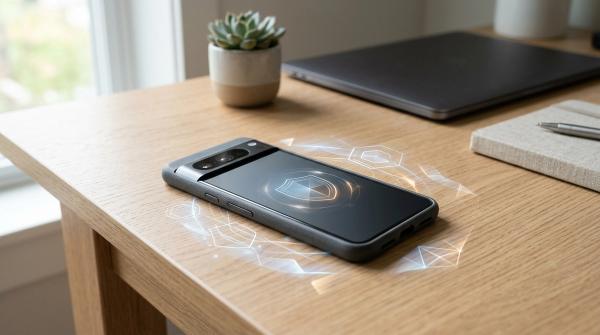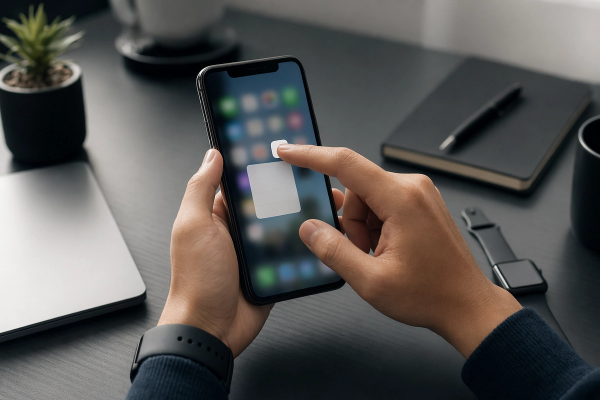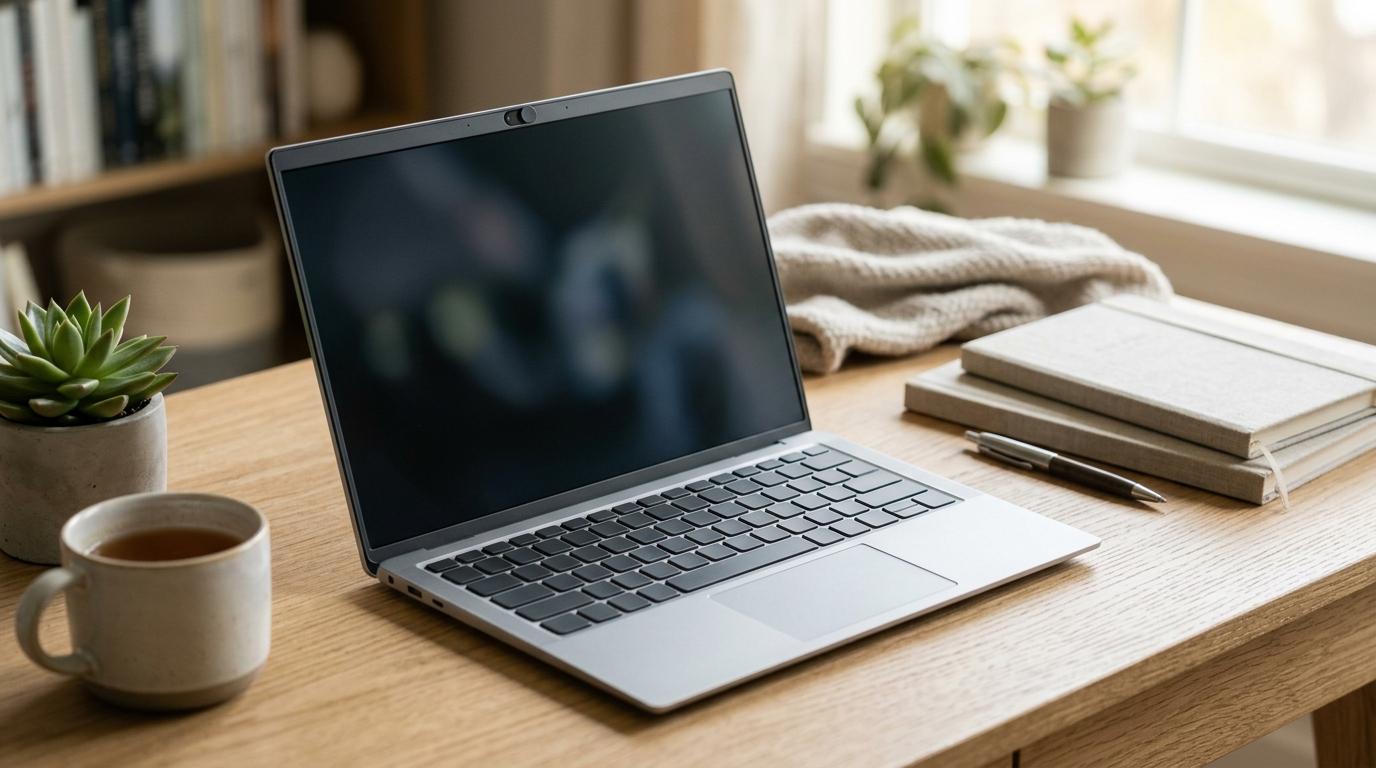
If you’re trying to choose between a webcam cover and camera privacy settings, the most practical answer is: use both when it makes sense.
That doesn’t mean everyone needs to stick a plastic slider on their laptop. In fact, if you use a MacBook or another very thin laptop, that can be a bad idea. A safer approach is to start with the privacy controls already built into Windows or macOS, check which apps can use your camera and microphone, and then add a physical blocker only if it’s safe for your device.
If your laptop already has a built-in webcam shutter, great. Use that. It’s usually the cleanest option because it was designed for the laptop and doesn’t add extra thickness near the screen.
Category: Tech & InnovationDisplay URL: allblogs.in
Quick Answer
#Best everyday setup:Use your laptop’s camera privacy settings, review microphone permissions, and physically cover the webcam only if it’s safe to do so.
If your laptop has a built-in webcam shutter:Use it. It’s made for your device and won’t press against the display when you close the lid.
If you use a MacBook:Be careful with stick-on webcam covers. Apple warns that closing a MacBook, MacBook Air, or MacBook Pro with a camera cover installed can damage the display.
If you still want a physical cover:Use something very thin and removable, like a small sticky note, washi tape, painter’s tape, or another low-residue option.
If you use an external webcam:Unplug it when you’re done. If it isn’t connected, it can’t record video.
Who This Guide Is For
#This guide is for everyday laptop users who want better laptop camera privacy without turning it into a complicated security project.
It’s especially useful if you are:
- Working from home and taking calls on Zoom, Google Meet, Microsoft Teams, or similar apps
- A student using a laptop for online classes
- A parent setting up a shared family laptop
- Buying a new laptop and wondering whether a built-in webcam shutter matters
- A MacBook user who has heard about the MacBook camera cover warning
- Someone who just wants a simple, low-cost privacy habit
This guide is not written for high-risk security situations, investigative journalists, activists under threat, or advanced threat modelling. It’s a practical privacy checklist for normal day-to-day laptop use.
The Main Idea: Webcam Covers and Privacy Settings Do Different Jobs
#A webcam cover and camera privacy settings are not the same thing.
A webcam privacy cover physically blocks the camera lens. So even if the camera turns on, it can’t see anything useful. It also gives you instant visual reassurance. You look at the webcam, see it covered, and know you’re not on camera.
But a cover does not block your microphone. It does not manage app permissions. It does not stop malware. And it does not tell you which apps have access to your laptop’s camera.
Camera privacy settings, on the other hand, are software controls built into Windows and macOS. They let you decide which apps can use your camera. They’re free, already installed, and often ignored.
A good basic privacy setup looks like this:
- Review your operating system’s camera privacy settings.
- Check microphone permissions separately.
- Use a built-in webcam shutter if your laptop has one.
- Avoid thick plastic covers on MacBooks and very thin laptops.
- If you want a physical blocker, choose something thin and removable.
That’s it. Nothing fancy, but it covers the basics well.
What to Check Before Buying a Webcam Cover
#Before you buy a webcam cover online or stick tape over your camera, take a minute to check your laptop.
1. Does your laptop already have a built-in shutter?
#Look closely around the webcam at the top of your screen. Some laptops have a tiny sliding shutter built in.
If yours has one, that’s probably your best physical privacy option. It was designed for the laptop, so you don’t need to stick anything on the screen or worry about extra pressure when you close the lid.
2. Is your laptop very thin?
#This is where people can accidentally damage their devices.
Many modern laptops have almost no gap between the keyboard and display when closed. Apple specifically warns users not to close a MacBook, MacBook Air, or MacBook Pro with a camera cover installed because it may damage the screen.
So if your laptop closes very tightly, be careful with hard plastic sliding covers. Even if the cover looks tiny, it may still be too thick.
3. Are there sensors near the camera?
#The area around your webcam may also include sensors for brightness, display adjustment, facial recognition, or other features.
Don’t cover the whole top bezel with a big sticker without checking first. You might block something important and then wonder why your screen brightness or login features are acting strangely.
4. Have you checked the microphone?
#A webcam cover only blocks video. It does nothing for audio.
If you care about privacy, check microphone permissions too. Camera and microphone access are controlled separately on both Windows and macOS.
This is one of the easiest things to forget.
5. Would an external webcam be simpler?
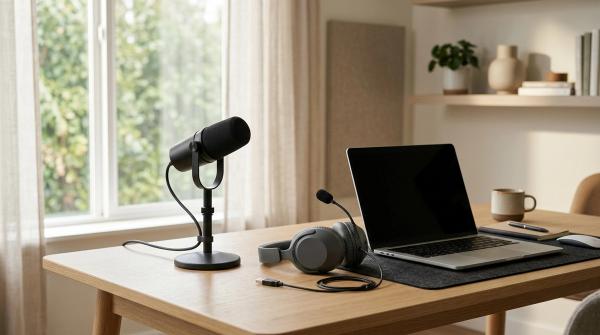
#If your laptop usually stays on a desk, an external webcam can be a good option. When the meeting is over, unplug it.
That’s a very clear privacy habit. No connection, no video. It’s not as convenient if you move around a lot, but for a home office or desk setup, it can work really well.
Webcam Cover vs Camera Privacy Settings: Quick Comparison
#Here is the practical comparison without relying on a table layout:
- Webcam privacy cover
- Built-in webcam shutter
- Camera privacy settings
- Tape or sticky note
- External webcam
Option 1: Webcam Privacy Cover
#A webcam privacy cover is usually a small adhesive slider that sticks over your laptop camera. You slide it open when you need video, then close it when you’re done.
Best for
#- Older laptops with thicker bezels
- External monitors with built-in webcams
- Desktop setups where the cover is not pressed against the screen
- People who want a clear visual reminder that the camera is blocked
Avoid if
#- You use a MacBook, MacBook Air, or MacBook Pro
- Your laptop has a very tight screen gap
- The cover is thick, hard, or cheaply made
- It blocks sensors near the camera
Why people like it
#Webcam covers are cheap, simple, and obvious. You don’t need to open settings or think about app permissions in the moment. If the slider is closed, the lens is blocked.
That kind of visual reassurance can be helpful, especially if you spend a lot of time jumping in and out of video calls.
The big warning
#The main risk with webcam covers is not privacy. It’s hardware damage.
Apple warns that closing a MacBook with a camera cover installed may damage the display. MacBook screens are designed with very little clearance, so even a thin plastic slider can create pressure.
If you use a MacBook, don’t just buy the cheapest camera cover you find. Check Apple’s warning and think carefully before attaching anything raised near the camera.
Option 2: Built-In Webcam Shutter
#A built-in webcam shutter is a physical cover that comes as part of the laptop. You slide a small switch, and the webcam lens is blocked.
Best for
#- Anyone whose laptop already includes one
- People buying a new laptop
- Remote workers who take lots of video calls
- Families using shared laptops
- Work or school devices
Avoid if
#There isn’t much to avoid if the shutter is properly built into the laptop. The only real downside is that you usually can’t add this exact feature later if your laptop doesn’t already have it.
Why it’s useful
#A built-in shutter gives you the best part of a webcam cover without the biggest downside. It physically blocks the lens, but it doesn’t add extra thickness between the screen and keyboard.
If you’re shopping for a new laptop and privacy matters to you, a built-in webcam shutter is worth looking for. It’s a small feature, but you may end up using it all the time.
Option 3: Camera Privacy Settings
#Camera privacy settings are the controls inside Windows or macOS that decide which apps can use your webcam.
You should use these settings even if you also use a physical cover. Think of them as your baseline privacy control.
Best for
#- Everyone
- People who use Zoom, Teams, Meet, FaceTime, or browser video calls
- Users who install lots of apps
- Parents managing a family laptop
- Anyone who wants to review microphone access too
Avoid if
#You should not avoid camera privacy settings. Use them.
The real mistake is checking them once and then forgetting about them forever. App permissions can build up over time, especially if you test different meeting apps, browser tools, or messaging platforms.
Windows camera privacy settings
#On Windows 10 and Windows 11, go to:
Settings > Privacy & security > Camera
From there, you can usually control:
- Whether camera access is allowed on the device
- Which apps can use the camera
- Whether desktop apps can access the camera
You should also check:
Settings > Privacy & security > Microphone
This matters because covering your camera does not block sound. An app may not be able to see you, but it could still have microphone access if you granted it earlier.
macOS camera privacy settings
#On macOS, camera permissions are managed in system privacy settings. You can review which apps are allowed to use the camera and remove access from anything that no longer needs it.
Macs also have a camera indicator light. Apple points to the green indicator light as a sign that the camera is active.
Still, some people prefer having a physical blocker too. It’s simple, visible, and easy to trust.
Option 4: Tape or a Sticky Note
#Tape sounds almost too basic, but it can be one of the most practical webcam privacy tools, especially for thin laptops.
A small piece of low-residue tape or a sticky note can block the camera without adding the same thickness as a plastic slider.
Best for
#- MacBook users who want a physical camera blocker
- Thin laptops where plastic covers may be risky
- Students and families who want a free or cheap option
- People who don’t mind if it looks a little imperfect
Avoid if
#- You use strong tape that leaves glue behind
- You cover sensors near the camera
- You turn your camera on and off constantly
- You want something that looks neat and professional
What kind of tape should you use?
#Use something thin, gentle, and easy to remove.
Good options include:
- Painter’s tape
- Washi tape
- A small sticky note
- Low-residue tape
Avoid duct tape, packing tape, or anything very sticky. Those can leave residue, look bad, or damage the area around the camera.
Tape is not the prettiest solution. But it’s thin, cheap, and easy to remove. For MacBook users especially, it can be safer than a hard plastic cover.
Option 5: External Webcam
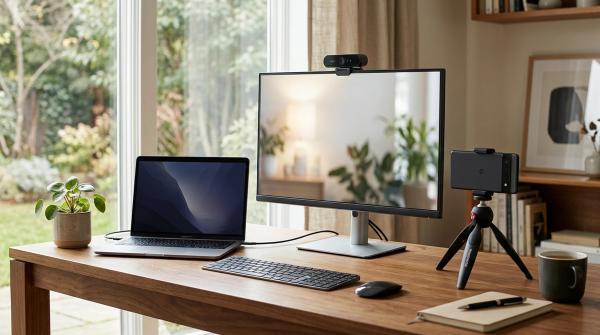
#An external webcam is a separate camera that plugs into your laptop, monitor, or dock. It’s not the cheapest option, but it gives you very clear physical control.
Best for
#- Desk setups
- Home offices
- People who use an external monitor
- Remote workers who want better camera quality
- Anyone who wants to unplug the camera after calls
Avoid if
#- You travel often
- You move between rooms a lot
- You don’t want extra accessories
- You want the cheapest and simplest setup
Why it works
#When you unplug an external webcam, it cannot record video. That’s easy to understand and easy to trust.
The downside is convenience. You have to plug it in, position it, and store it. For a fixed desk setup, though, an external webcam can be a really good privacy-friendly option.
Best For and Avoid If Guide
#Plastic Webcam Covers
#Best for:
- Older laptops with more screen clearance
- External monitors
- Users who want a neat sliding cover
- People who want a visible camera blocker
Avoid if:
- You use a MacBook
- Your laptop closes very tightly
- The cover is thick or rigid
- It might block nearby sensors
Built-In Webcam Shutter
#Best for:
- Anyone who already has one
- People buying a new laptop
- Work and school laptops
- Users who want physical privacy without extra accessories
Avoid if:
- Your laptop does not include one, since you usually cannot add the same built-in mechanism later
Camera Privacy Settings
#Best for:
- Everyone
- Windows and Mac users
- People who install video apps
- Families managing shared laptops
- Anyone who wants better control over app permissions
Avoid if:
- You plan to check the settings once and never review them again
Tape or Sticky Notes
#Best for:
- MacBook users
- Thin laptops
- Low-cost privacy
- People who want a removable physical blocker
Avoid if:
- You care a lot about appearance
- You use sticky or heavy tape
- You often switch the camera on and off
External Webcam
#Best for:
- Desk users
- Home offices
- People who want to unplug the camera completely
- Users who also want better video quality
Avoid if:
- You travel often
- You want the simplest laptop-only setup
- You do not want extra hardware
Common Mistakes to Avoid
#1. Putting a thick plastic cover on a MacBook
#This is probably the biggest hardware mistake.
Apple warns that closing a MacBook, MacBook Air, or MacBook Pro with a camera cover installed may damage the display. If you use a MacBook, be very careful before sticking any raised cover near the camera.
A webcam cover is not worth a cracked or damaged screen.
2. Forgetting about the microphone
#A webcam cover blocks video, not sound.
If your privacy concern is app access, meetings, or accidental recording, review microphone permissions too. This is especially important for browsers, meeting apps, and apps you no longer use.
3. Covering sensors next to the camera
#Don’t cover the whole top edge of your laptop screen without looking closely first. Some laptops have sensors near the webcam.
If you block them, features like automatic brightness, facial recognition, or display adjustments may stop working properly.
4. Assuming the camera indicator light is enough
#Camera indicator lights are useful. They exist for a reason.
But many people still like having a physical barrier because it removes doubt. You don’t have to think about software, lights, or permissions. If the lens is covered, it can’t see anything.
That doesn’t mean you need to panic about your laptop camera. It just means that combining privacy settings with a safe physical habit is often the most practical approach.
5. Using aggressive tape
#Don’t use duct tape or packing tape over your webcam. It may leave sticky residue or damage the finish around the camera.
If you use tape, keep it light, thin, and gentle.
6. Never reviewing app permissions
#A lot of people allow camera access once and then forget about it.
Every now and then, check which apps can use your camera and microphone. Remove access from apps that don’t need it anymore.
It only takes a minute, and it’s worth doing.
So, What Should You Actually Use?
#Here’s the simple answer:
- If your laptop has a built-in webcam shutter, use it.
- If you use Windows, review both camera and microphone privacy settings.
- If you use a MacBook, avoid thick plastic webcam covers and follow Apple’s warning.
- If you want a physical blocker on a thin laptop, use very thin low-residue tape or a sticky note.
- If you use an external webcam, unplug it when the call is over.
For most people, laptop camera privacy does not need to be expensive or complicated.
Use camera permissions, check microphone permissions, and add a safe physical blocker if it makes sense for your device. That gives you practical everyday privacy without risking your laptop screen.
Quick Laptop Privacy Checklist
#Use this when setting up a new laptop, installing a video app, or buying a webcam cover.
- Check if the laptop already has a built-in webcam shutter
- Read manufacturer warnings before using an adhesive webcam cover
- Avoid thick camera covers on MacBooks and very thin laptops
- Review camera permissions in Windows or macOS
- Review microphone permissions separately
- Remove camera access from apps that do not need it
- Use thin, low-residue tape if you want a safer physical blocker
- Unplug external webcams when not in use
- Do not cover nearby sensors
- Recheck permissions after installing new meeting apps or browser tools