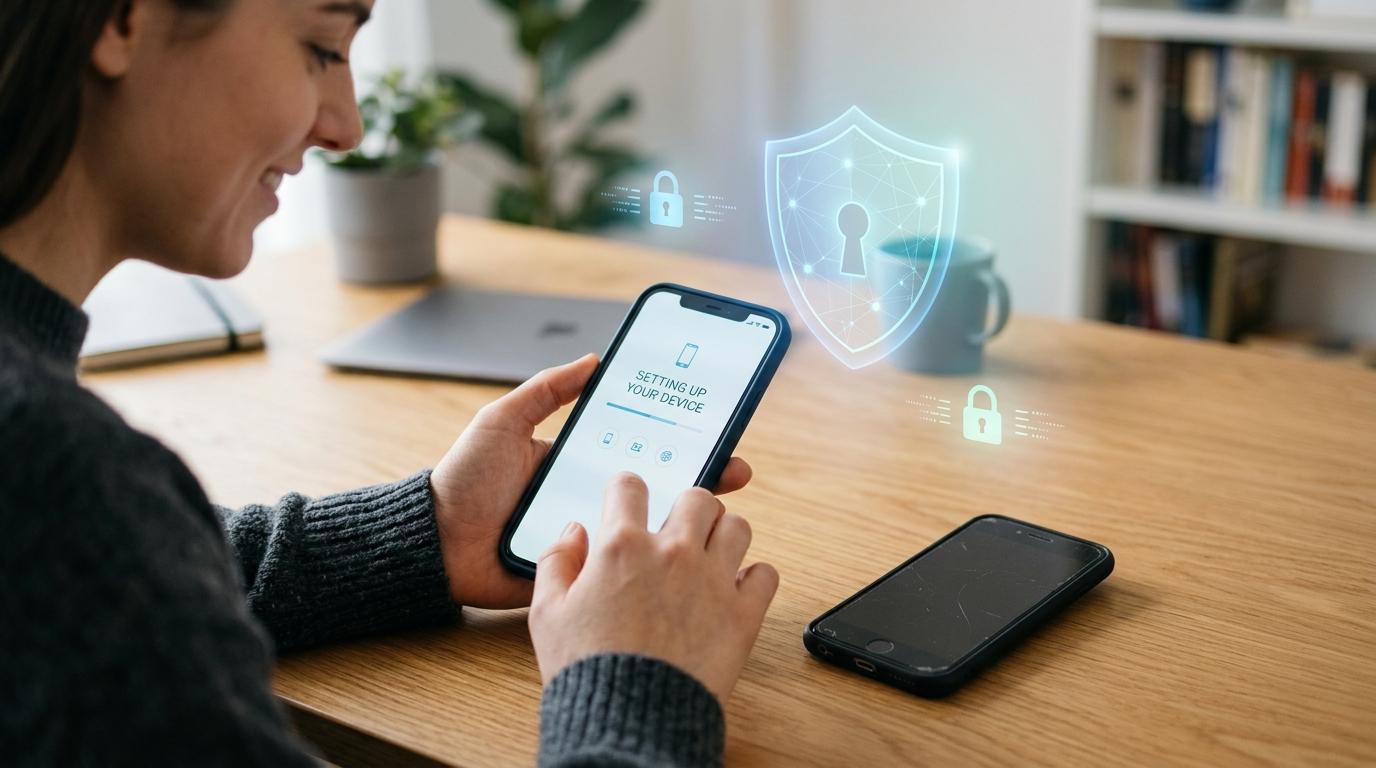
Setting up an authenticator app on a new phone? Great. Just don’t wipe your old phone yet.
Seriously, keep it nearby for a little while.
It’s easy to get excited about a new phone and immediately reset the old one, send it in for trade-in, or toss it in a drawer. But if your two-factor authentication codes are still on that old device, one rushed reset can turn a normal phone upgrade into a very frustrating lockout.
Before you erase anything, move your codes using whatever method your authenticator app supports: sync, export, backup and restore, or setting the account up again from scratch. Then test your logins on the new phone. Not just the app. The actual logins.
Your email, bank, work account, password manager, and cloud accounts may all ask for a code. If that code only existed on the phone you wiped yesterday, you’ve got a problem.
The good news is that most of this is avoidable. You don’t need to panic, and you definitely don’t need to share your codes with anyone. You just need to do things in the right order.
This checklist will help you transfer authenticator app access, move 2FA codes, test your accounts, protect recovery options, and handle anything that doesn’t transfer cleanly.
Why authenticator apps need extra care when changing phones
#A lot of phone data moves pretty easily now.
Your photos may sync. Your apps may reinstall. Your contacts may come back. Your passwords might restore through your browser or password manager.
Authenticator apps are different.
Most authenticator apps generate one-time codes using secret setup information stored inside the app. That secret information may transfer to your new phone, but it may not. It depends on the app, your settings, the type of account, and whether you’re moving from iPhone to iPhone, Android to Android, or switching platforms.
That’s why phone upgrades often go wrong at the 2FA step, not the password step.
You may know your password perfectly. But if the account asks for a six-digit code from an app that was only on your old phone, you can still get stuck.
The safest rule is simple:
Keep your old phone until you have successfully signed in to your important accounts using the new phone.
Not just until the app opens.
Not just until you see six-digit codes.
Actually sign in and confirm everything works.
The four main ways to move 2FA codes
#There isn’t one transfer method that works for every authenticator app and every account. Most phone upgrades use one of these four options: sync, export, backup/restore, or re-enrollment.
The best plan is to know which method each important account needs before you erase the old device.
Google Authenticator new phone options
#A Google Authenticator new phone setup usually works in one of two ways.
The first option is sync. Google Authenticator can sync codes through your Google Account if sync is enabled. In that case, you may be able to install Google Authenticator on the new phone, sign in with the same Google Account, and see your codes appear.
The second option is manual transfer. With this method, you open Google Authenticator on the old phone, export your accounts, and scan the transfer QR code with Google Authenticator on the new phone.
Both methods can work well. The key is knowing which one you’re using before you wipe the old phone.
And one very important reminder: after the codes appear on the new phone, test them. Seeing numbers in the app is not the same as confirming the account accepts them. A successful login is the real proof.
Microsoft Authenticator needs a little extra attention
#Microsoft Authenticator can be backed up and restored, but there are a few limits that catch people by surprise.
The big one is device type. In plain English, don’t assume an iPhone backup will restore to Android, or an Android backup will restore to iPhone.
Work and school accounts can also be trickier. After a restore, the app may show some account information, but your organization may still require you to register the new phone again through its security portal or IT process.
For personal accounts, backup and restore can save time. For work or school accounts, expect an extra verification or re-registration step.
If this is your work login, don’t wait until Monday morning to discover it doesn’t work. Set up and test the new phone while you still have the old one, or contact your organization’s support team through official channels.
Checklist before wiping your old phone
#Use this checklist before wiping old phone data. You don’t have to do everything in one sitting, but don’t skip the login tests. That’s where most problems show up.
1. Make a quick account inventory
#Start with the accounts that would cause the biggest headache if you lost access.
Write down your important accounts, including:
- Primary email account
- Password manager
- Bank or payment accounts
- Work or school login
- Apple, Google, or Microsoft account
- Social media accounts
- Cloud storage
- Any account used to recover other accounts
Next to each one, note:
- Which authenticator app has the code
- Whether you have recovery codes saved
- Whether your backup email and phone number are current
- Whether the account is personal, work, school, or banking
- Whether it may need re-enrollment instead of a simple transfer
This doesn’t need to be complicated. A note, a spreadsheet, or even a piece of paper is fine. The goal is to avoid discovering one missing account after the old phone is already gone.
2. Check your backup email and recovery phone
#Before you move 2FA codes, check the recovery settings on your important accounts.
Make sure:
- Your backup email address still works
- Your recovery phone number is correct
- You can receive SMS messages or calls if an account uses them as a fallback
- Your new phone has active service, especially if you changed SIM or eSIM
- You know which email account is used for password resets
This matters because recovery options are often used during phone changes. If your backup email is outdated or your recovery phone number no longer works, a simple transfer can quickly turn into a lockout.
Also remember that recovery options are powerful. Your backup email should have a strong password and its own 2FA. Your mobile account should also be protected with any security features your provider offers.
3. Find and save your recovery codes
#Many services give you recovery codes when you turn on two-factor authentication. They may also call them backup codes.
These are usually one-time-use codes that let you sign in if your authenticator app isn’t available. They are extremely useful during a phone change.
Before wiping your old phone, find them.
Good places to store recovery codes include:
- A trusted password manager
- A printed copy stored somewhere safe
- A secure offline record you can access in an emergency
Avoid storing recovery codes in a random note, a shared chat, or an unprotected screenshot folder. And don’t send them to anyone for “checking.” Recovery codes are private.
If you can’t find recovery codes for an important account, sign in while you still can and generate new ones if the service allows it.
4. Transfer authenticator app entries the right way
#Now move the codes.
Use the method that fits your app and account:
- If your app supports sync and sync is enabled, sign in on the new phone and confirm the entries appear.
- If your app supports export, use the old phone to create the transfer QR code and scan it with the new phone.
- If your app supports backup/restore, restore on the new phone and pay attention to device-type limits.
- If an account doesn’t transfer cleanly, re-enroll the new phone from that account’s security settings.
For Google Authenticator, this may mean using Google Account sync or the manual transfer feature.
For Microsoft Authenticator, this may mean restoring supported entries from backup and then re-registering work or school accounts if needed.
For banking, workplace, or other sensitive accounts, don’t assume a bulk transfer is enough. Open the account’s official security settings and confirm the new phone is accepted.
5. Test real logins, not just the app screen
#This is the step people often skip, and it’s the step that can save you.
Do not rely only on the fact that your new phone shows codes. A code appearing in the app does not always prove the account will accept it.
Test your most important accounts one by one:
- Open a browser or app where you are not already signed in.
- Enter your username and password.
- Wait for the 2FA prompt.
- Use the code from the authenticator app on the new phone.
- Confirm the login succeeds.
- If available, check whether the account shows the new phone as a valid authenticator device.
At minimum, test:
- Primary email
- Password manager
- Work or school account
- Bank or payment account
- Apple, Google, or Microsoft account
- Any account that controls recovery for other accounts
Only wipe the old phone after your important logins work on the new one.
6. Keep the old phone for a short safety window
#If you can, keep the old phone for a little while after the transfer.
It may not need active mobile service to generate authenticator codes, but it does need to stay in your possession, charged, and protected.
During that safety window:
- Don’t hand it to someone else
- Don’t trade it in early if you still have untested accounts
- Don’t factory reset it until your login tests are done
- Keep the screen lock turned on
Once you’re confident the new phone works for your important accounts, erase the old phone using the phone maker’s official reset instructions.
Recovery codes, backup email, and phone safety
#Recovery options are your safety net. Treat them like keys.
Your backup email, recovery phone number, and recovery codes can help you get back in if your authenticator app is lost. But because they are powerful, they need protection too.
Use this quick safety check:
Never share recovery codes, OTPs, authenticator codes, or approval prompts with anyone. Not with a caller. Not in chat. Not with someone claiming to be support.
Real support teams may guide you through recovery, but they should not need you to read out a live 2FA code.
Scam warning during phone changes
#Phone upgrades can be hectic. You may be moving data, changing SIMs, signing in again, and dealing with a bunch of verification prompts.
Scammers know people get distracted during account changes.
Keep these two rules in mind:
Never share your OTP or 2FA code.Only use official account recovery pages and official support channels.
Be suspicious if someone:
- Calls and asks for a code from your authenticator app
- Says your account will be closed unless you read out a code
- Sends a link to “verify” your bank, email, or work account
- Claims they need your recovery codes to finish the transfer
- Pushes you to act immediately
If you’re locked out, go directly to the official website or app for that service. Use the account recovery option there. For work or school accounts, contact your organization’s IT support through its normal trusted channel.
Don’t click random links just because they look urgent.
What to do if something didn’t transfer
#If a code doesn’t work on the new phone, don’t panic yet.
Work through this list:
- Check the time and date settings on the new phone. Authenticator codes depend on accurate time.
- Try the code again after it refreshes.
- Confirm you transferred the correct account entry.
- Use a saved recovery code if you have one.
- Try an approved fallback method, such as backup email or phone, if the service offers it.
- For work or school accounts, use your organization’s official re-registration process.
- For personal accounts, use the platform’s official account recovery flow.
Avoid searching randomly for “support numbers” and calling the first result. That can lead you straight to scammers. Use official websites, apps, and help centers.
Quick phone upgrade checklist
#Before wiping your old phone, confirm each item below.
- I made a list of important accounts.
- I know which authenticator app each account uses.
- I checked Google Authenticator sync or manual transfer options, if I use it.
- I checked Microsoft Authenticator backup/restore limits, if I use it.
- I re-registered work or school accounts if required.
- I confirmed backup email addresses are current.
- I confirmed recovery phone numbers are current.
- I saved recovery codes securely.
- I tested real logins using the new phone.
- I did not share OTPs, 2FA codes, or recovery codes with anyone.
- I kept the old phone until the important accounts worked.