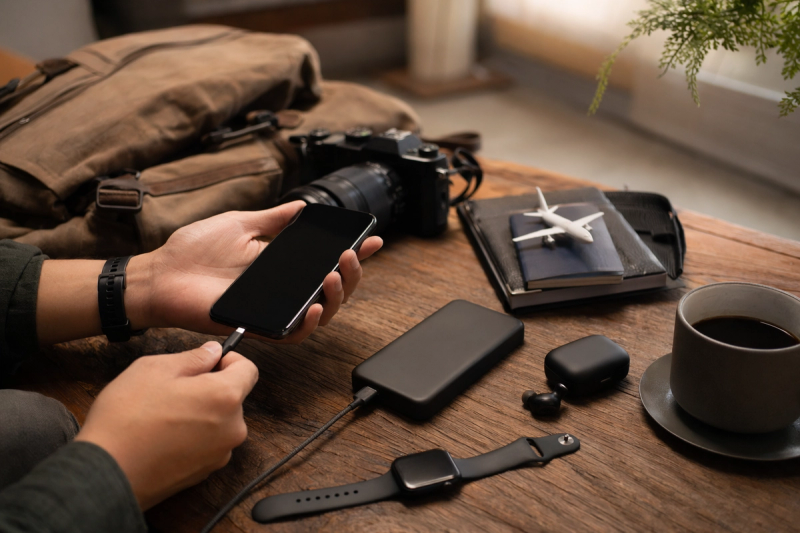
The airport panic that made me take phone storage seriously
#I used to be that person who packed a charger, passport, and vibes. That was my whole “tech prep” before travel. Then a few years ago, standing in a stupidly long boarding line, my phone popped up with the most terrifying little message: storage almost full. Of course it happened right when I needed to download a boarding pass, save a taxi screenshot, and update my roaming app. Classic. I had like 1.2 GB free, 4,000 blurry food photos, seven versions of the same sunset, and somehow three video editing apps I didn’t even remember installing. Since then I’ve become mildly obsessed with phone storage before travel. Not in a fancy productivity guru way. More like, I’ve been burned, and now I have a system.
And honestly, this stuff matters way more than people think. Your phone is not just a camera anymore. It’s your wallet, translator, map, boarding pass, hotel key sometimes, 2FA device, emergency contact list, camera, entertainment machine, and that tiny rectangle you stare into when your train is delayed and you’re pretending not to panic. If storage gets clogged or your backup is half-broken, travel becomes weirdly stressful. So this is my very real, slightly nerdy checklist for backing up, cleaning up, and making your phone properly useful offline before you go.
First: don’t delete anything until you know it’s backed up
#This sounds obvious, but wow, I have learned this the hard way. My old habit was to open Photos, sort by videos, and start deleting big files like I was defusing a bomb. Then I’d remember that one clip was actually from my nephew’s birthday, or a receipt photo I needed, or a random little video from a trip that I loved. Gone. Well, maybe recoverable from Recently Deleted, but still, you know the stomach drop. Before travel, my rule is simple: backup first, cleanup second. Always. Same energy as when you’re preparing a phone to sell, where you make sure photos and files are safe before you erase stuff. I actually like this guide on How to Wipe Your Phone Before Selling It Safely because the mindset is useful even if you’re not selling anything: don’t do drastic reset-style steps unless you understand what they do.
For iPhone people, that usually means checking iCloud Photos, iCloud Backup, and maybe exporting a local backup to a Mac or PC if you’re extra cautious. For Android, it’s often Google Photos, Google One backup, or the phone maker’s own backup tool like Samsung Cloud for some settings. I’m not saying you need every backup method under the sun. Actually that can get messy. But I want at least one cloud copy and, for important trips, one local copy of the really important stuff. Photos from my camera roll. Passport scans. Travel documents. The note where I wrote the apartment door code because I don’t trust myself.
My boring-but-life-saving backup check
#Here’s what I check before I delete a single thing. I open my photo backup app and look for the actual words that say the backup is complete. Not “waiting for Wi‑Fi,” not “preparing,” not “2,394 items remaining,” which is basically digital purgatory. Complete. Then I open the cloud library from another device or web browser if I’m feeling paranoid. If I can see the photos there, I relax. A tiny bit. For iCloud, I also check whether full-resolution photos are stored in iCloud or whether my phone is optimizing storage, because that changes what’s actually on-device. Google Photos has similar “free up space” behavior where it removes local copies that are already backed up. That’s helpful, but I still like to test it with a few photos first because I’m suspicious by nature.
- Make sure your last full phone backup actually happened recently, not three months ago when you still had that one wallpaper phase.
- Open your photo backup app and confirm it says everything is backed up before using any “free up space” button.
- Export critical documents somewhere separate, like Files, Drive, iCloud Drive, OneDrive, or an encrypted folder if you use one.
- If you’re taking a laptop, copy a folder of key docs and a few recent photo albums locally. It feels old-school, but old-school works when airport Wi‑Fi is trash.
How much free storage do you actually need?
#This is the bit where everyone wants a perfect number and I’m sorry, there isn’t one. But I do have opinions. For a weekend trip, I want at least 10 to 15 GB free. For a longer trip, especially if I’m shooting lots of 4K video, I want 30 GB free minimum. If I’m using my phone as my main camera, I get nervous under 50 GB. Sounds dramatic, but modern phones chew through storage like crazy. A one-minute 4K video can be hundreds of MB depending on settings, frame rate, HDR, and codec. Shoot a bunch of food clips, museum shots, street videos, and suddenly your phone is wheezing.
Also remember that apps need breathing room. Maps download offline areas. Spotify, Apple Music, Netflix, YouTube, language packs, airline apps, rideshare apps, translation apps, all of them want a little slice. OS updates can also demand storage at the worst possible time, though I usually update before travel, not during. And cached data is sneaky. Instagram, TikTok, WhatsApp, Telegram, and browsers can quietly hoard gigabytes. I once found WhatsApp was holding more than 12 GB of videos from group chats. Twelve. For memes and blurry concert clips. I was honestly offended.
The storage hogs I check every time
#On iPhone, go to Settings, General, iPhone Storage. On most Android phones, it’s Settings, Storage, though the exact labels vary because Android manufacturers love making us play hide and seek. The built-in storage screen is usually good enough to find the monsters. You’ll see apps sorted by size, and sometimes suggestions like offloading unused apps or reviewing large attachments. I don’t blindly accept every suggestion, because phones can be a little too enthusiastic about cleaning. But it’s a great starting place.
- Photos and videos first. They’re usually the big one, and also the easiest to mess up if you delete before backup.
- Messaging apps next. WhatsApp, Telegram, Messages attachments, Signal media, all the group chat chaos.
- Streaming downloads. Old Netflix episodes, podcasts, offline playlists from last summer. Gone.
- Games. I know, painful. But that 18 GB game you haven’t opened since February is not coming sightseeing with us.
- Browser downloads and random PDFs. Why do I have 14 copies of the same restaurant menu? Nobody knows.
Cloud backup is great, until you land somewhere with bad signal
#I love cloud storage. I really do. It feels like magic when it works. But travel has a way of exposing every little assumption you made about connectivity. Maybe your eSIM hasn’t activated yet. Maybe roaming is slow. Maybe the airport Wi‑Fi requires a phone number you can’t recieve SMS on. Maybe you’re in a train tunnel, or a mountain town, or just inside a hotel room where the signal disappears because the walls are apparently made of sadness. This is why “it’s in the cloud” is not a complete travel plan. It’s half a plan. The other half is offline access.
I keep a small offline folder with the stuff I absolutely need in the first 24 hours. Not everything. Just the survival layer: passport scan, visa or entry document, hotel booking, flight and train tickets, travel insurance, local emergency numbers, address of where I’m sleeping, and screenshots of anything with a QR code. I also save the same things in my email app for offline access, because redundancy is not paranoia when you’re tired and your suitcase wheel is making that broken shopping-cart sound.
The documents I save offline, even if it feels redundant
#I save PDFs when I can, because they’re cleaner than screenshots, but screenshots are fast and sometimes the only thing that works. When I do screenshots of tickets or IDs, I’m careful about what I share later. It’s too easy to send a screenshot to a friend and accidentally include booking numbers, passport digits, address details, or a QR code that should not be floating around in a group chat. If you’re storing or sending travel screenshots, this Screenshot Privacy Checklist: What to Blur First is a genuinely useful habit-builder. I used to think blurring was overkill until I realized how much personal info sits in one innocent-looking hotel confirmation.
- Passport photo page or ID scan, stored securely and not just sitting in your main camera roll forever.
- Visa, ESTA, eTA, or any entry approval document if your destination needs it.
- Boarding passes and train tickets as wallet passes plus PDFs or screenshots. Wallet apps are great, but I like backups.
- Hotel address in the local language if applicable. Taxi drivers do not care about your beautifully formatted English itinerary.
- Travel insurance policy number and emergency phone line. Boring until suddenly not boring.
- A note with embassy or consulate info, medication names, allergies, and emergency contacts.
Offline maps are non-negotiable now
#I don’t care how good your data plan is. Download the map. Just do it. Google Maps has had offline maps for ages, and Apple Maps added offline maps with iOS 17, which was a big deal for iPhone users who didn’t want to juggle extra apps. The catch is that offline maps aren’t identical to online navigation. Live traffic, transit updates, walking nuance, opening hours, and search results can be limited or stale. So I treat offline maps as a safety net, not a full replacement for internet. Still, that safety net has saved me more than once.
My map ritual is a little goofy. A week before I leave, I download the city or region. The night before, I open the map while on Wi‑Fi and zoom around like a raccoon looking for snacks. Airport, hotel, first meal, train station, pharmacy near the hotel, grocery store, and a couple backup cafés. I star or save places too, because offline search can be hit-or-miss. If I’m driving, I also download a wider region than I think I need. Roads have a way of laughing at your careful little rectangle.
Navigation apps and offline extras I actually use
#For city trips, Google Maps or Apple Maps is usually enough. For hiking or rural travel, I’m more careful and use dedicated offline map apps, because battery and GPS accuracy matter more when you’re not near a subway station. I also download language packs in Google Translate or Apple Translate where available. Translation offline can be less polished, but it’s still wildly better than pointing at a menu and hoping for the best. And yes, I download music and podcasts too. Not because it’s essential, but because sitting on a delayed bus with no signal and no audio is how my villain arc begins.
Clean up apps, but don’t break your trip setup
#This is where I contradict myself a bit. I love deleting apps before travel. It frees storage, reduces clutter, and makes my phone feel calmer. But I don’t delete aggressively the night before, because sometimes that “unused” app is connected to a ticket, loyalty card, authenticator, airline account, or hotel check-in. So the real move is: uninstall junk early, then install and test travel apps while you still have reliable Wi‑Fi and a normal brain. Future-you at 5 a.m. in an airport is not the person you want troubleshooting password resets.
I also do a quick permissions check. Travel apps can be needy. Location, camera, files, contacts, Bluetooth, photos. Some permissions make sense. A maps app needs location. A hotel app probably doesn’t need your entire photo library forever. A random currency calculator does not need contacts, I mean come on. Before leaving, I review the apps I installed for the trip and tighten anything weird. If you haven’t done this in awhile, the App Permissions Audit: What to Allow or Deny is a nice practical walkthrough. It’s not about being paranoid, it’s about not handing every app the keys to your life because you were rushing.
My travel app test, which sounds extra but isn’t
#I open every important app before I leave. Airline. Hotel. Train. Rideshare. Local transit. Bank. Authenticator. Maps. Translation. VPN if I’m using one. Password manager. eSIM app. Then I log in, confirm the trip appears, and make sure I can access the thing I need without doing a surprise email verification. This matters because two-factor authentication gets annoying when your SIM changes, your roaming is off, or your email app refuses to sync. If an app offers offline tickets, I save them. If it offers wallet passes, I add them. If it has a download button, I press it like it owes me money.
Photos and video settings: tiny changes, huge storage difference
#I’m a sucker for good phone cameras. Like, I will absolutely stop mid-walk because the light hits a building in a nice way. But travel photography can wreck storage fast, especially if you shoot ProRAW, RAW, 4K 60 fps, HDR video, or cinematic modes. Those features are amazing, but you don’t need them for every coffee, every street sign, every pigeon with attitude. Before a trip, I check camera settings and decide what I’m actually trying to capture. If it’s a once-in-a-lifetime landscape, sure, high quality. If it’s my sandwich, maybe not 4K Dolby Vision, mate.
On newer iPhones, especially since the iPhone 15 line moved to USB‑C in 2023, moving large files to an external drive can be much less annoying than before, depending on your model and cable. Many Android phones have supported USB‑C storage workflows for years, though it can still be fiddly with file managers and drive formatting. I sometimes bring a tiny USB‑C flash drive for longer trips. Not always. It’s one more thing to lose. But for video-heavy trips, it’s comforting. I’ll dump big clips at night, then keep shooting without feeling like my phone is a ticking storage bomb.
The camera compromises I can live with
#- Use standard photo mode for most shots, not RAW or ProRAW unless you plan to edit and actually need it.
- Record normal clips in 1080p or 4K 30 fps unless motion or quality really needs more. I know 4K 60 looks smooth, but storage says ouch.
- Turn off burst photo accidents. I have taken 87 photos of my shoe while pulling the phone from my pocket. Art? Maybe. Useful? no.
- Review videos at night and delete obvious mistakes after backup. I don’t do a full curation session on vacation, just the easy trash.
Messaging apps are secret storage goblins
#If your phone storage is mysteriously full, check messaging apps. Seriously. WhatsApp, Telegram, iMessage, Signal, Messenger, whatever your people use. They all collect images, voice notes, stickers, PDFs, forwarded videos, and random files like a digital junk drawer. Before travel, I go into the app’s storage tools and clear the big stuff. WhatsApp has a storage manager where you can review large files and chats. Telegram lets you clear cache without deleting cloud chats, which is one of those features that feels boring until it saves you 9 GB. iPhone Messages can also show large attachments in iPhone Storage.
One warning though: backups for messaging apps can be their own little universe. WhatsApp backups are separate from your general phone backup in some setups and may rely on iCloud or Google account settings. Signal is also different depending on platform and migration method. So if chat history matters to you, don’t just delete and reinstall apps casually before travel. I’ve seen friends lose chat histories because they assumed “phone backup” meant “every app backup in every way,” and unfortunately tech companies do not always make that simple.
Entertainment downloads: be honest with yourself
#This is my personal weakness. I download eight podcast episodes, two seasons of a show, three playlists, a Kindle book, and then on the flight I stare at the seat map and eat pretzels. Still, offline entertainment is worth planning, just not hoarding. Download what you’ll realistically use, then delete old stuff. Streaming apps usually let you manage downloads inside the app, not always through the phone storage screen. Same with music apps. And podcasts are sneaky because they auto-download new episodes, then suddenly your phone is carrying 40 hours of people discussing a topic you were briefly into in March.
I usually keep one “travel playlist,” a few podcast episodes, one comfort show episode, and ebooks. Ebooks are tiny, bless them. If you’re traveling with kids, okay, different rules, download the entire cartoon universe if that’s what keeps the peace. No judgement. But for myself, I try to keep entertainment under control because I’d rather spend storage on photos and offline maps. That said, there’s something deeply luxurious about having music available when the plane Wi‑Fi costs too much and the person next to you is loudly watching videos with no headphones. Humanity, please.
Security stuff that touches storage, backups, and sanity
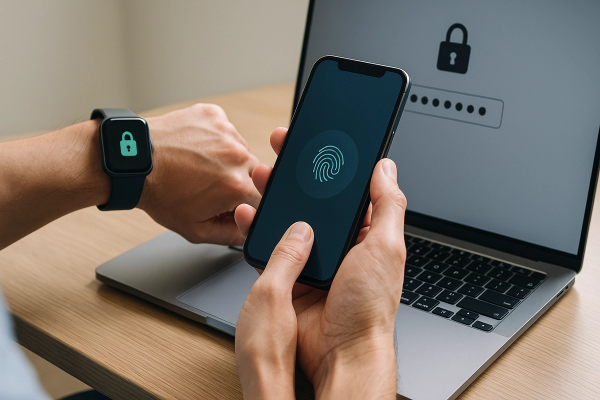
#Phone prep isn’t only storage. It’s also making sure you can get back into your digital life if something goes sideways. Before a big trip, I check my password manager, recovery codes, device passcode, Face ID or fingerprint, and “Find My” style location tools. I don’t store recovery codes as plain screenshots in my camera roll, because that’s asking for trouble. I keep them in a password manager or a secure note if the tool supports it. Also, update your emergency contacts and medical ID if your phone has that feature. It takes five minutes and feels dramatic until it’s useful.
I’m also careful with banking apps. I open them before travel, confirm I can log in, and make sure the card controls work. If I’m using an eSIM, I install it before the trip but usually activate according to the provider’s instructions, because some plans start counting from activation. Don’t quote me for every provider, they differ. The key is to read the app’s instructions while you still have home Wi‑Fi and patience. I also download my VPN if I’ll use public Wi‑Fi, but I test it at home. Nothing says fun like discovering your VPN blocks the airline app right when boarding starts.
My actual night-before checklist
#This is the checklist I run the night before travel, usually while drinking tea and pretending I’m more organized than I am. It takes maybe 30 to 45 minutes if I’ve been decent about backups, longer if I’ve been living like a digital raccoon. I plug the phone in, connect to Wi‑Fi, and do it in this order because order matters. Backup first. Then downloads. Then cleanup. Then testing. If I clean first, I get distracted and start deleting screenshots from 2021 instead of saving my train ticket. Ask me how I know.
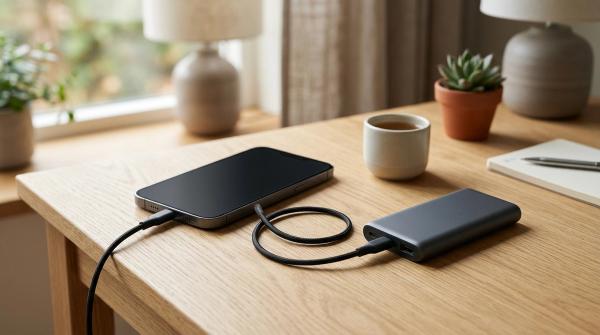
- Charge phone to 100% and keep it on Wi‑Fi. Also charge power bank, earbuds, watch, and whatever tiny cable gremlin you rely on.
- Confirm cloud photo backup is complete. Not pending. Not “some items.” Complete, or at least complete for the important recent stuff.
- Run a phone backup through iCloud, Google One, or your device backup tool. If it fails, fix that before anything else.
- Download offline maps for airport, hotel city, day trips, and any driving regions. Open them once after downloading.
- Save travel docs offline in Files or Drive and add tickets to Wallet where possible. Take screenshots only as backup.
- Clear big videos, duplicate photos, old downloads, podcast episodes, and messaging app media after backup.
- Open travel apps and check logins. Airline, hotel, transit, bank, password manager, authenticator, eSIM, ride apps.
- Check remaining storage. If I’m under 20 GB before a major trip, I keep cleaning because I know myself.
A few little travel-storage tricks I swear by
#One trick: make a “Trip Offline” folder. I do this in Files on iPhone or a cloud drive app with offline access on Android. Everything important goes there. Then I favorite it, pin it, star it, whatever the app calls it. Another trick: put your hotel address as a lock screen widget or note for the first day if you’re comfortable with that, or keep it in an easily accessible note. When you’re jet-lagged, menus feel like puzzles. I also keep a plain text note with phrases like “I have a reservation,” “no peanuts,” or “where is the train station?” because translation apps are great but sometimes you need quick and dumb.
If you take lots of photos, create a daily album during the trip or at least favorite the best shots each night. I don’t always do this, to be honest. Sometimes I’m tired and just collapse. But when I do, it makes post-trip cleanup so much nicer. Also, don’t forget to empty Recently Deleted only after you’re sure. Recently Deleted can still occupy storage until it clears, so if you need space immediately, you may have to empty it. But again, backup first. I’m repeating myself because past me was reckless and needs supervision.
What I don’t bother doing anymore
#I don’t factory reset before travel. That’s overkill unless you have a very specific security reason or you’re crossing a border with strict personal risk considerations, and that’s a whole seperate conversation. I don’t install ten “cleaner” apps either. Most of them are unnecessary, and some are sketchy. Built-in storage tools are usually enough. I don’t obsessively delete every duplicate photo because that turns into a three-hour emotional archaeology project. I clean the big stuff and move on. Perfect organization is not the goal. A phone that works when you land is the goal.
I also don’t rely on one ecosystem blindly. Apple stuff works beautifully until it doesn’t. Google stuff works beautifully until it doesn’t. Same for Samsung, Microsoft, Dropbox, all of it. The healthiest travel setup is boring redundancy: one cloud backup, one offline copy, one tested app login, one map that works without signal. It’s not glamorous, but neither is begging airport Wi‑Fi to load a QR code while everyone behind you sighs.
Final thoughts from someone who has absolutely messed this up before
#Phone storage before travel sounds like a small chore, but it changes the whole mood of a trip. When your backups are done, your maps are offline, your tickets are saved, and your phone has room to breathe, you stop fighting your tech and start using it. That’s the sweet spot for me. Technology should make travel feel lighter, not like you’re carrying a tiny anxious server in your pocket.
So yeah, backup before deleting, keep more free space than you think you need, save the important stuff offline, test your apps, and don’t trust hotel Wi‑Fi with your entire plan. Future-you will be annoyingly grateful. And if you’re into practical tech checklists like this, the kind that come from real-world mistakes and not some perfect lab environment, I’d definitely poke around AllBlogs.in sometime. I’ve found it’s a nice place to keep feeding the tech obsession without making it feel like homework.