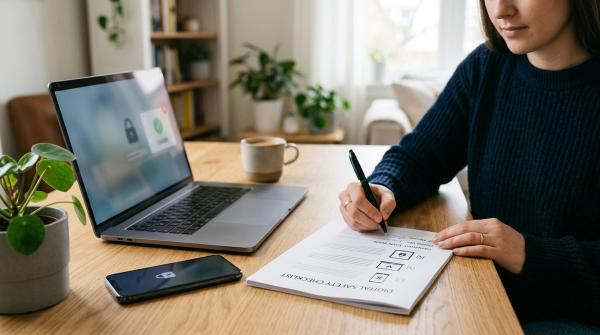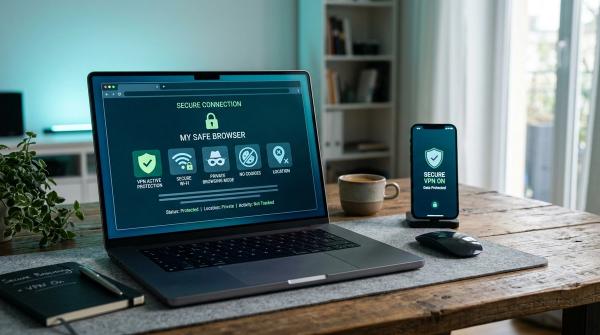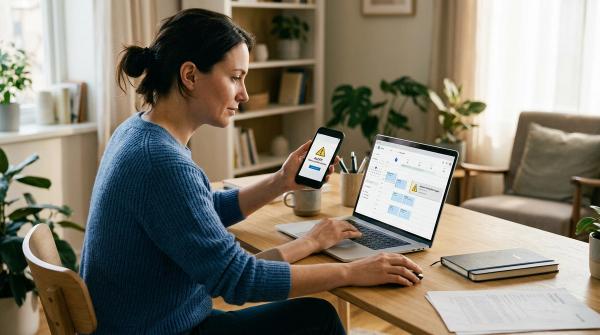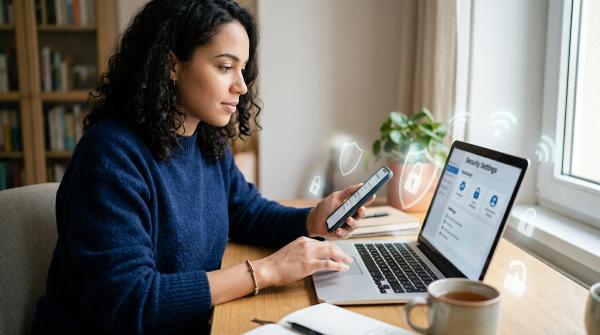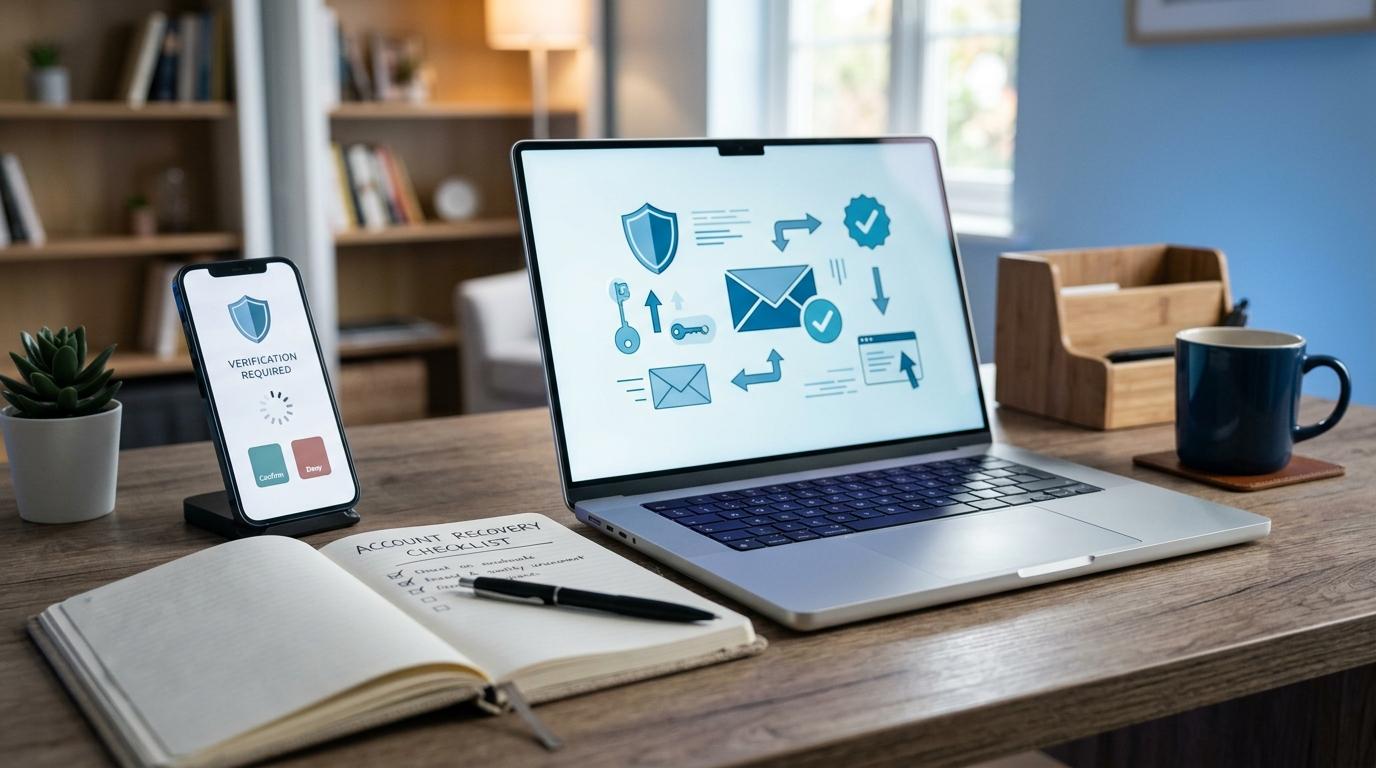
A recovery email security checklist helps you protect one of the most overlooked parts of your digital life: the inbox that helps you get back into your other accounts.
Your recovery email should have a strong unique password, two-factor authentication, updated recovery details, backup codes stored safely, and alerts you will actually notice.
Think of it like a spare key.
You may not use it every day. You may even forget where you kept it. But if someone else gets it, they may be able to walk right into your accounts.
Most people focus on their main email account. That makes sense. It has work messages, school updates, bank notices, family photos, receipts, delivery alerts, social notifications, and password reset links.
But then there is the other inbox.
The old Gmail. The Outlook address you created years ago. A Yahoo account you barely check. A school email. A work email from a previous job. Maybe even an address from an old internet provider.
At some point, you may have used that inbox as the recovery email for Google, Apple, Microsoft, Facebook, Instagram, banking apps, shopping sites, creator tools, or cloud storage.
And then you moved on with life.
That is exactly why it deserves a quick checkup.
This guide walks you through how to secure your recovery email without making it complicated. No panic. No heavy tech lecture. Just the things that actually help.
Recovery Email vs Primary Email
#Your primary email is the one you use all the time. It is the address you give to friends, schools, employers, banks, apps, stores, newsletters, and social platforms.
Your recovery email is the backup address that helps you prove who you are when something goes wrong. It may receive password reset links, sign-in alerts, verification codes, and account change notices.
Here is the simplest way to think about it:
- Primary email: your front door.
- Recovery email: your spare key.
- Backup codes: the emergency key you keep somewhere safe.
- Recovery contact: a trusted person who can help you get back in, if the platform supports it.
The risky part is that many people use an old or forgotten account as their recovery email.
Maybe the password is weak. Maybe it has no two-factor authentication. Maybe the phone number attached to it is outdated. Maybe you do not even remember the last time you opened it.
That creates a quiet weak spot.
Good account security is not only about protecting the email you use every day. It is also about protecting the email that can reset it.
Quick Self-Check Before You Start
#Before opening any settings, ask yourself:
- Do I still control my recovery email account?
- Do I know the password without guessing?
- Does that email account have two-factor authentication turned on?
- Are the recovery phone numbers and backup addresses still current?
- Do I have backup codes saved somewhere safe?
- Would I notice quickly if someone changed my recovery settings?
If you answered “I’m not sure” to any of these, that is your starting point.
And honestly, no judgment. Most people do not think about recovery settings until something goes wrong.
Recovery Email Security Checklist
#Use this recovery email security checklist to review the important parts. You can do everything in one sitting, or just handle one section at a time.
How to Secure a Google Account Recovery Email
#For a Google Account, start with Google’s built-in security tools. Google recommends keeping recovery information updated so you can get back in if you cannot sign in.
Open your Google Account Security Checkup and review:
- Recovery email
- Recovery phone number
- Recent security activity
- Signed-in devices
- Third-party access
- Password and sign-in options
Google may show warning-style icons or suggested actions. Do not ignore them, especially if they mention suspicious activity, missing recovery info, or weak sign-in settings.
For your Google recovery email, make sure:
- The recovery email is still yours.
- The recovery email has a unique password.
- Two-factor authentication is turned on.
- Old phone numbers have been removed.
- Recent devices and sessions look familiar.
- Backup codes are generated and stored safely.
One useful thing to know: Google may keep previous recovery information usable for a short time after some changes. This can help if someone changes your details without permission.
Still, do not rely on that as your safety plan. It is much better to keep your recovery information updated before there is a problem.
How to Secure a Microsoft Account Recovery Email
#A Microsoft account may be connected to Outlook, OneDrive, Windows sign-in, Xbox, Microsoft 365, Teams, and other services. So the recovery settings matter more than many people realize.
Check your Microsoft account security settings and review:
- Alternate email address
- Recovery phone number
- Two-factor authentication
- Trusted devices
- Recent account activity
- Old security information
If you see an email address or phone number you no longer use, remove it. If 2FA is available for your setup, turn it on.
Microsoft also offers a 25-digit recovery code. This can be very useful if you are locked out and normal recovery options are not working.
If you generate one, treat it seriously.
Do not save it in a plain text file on a shared computer. Do not keep it as a random screenshot in your photo gallery. Do not email it to yourself with the subject line “Microsoft recovery code.”
Better options include:
- Saving it in a secure password manager
- Printing it and storing it somewhere private
- Keeping it with other important documents in a safe place
A recovery code is like a house key. Very helpful when you need it, but risky if someone else finds it.
How to Secure an Apple Account
#Your Apple Account, still commonly called Apple ID, can protect a lot: iCloud, photos, device backups, messages, app purchases, subscriptions, and device access.
So if you use Apple devices, recovery planning is worth a few minutes.
Apple has recovery features that can be helpful, but they come with responsibility.
Recovery Contact
#An Apple recovery contact is someone you trust who can help you regain access if you are locked out.
They do not get your password. They do not get access to your data. They are simply part of the recovery process if you need help verifying your identity.
Choose someone who is:
- Reliable
- Easy to reach
- Calm under pressure
- Unlikely to share codes casually
That last point matters. Recovery help only works well when the person understands that codes and prompts should not be shared with random callers or messages.
Recovery Key
#Apple also offers a Recovery Key, which is a 28-character key used for account recovery.
This gives you more control, but it also gives you more responsibility.
Here is the tradeoff: if you turn on a Recovery Key and then lose access to your trusted devices and lose the key, recovering the account can become extremely difficult or impossible through normal Apple processes.
Only use this option if you are confident you can store the key safely.
For your Apple Account, check:
- Trusted phone numbers are current.
- Trusted devices are actually yours.
- Two-factor authentication is enabled.
- Your recovery contact, if added, is someone you truly trust.
- Your Recovery Key, if enabled, is stored safely and privately.
What About Social Media Accounts?
#Social media accounts often rely heavily on your email address. If someone gets into your recovery email, they may be able to request password resets for your social accounts too.
For accounts like Instagram, Facebook, TikTok, X, YouTube, LinkedIn, Pinterest, or creator platforms, check:
- Which email address is attached to the account
- Whether that email is secure and accessible
- Whether 2FA is enabled on the social account itself
- Whether backup codes are saved
- Whether old phone numbers are still attached
- Whether any unknown devices or sessions are logged in
Creators should be extra careful.
One compromised recovery inbox can affect channels, pages, brand deals, payment settings, sponsorship conversations, ad accounts, and business tools. It can become messy very quickly.
If your social account helps you earn money or build your reputation, protect the recovery email like it matters. Because it does.
Backup Codes: Boring, Simple, and Very Useful
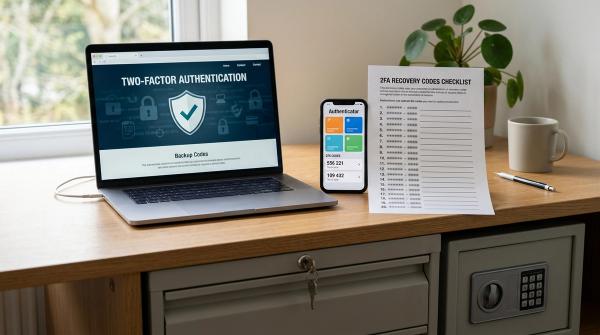
#Backup codes are one-time codes you can use when your normal sign-in method is not available.
They are not exciting. They are not fancy. But they can save you from a very stressful lockout.
You may need backup codes if:
- Your phone is lost.
- Your authenticator app is unavailable.
- Your device breaks.
- You change phones and forget to move your 2FA setup.
- You are traveling and cannot receive normal verification prompts.
- Your usual login method suddenly fails.
Good places to store backup codes include:
- A secure password manager
- A printed copy in a private place
- A locked drawer or safe with important documents
Avoid storing them in:
- An email draft
- Your photo gallery
- A screenshot folder
- A notes app entry called “backup codes”
- A shared computer
- A chat message to yourself
Backup codes do not guarantee that every recovery situation will be easy. But they are one of the simplest ways to avoid getting locked out when your usual sign-in method is unavailable.
Warning Signs Your Recovery Email Needs Attention
#Not every notification means there is a crisis. Some alerts are normal.
But these signs deserve quick attention:
- Password reset emails you did not request
- Security codes arriving unexpectedly
- Alerts about new sign-ins from unfamiliar devices or locations
- Notices that your recovery email, phone number, or password was changed
- Friends saying they received strange messages from your account
- Emails saying new forwarding rules or filters were created
- A sudden stop in expected security alerts
- Login prompts appearing when you are not trying to sign in
If something looks suspicious, do not click links inside the message.
Instead, open the official app or type the official website address directly into your browser. Then check your account security page from there.
This one habit can protect you from a lot of fake alert scams.
Scam-Safe Advice for Recovery Codes and Alerts
#Scammers love urgency.
They may pretend to be from Google, Microsoft, Apple, your bank, a delivery company, a social platform, or even your workplace.
The message usually sounds stressful:
- “Your account will be closed.”
- “Someone is trying to access your account.”
- “Read us the code to verify your identity.”
- “Approve this login to stop the attack.”
- “Click now or you will lose access.”
Their goal is simple: get you to share a code, click a fake link, or approve a sign-in request.
Follow these rules:
- Never read a verification code to someone who calls or messages you.
- Never share backup codes with anyone.
- Do not approve a login prompt unless you are actively signing in.
- Do not click password reset links you did not request.
- Go directly to the official website or app to check alerts.
- Be suspicious of messages that create panic or pressure.
- Slow down before taking action.
A real support team should not need you to read out a one-time login code over the phone.
If someone asks for it, stop. That is a red flag.
A Simple Monthly or Yearly Routine
#You do not need to check recovery settings every week.
For most people, a yearly review is enough. Put a reminder on your calendar if that helps.
You should also review your recovery settings when you:
- Get a new phone
- Change your phone number
- Switch email providers
- Lose a device
- Sell or give away an old device
- Notice suspicious account activity
- Help an older family member set up a new device
- Start using a new school, work, creator, or business account
This does not have to take long. A 15-minute check now can save you from a long, stressful recovery process later.
Future you will be very grateful.
Final Takeaway
#Your recovery email is not just a backup inbox.
It is part of your account security system.
Secure it with a unique password, two-factor authentication, current recovery details, safely stored backup codes, and scam-aware habits.
Then review it once in a while, especially after phone, device, or account changes.
You do not need to become a cybersecurity expert. You just need to protect the inbox that protects everything else.