If you think your Gmail was hacked, changing your password is the right first step — but it should not be the only step. Gmail forwarding rules, filters, delegates, connected apps, active sessions and recovery settings can quietly keep someone connected to your account. Use this checklist to find and remove anything you did not set up.
A hacked Gmail scare can make your stomach drop. Maybe Google warned you about a login from a place you do not recognize. Maybe friends received strange emails from you. Maybe messages were marked as read even though you never opened them. Or maybe nothing obvious happened, but your inbox just feels wrong.
That feeling is worth taking seriously.
Most people change the password and move on. That is understandable. But if someone got into your Gmail, they may have changed settings before you locked them out.
The most important things to check are:
- Gmail forwarding
- Gmail filters
- Delegated access
- Third-party app access
- Active devices and sessions
- Recovery email and recovery phone
- 2-Step Verification and passkeys
Google’s compromised-account guidance tells users to remove forwarding rules, filters and labels they did not create. So this is not overreacting. It is part of properly cleaning up a Gmail account after a security scare.
Quick Gmail Forwarding and Filters Checklist
#If you can, do these checks on a computer. Gmail’s desktop settings are easier to review than the mobile app, especially for filters and forwarding.
Why Changing Your Gmail Password May Not Be Enough
#When someone gets into an email account, they often assume the password will be changed soon.
So they may try to leave behind a hidden way to keep seeing your email or regain access later.
Common examples include:
- A Gmail forwarding rule that sends your new emails to another address.
- Gmail filters that archive, delete, hide or mark important emails as read.
- Delegated access that lets another Google account read or send mail for you.
- Third-party apps that still have permission to access Gmail.
- Active sessions on a phone, computer or browser.
- Changed recovery details that could help someone get back in later.
This does not mean every unfamiliar-looking setting is criminal. Work, school, shared-family devices, old mail apps and browser sync can make the list look confusing. But anything you did not create should be reviewed carefully.
Start With Google Account Security
#Go to your Google Account security page and look through the Security section carefully. Google may show alerts about suspicious sign-ins, unsafe settings or connected apps that need attention.
Follow those prompts, but do not rely only on the summary. You still need to manually check Gmail forwarding and filters. Those are two of the easiest places for unwanted changes to hide.
Sign Out of Devices You Do Not Recognize
#On the Google Account security page, find Your devices and choose Manage all devices.
Go through the list slowly. You may see phones, tablets, laptops, browsers and approximate locations.
A strange-looking location does not always mean someone hacked you. Location data can be rough, especially with mobile networks or VPNs. But if you see a device you truly do not recognize, open it and choose Sign out.
After that, change your password.
Use a password that is:
- New
- Long
- Unique to Gmail
- Not used on any other website
- Not based on your name, birthday, phone number, school, pet or a simple pattern
If you reused your Gmail password anywhere else, change it on those sites too. Reused passwords are one of the easiest ways attackers move from one account to another.
Check Gmail Forwarding Rules
#This is one of the most important checks. Please do not skip it.
A hidden Gmail forwarding rule can send copies of your incoming email to another address. That means someone could continue seeing password reset links, security alerts, private messages, receipts, work emails, school updates and more.
On a computer:
- Open Gmail.
- Click the gear icon in the top right.
- Select See all settings.
- Open the Forwarding and POP/IMAP tab.
- Look at the Forwarding section.
- If you see an email address you do not recognize, disable forwarding and remove the address.
If forwarding is enabled and you did not set it up, treat it as suspicious.
Also check POP download and IMAP access on the same page. These settings allow email apps like Outlook, Apple Mail, Thunderbird or other mail clients to access Gmail.
If you only use Gmail through the Gmail app or website, you may not need POP or IMAP. Consider turning off access you do not use.
One note: if this is a school or work Google Workspace account, some settings may be managed by your organization. If you are unsure, ask your admin before changing anything important.
Check Gmail Filters
#Next, check your filters.
Gmail filters are useful when you create them yourself. They can automatically label, archive, delete, forward or mark emails as read.
But if someone else created them, they can be used to hide important warnings from you.
On a computer:
- Open Gmail.
- Click the gear icon.
- Select See all settings.
- Open Filters and Blocked Addresses.
- Read every filter carefully.
Pay close attention to filters that do any of these things:
- Skip the Inbox
- Delete it
- Mark as read
- Forward it to
- Target emails from banks, payment apps, shopping sites, schools, employers, social media or Google
- Include words like password, verification, security, login, reset or code
If you did not create a filter, delete it.
This is a big part of any Gmail hacked checklist, because filters can quietly hide the very emails that would warn you something is wrong.
For example, a filter could send password reset emails straight to Trash. Another filter could mark Google security alerts as read and archive them before you notice.
Also take a quick look at your labels. If you see labels you did not create, review them.
Check Gmail Delegates
#Gmail delegation is a real feature. It lets another Google account read, send and delete mail on your behalf.
Some teams, assistants, families and workplaces use it. But if you did not set it up, it should not be there.
To check:
- Open Gmail on a computer.
- Go to Settings.
- Select See all settings.
- Open Accounts and Import.
- Find Grant access to your account.
- Remove any account you do not recognize.
If this is a work or school Gmail account, the wording may be slightly different. Some options may also be controlled by your organization.
Check Third-Party App Access
#Not every Gmail security problem starts with a stolen password.
Sometimes an app gets permission to access part of your Google Account and keeps that permission. Depending on what you allowed, some apps may be able to read, send, compose or delete email.
To review app access:
- Go to your Google Account security page.
- Find Your connections to third-party apps and services.
- Open the list of connected apps.
- Review each app.
- Remove anything you do not recognize, no longer use or do not trust.
Be especially careful with apps that have Gmail permissions.
This step helps you check Gmail account access beyond normal logins. Changing your password may not automatically remove every app connection. If an app still has permission, you need to remove that access directly.
Check Recovery Email, Phone and Sign-In Settings
#Your Gmail recovery settings are extremely important.
They help you get back into your account if you are locked out. But if someone changes them, they may also help that person regain access later.
Go to your Google Account security page and look under How you sign in to Google.
Check:
- Recovery phone
- Recovery email
- 2-Step Verification
- Passkeys, if available
- Any other sign-in method you do not recognize
Make sure the recovery phone number is yours.
Make sure the recovery email is yours too. That recovery email should also be secure. An old email account you no longer check can become a weak spot.
Remove anything unfamiliar.
Set Up Safer 2-Step Verification and Passkeys
#After you have checked forwarding, filters, delegates, apps, devices, sessions and recovery settings, make your account harder to break into again.
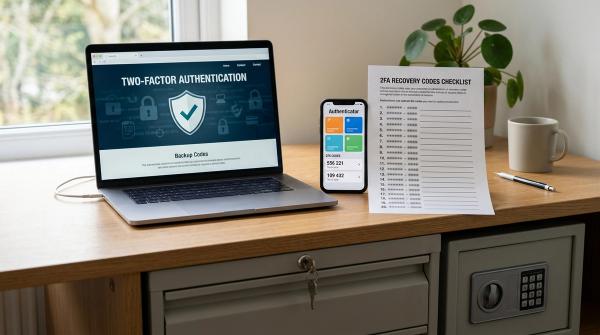
Turn on 2-Step Verification from your Google Account security page.
2-Step Verification adds another step when someone tries to sign in. SMS text codes are better than using only a password, but they are not the strongest option.
If Google offers passkeys for your account and device, consider setting them up.
A passkey lets you sign in using your device’s screen lock, fingerprint or face unlock, depending on the device. Passkeys are designed to reduce reliance on passwords and one-time codes.
To set up a passkey:
- Go to your Google Account security page.
- Find Passkeys under sign-in options.
- Follow Google’s prompts.
- Add only devices you trust and control.
Keep your device lock strong. A passkey is only as safe as the device that stores it.
A Calm Order of Action If Your Gmail May Be Hacked
#If everything feels overwhelming, follow this order:
- Go to Google Account Security.
- Sign out of unknown devices.
- Change your password.
- Check Gmail forwarding.
- Check Gmail filters.
- Check delegates.
- Remove suspicious third-party apps.
- Confirm your recovery email and phone.
- Turn on 2-Step Verification.
- Set up passkeys if available.
After that, keep an eye on your account for a few days.
Look for:
- Strange sent emails
- New security alerts
- Password reset messages you did not request
- Filters or forwarding rules that reappear
- Messages being marked as read unexpectedly
- Login alerts from devices you do not recognize
If you cannot sign in, use Google’s official account recovery process. This guide is meant to help beginners review and clean up Gmail settings. It is not a replacement for Google support, your workplace admin or professional help during a serious account takeover.
Related AllBlogs Reads
#If you are tightening account security, these existing AllBlogs guides fit well with this checklist:
- Google Account Security Checklist: Passkeys, 2-Step Verification, and Recovery Setup
- Third-Party App Access Cleanup Checklist
- Password Manager Recovery Checklist: What to Set Up Before You Get Locked Out
- Authenticator App New Phone Checklist: Move 2FA Codes Without Lockouts
- SIM Swap Prevention Checklist: Protect Your Phone Number From Account Takeovers
A hacked Gmail scare is stressful, but you do not have to fix everything at once. Start with the basics. Sign out of unknown devices. Change your password. Then check the hidden places people often forget: forwarding, filters, delegates, connected apps, recovery email, recovery phone and sign-in protection.
The password matters, but the hidden settings matter too.