SMS OTP autofill is generally safe when it is handled by your phone’s built-in iPhone or Android system. If your keyboard or phone shows a code suggestion, it is usually okay to tap it. What you should be careful about is apps asking to read all your SMS messages or view your notification content. Deny broad SMS access unless the app is your main messaging app or has a very clear reason to need it. Also, clean up old OTPs, review permissions from time to time, and never share OTPs with anyone.
If you use WhatsApp, banking apps, UPI, email, shopping apps, college portals, or government websites, you probably deal with OTPs almost every day.
Autofill makes that process easy. The message arrives, your phone detects the code, you tap once, and you are in.
But there is a genuine privacy question many people have:
If my phone can autofill an OTP, does that mean the app can read all my messages?
In most cases, no. Your phone is usually doing the work, not the app. But some permissions are still worth understanding, especially on Android.
This guide explains what is safe, what is risky, and what you should check on your phone.
How OTP Autofill Usually Works
#OTP autofill does not automatically mean an app can see your full SMS inbox.
On modern phones, the operating system often handles the verification code. The app does not need to open your private messages and search through them.
Usually, it works like this:
- Your phone receives the SMS.
- iOS or Android detects that the message contains a verification code.
- The code appears above your keyboard or inside the OTP field.
- You tap the suggestion to fill it.
That is the safer, privacy-friendly version of OTP autofill.
On Android, apps can also use verification methods that help confirm your number without asking for full SMS access, or ask you to approve access to one specific verification message.
That is very different from an app asking:
“Allow this app to read all SMS messages?”
For most users, the simple rule is:
Autofill suggestions are usually fine. Full SMS inbox access deserves caution.
What to Allow and What to Deny
#iPhone Verification Code Autofill: What Is Safe
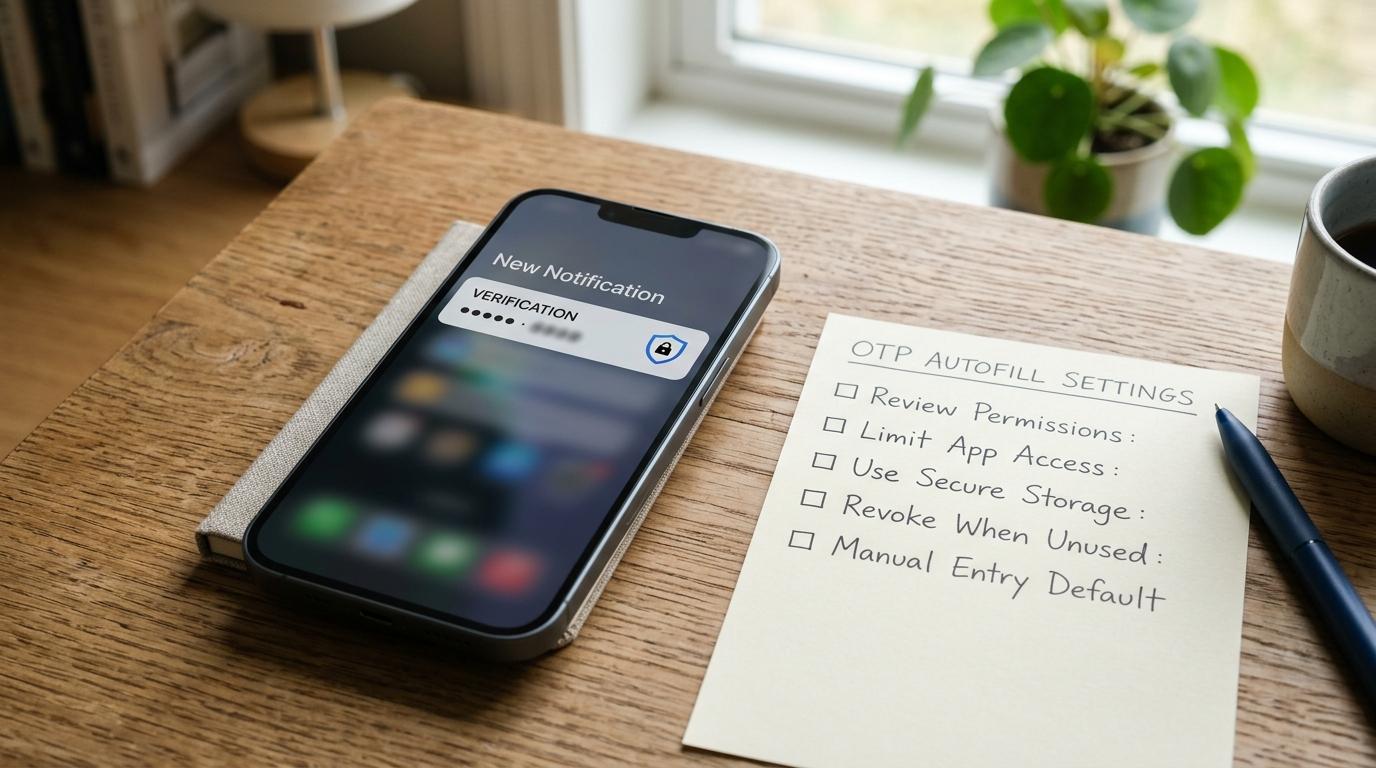
#Apple supports iPhone verification code autofill for one-time codes. When an OTP arrives, iOS can suggest it above the keyboard. You tap the code, and it fills in automatically.
The important privacy point is this:
The app does not need full access to your Messages app for normal iPhone OTP autofill.
Your iPhone receives the message, iOS detects the code, and you decide whether to tap the suggestion. For most people, this is safe, simple, and convenient.
Turn On Delete After Use
#Apple also has a feature that can remove verification codes after they are used. Depending on your iOS version, you may see it called Clean Up Automatically, Delete After Use, or something similar.
To check:
- Open Settings.
- Go to Passwords.
- Open Password Options.
- Look for Clean Up Automatically or the verification-code cleanup option.
- Turn it on if it is available.
This keeps your Messages app cleaner and saves you from having months of old OTPs sitting around.
iPhone Reminder
#Most iPhone users do not need to give apps SMS-reading access for OTP autofill. If an app asks for strange access to messages, contacts, notifications, device management profiles, or anything that feels unrelated, pause before tapping Allow.
SMS Permissions Android Users Should Check
#Android gives users more visible permission controls. That is useful, but it also means you should review them once in a while.
Google Play restricts high-risk SMS and Call Log permissions for apps, and modern Android verification can usually work without giving every app full SMS access. Still, you may have older apps, side-loaded apps, or apps that were given permissions years ago and never reviewed again.
How to Check SMS Permissions on Android
#The exact menu names can change depending on your phone brand, but the path is usually similar to this:
- Open Settings.
- Tap Privacy or Security & Privacy.
- Tap Permission Manager.
- Tap SMS.
- Review which apps can access SMS.
- Remove access from apps that do not clearly need it.
You can also check app by app:
- Open Settings.
- Tap Apps.
- Tap See all apps or App Management.
- Choose an app.
- Tap Permissions.
- Check whether SMS is allowed.
- Change it to Don’t allow if the app does not need it.
Which Apps Actually Need SMS Permission?
#Your default messaging app usually needs SMS permission. That is the app you use to send and receive text messages.
Some apps may need SMS permission for specific features, but most apps do not need permanent access to your full inbox just to verify your phone number.
If you deny SMS permission and the app simply asks you to type the OTP manually, that is normally fine. Typing the code yourself is safer than giving unnecessary access to your messages.
Notification Access: The Permission People Forget
#SMS permission is not the only thing to watch.
On Android, notification access can be powerful. An app with broad notification access may be able to see notification content from other apps, depending on your phone and settings.
That matters because OTPs often appear in notification previews.
How to Review Notification Access on Android
#Try this:
- Open Settings.
- Tap Apps.
- Tap Special app access.
- Tap Notification access.
- Review the list.
- Turn off access for apps you do not fully trust.
On some phones, this may be under Privacy, Security, or Notifications.
Be extra careful if a random cleaner app, battery saver, file manager, screen recorder, or unknown utility asks for notification access. Most of these apps do not need it.
On iPhone
#iPhone apps do not get the same broad SMS inbox access for OTP autofill. Still, it is smart to control notification previews if you do not want OTPs visible on your lock screen.
You can check this under:
Settings > Notifications > Show Previews
Choose the option that feels safest for you.
Safe vs Risky OTP Handling
#OTP Scam Warning Signs
#Even if your phone handles OTP autofill safely, scams can still happen. Many OTP scams do not depend on hacking your phone. They depend on tricking you.
A common verification code scam works like this:
- A scammer tries to log in to your account.
- An OTP is sent to your phone.
- The scammer calls or messages you.
- They pretend to be from a bank, delivery company, support team, marketplace, government office, or even someone you know.
- They ask you to tell them the code.
Do not share it. Not even once.
Warning Signs to Watch For
#Be careful if someone says:
- “Tell me the OTP to cancel this transaction.”
- “Share the code to receive your refund.”
- “I sent a code by mistake, please forward it.”
- “Give me the WhatsApp verification code.”
- “Read the number on the SMS for KYC.”
- “You must act immediately or your account will be blocked.”
- “This is only for verification, nothing will happen.”
Also, read the full SMS before using any code. If the message says the OTP is for login, password reset, WhatsApp registration, payment approval, or account recovery, stop and think.
If you did not request that action, do not use the code and do not share it.
Simple Rule
#A real support person should not need your OTP.
If someone asks for it, end the call or chat. Then contact the company through its official app, website, or verified customer support number.
Safer 2FA Alternatives to SMS
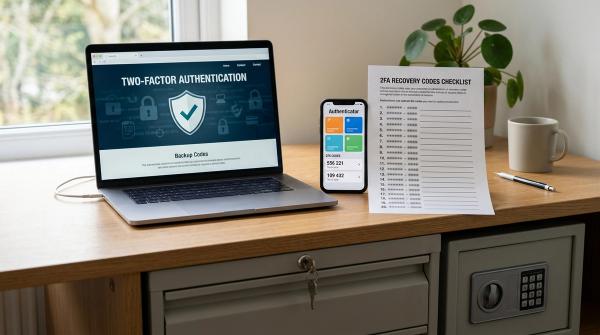
#SMS OTPs are convenient, but they are not always the strongest option. For important accounts, use a safer form of two-factor authentication if the service supports it.
1. Authenticator Apps
#Authenticator apps generate rotating 2FA codes on your phone.
These codes do not arrive by SMS. That means there is no SMS to read, forward, intercept, or accidentally show in a notification preview.
2. Built-in Verification Codes
#Apple supports built-in verification code generation for some accounts. Once set up, your iPhone can generate and autofill codes without waiting for an SMS.
Android users may also see 2FA support through password managers and account sign-in features, depending on the service and device.
3. Passkeys
#Many services are moving toward passkeys. Passkeys use device-based sign-in, often with fingerprint, face unlock, or your screen lock.
Where passkeys are available from a trusted service, they can reduce your dependence on SMS codes altogether.
Permission Cleanup Checklist
#Use this checklist every few months. It is especially useful after installing many apps, changing phones, helping parents set up a device, or lending your phone to someone.
Android SMS Permission Cleanup
#- Open Settings.
- Go to Privacy or Security & Privacy.
- Open Permission Manager.
- Tap SMS.
- Keep permission only for your trusted SMS app and apps with a clear reason.
- Remove SMS access from games, unknown apps, old apps, and apps you no longer use.
Android Notification Access Cleanup
#- Open Settings.
- Go to Apps.
- Open Special app access.
- Tap Notification access.
- Turn off access for apps you do not fully trust.
- Be extra careful with cleaner apps, battery apps, unknown utilities, and apps installed outside the Play Store.
iPhone OTP Cleanup
#- Open Settings.
- Go to Passwords.
- Open Password Options.
- Turn on Clean Up Automatically or the available verification-code cleanup option.
- Review notification previews if you do not want OTPs visible on the lock screen.
Account Safety Cleanup
#- Pick your most important accounts, such as email, banking, WhatsApp, payment apps, or work accounts.
- Check their security settings.
- If available, move from SMS OTP to an authenticator app, built-in verification code, or passkey.
- Remove apps you no longer use.
- Keep your phone’s operating system updated.
What Families, Students, and Seniors Should Remember
#If you are helping someone else, keep the advice simple.
For parents and seniors:
Do not tell OTPs to anyone on a call. Not to a bank person, not to a courier person, not to a stranger, and not to someone claiming to be from “support.”
For students:
Do not share OTPs for email, college portals, WhatsApp, Instagram, gaming accounts, or payment apps. Even friends should not need them.
For everyday users:
Autofill is not the problem. Unnecessary permissions and shared OTPs are the bigger risks.
Quick Decision Guide
#When an OTP arrives, ask yourself:
- Did I request this OTP?If no, ignore it.
- Does the SMS match what I am doing?If you are logging in, it should say login or verification. If it says password reset, account recovery, or payment approval and you did not request that, stop.
- Is the app asking for full SMS access?If it only needs a code, try denying the permission and entering the OTP manually.
- Is a person asking for the code?Do not share it.
- Can this account use an authenticator app or passkey?If yes, consider switching.
Final Takeaway
#Good SMS OTP autofill privacy is not about avoiding autofill completely. It is about knowing the difference between a safe system suggestion and an app asking for too much access.
Use built-in OTP autofill when your phone offers it. Deny unnecessary SMS permissions. Review notification access. Clean up old codes. Be alert for scam calls and messages. And for important accounts, move to stronger 2FA options whenever you can.