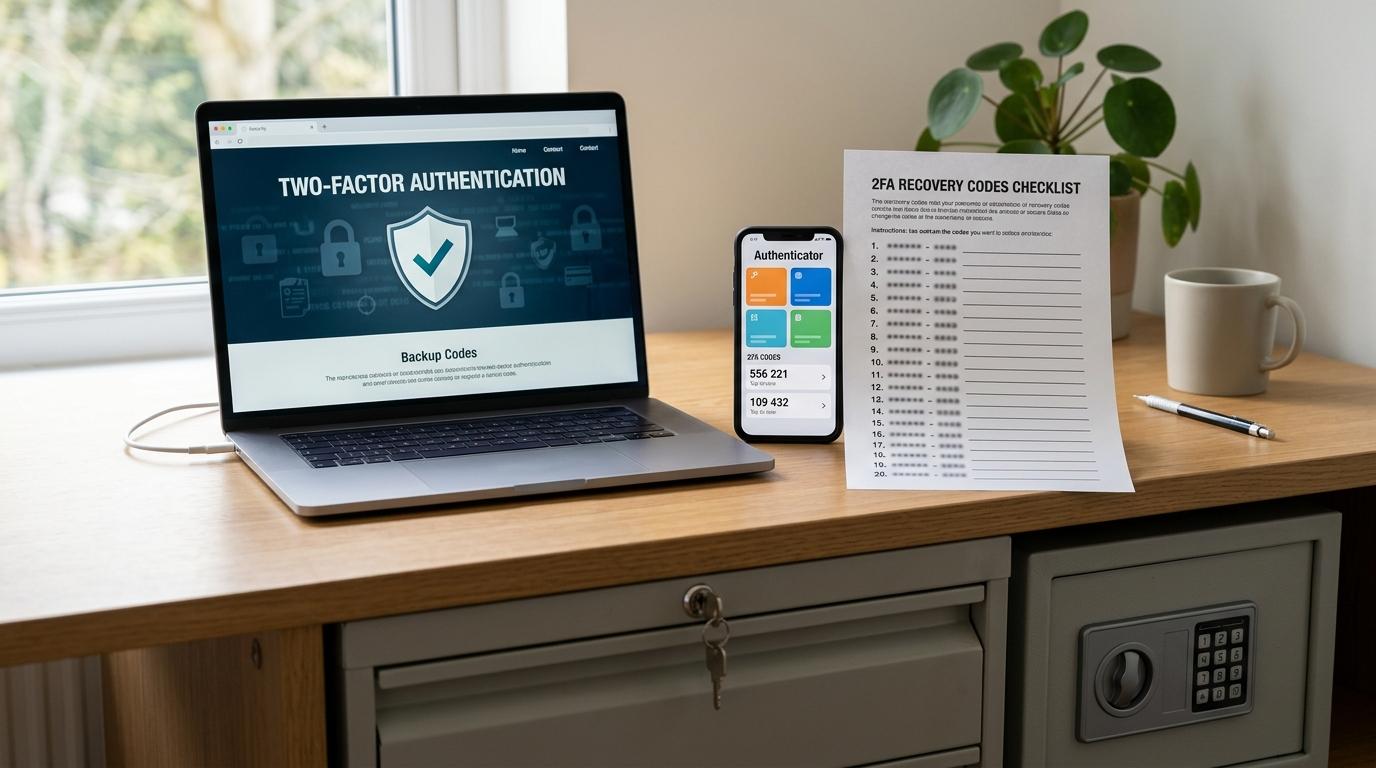
2FA backup codes are the emergency codes you use when your normal two-factor sign-in method is not available. Maybe your phone is lost, broken, replaced, wiped, or dead right when you need it. The safest everyday options are to store backup codes in an encrypted password manager, print them and keep them somewhere secure, or do both. Don’t keep them in screenshots, emails to yourself, chat messages, or plain text notes. Treat them like passwords, because in the wrong hands, they can be just as powerful.
Why 2FA backup codes matter
#Two-factor authentication is one of the best security habits you can build.
It adds an extra step after your password, usually something like:
- A code from an authenticator app
- A text message code
- A phone approval prompt
- A hardware security key
- A trusted-device confirmation
Most days, you don’t think about it. You enter your password, approve the prompt, type the code, and move on.
Until something goes wrong.
Maybe you get a new phone.Maybe you reset your old phone before moving your authenticator app.Maybe your phone battery dies while you’re trying to log in.Maybe the phone with all your 2FA codes is lost, stolen, or sitting in a rideshare somewhere.
That is the exact moment when 2FA backup codes go from “boring security thing” to “thank goodness I saved these.”
Google explains that backup codes can be used when your usual 2-Step Verification method is unavailable, and each code is single-use. Microsoft describes a recovery code as a 25-digit code that can help you get back into your account if you forget your password or your account is compromised.
In plain English: backup codes are your spare key.
You would not tape your spare house key to the front door. But you also would not throw it away and hope for the best.
What are 2FA backup codes?
#2FA backup codes, also called recovery codes, account recovery codes, or two-factor authentication backup codes, are special codes that help you sign in when your normal second factor is not available.
They are different from the short codes you see in an authenticator app.
Authenticator app codes usually change every 30 seconds or so. Backup codes usually stay valid until you use them or generate a new set. The details depend on the service, but most backup codes are single-use. Once you use one, it is done.
A simple way to think about it:
- Your password proves you know the password.
- Your 2FA method proves you have access to a trusted device or sign-in method.
- Your backup code helps when that trusted device or method is missing.
That makes authenticator app backup codes extremely important.
If someone has your password and your recovery codes, they may be able to get into your account. So the goal is not just to save the codes somewhere convenient. The goal is to save them somewhere you can reach in an emergency, but other people cannot.
Best places to store backup codes
#Here is a practical comparison of common ways to store backup codes safely.
For most people, the best setup is simple:
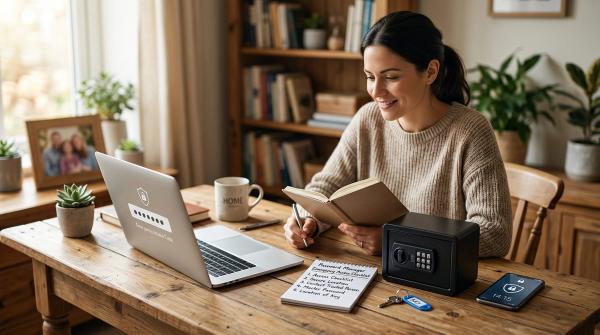
Keep one encrypted digital copy and one protected paper copy.
That might sound boring, but boring is good here. Boring means you can actually find the codes when something goes wrong.
If you choose only one storage method, ask yourself this:
“Could I still get these codes if my phone disappeared today?”
If the answer is no, your setup needs work.
Step-by-step backup codes checklist
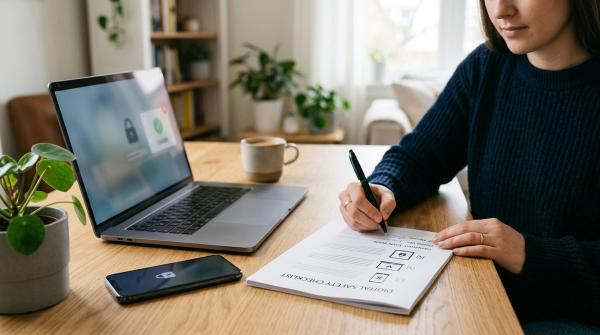
#Use this backup codes checklist when you turn on 2FA for a new account, or when you review accounts you already use.
1. Start with your most important accounts
#Do not try to fix every account you own in one afternoon.
That sounds productive, but it usually turns into a tiring mess. You open ten tabs, reset three passwords, get annoyed, and stop halfway through.
Start with the accounts that matter most.
Focus on:
- Your main email accounts, such as Google, Microsoft, or Apple
- Work or school accounts
- Banking and payment accounts
- Cloud storage accounts
- Social media accounts tied to your business, income, or identity
- Your password manager account, if you use one
Your email account deserves special attention.
If someone gets into your email, they can often reset passwords for many of your other accounts. And if you lose access to your email, recovering everything else can become much harder than it needs to be.
2. Go to the official security settings
#Always go directly to the official website or app for the account.
Look for sections called:
- Security
- Sign-in and security
- Two-Step Verification
- Two-Factor Authentication
- 2FA
- Recovery codes
- Backup codes
If you are not sure where to go, use the provider’s official help page.
Avoid clicking random links in emails, messages, ads, or search results that look even slightly suspicious. When you are dealing with account recovery and security settings, it is worth taking the extra few seconds to make sure you are in the right place.
3. Generate your recovery codes
#Once you are inside the account’s security settings, look for the option to create backup codes or recovery codes.
Depending on the service, you may get:
- A list of single-use codes
- A printable or downloadable list
- One recovery code, such as Microsoft’s 25-digit recovery code
Read the instructions carefully.
Different companies use different names for the same general idea. One service may call them backup codes. Another may call them recovery codes. Another may hide them under account recovery or advanced security.
It is not always consistent, which is annoying, but normal.
4. Store the codes immediately
#Do not leave the page open and think, “I’ll save these later.”
You probably won’t. Or your browser will crash. Or you will close the tab while cleaning up your screen.
Save the codes right away.
Good options include:
- Saving them in an encrypted password manager secure note
- Printing them and putting them in a secure place
- Doing both, if that makes sense for you
If you print the codes, label them in a way that will make sense later.
You want future-you to know what they are. But you also do not need to make the label overly obvious to a stranger.
For example, “Google account recovery codes” is very clear, but it also tells anyone exactly what they found. Something like “Personal account recovery — Google” may still be clear enough for you without shouting the details.
Use your judgment. The point is to make the codes findable for you, not easy for everyone else.
5. Mark used codes when you can
#If you use a printed backup code, cross it off.
If your codes are stored digitally, update the note after you use one.
Some services show which backup codes are still unused, but not all of them do. Do not rely on memory here. During an account lockout, you do not want to guess which code still works.
Since Google says each backup code is single-use, assume that a used code will not work again.
6. Add safe fallback options
#Some accounts let you add extra recovery options, such as:
- A recovery email
- A recovery phone number
- Another approved sign-in method
- A trusted device
- A hardware security key
Use the options that make sense for you.
Just remember to keep them updated.
A recovery phone number from 2018 is not helpful if you no longer own that number. An old work email is not helpful if you left that job three years ago. Recovery options are only useful if you can still access them.
7. Review your codes after big changes
#You do not need to check your backup codes every week. But you should review your recovery setup after major changes.
Check it after:
- Getting a new phone
- Resetting your phone
- Changing your phone number
- Leaving a job or school
- Replacing your laptop
- Switching password managers
- Losing a printed copy of your codes
- Changing your authenticator app
This does not have to become a huge project.
Just ask yourself one question:
“If I lost my phone today, could I still get into my important accounts?”
If the answer is no, fix it now. It is much easier to solve before you are locked out.
Where not to store 2FA backup codes
#Some places feel convenient in the moment, but they create bigger problems later.
Avoid storing account recovery codes anywhere that is searchable, synced everywhere, easy to forget about, or easy for someone else to see.
Do not save backup codes as screenshots
#Screenshots feel quick. That is why so many people use them.
But screenshots can sync to cloud photo libraries. They can show up in automatic backups. They can be seen by anyone who gets access to your photos. And months later, you may not even remember the screenshot exists.
A screenshot is not a recovery plan. It is a security accident waiting around in your camera roll.
Do not email codes to yourself
#Emailing recovery codes to yourself feels practical, but it creates two obvious problems.
First, if you are locked out of that email account, you may not be able to open the email containing the codes.
Second, if someone gets into your email, they may search for phrases like “backup codes,” “recovery codes,” or “2FA” and find exactly what they need.
So, no. Do not email backup codes to yourself.
Do not keep them in plain text notes
#Avoid saving files with names like:
backup codes.txt2FA codesGoogle recovery codespasswords and codeslogin backup stuff
Plain text notes are too exposed for something this sensitive.
If malware finds the file, if your device is backed up insecurely, or if someone else uses your computer, those codes may be easy to grab.
Do not store them only on the device that uses 2FA
#This is one of the most common mistakes.
If your authenticator app is on your phone, and your only copy of the backup codes is also on that phone, you have not really protected yourself from a lockout.
Your recovery method should survive the loss of your normal 2FA device.
That is the whole point.
Do not share them in chat apps
#Do not send backup codes through family chats, work chats, social media DMs, or messaging apps just because it is fast.
Chats get backed up. People search them. Devices get shared. Accounts get compromised.
If someone needs help setting up 2FA, help them save the codes properly. It takes a few extra minutes, but it can prevent a much bigger headache later.
When to regenerate or replace backup codes
#You should replace your two-factor authentication backup codes whenever they may no longer be private, complete, or reliable.
Regenerate or replace them when:
- You used one or more codesMost backup codes are single-use. Once a code has been used, do not count on it again.
- You are running lowDo not wait until your last code. If the service gives you a set and most of them are used, generate a fresh set if possible.
- You lost the printed copyIf you cannot find the paper copy, treat it as if someone else might have found it.
- You stored them somewhere unsafeIf you saved them in a screenshot, email, chat, or plain document, move them to safer storage. Then regenerate the codes if the service allows it.
- Someone else may have seen themIf a roommate, visitor, coworker, repair person, or stranger may have seen the codes, replace them.
- You are changing your recovery setupA new phone, new authenticator app, new password manager, or major account change is a good time to review everything.
For Google accounts, official guidance says that when you create a new set of backup codes, the old set becomes inactive. Other services may handle this differently, so always read the instructions inside that account’s security settings.
Practical safety tips for everyday users
#A good recovery plan protects you from two things:
- Getting locked out of your own account
- Accidentally exposing your recovery codes to someone else
Here are a few practical habits that help.
Backup codes do not replace your password
#A backup code usually helps with the second step of sign-in. It does not make your password less important.
Use a strong, unique password for each important account.
If you reuse the same password across multiple sites, backup codes will not solve that risk. A password manager can help you create and store unique passwords without having to memorize all of them.
Keep recovery codes away from casual access
#If your family shares a computer, do not leave printed codes in a random drawer everyone opens.
If you use a password manager on a shared device, make sure your vault locks when you are done.
This sounds obvious, but a lot of real security problems happen because something sensitive was left somewhere convenient.
Be extra careful when changing phones
#A lot of 2FA lockouts happen during phone upgrades.
Before wiping, selling, trading in, or resetting your old phone, check that:
- Your authenticator app works on the new phone
- Your important accounts accept your current 2FA method
- Your backup codes are stored safely
- Your recovery email and phone number are current
Do this before the old phone is gone.
Once the old phone is wiped, traded in, or lost, recovery can get stressful very quickly.
Do not rely only on memory
#You might remember where you put the codes today.
Six months from now, when you are annoyed, locked out, and trying to get into an account quickly, you may not.
Use a system that future-you can actually understand and find.
Future-you will appreciate it.
Use official account recovery pages
#If you do get locked out, go directly to the official recovery page for that account provider.
Avoid random “account recovery” services, people in social media comments, or messages from strangers claiming they can get your account back. Many of those are scams.
No legitimate recovery process should require you to send sensitive codes, passwords, payment, or personal information to some random person online.
Official wording worth knowing
#Here is the simple version:
- Google: Backup codes can be used when normal 2-Step Verification is unavailable. Each backup code is single-use.
- Microsoft: A recovery code is described as a 25-digit code that can help you regain access if you forget your password or your account is compromised.
- NIST SP 800-63-4: This is current digital identity guidance. For everyday users, the main takeaway is to use reliable recovery methods and follow each provider’s official instructions.
Always follow the wording inside the account you are securing.
Google, Microsoft, Apple, banks, social platforms, password managers, and work systems may all handle recovery a little differently.
Quick backup codes checklist
#Use this shorter version when setting up 2FA for yourself, a parent, a student, a coworker, or anyone who is finally getting serious about account security.
- List your most important accounts.
- Turn on 2FA where available.
- Generate 2FA backup codes or recovery codes.
- Store codes in an encrypted password manager or secure physical place.
- Avoid screenshots, email, plain notes, and chat messages.
- Add a recovery email or phone number where appropriate.
- Check recovery settings before changing phones.
- Replace codes after use, loss, exposure, or major account changes.
- Keep passwords strong and unique.
- Use official account recovery pages if you get locked out.