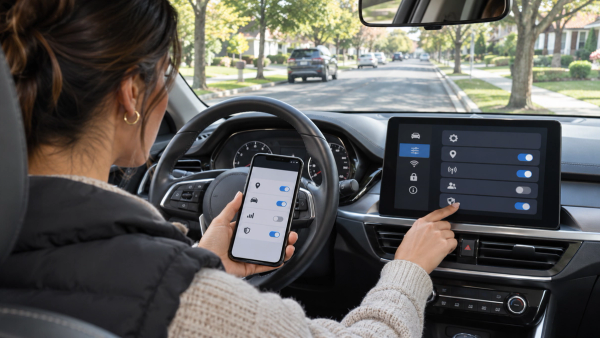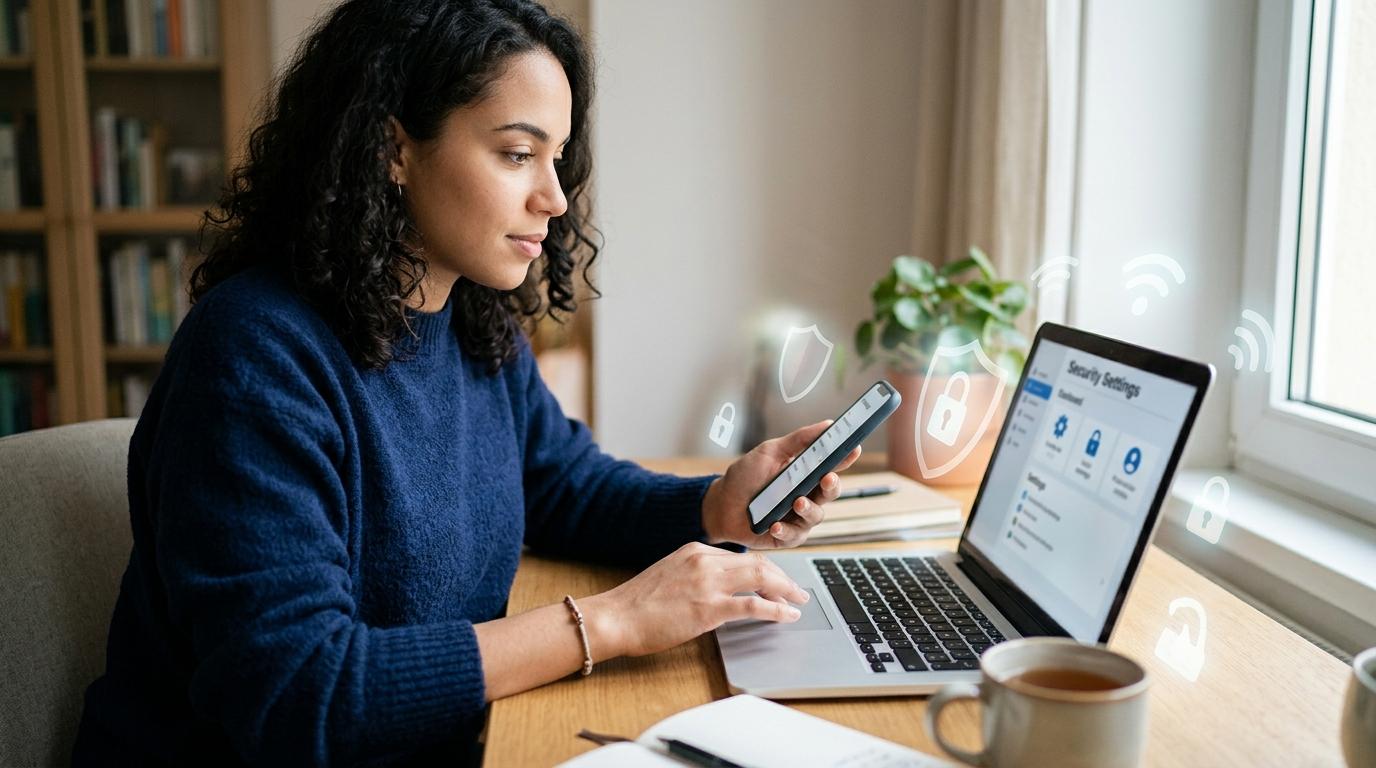
If you just got a password leak alert, don’t panic and don’t click a scary email link. Go directly to the real website or app, change the exposed password, replace it anywhere else you reused it, then turn on MFA and save recovery codes. A leaked password does not always mean someone is already inside your account, but that password should no longer be trusted.
Maybe Chrome warned you while you were logging in. Maybe your password manager showed a red warning. Maybe a company emailed you a data breach notification saying some customer information was exposed.
However you found out, your first thought was probably: “What am I supposed to do now?”
The good news: you do not need to be a cybersecurity expert to handle this well. A password leak alert is serious, but manageable. Think of it like finding out a spare key to your house might be floating around somewhere. You change the lock, check the doors, and move on a little smarter.
What a Password Leak Alert Actually Means
#A password leak alert usually means your email address, username, password, or another login detail showed up in known breach data.
That information may have come from:
- A company data breach
- An exposed database
- Malware on someone’s device
- A phishing attack
- An old account you forgot about
- Reusing the same password across multiple sites
It does not automatically mean someone is logged into your account right now. But it does mean one important thing: that password is no longer safe to use.
The biggest issue is password reuse. If you used the same password for your email, a shopping site, your school portal, and your bank, one leak can put all of those accounts at risk.
Attackers often take leaked usernames and passwords and try them on other popular websites. This is called credential stuffing. It is common, automated, and one of the main reasons reused passwords are so risky.
Your job is simple:
- Check the alert safely.
- Change the exposed password.
- Change that same password anywhere else you used it.
- Turn on MFA or two-factor authentication.
- Watch for suspicious activity.
You do not have to fix your whole digital life in one night.
First, Make Sure the Alert Is Not a Scam
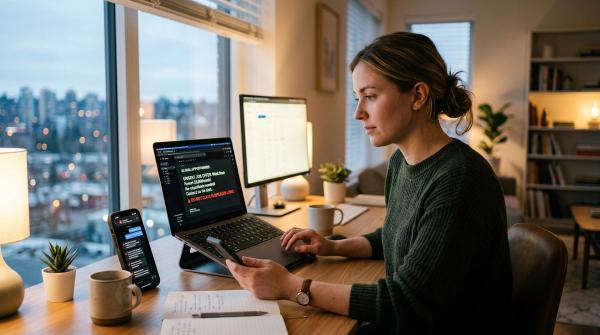
#Before you click anything, pause.
Fake breach emails are everywhere. Scammers know people get nervous when they see messages like:
- “Your password was exposed”
- “Secure your account immediately”
- “Suspicious login detected”
- “Your account will be locked”
- “Reset your password now”
The email might look like it came from Google, Microsoft, Apple, your bank, a delivery company, your school, or an online store. Then it gives you a link.
That link may lead to a fake login page built to steal your password.
Safer ways to respond
#- Do not click password reset links in unexpected breach emails.
- Do not download attachments from breach warnings.
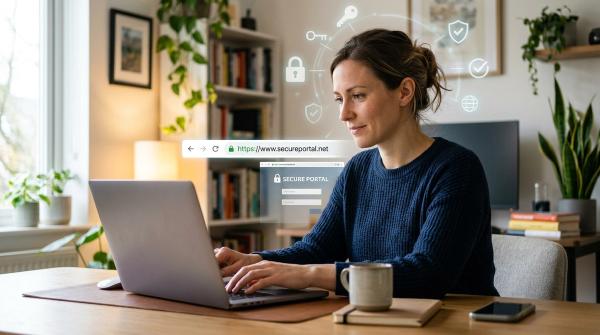
- Open your browser and type the official website address yourself.
- Use the official app if you already have it installed.
- Check your account’s security or privacy settings directly.
- If the alert came from your browser or password manager, open that tool directly instead of following an email link.
A real data breach notification should not pressure you into entering private information through a strange link. When in doubt, ignore the link. Go to the company through its official website or app.
Password Leak Alert Checklist
#Use this as your calm, step-by-step plan. Start with the most important accounts first.
Step 1: Protect Your Email First
#Your email account is one of the most important accounts you own because it is often where password reset links go.
If someone gets into your email, they may be able to reset passwords for your other accounts too. That could include social media, banking, cloud storage, shopping accounts, school portals, and more.
So if the leaked password was also used for Gmail, Outlook, Yahoo, your work email, your school email, or any other main inbox, change that email password right away.
Use a password that is:
- New
- Unique to that account
- Long
- Hard to guess
- Not just a small edit of the old one
Do not change Summer2024! to Summer2025! and call it fixed. Adding one extra symbol at the end does not really make it a new password. Attackers know people do this, and automated tools can guess those patterns quickly.
Step 2: Change the Password on the Breached Account
#Next, go directly to the affected service and update the password there.
Do not reuse the old password. Do not borrow a password from another account either.
This is where a password manager becomes genuinely helpful. A password manager can create and store long, unique passwords for each account. That means your email, bank, streaming app, shopping account, school portal, and social media accounts can all have different passwords without you trying to remember all of them.
You can use built-in tools from Google, Apple, or Microsoft, or you can use a dedicated password manager.
The exact tool matters less than the habit:
- Use a reputable password manager.
- Protect it with a strong master password or device security.
- Keep your recovery options somewhere safe.
- Do not reuse your master password anywhere else.
Step 3: Change That Password Anywhere Else You Used It
#This is the step people often skip. It is also one of the most important.
If the leaked password was only used on one site, changing it there may be enough. But if you reused it anywhere else, replace it there too.
Start with your most important accounts:
- Main email
- Banking and payment apps
- Work accounts
- School accounts
- Cloud storage
- Social media
- Messaging apps
- Government or tax accounts
- Password manager account
Then move on to lower-risk accounts, such as shopping sites, forums, streaming services, newsletters, and old apps you barely use.
You do not have to clean up every old account in one sitting. But any account using the exact exposed password should be treated as at risk.
Step 4: Sign Out of Other Devices
#Many services let you review where your account is currently signed in.
Look in account settings for phrases like:
- “Sign out of all devices”
- “Log out of all sessions”
- “Manage devices”
- “Recent activity”
- “Where you’re signed in”
- “Security activity”
Changing your password can stop future logins, but signing out of other sessions can help if someone already got into the account.
While you are there, check recent activity. Look for anything that does not feel right, such as:
- Logins from places you do not recognize
- Strange messages sent from your account
- Purchases you did not make
- Password changes you did not request
- New email forwarding rules
- Recovery emails or phone numbers you did not add
- Connected apps you do not recognize
If something looks wrong, follow the service’s official account recovery or security steps.
Step 5: Turn On MFA or Two-Factor Authentication
#MFA means multi-factor authentication. Two-factor authentication, or 2FA, is one common type of MFA.
The idea is simple: your password should not be the only thing protecting your account.
With MFA turned on, someone who steals your password still needs another proof that they are really you.
Common MFA methods include:
- A code from an authenticator app
- A push approval on your phone
- A hardware security key
- A code sent by text message or email, where offered
An authenticator app or hardware security key is usually stronger than text messages. But in most cases, any MFA is better than only using a password.
Turn it on first for your most important accounts: email, password manager, banking, work or school, cloud storage, social media, and government or tax accounts.
Do not forget recovery codes
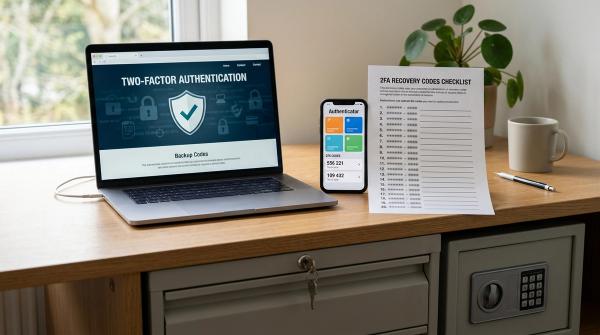
#When you turn on MFA, many services give you backup or recovery codes. Save them carefully.
Good places to keep recovery codes include:
- Your password manager
- A printed copy stored somewhere safe
- A secure personal file you can access if your phone is lost
Do not leave recovery codes sitting in plain sight. Do not share them with anyone.
If you lose your phone and do not have recovery codes, getting back into the account can become a headache. A few minutes of saving them now can save you a lot of trouble later.
Safe Ways to Check Whether Your Passwords Were Exposed
#There are trustworthy tools that can help you understand whether your information has appeared in known breaches.
Just be careful where you enter information.
Google Password Checkup
#Google Password Checkup, available through Google Password Manager and Chrome, can check saved passwords for issues like exposed passwords, reused passwords, and weak passwords.
Use it from inside your Google account, Chrome, or Google Password Manager. Do not trust random websites pretending to be “Google password check” tools.
Have I Been Pwned
#Have I Been Pwned is a well-known breach notification service that lets you search your email address to see if it appears in known data breaches.
Safety tips:
- It is generally safer to search by email address than to type passwords into unknown websites.
- Make sure you are on the real Have I Been Pwned website.
- Avoid random “password leak checker” pages that ask for your actual password.
- If a tool says an account was exposed, still go directly to that service to change the password.
Password managers and browser password checkers can also warn you when saved passwords are weak, reused, or known to be compromised. These alerts are useful, but they may not catch every single issue.
Watch Out for Follow-Up Phishing
#After a breach, scammers often get more active.
They know people are nervous. They may send messages that mention a real company name, your email address, or even part of an old password to get your attention.
Be careful with messages that:
- Demand immediate action
- Threaten account closure
- Ask you to confirm your password
- Ask for payment to “protect” your account
- Include attachments
- Send you to a login page through a weird or shortened link
- Claim to be support but use a personal email address
- Ask for MFA codes or recovery codes
No legitimate support person should ask you to share your password, MFA code, or recovery code.
If you are unsure, do not reply. Visit the company’s official website or app, or contact support through a verified channel.
What If More Than a Password Was Exposed?
#Sometimes a breach includes more than login details.
A notice may say that the exposed data included names, addresses, dates of birth, phone numbers, payment details, government ID numbers, health information, or other sensitive personal information.
If personal or financial information was exposed, changing your password is still important, but it may not be enough.
In the United States, the FTC has data breach and identity theft resources, and IdentityTheft.gov offers recovery guidance for people dealing with identity theft concerns.
Use official government and company resources. Be careful with paid “recovery” offers that arrive through unsolicited emails, texts, or phone calls. Scammers love showing up right after a breach pretending to help.
What Not to Do
#Avoid these common mistakes:
- Do not ignore the alert because “nothing happened yet.”
- Do not click links in unexpected warning emails.
- Do not download attachments from breach messages.
- Do not reuse the exposed password.
- Do not use tiny password variations.
- Do not type passwords into random breach-checking websites.
- Do not share MFA codes with anyone who calls, texts, or emails you.
- Do not assume one password change fixes every account if you reused that password elsewhere.
- Do not rush so much that you accidentally fall for a fake reset page.
Slow and careful is better than fast and careless.
Final Takeaway
#A password leak alert is a warning, not a disaster.
Treat the exposed password as unsafe. Change it directly on the real website or app. Update any other accounts where you reused it. Turn on MFA wherever you can.
Start with your email, password manager, banking, work, school, and other important accounts. Then clean up the rest over time.
You do not need perfect security overnight. You just need a steady, sensible response.