Setting up password manager emergency access does not mean texting your master password to your spouse, saving it in a notes app, or leaving a full password list in a kitchen drawer.
A better plan is much safer and not as complicated as it sounds.
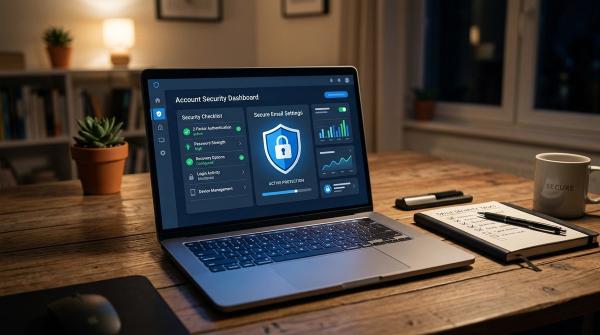
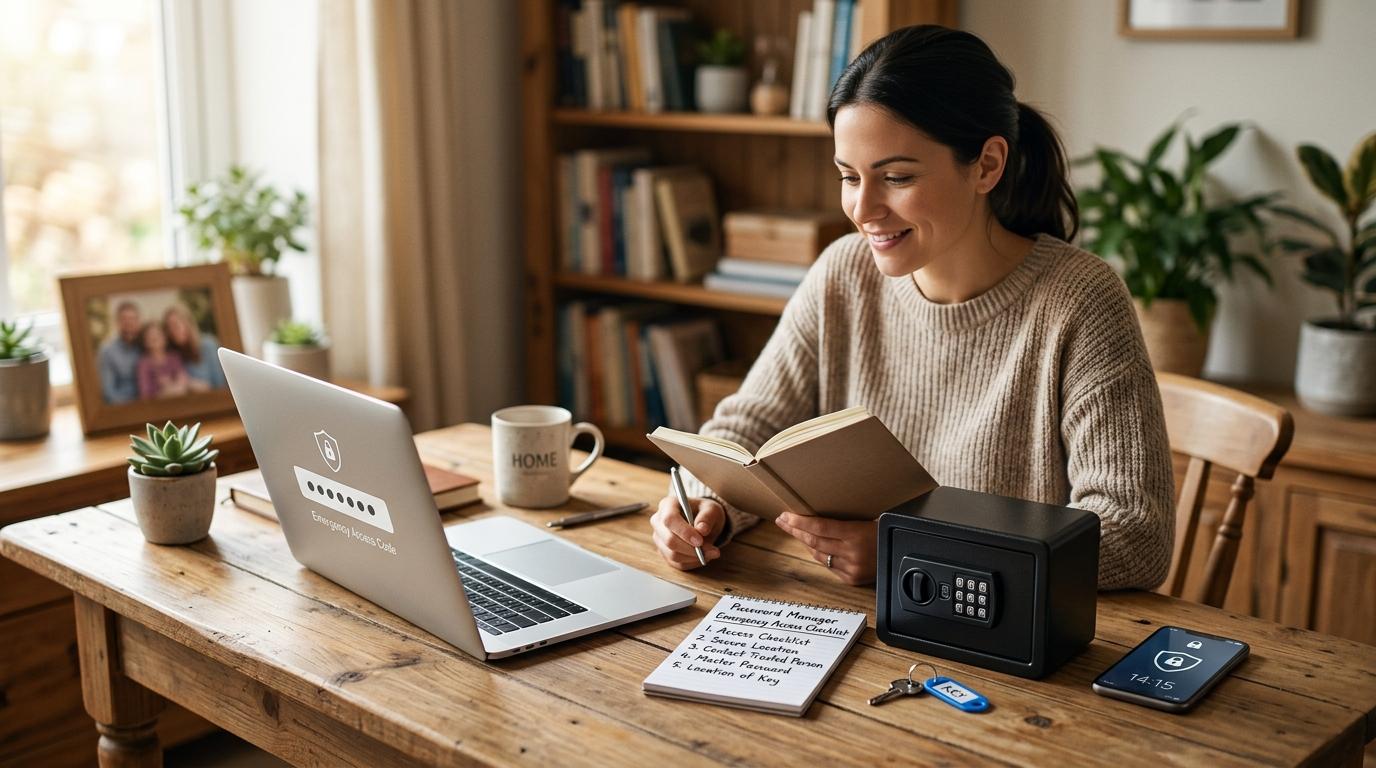
Use your password manager’s built-in emergency access if it offers one. Create a shared vault for normal household accounts. Print recovery codes for important services. Turn on trusted contact or digital legacy features from Apple, Google, and other major platforms. Then keep simple instructions somewhere secure and offline, and make sure your family knows where to look.
The goal is simple: on a stressful day, your family should have a clear path forward.
One lost phone, old notebook, or forwarded email should not become the key to your entire digital life.
This guide is for regular people, families, caregivers, seniors, and anyone who wants a practical plan without casually handing over every password they own.
The basic idea: give your family a map, not all the keys
#Most families handle passwords in a pretty informal way.
One person knows the Wi-Fi password. Someone else has the Netflix login. A bank password gets texted “just this once.” A caregiver might keep an older parent’s email password in their phone notes because it feels easier in the moment.
And for a while, it works.
Until it really, really does not.
A safer family password plan separates three different needs:
- Everyday sharing for accounts your household uses regularly.
- Emergency access for serious situations like illness, incapacity, or death.
- Recovery codes for getting back into accounts when a phone, passkey, authenticator app, or master password is unavailable.
The point is not to keep everything secret from the people you love.
The point is to stop putting master passwords, backup codes, screenshots, and sensitive account details in random texts, emails, and notes where they can be found later.
Emergency access, shared vaults, and recovery codes are different things
#These terms sound similar, but they solve different problems.
A good family plan may use all three, but not for the same purpose.
What you should not share in normal chat
#By “normal chat,” I mean text messages, email, social media messages, shared notes, screenshots, or plain documents that could be forwarded, synced, searched, backed up, or found later.
Avoid sending these through normal chat:
- Your password manager master password
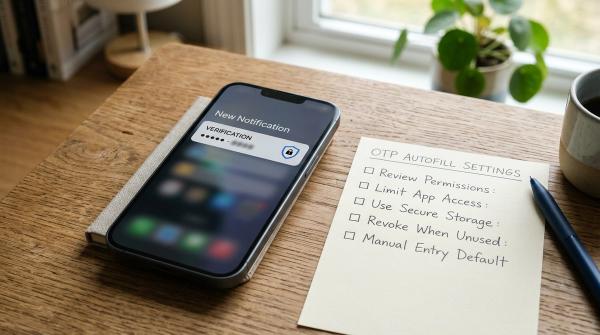
- Password manager recovery codes
- Two-factor authentication backup codes
- Private keys or crypto seed phrases
- Security question answers
- Plain-text password vault exports
- Photos of your emergency kit
- Full lists of account passwords
- Device passcodes, unless your family has a clear and safe process for them
It is usually fine to use chat to say where something is stored.
For example:
“The emergency envelope is in the home safe.”
That is much safer than texting a master password, recovery code, and account list.
Step-by-step password manager emergency access checklist
#You do not need to finish this in one afternoon.
Start with your password manager. Then add recovery codes, shared vaults, and digital legacy settings as you have time.
1. Pick the right trusted contact
#Choose someone who is:
- Calm in stressful situations
- Good at following instructions
- Respectful of your privacy
- Reachable during an emergency
- Comfortable with basic account recovery steps
- Unlikely to misuse access during a family conflict
This might be a spouse, adult child, sibling, caregiver, close friend, or another person you truly trust.
Do not choose someone only because they are “good with computers.” That helps, but judgment matters more.
2. Turn on built-in emergency access if your password manager offers it
#Open your password manager settings and look for phrases like:
- Emergency access
- Trusted contact
- Account recovery
- Family recovery
- Recovery plan
- Emergency Kit
Different password managers handle this differently.
For example:
- Bitwarden emergency access lets you choose trusted emergency contacts who can request access. Bitwarden also offers different access types, such as view access or takeover access.
- LastPass emergency access and Keeper emergency access use their own trusted-contact workflows, rules, and waiting periods.
- 1Password often uses an Emergency Kit and recovery options, especially for family or team accounts. This is different from a simple time-delay emergency request, so follow 1Password’s current instructions for your account type.
When you set it up, check:
- Who is your trusted contact?
- What access level will they get?
- Is there a waiting period?
- Can you deny a request?
- Will you get email notifications?
- What happens if your trusted contact loses access to their own account?
- Does this feature work with your current plan?
Do not assume every password manager works the same way. Open your provider’s official help page and follow the latest instructions.
3. Choose a waiting period that makes sense
#Many emergency access systems use a waiting period.
Your trusted contact requests access. You get notified. Access is only granted if you do not reject the request within the waiting period.
A shorter waiting period can help in urgent situations. A longer waiting period gives you more time to stop an unwanted or mistaken request.
For many families, a couple of days may be a reasonable starting point. But the right choice depends on your situation, your trusted contact, and what your password manager allows.
Also, explain the waiting period to your trusted contact. Otherwise, they may think something is broken when access is not immediate.
4. Create a shared vault for normal household accounts
#Emergency access is not meant for everyday use.
For accounts your household uses regularly, create a shared vault in your family password manager.
Use it for things like:
- Home internet or utility accounts
- Shared streaming services
- Family subscriptions
- Travel accounts
- Household shopping accounts
- Joint accounts where shared access is allowed and appropriate
Keep personal accounts separate unless there is a clear reason to share them.
A shared vault is useful because you can update a password once, and everyone with permission still has the current login. That is much better than keeping an old password list in a drawer or sending updated passwords through text messages.
5. Print or safely store your password manager recovery information
#This is where people often get stuck.
Depending on your password manager, the company may not be able to recover your vault if you lose your master password. Some services offer family recovery, admin recovery, emergency access, or emergency kits. Others rely heavily on your master password, Secret Key, trusted devices, or recovery codes.
Create a small offline recovery packet using the official recovery materials from your provider.
Depending on your password manager, this may include:
- Emergency Kit
- Sign-in address
- Account email address
- Secret Key, if your provider uses one
- Recovery code
- Instructions for emergency access
- Name of the trusted contact
- Where the trusted contact should begin
For 1Password, the Emergency Kit may include important sign-in details such as the account address, email, and Secret Key. If you decide to write the account password on it, treat that paper like a very valuable document.
For other password managers, follow the provider’s official recovery instructions.
Do not create your own “backup plan” by exporting every password into a plain document.
6. Store recovery codes offline and keep them secure
#Recovery codes are not exactly the same as passwords, but they can be just as sensitive.
Many services offer backup codes for two-factor authentication. Google, Microsoft, email providers, and other important accounts often provide recovery or backup codes.
A simple process looks like this:
- Sign in to the account.
- Open the security settings.
- Find backup codes or recovery codes.
- Generate new codes if needed.
- Print them or write them down clearly.
- Label which account they belong to.
- Store them in your secure emergency location.
- Replace the printed copy if you generate new codes later.
Do not store recovery codes only inside the account they are meant to recover.
If you cannot access the account, you may not be able to access the codes either.
Also, avoid keeping recovery codes in a normal shared note, email inbox, or photo library. If someone gets into that device or cloud account, those codes may be exposed.
7. Think about passkeys and device access
#Passkeys can make sign-ins easier and safer, but they also change how recovery works.
Some passkeys sync through Apple, Google, Microsoft, or a password manager, depending on your devices and settings. That can be convenient, but your family still needs to know which device, account, or recovery path matters.
Add a short note to your emergency instructions:
- Which phone or computer is your main device?
- Which email address is used for account recovery?
- Which password manager stores your passkeys, if any?
- Are backup codes saved for your most important accounts?
- Is a trusted contact or account recovery option turned on?
Do not try to write down the passkey itself.
The goal is to tell your trusted person where the official recovery path starts.
8. Set up digital legacy and trusted contacts
#Your password manager plan is only one part of digital legacy planning.
You should also review trusted contact and legacy features for major platforms.
Apple Legacy Contact
#Apple offers Legacy Contact, which lets you choose someone who can request access to certain Apple account data after your death. Apple’s process uses an access key and proof of death.
This does not replace your password manager. It only helps with Apple account data, not every website login you own.
Google backup codes and account recovery
#For Google, review your recovery email, recovery phone, backup codes, passkeys, and account recovery settings.
Google also offers inactivity settings that can help you decide what happens if your account is unused for a certain period of time.
Again, this does not replace your password manager. It only covers the Google part of your digital life.
9. Write a short emergency instruction sheet
#Keep this simple.
Your family does not need a 20-page manual in the middle of a crisis.
Your instruction sheet might include:
- My password manager is:
[provider name] - My password manager account email is:
[email address] - My trusted contact is:
[name] - Emergency access is set up for:
[name] - The waiting period is:
[time period] - The emergency kit is stored:
[secure location] - Important recovery codes are stored:
[secure location] - My main email account is:
[email address] - My main phone is:
[device name] - Apple Legacy Contact or Google recovery settings are set up:
[yes/no and where to start]
Do not list all your passwords on this sheet.
This sheet should be a map. It should point to secure systems and secure storage locations. It should not expose everything directly.
10. Review the plan twice a year
#A recovery plan gets outdated faster than people expect.
Set a reminder to review it every six months, or after major life changes such as:
- Getting a new phone
- Changing password managers
- Changing your trusted contact
- Divorce, death, estrangement, or caregiver changes
- Getting a new email address
- Switching two-factor authentication apps
- Moving homes
- Changing banks, utilities, or other important services
During the review, confirm:
- Emergency access still works
- Your trusted contact still has access to their own account
- Shared vault permissions are still correct
- Recovery codes are current
- Printed instructions are readable
- The emergency kit is still where it is supposed to be
Password manager recovery and backup codes, explained simply
#Here is the beginner-friendly version.
Your master password unlocks your password manager.
Your recovery codes may help you get back into certain accounts when normal sign-in fails.
Your two-factor authentication codes help prove it is really you when you sign in.
Your emergency access contact may be able to request access if you cannot act.
These things are connected, but they are not the same.
If you lose your master password, some password managers cannot simply “send it back” to you. That is part of how they protect your vault. Some family, business, or recovery options may help, but usually only if they were set up before the problem happened.
That is why an emergency kit matters.
A safer kit usually includes:
- Official password manager recovery materials
- Backup codes for essential accounts
- Trusted contact instructions
- Digital legacy instructions
- Secure storage location
- Review date
It should not include a full plain-text copy of your password vault.
Digital legacy is an act of care
#Digital legacy may sound formal, but for most families, it is simply practical.
If something happens to you, someone may need to:
- Find family photos
- Cancel subscriptions
- Manage household bills
- Access utility accounts
- Handle email notices
- Close or memorialize social accounts
- Recover important documents
Without a plan, loved ones may end up guessing device passcodes, searching drawers, checking old notebooks, or trying to reset accounts one by one.
A clear plan reduces that burden.
This is not legal or financial advice. If your situation involves estate duties, business accounts, financial authority, or legal access rights, check the rules for the specific account and consider professional guidance. Having a password does not always mean someone is legally allowed to act.
A simple family emergency kit structure
#If you want a clean paper version, use this structure.
Page 1: Start here
#- Password manager name
- Account email
- Trusted contact name
- Emergency access status
- Waiting period
- Where the full emergency kit is stored
Page 2: Password manager recovery
#- Official recovery instructions
- Emergency Kit details, if your provider offers one
- Secret Key or recovery code, if applicable
- Date last reviewed
Page 3: Important account recovery
#List only the account name and recovery path, not the password.
For example:
- Main email: recovery codes in sealed envelope
- Google account: backup codes stored in emergency folder
- Apple account: Legacy Contact set up
- Phone carrier: login stored in shared vault
- Home internet: login stored in shared vault
Page 4: Shared vault contents
#Write categories, not passwords.
For example:
- Utilities
- Subscriptions
- Household shopping
- Travel accounts
- Shared services
Page 5: Notes for trusted contact
#Keep the instructions calm and specific:
- Start with the password manager emergency access request.
- Check the shared vault for household accounts.
- Use printed recovery codes only if normal sign-in fails.
- Do not share codes or passwords by text.
- If unsure, contact the provider’s official support or help center.
Common mistakes to avoid
#These habits are common, but they can create big problems later:
- Keeping the master password in your email inbox
- Taking a photo of recovery codes
- Sharing a full vault export with a family member
- Using one shared password manager account for the whole family
- Giving every family member access to every password
- Forgetting to remove an old trusted contact
- Storing backup codes only inside the account they recover
- Assuming your family can access your phone without planning
- Waiting until a crisis to set up emergency access
You do not need a perfect system.
You just need one that is safer than scattered texts, screenshots, old notebooks, and memory.