A hot battery or one strange pop-up does not prove that your phone is hacked. Start by looking for a pattern: an unfamiliar app or device, changes you did not make, messages sent without you, an official security alert, or access to an account you can no longer explain. Then check the phone and the affected accounts separately. That gives you a safer answer than installing the first “hacker detector” advertised in a search result.
The word “hacked” can cover several different situations. Malware may be running on the device. Someone may know an account password while the phone itself is fine. A person with physical access may have changed sharing settings. Or an old battery and a busy app may simply make the device slow. The right fix depends on which of those is happening.
First decide what the evidence points to
#Write down what changed and when. Did the phone start showing persistent ads after an app installation? Did a social account send messages you did not write? Did you receive a genuine sign-in alert for a device you do not own? Did someone close to you have access to the unlocked phone? These details matter more than a single symptom.
| What you notice | What it may mean | First useful check |
|---|---|---|
| Battery drains or phone feels hot | App activity, battery age, update, or possible unwanted software | Battery-use list and recently installed apps |
| Repeated pop-ups or browser redirects | A web notification, browser setting, or unwanted app | Browser settings, installed apps, Play Protect on Android |
| Messages you did not send | Account access, linked device, or device access | Account sessions and linked devices |
| Unknown sign-in alert | Possible account compromise | Open the provider's app directly and review devices |
| Sharing changes you did not make | Account or physical-device access | Privacy and sharing settings, trusted devices |
One row is a lead, not a diagnosis. A video call can use battery quickly; a browser site can display fake virus warnings; an account can be compromised without any malware on the phone. Avoid factory-resetting the device before preserving any evidence or protecting important accounts unless the device maker or a qualified support person advises it for your situation.
Take a calm first pass before changing settings
#If you suspect active misuse, stop entering passwords or payment information on the phone until you have checked it. Use another trusted device for sensitive account recovery if possible. Record suspicious notifications, unfamiliar app names, unexpected messages and the dates they appeared. Do not share screenshots that contain codes or private messages with strangers offering help.
Check your mobile account and bank activity through their official apps or numbers if you saw unauthorized transactions or a sudden loss of service. A SIM swap or account takeover needs action with the carrier or provider; deleting a phone app would not solve that. If money has moved, follow the bank's fraud-reporting process promptly for your country.
Then update the operating system and apps through the phone's official update screens. Restart the device. An update can fix security issues and ordinary glitches, but it does not by itself prove that no one had access before. Keep the goal modest: reduce exposure while you work out the cause.
Check Android for unwanted apps and account access
#On Android, open the Google Play Store and review Play Protect. Google's guidance says Play Protect scans apps from the Play Store and other sources and can warn about or remove potentially harmful apps. Make sure it is enabled, run a check, and follow any specific warning it shows. Also check the phone's security and system updates.
Open the installed-app list and sort or review recent additions if your version allows it. Look for apps you do not recognize, especially ones installed outside the usual store. Do not delete a system app merely because its name is unfamiliar; a web search snippet or a generic “cleaner” is not reliable identification. If unsure, check the app's details and the device maker's support information. Google's own removal guidance prioritizes apps you do not need, trust or recognize.
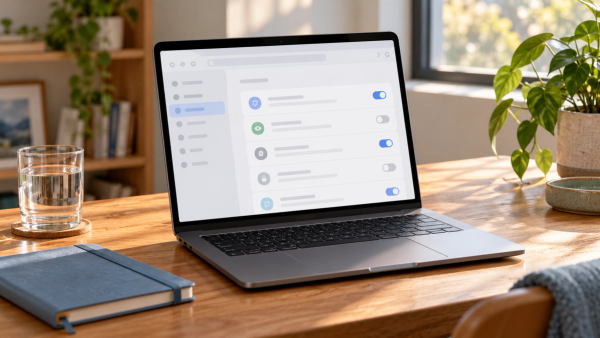
Review unusual permissions, particularly accessibility, notification access, device administration and the ability to install other apps. Those permissions can be legitimate, but an unfamiliar app with powerful access deserves closer inspection. Allblogs' app permissions audit covers the broader permission choice. Here the question is whether a recent unexplained change connects to the symptom you saw.
Next, review the Google Account security checkup from the account settings you already trust. Look for devices and security events you do not recognize. If you find an unknown session, secure the account and remove that access using Google's own controls. A phone malware scan and a Google Account review solve different problems; do both when the signs justify it.
If the phone continues to show persistent unwanted ads, redirects or disabled security tools after these checks, Google says a reset or manufacturer help may be needed. Before that step, make a careful backup of important personal data. Do not blindly restore the same suspicious app or settings afterward.
Check iPhone sharing, devices and account security
#On an iPhone, start with the Apple Account device list in Settings. Review signed-in devices and remove one you do not recognize through Apple's account controls. If you received a genuine unexpected sign-in request, Apple's guidance says to reject it and review account security. A location in a sign-in alert can be approximate, so consider the device and timing too.
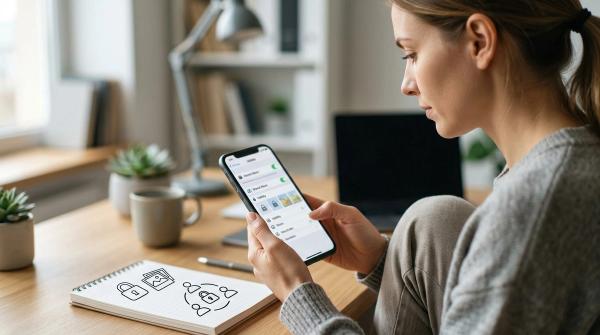
Apple's Safety Check, available on iPhone with iOS 16 or later, can review who and what has access to information, devices connected to the Apple Account, app permissions, and account or passcode settings. Find it under Settings, Privacy & Security, Safety Check. The “Manage Sharing & Access” path is useful for a deliberate review; “Emergency Reset” is broader and can stop sharing quickly. Think through the effect on your safety and contacts before using a broad reset, especially if another person monitors access changes.
Also check for an unknown configuration or mobile device management profile and any unexpected Face ID or Touch ID entries using Apple's safety guidance. A work or school phone may legitimately have management installed. If the device is managed, ask the organization before removing a profile that may be required for access. Do not assume every unfamiliar entry is malicious, but do not ignore one you cannot explain.
Change the Apple Account password and device passcode if there is evidence someone else knows them or has access. Use a trusted path through Settings or Apple's account recovery, not a link in a suspicious alert. Apple's Safety Check does not inspect every non-Apple account, so review email, social and banking accounts separately when relevant.
Check the account that showed the first sign
#If the symptom came from one app, begin there. A friend receiving a message from your Instagram account suggests checking that account's active sessions and recovery settings. It does not automatically mean the entire phone is infected. An unfamiliar WhatsApp linked device suggests a messaging-account review. A password-reset email you did not request may mean someone is trying to get in but has not succeeded.
Open the app or provider site yourself, review current sessions and contact details, change a compromised password, and enable or review two-factor authentication where supported. Secure the email address used for recovery, because control of that inbox can undermine later password changes. If the provider offers a security activity log, record what it actually shows before concluding the device was compromised.
If the main issue is an account rather than the phone, Allblogs' Google Account security checklist or Instagram recovery checklist may be more direct. Use the matching official provider's recovery flow for the specific account. Avoid anyone promising an “instant hack trace” or guaranteed recovery.
What symptoms do not prove on their own
#A warm phone can be running a large update. Battery age, poor signal and heavy apps can cause short battery life. A browser page can imitate an operating-system virus warning. A sign-in alert can be a blocked attempt or a location estimate, rather than successful access. A slow device can be short of storage. These ordinary causes are worth checking because they change the next action.
The opposite mistake is dismissing every sign because one symptom has an innocent explanation. A cluster matters: an app you did not install, a changed account recovery number, and messages you did not send together deserve prompt attention. Make a simple timeline. What changed after the last update, new app, shared-device use or unexpected code request? The timeline may help support staff, and it prevents you from repeatedly changing unrelated settings.
Compare a phone problem with an account problem
#If the same social account behaves strangely on a clean second device, investigate the account first. If several unrelated apps on one phone show redirects or permissions changing, the device deserves closer attention. If an unfamiliar session appears in a provider's security log but the phone otherwise behaves normally, a reused password or stolen code may be the route in. These are clues, not proof of a particular attacker. The practical benefit of separating the two is that you can secure the account immediately while continuing the device check.
Avoid changing every password on a phone you strongly suspect is running unwanted software. Use a trusted second device for the most sensitive changes if you have one. Conversely, do not spend an hour scanning the phone while an account with an unknown active session stays open. Deal with the strongest observed risk first.
If you find a real compromise
#Protect the most important accounts from a separate trusted device if possible, starting with email and any financial account that has shown activity. Change credentials through official apps, sign out unknown sessions and strengthen the second sign-in factor. Contact the relevant provider if you cannot regain access. Where a carrier or bank is involved, use its official support channel and record the case number.
Remove a confirmed unwanted Android app using Google's or the device maker's guidance. If the device remains unreliable, seek trusted manufacturer support and consider a reset after a backup and recovery plan. A reset erases local data; do not use it as a reflex before confirming your photos, files, passkeys and authenticator access can be restored. For a managed phone, involve the organization that manages it.
If another person may have physical access or you are concerned about personal safety, make changes from a place and device that are safe for you. Removing sharing or devices may be visible to others. Apple's personal-safety guidance explicitly asks users to consider that impact. The technical steps should support your safety plan, not force a dramatic change at the wrong moment.
A useful ten-minute check
#Begin with the strongest evidence you have: an unknown app, an official sign-in event, a sent message, or a changed setting. Check the related account and the device separately. On Android, review Play Protect, updates, apps and permissions. On iPhone, review Apple Account devices and, when available, Safety Check. If the evidence remains ambiguous, monitor for repeat behavior and seek help from the device maker or the affected service. You do not need a certainty claim from an ad to take sensible protective steps.