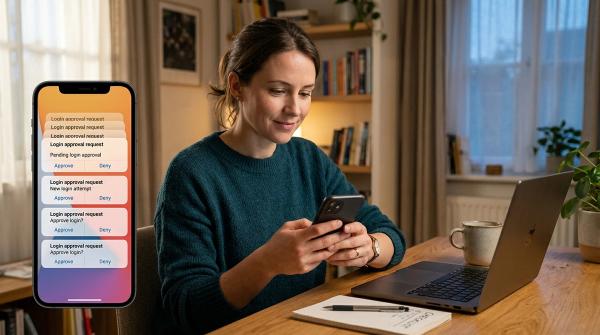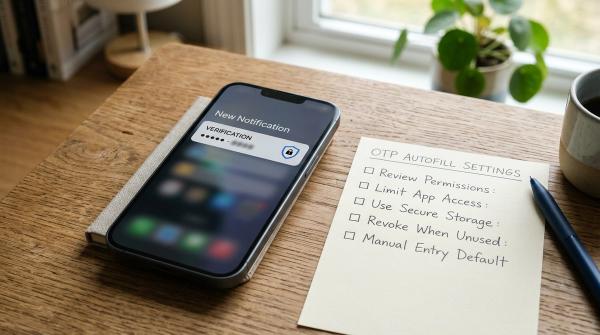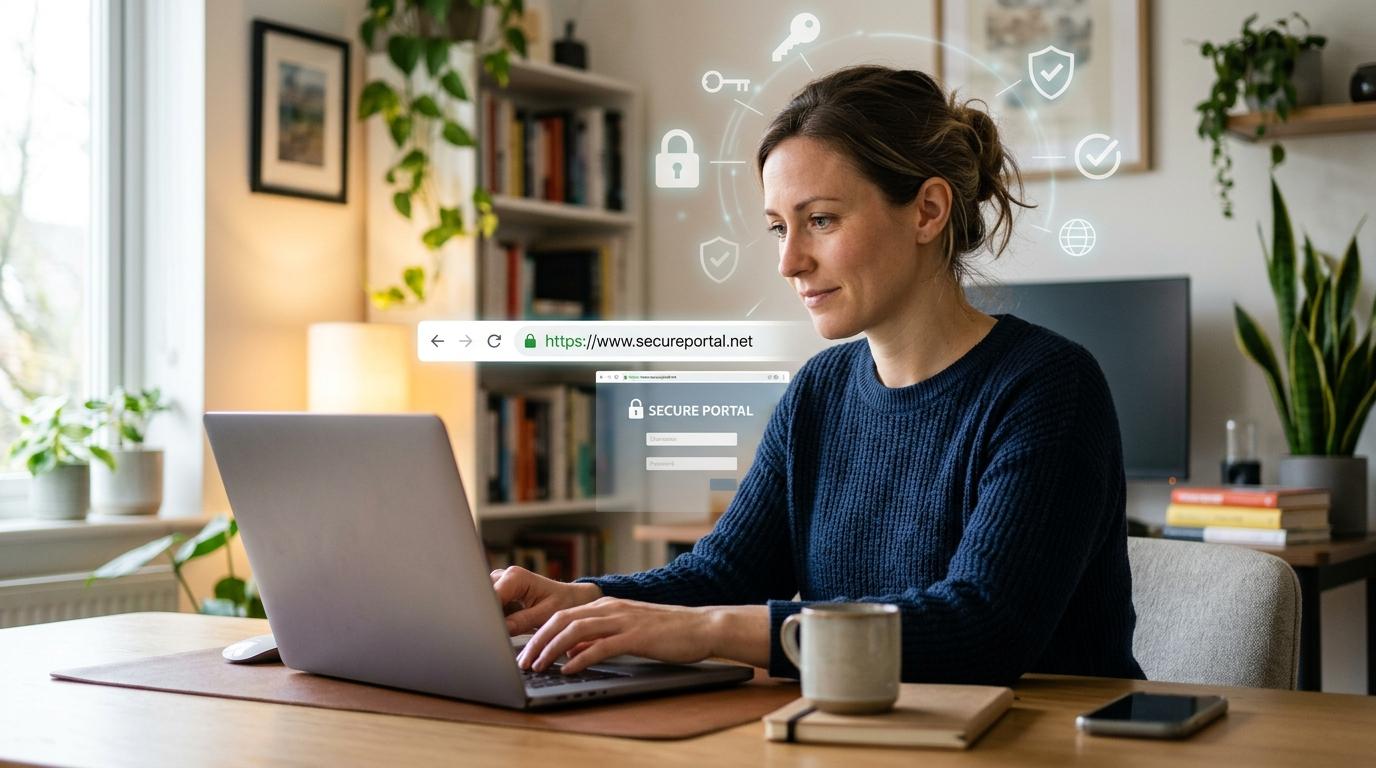
Password manager autofill safety comes down to one small habit: before you click a saved login, look at the website address. If your password manager usually fills your login and suddenly it does not, do not rush past that moment. It may be your password manager quietly saying, “I do not recognize this page.”
Password managers like Google Password Manager in Chrome, 1Password, Bitwarden and similar tools make strong, unique passwords realistic for everyday life. But autofill should be treated as a checkpoint, not just a shortcut.
The quick autofill safety checklist
#Before you click a saved login, run through these quick checks:
- Look at the website address. Is it spelled correctly?
- Do not trust the design alone. Fake login pages can look very real.
- If autofill does not appear, pause. Your password manager may not recognize the site.
- Do not force-fill passwords into suspicious pages.
- Use one main password manager. Avoid having Chrome and another tool save the same passwords.
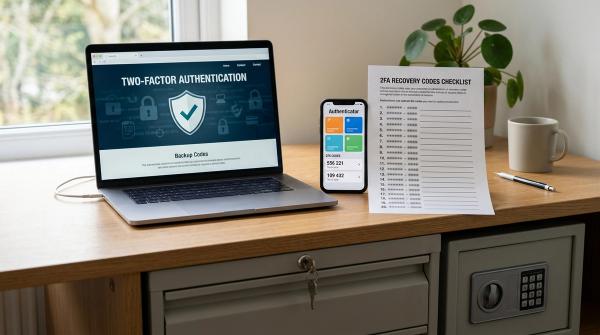
- Keep recovery codes somewhere safe outside your password manager.
If you only remember one rule, make it this one: if autofill normally appears and now it does not, stop and check the URL.
Why “not autofilling” can be a good thing
#Autofill is not only there to save time. One of its best safety features is that it checks where you are before offering your saved password.
When you save a password, your password manager links it to a website address. Later, when you visit that site, it checks whether the current page matches the saved one.
For example:
- Real site:
example.com - Lookalike site:
examp1e.com - Suspicious extra words:
login-example-security.com - Wrong ending:
example.netinstead of the site you normally use
If your saved password does not appear, do not immediately open your vault, copy the password and paste it in. First ask: why did my password manager not recognize this page?
Sometimes the answer is harmless: a real website may have changed its login page. But sometimes you are on a fake page. That small moment of doubt can save you a lot of trouble.
Autofill vs copy-paste vs typing passwords
#For most people, careful autofill is safer than typing or copying passwords all the time. Copy-paste is sometimes necessary because some websites are awkward, but it should not be your normal habit. If you copy a password, check the URL first.
Phishing warning signs before you autofill
#Phishing works because fake pages feel familiar. They use the right logo, the right colours and a normal-looking login box. Your password manager can help, but your attention still matters.
1. The address is almost right, but not quite
#Always look at the browser address bar. Be careful with:
- Misspellings such as
paypaI.com, where a capital “I” looks like a lowercase “l” - Extra words such as
secure-login-yourbank.com - Strange endings that the real site does not normally use
- Long addresses where the real brand name appears in the wrong place
In https://login.example.com, the real domain is example.com. But in https://example.com.fake-login.net, the real domain is fake-login.net, not example.com.
2. The message is trying to scare you
#Many phishing attacks start with panic:
- “Your account will be closed today”
- “Payment failed, log in now”
- “Unusual activity detected”
- “Confirm your details immediately”
Real companies do send urgent messages sometimes, but urgency is a reason to slow down. Instead of clicking a link in an email or text, open your browser and go to the site yourself.
3. The page asks for more than usual
#Be suspicious if a normal login page suddenly asks for your password and recovery code together, card details during sign-in, security answers you do not normally need, or ID documents when that is not normal for the service.
Some real services do extra checks, but if something feels off, leave the page and go to the site directly.
A simple URL check anyone can do
#Step 1: Look for HTTPS, but do not fully trust it
#HTTPS and the lock icon are important, but they do not prove a website is honest. Fake websites often use HTTPS too.
Step 2: Find the real domain
#For https://accounts.example.com/login, the real domain is example.com. For https://example.com.security-login.net, the real domain is security-login.net.
Step 3: Compare it with what you normally use
#For important accounts, use bookmarks. This is especially helpful for banking, email, school portals, work tools, taxes, cloud storage and health portals.
Step 4: Treat missing autofill as a warning
#If your password manager stays quiet, listen to that silence. It may be protecting you.
Chrome and Google Password Manager checklist
#Google Password Manager is built into Chrome and connected to your Google account. It can save and autofill passwords, and it supports passkeys for some websites and apps.
Check these basics:
- Know where your passwords are being saved.
- If you use 1Password, Bitwarden or another dedicated manager, avoid saving the same login in Chrome too.
- Review Chrome settings for passwords, autofill, payment methods, addresses and passkeys.
- Avoid shared browser profiles for family computers.
- Check the site address before accepting save or update prompts.
Using two password managers at the same time can get messy. One manager may update a password while the other keeps the old one. Pick one main password manager and use it consistently.
1Password autofill checklist
#1Password’s browser extension can fill passwords, payment details and forms. The safer habit is simple: filling should be intentional.
- Click to fill; do not rush.
- Notice when 1Password does not suggest a login.
- Keep the extension locked when you are away.
- Clean up old website addresses and duplicate entries.
- Treat unusual prompts as a reason to pause.
If you know you saved a login but 1Password does not offer it, do not immediately search your vault and force-fill it. First check the website address.
Bitwarden-style tools checklist
#Bitwarden and similar password managers usually work through a browser extension. The exact labels may differ, but the safety ideas are similar.
- Decide which password manager is primary.
- Be careful with automatic autofill on page load.
- Use clipboard clearing if you copy passwords.
- Know where your one-time codes live.
- Use the official extension and keep it updated.
Some tools can fill passwords automatically as soon as a page loads. That is convenient, but it gives you less time to check the page first. For most everyday users, click-to-fill is calmer and safer.
Recovery codes and account lockout
#Autofill makes strong passwords easier, but it also means you probably will not know most passwords by memory. That is normal. It also means recovery planning matters.
Keep recovery codes outside the password manager account they are meant to recover. This is especially important for:
- Your password manager account
- Your main email account
- Banking accounts
- Work or school accounts
- Cloud storage
Better options include a printed copy in a locked drawer, a written copy stored with important papers, or a secure physical document folder. Treat recovery codes like spare keys.
Before you add passkeys, two-step verification or a new sign-in method, check that your recovery email and phone number are current.
Safer everyday autofill habits
#You do not need to be paranoid. You need a few steady habits:
- Use bookmarks for important accounts.
- Slow down around money, identity, health, school and work accounts.
- Do not save passwords on public or borrowed devices.
- Protect your main email account with strong security and recovery options.
- Teach family members the “autofill did not appear” rule.
Your email account is often the reset button for your online life. If someone gets into your email, they may be able to reset many other accounts.
Common autofill mistakes to avoid
#Saving a password on a fake page
#If you type a password into a suspicious page and your browser asks to save it, do not click save. Leave the page and go to the real site directly.
Keeping duplicate logins everywhere
#If the same login is saved in Chrome, a dedicated password manager and an old browser profile, updates get confusing. Clean up duplicates when you see them.
Ignoring changed URLs
#Real websites sometimes change login pages. Fake websites also imitate real pages. If a URL changes and autofill stops working, verify first.
Copying passwords out of habit
#Copy-paste can bypass some autofill protection because you can paste into any form. If you copy a password, check the URL first.
Storing recovery codes only in the vault
#If your recovery code is locked inside the account it is supposed to recover, it may not help during a lockout. Keep an offline copy somewhere safe.
A simple setup plan for families
#If you are helping someone set up password autofill safely, keep it practical:
- Pick one password manager.
- Reduce duplicate saving.
- Start with important accounts: email, banking, school, work, health and cloud storage.
- Turn on two-step verification for the most important accounts.
- Print or write recovery codes and store them safely.
- Practice one login together.
- Explain the pause rule: if autofill does not appear, do not force it.
People remember simple routines better than long security lectures.
Final takeaway
#Autofill is safest when you treat it as a checkpoint, not just a shortcut. Before you click, check the URL. If your saved login does not appear, pause. Use one main password manager, avoid copy-paste as a daily habit and keep recovery codes somewhere safe outside your vault.