If you use WhatsApp, turn on end-to-end encrypted backup before relying on Google Drive or iCloud. It adds a privacy layer to your chat backup, but you must also secure your Google or Apple account, save your recovery method, and avoid wiping your old phone until the restore is complete.
Your WhatsApp chats may hold family photos, office files, school notes, payment screenshots, voice notes, travel plans, customer details, and private conversations. A backup can save you when your phone is lost, stolen, damaged, or suddenly stops working. But a normal WhatsApp Google Drive backup or WhatsApp iCloud backup is not the same as an end-to-end encrypted backup.
If you care about WhatsApp backup privacy, the first thing to check is whether end-to-end encrypted backup is turned on inside WhatsApp settings. Depending on what is available on your device, you may be able to protect it with a password, a 64-digit encryption key, or a WhatsApp passkey.
And the boring basics matter too:
- Secure your Google or Apple account.
- Save your backup recovery method somewhere safe.
- Do not share verification codes with anyone.
- Do not wipe your old phone until the restore is completely done.
This guide is not about hacks, bypass tricks, or fake “100% recovery guaranteed” promises. It is a practical checklist to help you protect your WhatsApp backups without making your life complicated.
Why WhatsApp Backups Matter
#Most people realise the value of a WhatsApp backup only after something goes wrong.
Maybe the phone gets stolen. Maybe the screen breaks. Maybe a software update goes badly. Maybe you buy a new phone and suddenly discover your last backup was from six months ago.
Without a backup, you may lose things like:
- Family chats and photos
- Voice notes from parents, relatives, or friends
- Office documents shared in chat
- College PDFs, class notes, and project details
- Small business orders and customer messages
- Payment screenshots and delivery updates
- Creator contacts, scripts, briefs, and media files
- Wedding photos, festival videos, and travel memories
In India and many other countries, WhatsApp is not just a messaging app. It is a family noticeboard, work inbox, school group, business tool, customer support channel, photo album, and document folder all rolled into one.
So the goal is simple: keep your backup useful, but also keep it private.
WhatsApp Backup Options Compared
#For most people, the best balance is this: use cloud backup if you need the convenience, but turn on end-to-end encrypted backup and keep your Google or Apple account secure.
Pre-Backup Privacy Checklist
#Before you tap “Back Up,” take two minutes to check these things.
This is also a good time to clean up WhatsApp a little. Delete duplicate videos, forwarded clips, and random files you know you will never need again.
Smaller backups are easier to store, faster to upload, and usually easier to restore.
How to Turn On WhatsApp Encrypted Backup
#The exact wording may vary slightly depending on your phone and WhatsApp version, but the path is usually:
- Open WhatsApp.
- Go to Settings.
- Tap Chats.
- Tap Chat Backup.
- Tap End-to-end Encrypted Backup.
- Follow the steps shown by WhatsApp.
- Choose the available protection method, such as a password, 64-digit encryption key, or WhatsApp passkey where supported.
Use only the official WhatsApp app from the official app store. If you are unsure about any step, check the official WhatsApp Help Center instead of downloading random “backup recovery” apps.
If someone claims they can unlock encrypted WhatsApp backups without your password, key, or proper account access, treat that as a red flag.
Password, 64-Digit Key, or WhatsApp Passkey: Which One Should You Choose?
#WhatsApp encrypted backups can be protected in different ways, depending on your device, app version, and account setup.
Password
#A password is the most familiar option. Most people understand how it works.
The problem is also familiar: people forget passwords, reuse weak ones, or save them in unsafe places.
If you choose a password, do not use something obvious like:
- Your phone number
- Your birthday
- Your child’s name
- Your vehicle number
- Your address
123456password
Choose something strong, but still something you can actually remember or store safely. Do not send the backup password to yourself on WhatsApp.
64-Digit Encryption Key
#A 64-digit key gives strong protection, but it is not beginner-friendly.
If you choose this option, you need to store the key very carefully. If your phone is lost and you also lose the key, you may not be able to restore the encrypted backup.
This is the privacy tradeoff.
Encrypted backups are designed so that WhatsApp cannot simply reset or recover them for you if you lose the recovery method. That is good for privacy, but painful if you are careless.
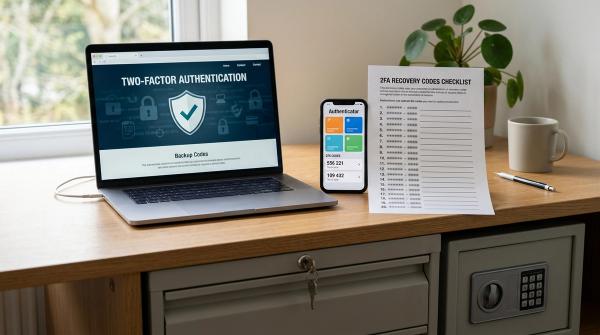
Do not keep the key somewhere random. Do not screenshot it and forget where it went. Do not share it in a chat. Store it in a safe place that you can access when needed.
WhatsApp Passkey
#A WhatsApp passkey is meant to make backup protection easier for everyday users.
Instead of asking you to remember a separate backup password, passkey-encrypted backups can use your device security, such as fingerprint, face unlock, or screen lock, where the feature is available.
For many people, especially parents, grandparents, or anyone who keeps forgetting passwords, this can feel more natural.
But a passkey is not magic. You still need to:
- Keep your phone lock secure
- Protect your Google or Apple account
- Keep your recovery options updated
- Avoid sharing codes or account access
A passkey can make things easier, but your overall account security still matters.
Google Drive and iCloud Safety Checks
#Your WhatsApp backup privacy does not depend only on WhatsApp. It also depends on the cloud account connected to your backup.
For Android users, that usually means your Google Account. For iPhone users, that means iCloud through your Apple ID.
If someone gets into your Google or Apple account, your backup security can become weaker. So do not ignore this part.
For WhatsApp Google Drive Backup
#If you use Android, check these basics:
- Use a strong Google Account password.
- Turn on two-step verification for your Google Account.
- Review the devices signed in to your Google Account.
- Remove old phones or unknown devices.
- Check your available Google storage.
- Do not share Google verification codes with anyone.
- Be careful with screen-sharing requests from strangers.
Also, remember that WhatsApp Google Drive backup uses your Google Account storage. If your storage is full, backups may fail or stop updating without you noticing immediately.
If WhatsApp says the backup failed, do not ignore it.
For WhatsApp iCloud Backup
#If you use iPhone, check these basics:
- Use a strong Apple ID password.
- Turn on two-factor authentication for your Apple ID.
- Review trusted devices linked to your Apple ID.
- Check your iCloud storage space.
- Keep your iPhone passcode private.
- Do not share Apple verification codes.
- Avoid signing in to your Apple ID on unknown devices.
A WhatsApp iCloud backup is useful, but it still depends on your Apple ID security and WhatsApp backup settings.
For stronger privacy, turn on end-to-end encrypted backup inside WhatsApp and protect your Apple ID properly.
Beware of Backup and Verification Code Scams
#Scammers rarely sound like scammers at first.
They may sound polite, urgent, professional, or even friendly. They may claim to be from:
- WhatsApp support
- A courier company
- A bank
- A job portal
- A government service
- A shopping app
- Your office
- A family group
- A customer care team
Then they ask for a verification code, password, screen-sharing access, or “just one OTP.”
Do not share it.
No real WhatsApp backup restore should require you to give your private verification code to a stranger.
If someone is rushing you, threatening account closure, or asking you to install an app for “support,” stop and verify through official channels.
Safer Restore Habits Before Changing Phones
#Changing phones is when many WhatsApp backup problems happen.
People sell the old phone too early. They wipe it before checking the new phone. They forget the encrypted backup password. They restore from an old backup without noticing. Or they assume everything is fine because the new phone “looks ready.”
Use this safer routine instead.
1. Update WhatsApp on the Old Phone
#Before moving to a new phone, update WhatsApp from the official app store.
This helps make sure you have the latest backup, restore, and transfer options available.
2. Check Your Phone Number
#Make sure you still have access to the phone number linked with WhatsApp.
Restoring WhatsApp usually requires number verification. If your SIM is inactive, lost, or not receiving messages, fix that first.
Do not start the phone change process until your number is working.
3. Do a Manual Backup
#Do not depend only on automatic backup.
Before changing phones, go to:
Settings > Chats > Chat Backup > Back Up
Wait until the backup finishes. Then check the time shown after completion.
4. Confirm Your Encryption Method
#If encrypted backup is turned on, check your recovery method before resetting anything.
Make sure you:
- Remember the password, or
- Have the 64-digit key safely stored, or
- Can use your WhatsApp passkey where available
Do not guess. Confirm it first.
5. Keep the Old Phone Untouched
#Do not factory reset, exchange, sell, or hand over your old phone until:
- WhatsApp is installed on the new phone
- Your phone number is verified
- The restore process is complete
- You can see your important chats
- Your important media has appeared
- You are sure nothing major is missing
Only after checking everything should you reset the old phone.
6. Consider Transfer Chats
#If both phones are with you, WhatsApp’s Transfer Chats option may let you move chats directly using the official process inside WhatsApp.
This can be useful if you do not want to depend on Google Drive or iCloud for that particular move.
Use WhatsApp’s official instructions for your phone type, especially if you are moving between Android and iPhone. The steps can be different, and small details matter.
Real-Life Examples
#For Parents and Grandparents
#A parent may not remember a backup password created months ago. A grandparent may not even remember which option was selected during setup.
If passkey-encrypted backup is available, it may be easier because it can work with fingerprint, face unlock, or the phone screen lock.
Still, help them understand what they selected. Do not put the actual password or key in a family WhatsApp group. Keep it somewhere safe and private.
For Students
#College WhatsApp groups often contain notes, PDFs, voice messages, project discussions, exam updates, and assignment details.
Before changing phones or resetting a device, do a manual backup and check the timestamp.
If storage is low, delete large forwarded videos first. Those fest clips, reels, and random memes can quietly eat up a lot of backup space.
For Workers and Small Business Owners
#If WhatsApp contains customer chats, delivery details, invoices, payment screenshots, or work files, treat your backup like basic business hygiene.
Use encrypted backup. Secure your Google or Apple account. Avoid unofficial recovery tools.
A cheap “recovery app” can become a very costly mistake.
For Creators
#Creators often receive brand briefs, scripts, voice notes, edits, contacts, and media files on WhatsApp.
Large videos can fill storage quickly. Once storage is full, backups may fail, and you may not notice for days.
Clean your WhatsApp media regularly. Keep the files you need, and remove the ones you do not.
For Heavy Family Group Users
#Good morning images, wedding videos, festival clips and old reels can make backups unnecessarily large.
If your cloud storage keeps filling up, consider:
- Turning off “Include Videos” in backup settings
- Clearing unwanted media from Manage Storage
- Deleting duplicate forwarded files
- Saving only important videos separately
You probably do not need every forwarded video from 2019.
Mistakes to Avoid
#- Do not use third-party recovery apps. Avoid tools that claim they can hack, bypass, unlock, or guarantee WhatsApp backup recovery.
- Do not share verification codes. WhatsApp, Google, and Apple codes should stay private.
- Do not wipe your old phone too early. Restore first, check your chats, then reset.
- Do not ignore failed backup warnings. Full Google Drive or iCloud storage can stop backups from completing.
- Do not forget your encrypted backup recovery method. WhatsApp cannot promise recovery if you lose the password, 64-digit key, or required access.
- Do not rely on one old backup. Always check the backup date before changing phones.
- Do not download modified WhatsApp apps. Use the official WhatsApp app only.
- Do not store your backup password in an unsafe chat. Keep it somewhere private and reliable.
- Do not rush phone exchange day. Take time to confirm the restore has actually worked.
Good privacy is not about panic. Most of the time, it is about doing small, boring things before something goes wrong.
Quick WhatsApp Backup Privacy Checklist
#- Turn on end-to-end encrypted backup in WhatsApp.
- Use a strong password, 64-digit key, or WhatsApp passkey where available.
- Store your recovery method safely.
- Secure your Google or Apple account.
- Turn on two-step verification or two-factor authentication.
- Check cloud storage before relying on backups.
- Do a manual backup before changing phones.
- Keep your old phone until the restore is complete.
- Avoid third-party recovery tools.
- Never share verification codes.
That is enough for most people to avoid the biggest WhatsApp backup privacy mistakes.
Source and safety note
#This guide was prepared using current official Meta/WhatsApp backup security guidance and current public reporting about encrypted backup and passkey support. Interface labels can vary by app version, phone model and region, so use the official WhatsApp Help Center for exact recovery steps on your device.