What Is a Digital Life Certificate (DLC) and the November 30 Deadline
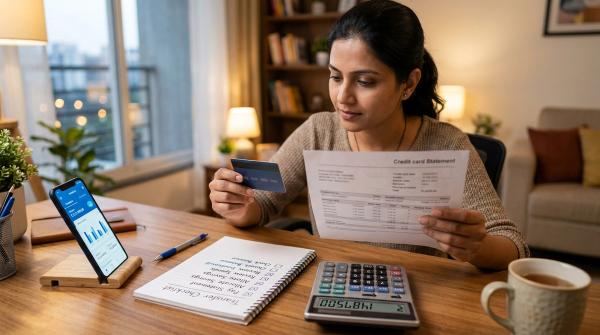
#Every year in November, more than seven million central and state government, defense, railway, and postal pensioners in India must prove they are alive to continue receiving their monthly pension. This proof is known as the Life Certificate, or Jeevan Pramaan Patra.
Traditionally, submitting this document required elderly citizens to travel in person to their pension disbursing bank branch, post office, or treasury office. Pensioners often faced long queues, stairs, crowded counters, and the physical exhaustion of waiting hours just to sign a physical form or press a worn thumb onto a temperamental fingerprint scanner.
If a pensioner fails to submit their life certificate by November 30, their pension for the month of December is automatically put on hold. While the money is not lost and is released as arrears once verified, a missed deadline creates sudden financial stress for households that depend on a timely pension credit on the first of each month.
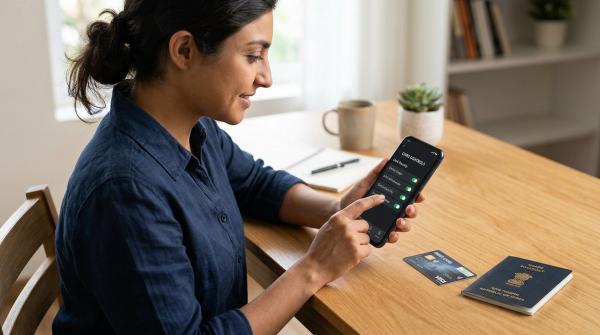
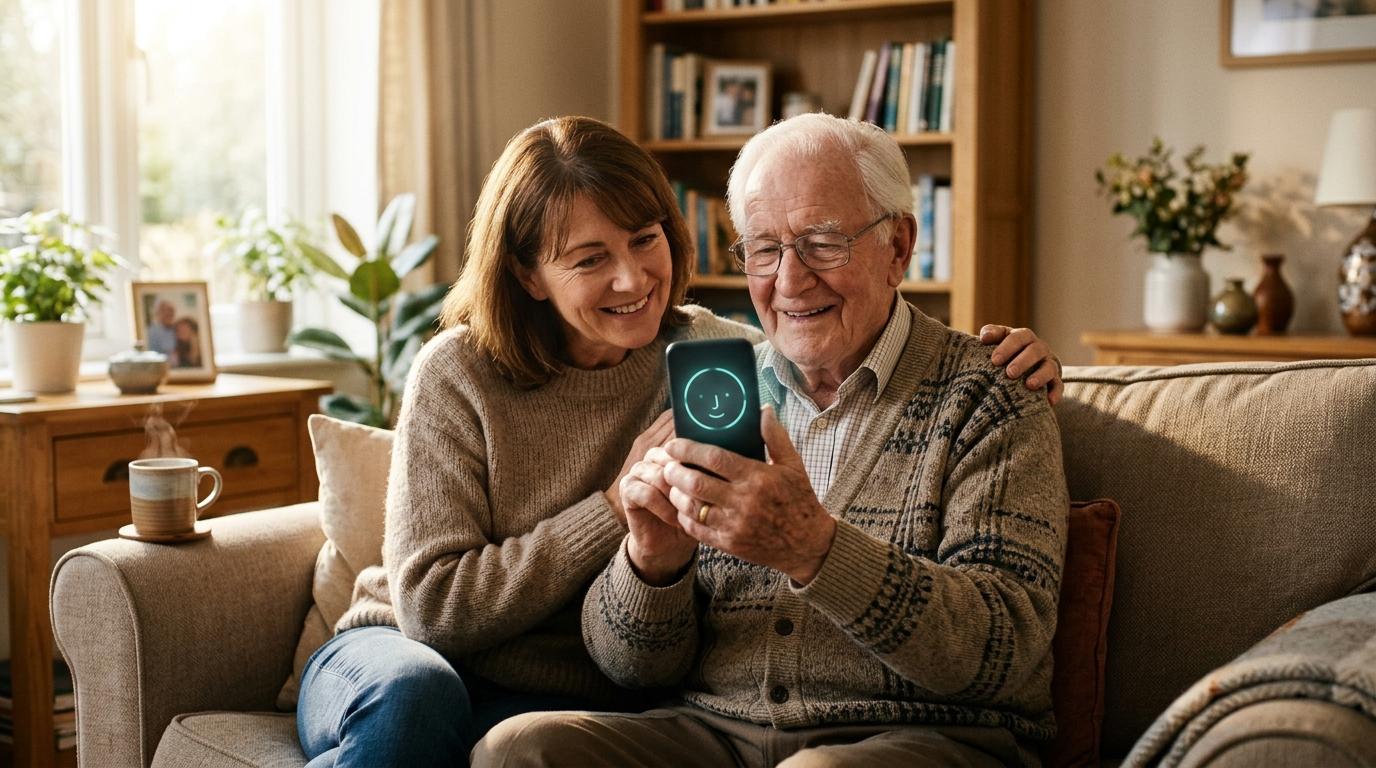
In response, the Government of India launched the Digital Life Certificate (DLC) program through the Jeevan Pramaan platform. Under the current Jeevan Pramaan 5.0 initiative, you no longer need an external biometric fingerprint device, a computer, or a physical visit to a bank. Using a standard smartphone equipped with a camera and an active internet connection, pensioners can complete their entire annual verification from their living room sofa in under five minutes.
Why Face Authentication Replaced Fingerprint Scanners in Jeevan Pramaan 5.0
#When the Digital Life Certificate was first introduced, it relied heavily on optical fingerprint scanners or iris readers plugged into computers via USB cables. While this was an improvement over paper forms, it created a major hurdle for elderly citizens:
- Biometric degradation with age: As people grow older, the epidermal ridges on their fingers naturally flatten and fade. Manual laborers and senior citizens above age seventy frequently experienced repeated "biometric mismatch" errors because standard optical sensors could not read their worn fingerprints.
- Hardware availability: Most households do not own an external biometric fingerprint scanner, forcing seniors to visit common service centers (CSCs) or cyber cafes, defeating the purpose of a home-based digital service.
- Mobility barriers: Bedridden, unwell, or frail pensioners found it difficult or impossible to leave home to find an operational scanner.
Jeevan Pramaan 5.0 solves these problems by integrating the Unique Identification Authority of India (UIDAI) Aadhaar FaceRD (Registered Device) technology. 
Instead of reading fingerprints, the system uses the smartphone's regular front or rear camera to analyze three-dimensional facial landmarks and matches them against the photograph stored in the central Aadhaar database. It incorporates real-time "liveness detection"—requiring the pensioner to blink naturally on screen—to ensure that the person in front of the lens is physically present and alive, eliminating fraud or the use of static printed photographs.
The Essential Prerequisites: What You Need Before You Start
#Before downloading any software, sit down with the pensioner and gather four essential pieces of information:
- A smartphone with a working camera: Any Android smartphone running Android 8.0 or higher with at least 5 megapixels of camera resolution. The phone must have an active internet connection (Wi-Fi or 4G/5G mobile data).
- Aadhaar Number of the Pensioner: The 12-digit Aadhaar number linked to the pensioner's bank account.
- Pension Payment Order (PPO) Number: The exact alphanumeric PPO number issued by the pension sanctioning authority. This is printed on previous pension slips or can be viewed inside your bank's pension portal.
- Pension Disbursing Details: The name of the pension sanctioning authority (such as Central Government, State Government, Defense, or Railways), the disbursing agency (such as State Bank of India, Punjab National Bank, or SPARSH), and the exact bank account number where the monthly pension is credited.
Note an important distinction regarding mobile numbers: The mobile number entered into the Jeevan Pramaan app does not strictly have to be the phone number registered with Aadhaar. It is used to receive an instant one-time password (OTP) and the final 10-digit Pramaan ID receipt via SMS. However, keeping the Aadhaar-linked mobile active is always good practice.
Step-by-Step Installation: Aadhaar FaceRD and Jeevan Pramaan Face App
#Submitting a digital life certificate via facial recognition requires two distinct, official mobile applications installed together on the smartphone:
- Application 1: Aadhaar FaceRD (developed by UIDAI)
- Application 2: Jeevan Pramaan Face App (developed by the National Informatics Centre, NIC)
Here is how to set them up in the correct sequence:
Installing Aadhaar FaceRD
#Open the Google Play Store on your Android phone and search for "Aadhaar FaceRD" published by the Unique Identification Authority of India. 
Tap Install. Once installed, note that this application will not appear as an openable app icon on your home screen. It operates strictly as an underlying background security service that the Jeevan Pramaan app calls when it is time to perform biometric authentication. To verify it is installed, check your phone's Settings under Applications.
Installing the Jeevan Pramaan Face App
#Because Google Play periodically reviews updates for civic apps, the primary and most reliable method to download the latest Jeevan Pramaan Face App is directly from the official portal at jeevanpramaan.gov.in.
On your phone's browser, visit the portal's download section. Enter your email address and request the download link. Open the email on your phone, tap the download link, and download the APK file. When prompted, allow your browser permission to install apps from this source. Open the downloaded file to complete the installation.
Once installed, open the Jeevan Pramaan app and grant the requested system permissions: camera access, location services, and storage access. Without camera permission, the facial scan engine cannot initialize.
Executing the Submission: Entering PPO Details and Operator Setup
#The Jeevan Pramaan Face App uses a two-tier verification workflow: the Operator and the Pensioner.
Understanding this architecture is crucial: The person holding the phone is the "Operator," while the person whose life certificate is being generated is the "Pensioner." Any family member, son, daughter, or neighbor can act as the Operator. The pensioner does not need to own a smartphone or understand technology.
Phase 1: Operator Authentication (One-Time Setup)
#When you first launch the app on a fresh device, it asks for Operator Authentication:
- Enter the operator's Aadhaar number, a valid mobile number, and email address.
- Tap Submit. An OTP will be sent to the entered mobile number.
- Enter the OTP and tap Verify.
- The screen prompts the operator to perform a face scan. Hold the phone steady, look at the front camera, and blink when the red reticle turns green.
- Once the operator's face is verified against UIDAI records, the app unlocks the main Pensioner screen. You only need to perform operator authentication once per device; you can then authenticate multiple pensioners on that same phone.
Phase 2: Entering Pensioner Details
#After operator setup, the app displays the Pensioner Authentication screen. This is where you enter the actual pensioner's data:
- Enter the pensioner's 12-digit Aadhaar number and the mobile number where the confirmation SMS should be sent.
- Tap Submit and enter the OTP received on that phone.
- Enter the pensioner's full legal name exactly as it appears in their Aadhaar card.
- Select the Pension Type: Service Pension, Family Pension, Disability Pension, or others from the dropdown menu.
- Select the Sanctioning Authority: For example, Central Government, State Government, Defense (SPARSH), Telecom, or Railways.
- Select the Disbursing Agency: For example, Bank, Post Office, or Treasury.
- Select the specific Bank: For example, State Bank of India, Bank of Baroda, or Punjab National Bank.
- Enter the PPO Number: Type the exact PPO number carefully. Avoid spaces or unnecessary slashes unless they appear on your official PPO certificate.
- Enter the Pension Bank Account Number: Type the exact active savings or pension account number where monthly payments land.
- Select Re-Employed and Re-Married Status: Check "No" unless the pensioner has been formally re-employed in government service or a family pensioner has remarried.
- Tap the declaration checkboxes agreeing to biometric identity verification and tap Next.
Take twenty seconds to review every single detail on the confirmation summary screen before proceeding. If a PPO number or bank account digit is mistyped, the biometric certificate will still generate, but the bank's automated processing system will fail to map the certificate to the pension account, causing an unexpected payment hold in December.
The Facial Scan Procedure: Lighting, Blinking, and Distance Rules
#Once the pensioner's details are confirmed, the app calls the Aadhaar FaceRD camera interface to capture the biometric scan. 
This is the exact step where eighty percent of user errors occur. Biometric facial authentication is sensitive to illumination, head tilt, and background clutter. To ensure your scan passes on the very first try, apply these physical rules:
Positioning and Posture
#Have the pensioner sit upright on a sturdy chair. The phone should be held directly in front of the pensioner's face at eye level, roughly one to one-and-a-half feet (30 to 45 cm) away. Never hold the phone from below looking up at the chin or from above looking down at the forehead. Both angles distort facial geometry.
Light Direction: The Golden Rule
#The pensioner's face must be evenly illuminated from the front. 
Never sit with the pensioner's back to an open window, balcony, or bright light bulb. Backlighting forces the camera sensor to underexpose the face, turning the facial features into a dark silhouette that the biometric algorithm immediately rejects. 
Instead, have the pensioner face directly toward natural daylight coming through a window, or place a soft white table lamp directly in front of their face at eye level. Avoid harsh spotlights that cast deep shadows across the eyes, nose, or mouth.
Neutral Background
#Position the pensioner against a plain, neutral wall. A solid white, cream, or light grey wall prevents the computer vision model from confusing background objects, picture frames, or furniture edges with facial contours.
The Liveness Blink
#When the camera activates, a circular reticle will appear on the screen around the pensioner's face:
- Keep the face centered inside the circle.
- Keep both eyes open, looking directly into the camera lens, not at the phone screen.
- Maintain a neutral, relaxed expression without smiling, frowning, or talking.
- When the app detects proper alignment, the reticle turns from red to green.
- The screen will flash an instruction: "Please Blink Your Eyes." The pensioner must close their eyes fully for half a second and open them. This deliberate blink proves live human presence.
- A chime will sound, the shutter will click, and the screen will display: "Face Authentication Successful."
How to Verify Acceptance: SMS Confirmation, Pramaan ID, and Bank Status
#A successful face scan generates an instant digital record on the central Jeevan Pramaan cloud servers. You will immediately see an on-screen confirmation card displaying:
- The pensioner's photograph captured during the live scan
- The 10-digit Pramaan ID
- The timestamp and date of submission
- The PPO and bank account details mapped to the certificate
Within two minutes, an automated SMS from the Government of India will arrive on the mobile number entered during the process, stating: "Dear Pensioner, your Jeevan Pramaan certificate has been successfully generated with Pramaan ID XXXXXXXXXX."
Downloading Your Digital Certificate Copy
#You do not need to print or deliver this certificate to your bank branch. The Jeevan Pramaan system automatically pushes the digital token directly to your Pension Disbursing Agency through an electronic clearing interface.
However, saving a copy for your personal records is recommended:
- Visit the official portal at jeevanpramaan.gov.in.
- Click on the "Pensioner Sign In" tab.
- Enter your 10-digit Pramaan ID and the captcha code.
- Enter the OTP sent to your registered mobile number.
- Click "Download Life Certificate" to save the digitally signed PDF copy on your phone or computer.
Verifying Bank Reconciliation
#While Jeevan Pramaan generates the certificate instantly, the bank or treasury system typically takes two to three working days to reconcile the certificate with their core banking pension database.
For State Bank of India pensioners, you can check your live acceptance status anytime by logging into the official SBI Pension Seva portal or the SBI YONO app under Pension Services. Once reconciled, the status will switch from "Pending" to "Life Certificate Submitted and Verified." Other public sector banks display this status on monthly pension slips or via SMS alerts.
Troubleshooting Common Errors: Camera Glare, PPO Mismatch, and App Crashes
#If your submission encounters an error code, consult this practical diagnostic guide:
| Error Message or Symptom | Probable Cause | Immediate Corrective Action |
|---|---|---|
| "Aadhaar FaceRD service not found" | FaceRD background app is not installed or lacks camera permissions | Verify Aadhaar FaceRD is installed via Phone Settings; toggle Camera and Storage permissions on |
| "Face not detected / Poor lighting" | Harsh shadows, backlighting from a window, or face too far from lens | Move pensioner to face indirect daylight; bring phone closer until face fills the circular guide |
| "Liveness detection failed" | Pensioner did not blink during the green prompt or blinked too fast | Instruct the pensioner to look steadily at the camera and perform a slow, deliberate single blink |
| "PPO number already registered" | Certificate was already submitted successfully earlier this cycle | Verify status on the Jeevan Pramaan portal using your Pramaan ID before attempting again |
| "Invalid PPO / Bank mismatch" | Typos in the PPO string or selecting wrong disbursing branch / bank | Double-check previous pension slip for exact characters; re-enter without spaces or dashes |
| "Device is rooted or modified" | Security policy blocks rooted Android handsets to prevent fraud | Perform submission on an unmodified, standard consumer retail smartphone |
Comparison of Life Certificate Submission Methods
#If smartphone face authentication is not an option in your household, several other official submission channels exist:
| Method | Where Conducted | Hardware Required | Travel Required | Cost | Best For |
|---|---|---|---|---|---|
| Jeevan Pramaan Face App | At home on smartphone | Android 8.0+ / iOS phone with camera | None | Free | Independent seniors and family-assisted submissions |
| Physical Bank Branch | Home pension branch counter | Physical PPO, passbook, paper form | Yes; visit bank | Free | Traditional pensioners preferring in-person branch verification |
| Doorstep Banking (DSB) | At home via bank agent | Handheld biometric device brought by agent | None | Nominal (approx ₹70 + GST) | Bedridden or frail public sector bank pensioners |
| Postman Doorstep (IPPB) | At home via India Post | Smartphone and biometric scanner by postman | None | ₹70 flat fee | Rural areas and households without smartphones or family tech support |
| Common Service Center (CSC) | Local village / ward kiosk | Kiosk PC and optical fingerprint reader | Short local travel | ₹10 to ₹20 | Pensioners with worn fingerprints living near a digital center |
Alternative Doorstep Submission Options for Bedridden Pensioners
#For pensioners who are bedridden, critically ill, or experiencing advanced cognitive decline where smartphone face authentication cannot be performed, the Government of India provides two mandated doorstep alternatives:
India Post Payments Bank (IPPB) Postman Visit
#Any pensioner can request an India Post postman or Gramin Dak Sevak to visit their home. Postmen are equipped with specialized smartphones and handheld biometric fingerprint scanners connected to the Jeevan Pramaan network.
To book a visit, download the Post Info mobile app, navigate to "Service Request," select "Digital Life Certificate Submission," and enter your address and contact number. Alternatively, call the toll-free postal helpline or notify your local neighborhood postman directly. The postman arrives at your doorstep, conducts the biometric scan, and generates the Pramaan ID on the spot for a regulated government fee of ₹70.
Doorstep Banking Services (DSB) by Public Sector Banks
#The unified Doorstep Banking (DSB) alliance operated by public sector banks allows pensioners of SBI, Punjab National Bank, Bank of Baroda, and others to book a home visit by a banking correspondent. 
You can book this service via the Doorstep Banking mobile app or through their national toll-free number. A verified customer service agent visits the pensioner's residence with a portable biometric machine, verifies their identity, and uploads the digital certificate directly to the bank's core pension system.
Frequently Asked Questions
#What is the deadline for submitting the annual life certificate?
#For most pensioners below the age of eighty, the annual window to submit the Life Certificate runs from November 1 through November 30. Super senior pensioners aged eighty and above are granted an extended two-month window starting October 1 through November 30. If you miss the November 30 deadline, your December pension payment will be held temporarily, but all unpaid funds are automatically credited as arrears once your certificate is submitted and processed.
Can family members use their smartphone to submit a life certificate for a senior pensioner?
#Yes. The Jeevan Pramaan Face App is designed specifically to allow family members, caregivers, or friends to assist. The person holding the phone registers once as an "Operator" using their own Aadhaar and face scan. After operator authentication, they can process life certificates for one or several senior pensioners on that same phone without requiring the pensioner to own a device or mobile connection.
How do you check if your submitted Digital Life Certificate was accepted by the pension bank?
#Upon completing the facial scan, a 10-digit Pramaan ID is displayed on screen and sent via SMS. You can immediately log into jeevanpramaan.gov.in using this ID to view and download your digital certificate. Your pension bank will automatically process this digital token within two to three working days. You can confirm bank-side reconciliation by checking your monthly pension slip or logging into dedicated bank portals such as SBI Pension Seva.
What happens if the face authentication fails multiple times?
#Repeated face scan errors are almost always caused by poor lighting, glare from a window behind the subject, rapid blinking, or natural facial changes since the pensioner's last Aadhaar photo. Ensure the pensioner faces bright, soft front-facing daylight against a plain wall. If facial authentication continues to fail despite proper lighting, you can book an India Post Payments Bank postman to visit your home with a portable fingerprint scanner for ₹70, or request Doorstep Banking from your pension branch.