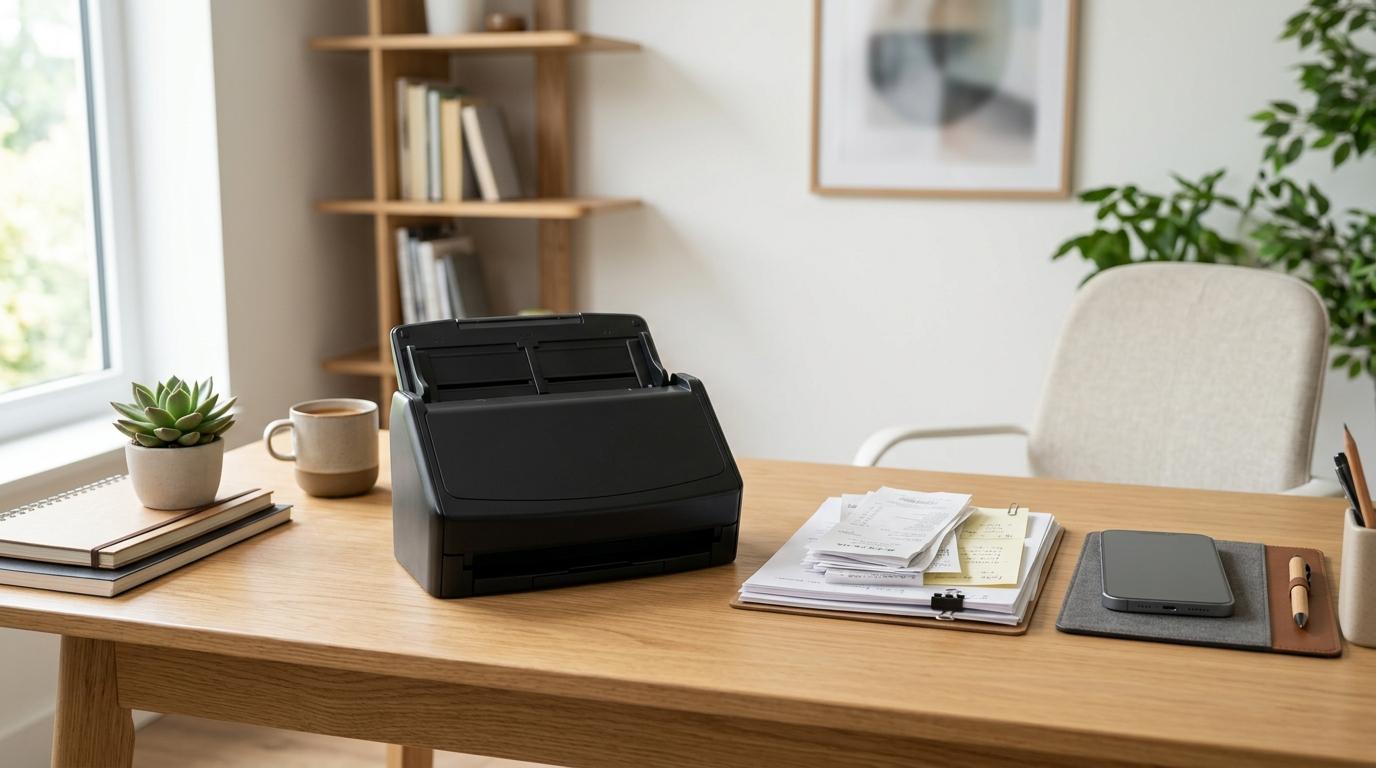
If you only scan the occasional receipt, ID, school form, signed document, or household paper, a phone scanner app is probably enough.
It is quick. It is already in your pocket. And for everyday paperwork, the results are usually perfectly fine.
A document scanner makes more sense when scanning becomes a regular task. If you often deal with stacks of paper, multi-page documents, bookkeeping records, contracts, or sensitive files, dedicated hardware can save time and give you a more controlled workflow.
So the document scanner vs scanner app decision really comes down to this:
How much do you scan, and how much control do you need over the files?
Short Answer
#Use a scanner app if:
- You only scan a few pages at a time.
- You want something free or inexpensive.
- You need to scan while travelling, shopping, studying, or working away from your desk.
- You mostly scan receipts, forms, IDs, notes, and simple PDFs.
- You are comfortable checking app permissions, storage settings, and cloud sync options.
Buy a document scanner if:
- You scan piles of paper regularly.
- You handle tax paperwork, contracts, invoices, client files, or bookkeeping documents.
- You want faster batch scanning with fewer retakes.
- You need a reliable home office scanner setup.
- You prefer keeping sensitive files in a local workflow you control.
The practical rule: A phone scanner app wins for convenience. A dedicated document scanner wins for volume, consistency, and control.
Why This Is Not Just About Scan Quality Anymore
#A few years ago, this was a much easier choice.
Flatbed scanners and desktop scanners usually produced cleaner, straighter, more professional-looking scans. Phone scans often came out crooked, dark, shadowy, or slightly blurry.
That gap is much smaller now.
Modern scanner apps can detect page edges, straighten the image, improve contrast, remove some shadows, create PDFs, and even run OCR.
OCR stands for Optical Character Recognition. It turns the words inside a scanned image into searchable text. That means you can search for a receipt, name, invoice number, date, or sentence in a contract later.
So the real question is not, “Can my phone scan this?”
Most of the time, yes, it can.
The better question is:
“Is my phone still the easiest tool for the way I actually scan documents?”
That is where the scanner app vs hardware scanner decision becomes clearer.
Document Scanner vs Scanner App: The Real Comparison
#Instead of comparing device specs, think about how each option fits into your normal routine.
1. Speed and Batch Scanning
#A phone scanner app is great for quick, one-off scans.
You open the app, point your camera, let it detect the page, adjust the crop if needed, save the file, and move on.
That works well for things like:
- One receipt after lunch
- A signed form
- A passport page
- A school notice
- A quick ID copy
- A single-page document
- A handwritten note
But it starts to feel slow when you have a pile of paper.
With a phone, every page needs your attention. You have to line it up, watch the lighting, check the crop, and make sure the scan is readable.
A document scanner, especially one with an automatic document feeder, is built for that kind of work. You load the pages, press scan, and let the machine handle most of the boring part.
That is much better for:
- Tax documents
- Old records
- Multi-page contracts
- Client files
- Invoices
- Regular bookkeeping
- Office paperwork
Best choice for speed: Use an app for quick scans. Use a document scanner for repeated batch work.
2. Consistency
#Phone scans depend on your environment.
Good lighting helps. A flat surface helps. A steady hand helps. A plain background helps too.
Scanner apps can fix a lot, but they cannot fix everything. Shadows, glare, wrinkles, curled receipts, and slight blur can still make a scan look messy.
A dedicated scanner is more predictable. The lighting, surface, and paper path are built into the device, so each page is captured in a more consistent way.
That matters if you are scanning documents for:
- Accounting
- Legal review
- Business records
- School archives
- Long-term storage
- Client work
- Tax support
Best choice for consistency: A hardware document scanner, especially if you scan paperwork often.
3. Portability
#This is where a phone scanner app wins easily.
Your phone is already with you. That makes it the easiest option when a document shows up unexpectedly.
You can scan a receipt at a shop, save a travel document at the airport, capture a school form before it gets buried in a bag, or digitize paperwork while you are away from home.
A portable document scanner can be useful if you travel with paperwork often, but it is still another device to carry, charge, connect, and store.
For most people, the phone is the more natural portable scanner.
Best choice for portability: A phone scanner app.
4. Receipts and Expense Tracking
#For everyday receipts, a receipt scanner app is usually the easiest choice.
Receipts are small, easy to lose, and often annoying to deal with later. If you scan them as soon as you get them, you avoid the classic drawer full of faded paper.
A scanner app works well for:
- Meal receipts
- Taxi or rideshare receipts
- Office supplies
- Shopping returns
- Reimbursements
- Small business expenses
- Travel expenses
A dedicated scanner makes more sense if you process receipts in batches. For example, if you sit down every week or month with a stack of receipts for bookkeeping or tax prep, hardware can save a lot of repetitive effort.
Best choice for receipts: Use an app for casual receipts. Use a scanner for high-volume bookkeeping.
5. IDs, Passports, and Travel Documents
#You can scan IDs with a phone scanner app, but this is where you should slow down a little.
IDs, passports, visas, residency papers, insurance documents, and travel records contain sensitive personal information. They may include your full name, date of birth, address, ID number, signature, photo, and travel history.
A scanner app is convenient for creating a digital travel folder. But you should know where those files are being saved.
Before scanning sensitive documents with an app, check whether it uploads scans to cloud storage automatically. Also check whether OCR or image processing happens on your phone or on remote servers.
A dedicated scanner can be better if you want to save files directly to your own computer or encrypted storage. But hardware alone does not guarantee privacy. The software, file location, backups, and sharing habits matter too.
Best choice for sensitive ID scans: Use whichever method gives you the most control over storage, permissions, syncing, and sharing.
6. OCR and Searchability
#OCR is one of the most useful features in both scanner apps and document scanners.
Without OCR, your scan may just be an image. You can open it and look at it, but you may not be able to search inside it.
That becomes frustrating later when you need to find:
- One receipt from six months ago
- A specific invoice number
- A customer name
- A line in a contract
- A medical bill
- A tax record
- A warranty document
An OCR scanner app can create searchable PDFs directly from your phone. Many desktop scanner tools can do the same thing.
Before choosing an app or scanner, check whether OCR is included, whether it costs extra, and whether it works offline or requires cloud processing.
Best choice for searchable files: Either can work, but do not skip OCR if you plan to keep documents long term.
Who Should Use a Phone Scanner App?
#A phone scanner app is the best choice for most everyday users.
It is especially useful if your scanning is light, occasional, and spread throughout the week. You can capture the document when it appears instead of waiting until you get back to a desk.
That matters more than it sounds.
Most paper gets lost because people plan to deal with it later. A scanner app helps you handle it in the moment.
A scanner app is best for:
#- Receipts: Meals, transport, office supplies, shopping, reimbursements
- IDs and travel papers: Passport pages, visa copies, booking documents, insurance papers
- School and college papers: Notes, permission slips, assignments, handouts
- Forms: Signed pages, applications, address proofs, simple paperwork
- Personal records: Warranty slips, medical receipts, household documents
- Quick work documents: One-off contracts, approvals, meeting notes
The biggest advantage is convenience.
If you scan a document the moment you receive it, you are less likely to lose it, forget it, or let it fade at the bottom of a bag.
That is why scanner apps are so useful for receipts, travel documents, and everyday forms. The scan happens when the paper is still in your hand.
Who Should Buy a Document Scanner?
#Buy a document scanner if scanning has become part of your routine, not just something you do once in a while.
If you already have folders or drawers full of paperwork waiting to be digitized, a phone app can feel painfully slow. You have to position every page, check every edge, avoid shadows, and repeat the same process again and again.
That is fine for five pages.
It is not fun for fifty.
A hardware scanner is best for:
#- Home office scanning: Invoices, statements, forms, client papers, business records
- Tax paperwork: Receipts, returns, supporting documents, financial files
- Contracts and legal documents: Multi-page PDFs, signed agreements, archived copies
- Small business bookkeeping: Regular batches of receipts, invoices, and expense records
- Long-term archiving: Old files that need clean, readable scans
- Delicate materials: Photos, fragile papers, old records, or anything better suited to a flatbed scanner
A document scanner is not necessary for everyone. But if paper is part of your work or admin routine, it can make the whole process feel calmer and faster.
At that point, the question is less “Can my phone do this?” and more “Do I want to keep doing this manually?”
Portable Document Scanner, Flatbed Scanner, or Home Office Scanner?
#If you decide to buy hardware, the next question is what type of scanner to get.
Portable document scanner
#A portable document scanner is useful if you work in different places and need something smaller than a full desktop unit.
It can be a good fit for:
- Mobile professionals
- Field workers
- People with limited desk space
- Anyone who scans documents away from a fixed office
Choose this if you want hardware scanning but still need some mobility.
Home office scanner with feeder
#A home office scanner with an automatic document feeder is usually the best choice for regular paper batches.
It is practical for:
- Invoices
- Contracts
- Tax documents
- Statements
- Office paperwork
- Client records
- Multi-page documents
Choose this if speed and repeat scanning matter.
Flatbed scanner
#A flatbed scanner is better for fragile, old, bound, or delicate items.
Because it does not pull paper through rollers, it is safer for:
- Photos
- Thin paper
- Damaged documents
- Old records
- Bound materials
- Items that cannot bend
Choose this if preservation matters more than speed.
Privacy and Sensitive Document Cautions
#Document scanning privacy deserves more attention than it usually gets.
When you scan a school handout or a basic shopping receipt, privacy may not feel like a big issue. But when you scan IDs, passports, bank statements, tax records, contracts, medical bills, or business files, it is worth being more careful.
A scan is not just a picture.
It may contain your:
- Full name
- Address
- Signature
- Date of birth
- ID number
- Financial details
- Medical information
- Travel history
- Client information
- Confidential business data
Before scanning sensitive documents, check:
#- Does the app upload scans automatically to cloud storage?
- Does OCR happen on your device or on remote servers?
- Can you turn off auto-sync?
- Is the file saved in a private folder or a shared folder?
- Does the app ask for permissions it does not really need?
- Are backups encrypted?
- Who else has access to the device or account?
- Are you sending scans through email or messaging apps without thinking?
A phone scanner app can be safe, but you need to understand its settings.
A dedicated document scanner can support a more private workflow, but only if the files are saved, stored, and backed up carefully.
For highly sensitive paperwork, consider a local workflow. Scan to your own computer, store files in encrypted storage, and avoid unnecessary uploads. Also watch out for temporary files, shared devices, and automatic cloud folders.
A simple rule helps:
If you would not casually upload the document as a screenshot, do not casually scan it either.
What to Check Before Choosing
#Before downloading an app or buying a scanner, look at a few practical details.
1. OCR support
#OCR makes scanned files searchable. This is useful for receipts, contracts, invoices, school notes, tax records, and long-term archives.
Ask:
- Can it create searchable PDFs?
- Is OCR included or locked behind a subscription?
- Does OCR work offline or require an upload?
- Does it support the languages you use?
2. Auto-cropping and edge detection
#For phone scanning, this is essential.
Good edge detection saves time and makes documents look cleaner. It also reduces the amount of manual editing you need to do after each scan.
Ask:
- Does the app detect page edges accurately?
- Can it straighten angled shots?
- Can you adjust the crop manually when needed?
- Does it handle receipts, IDs, and different paper sizes well?
3. Export options
#A scan is only useful if you can send it where it needs to go.
Check whether you can save or export to:
- Image files
- Local folders
- Cloud storage
- Bookkeeping software
- Notes apps
- File management apps
Avoid tools that trap your documents inside one app.
4. File naming and organization
#The scanner is only part of the system. Organization matters just as much.
Look for:
- Easy renaming
- Date-based file names
- Folder support
- Tags or categories
- Searchable text
- Simple export and backup options
A file named 2026-04-15_Travel_Receipt is much easier to find later than Scan_0047.
You do not need a complicated filing system. You just need one you will actually use.
5. Duplex scanning
#If you often scan double-sided documents, check how easy that process is.
For hardware scanners, look for duplex scanning if you regularly handle two-sided pages.
For apps, check whether creating a multi-page PDF is simple and whether you can easily add front and back images in the right order.
6. Paper type
#Think about what you scan most often.
Different papers create different problems:
- Receipts may be narrow, curled, faded, or glossy.
- IDs may create glare.
- Contracts may be long and double-sided.
- Photos and old records may be fragile.
- School papers may come in mixed sizes.
- Business paperwork may need clean, consistent formatting.
The best choice depends on the documents you actually handle, not just the features listed on a product page.
Mistakes to Avoid
#Mistake 1: Buying hardware for occasional scans
#If you only scan a few receipts and forms each month, a dedicated scanner may sit unused most of the time.
Start with a phone scanner app unless you already know you need batch scanning, better consistency, or a local document workflow.
Mistake 2: Using a random scanner app without checking privacy
#Do not give a scanner app more access than it needs.
Be careful with apps that have aggressive subscriptions, unclear upload behavior, or permissions that feel unnecessary.
This matters most when scanning:
- IDs
- Passports
- Tax files
- Bank statements
- Contracts
- Medical paperwork
- Client documents
Mistake 3: Scanning without OCR
#A folder full of image-only scans can become hard to use.
If you plan to keep documents for future reference, OCR is worth checking before you commit to an app or scanner.
Mistake 4: Keeping everything in one messy folder
#A folder called “Scans” becomes useless pretty quickly.
Use simple folders such as:
ReceiptsTaxTravelSchoolContractsMedicalHomeWork
Keep the system boring and clear. That is usually what works best.
Mistake 5: Throwing away originals too soon
#Before shredding or discarding paper, make sure the scan is:
- Readable
- Complete
- Saved in the right place
- Backed up
- Acceptable for its purpose
Some original documents may still need to be kept. This depends on the type of document, the organization requesting it, and local rules.
When in doubt, keep the original.
Mistake 6: Ignoring lighting when using a phone
#Even a great scanner app works better when the first photo is clean.
For better phone scans:
- Use a flat surface.
- Avoid harsh shadows.
- Keep the document as straight as possible.
- Use good lighting.
- Watch for glare on glossy paper or IDs.
- Check the scan before throwing the paper away.
Mistake 7: Forgetting backups
#A scan is not safe just because it is digital.
Phones get lost. Laptops fail. Cloud accounts can be locked. Files can be deleted by mistake.
Keep important documents backed up somewhere you trust.
So, What Should You Use?
#For most people, the best starting point is a phone scanner app.
It is simple, fast, and good enough for everyday receipts, IDs, school forms, travel documents, signed pages, and light paperwork. If you scan documents as they arrive, your phone may be all you need.
Buy a document scanner when scanning becomes a regular workload.
If you often process stacks of receipts, tax papers, invoices, contracts, or office files, hardware will feel faster and less frustrating. It also gives you more room to build a local, organized, and controlled document workflow.
The best choice is not the most expensive tool.
It is the one that removes friction.
If scanning feels easy, you will actually do it. And that matters more than having perfect equipment.