The airport Wi‑Fi moment that made me rethink everything
#I used to be that person who landed at the airport, opened my laptop before I even found the gate, and joined whatever network looked most official. “FreeAirportWiFi.” “Airport Guest.” “Terminal 2 WiFi.” Honestly, if it had the word airport in it, I was like yeah sure, looks fine. I’d click through the captive portal, pretend to read the terms, and boom — online. Email, Slack, bank balance, travel bookings, everything. Very normal. Also very dumb, at least sometimes.
The thing that changed my habits wasn’t some dramatic hacker-in-a-hoodie situation. It was way more boring. I was stuck during a delay, trying to upload a client file, and my laptop kept jumping between two networks with almost the same name. One had a dash, one didn’t. Both had decent signal. Both showed the same-ish login page. And I had this tiny little “wait a second…” feeling in my stomach. Like, why am I trusting this random air? I’m literally sending my work life through airport air because I’m too lazy to turn on my phone hotspot.
Since then, I’ve become a bit obsessive about the airport public Wi‑Fi vs mobile hotspot question. Not paranoid exactly. I still use airport Wi‑Fi sometimes. But I use it differently now. And mobile hotspots? They’re not perfect either, which is the part people don’t talk about enough. They drain your battery, sometimes your data plan screams at you, and in some airports the cell signal is so bad that your “secure” hotspot feels like dial-up from 2003. Still, if I’m logging into anything important, I reach for hotspot first. Most days.
Public airport Wi‑Fi isn’t evil, but it is crowded and kinda weird
#Let’s get this out of the way: public Wi‑Fi is not automatically a crime scene. Modern internet security has gotten way better than it was years ago. Most serious websites use HTTPS by default now, browsers yell at you if something looks sketchy, banking apps generally use encrypted connections, and operating systems are better about not sharing random stuff on public networks. So no, joining airport Wi‑Fi does not mean your passwords instantly fly into the hands of a guy sitting near Gate B14 eating a sad sandwich.
But airport Wi‑Fi is still a special kind of messy. There are thousands of people, lots of tired travellers, tons of devices, and everyone is distracted. Airports also create this perfect social engineering soup: people are in a hurry, they need boarding passes, they’re stressed about family WhatsApp messages, and they’ll click basically anything if it promises internet. That’s why agencies like CISA, the FTC, and the FCC keep giving the same practical advice about public Wi‑Fi: verify the network name, avoid sensitive logins when possible, use HTTPS or a VPN, keep devices updated, turn off auto-connect, and don’t share files on public networks. Boring advice. Annoyingly good advice.
The biggest risk, in my opinion, is not some magical Wi‑Fi packet wizardry. It’s confusion. Fake networks, lookalike names, captive portal clones, popups asking you to install “airport security certificates” — that kind of nonsense. An attacker doesn’t need to break math if they can get a sleepy traveler to click the wrong thing. I’ve been that sleepy traveler. Once in Singapore I nearly installed a random “Wi‑Fi helper” thing because I thought it was required. It was not. I backed out, but wow, my brain was not working that day.
So what makes a mobile hotspot safer?
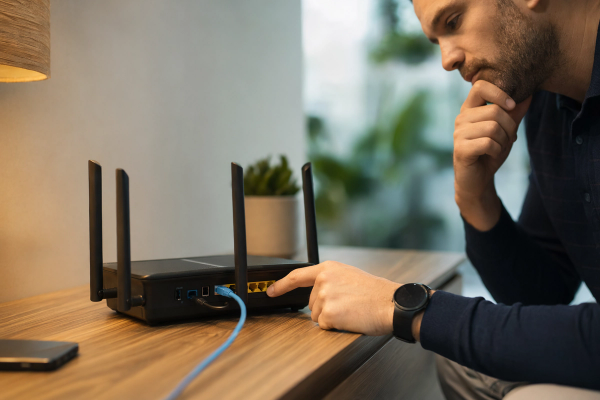
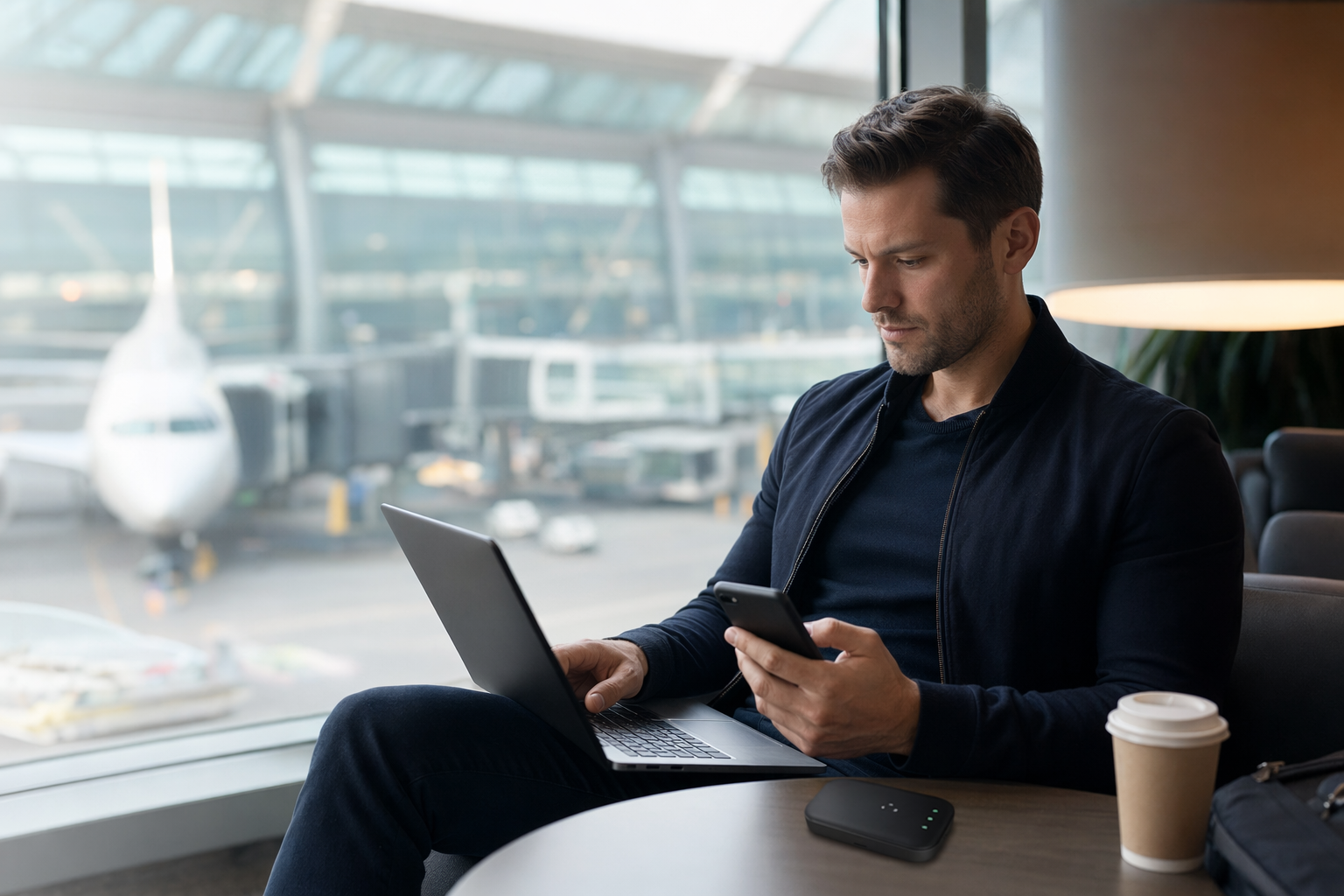
#A mobile hotspot is basically your phone sharing its cellular data connection over Wi‑Fi to your laptop or tablet. Your phone connects to the carrier network, then your laptop connects to your phone using a hotspot password. In simple terms, there are fewer strangers in the middle. You’re not sharing the same local airport Wi‑Fi network with 900 people who are all trying to watch Netflix and download boarding passes at the same time.
That’s why I prefer hotspots for account logins, work dashboards, cloud drives, password manager stuff, banking, and anything involving client data. It doesn’t mean cellular is magic fairy dust. Carriers can have outages. Your hotspot Wi‑Fi password can be weak. Your phone can be old and unpatched. Some laptops auto-join old hotspots with predictable names. But compared with open public Wi‑Fi, a properly configured hotspot usually gives you a cleaner trust model. Less random local-network chaos. Less “is this actually the airport network?” drama.
My current routine is almost muscle memory now: I rename my phone hotspot to something boring that doesn’t identify me, use a long password, connect laptop, do the sensitive stuff, then switch it off when I’m done. I don’t leave it running forever because battery. Also because I once forgot my hotspot was on during a two-hour layover and my laptop decided that was the ideal time to sync a huge photo folder. Beautiful. Absolutely cooked my data allowance.
| Situation | Airport public Wi‑Fi | Mobile hotspot |
|---|---|---|
| Checking flight status or reading news | Usually fine if you’re on the real network and using HTTPS | Also fine, but maybe wastes data |
| Logging into bank, work email, cloud storage | I avoid it unless I’m using a trusted VPN and everything looks right | My first choice most of the time |
| Long video call | Can be better if the airport Wi‑Fi is strong | Can work great, unless cellular signal is weak or data is limited |
| International travel | Free and tempting, but network names can be confusing | Great with roaming/eSIM/local SIM, but costs vary |
| Battery life | Doesn’t drain phone as much | Hotspot eats battery like it’s hungry |
| Privacy from nearby users | Riskier on open or badly configured networks | Usually better, assuming strong hotspot password |
The “evil twin” thing sounds dramatic, but it’s real enough
#People love saying “evil twin attack” because it sounds like a spy movie, but the basic idea is simple: someone creates a Wi‑Fi network that looks like the legitimate one. If the real airport network is called “AirportFreeWiFi,” the fake one might be “Airport Free WiFi” or “AirportFreeWiFi_5G.” You connect because you’re rushing. Then the attacker can try to push you through a fake portal, collect info, redirect you, or just observe what they can. HTTPS protects a lot, yes. But not every app behaves perfectly, and phishing still works disgustingly well.
This is where I think people get too black-and-white. Some security folks talk like public Wi‑Fi is radioactive. Some normal users are like “I’ve used it for ten years and nothing happened.” Both are kinda right and kinda wrong. The risk depends on what you’re doing, what network you joined, how updated your device is, whether you’re using MFA, whether you fall for fake portals, whether your apps validate certificates properly, and honestly whether you’re tired and impatient. Human factors matter so much. Maybe more than the tech sometimes.
One tiny habit that helps: ask the airport staff or check official signage for the exact Wi‑Fi name. Not “close enough.” Exact. And if the portal asks you to install a profile, certificate, browser extension, VPN app, “security scanner,” or anything like that just to browse the web? I personally nope out. Maybe there are legitimate enterprise situations where certificates make sense, but at a public airport? Nah. I’m not doing that while balancing coffee and a backpack.
VPNs help, but they are not a personality trait
#I use a VPN on public Wi‑Fi a lot. It creates an encrypted tunnel from your device to the VPN provider, which makes local snooping much harder and reduces some public-network risk. That’s good. But VPNs are not a magic shield against every bad decision. If you type your password into a fake airline login page, the VPN will politely encrypt your mistake all the way to the scammer. Very secure mistake. Congratulations.
A VPN also shifts trust. Instead of trusting the airport network, you’re trusting your VPN provider with parts of your traffic. That might be totally fine if it’s a reputable paid provider or your company VPN. It might be less fine if it’s some random free VPN app with weird permissions and a logo that looks like it was made in MS Paint. I’m not saying every free VPN is evil, but I’ve seen enough shady mobile apps to be allergic to that whole category.
My rule is simple-ish: if I must use airport Wi‑Fi for work or sensitive browsing, I turn on my VPN before doing anything else. If the VPN won’t connect, I either use hotspot or wait. Annoying? Yes. Has it saved me from making sketchy choices? Also yes. Security is often just putting enough friction in front of your tired airport brain.
The underrated part: authentication before you even travel
#Airport Wi‑Fi safety isn’t only about the network. It’s also about what happens if someone gets your password, or if you accidentally land on a phishing page, or if your email session gets weird. Multi-factor authentication matters a ton here. I’m a big fan of authenticator apps and security keys for important accounts, and I’m less excited about SMS codes, especially while traveling because SIM swaps, roaming issues, delayed texts, and all that lovely chaos.
Before big trips, I check that my password manager works offline enough for emergencies, my recovery codes are stored safely, and my important accounts have decent MFA. If you’re still deciding between app codes, text messages, and hardware keys, this breakdown on Authenticator App vs SMS Codes vs Security Key: What Should You Use to Protect Your Accounts? is actually a useful rabbit hole. I know MFA sounds unrelated to airport Wi‑Fi, but it’s not. The network is just one layer. Your login setup is the next one, and sometimes it’s the layer that saves you.
When I still use airport Wi‑Fi, because I’m not a monk
#Look, I’m not going to pretend I never use airport Wi‑Fi. I absolutely do. If I’m downloading a movie before a flight, updating a huge app, syncing a podcast queue, or doing low-risk browsing, airport Wi‑Fi can be great. Some airports have genuinely solid networks now. I’ve had airport Wi‑Fi speeds that embarrassed my home connection. And sometimes hotspot just isn’t realistic. Maybe your phone is at 12%. Maybe your carrier signal is trash inside the terminal. Maybe roaming costs are horrifying. Maybe you need to upload a 2GB video and your data plan is already sobbing.
So my real-life answer is not “never use public Wi‑Fi.” It’s “match the connection to the task.” That sounds like a boring consultant phrase, sorry, but it’s true. I’ll use public Wi‑Fi for casual stuff, but I avoid logging into sensitive accounts unless I’m on VPN and I’ve verified the network. For anything involving money, work admin, tax documents, medical portals, passport scans, or password manager changes, I use mobile hotspot if I possibly can. If I can’t, I wait. Most things can wait 40 minutes. Not all, but more than my impatient brain thinks.
My basic airport Wi‑Fi rules, messy but effective
#- I don’t auto-join public networks. I turned that off after my laptop kept clinging to every café Wi‑Fi like a lost puppy.
- I verify the official network name from airport signs, staff, or the airport app if I already trust it.
- I avoid any Wi‑Fi portal that asks me to install certificates, extensions, “secure browsers,” or mystery apps. Big nope.
- I use VPN on public Wi‑Fi for work and sensitive browsing. If it fails, I switch to hotspot or wait.
- I keep file sharing and AirDrop-style discovery locked down in public places. I don’t need strangers seeing my device name, which used to include my actual name because I am apparently a genius.
- I don’t do banking on random open Wi‑Fi unless there’s no other choice, and even then I’d rather use the bank’s app over a browser.
- I forget one of these rules occasionally, because humans. Then I get annoyed and fix it.
Hotspots have their own annoying little problems
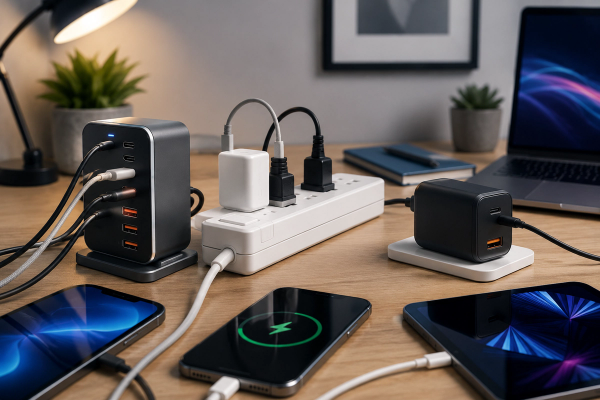
#The mobile hotspot fan club sometimes forgets to mention the tradeoffs. First: battery. Hotspot mode can absolutely chew through your phone battery, especially if your laptop is pulling updates or cloud syncs. I carry a power bank because I’ve learned this lesson more than once, usually while sitting on the floor near a crowded outlet like a gremlin. And while we’re talking airport charging, don’t just jam your phone into random USB ports without thinking. If you’re comparing safer ways to stay connected while traveling, the same mindset applies to power too — I liked this practical piece on USB Data Blocker vs Charge-Only Cable: Which Should You Use for Public Charging? because airport USB ports are another one of those “probably fine, but why risk it?” things.
Second: data limits. Some mobile plans throttle hotspot speeds after a certain amount of usage, and some international roaming plans make hotspot usage expensive or awkward. Don’t discover that at the gate. I’ve done the thing where I thought I had plenty of data, then my laptop pulled an OS update and suddenly I’m rationing megabytes like it’s a survival game. Now I set my laptop connection as metered when I’m using hotspot, especially on Windows. On macOS I’m more manual about pausing cloud sync, updates, photo backup, all that stuff.
Third: signal. Cellular inside airports can be weird. Concrete, glass, crowds, basement gates, overloaded towers — sometimes your 5G icon is basically decorative. I’ve had moments where public airport Wi‑Fi was faster and more stable than my hotspot by a mile. In those moments, yeah, I’ll use the airport Wi‑Fi with VPN. Security is important, but so is actually getting your boarding pass to load before the gate closes.
International travel changes the math a lot
#At home, using hotspot is easy because I know my plan. Abroad, it gets spicy. Roaming can be expensive, local SIMs can be inconvenient, eSIMs are amazing until they aren’t, and some services still expect SMS OTPs on your home number. This is where planning saves you. I’ve started setting up eSIMs before I fly when possible, because landing and immediately having data feels like a superpower. No hunting for airport Wi‑Fi just to book a ride or message someone.
But eSIM vs local SIM depends on the country, your phone, your need for calls/SMS, and whether you care about keeping your primary number active. For example, travelers from India heading to Southeast Asia often have to think about OTPs, roaming packs, WhatsApp, and hotspot data all at once. This guide on Malaysia eSIM vs Local SIM for Indian Travelers fits that exact problem pretty well. Even if you’re not going to Malaysia, the thinking pattern is useful: don’t treat airport Wi‑Fi as your only backup plan.
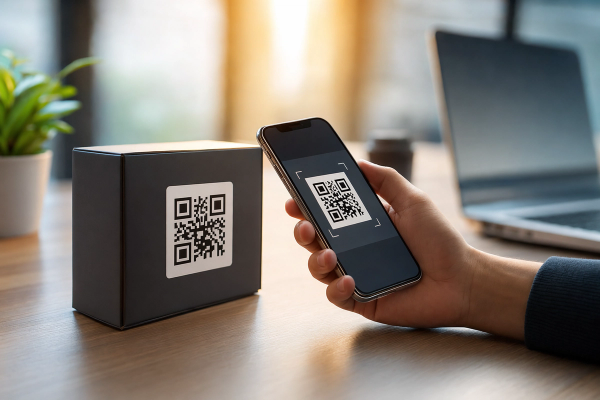
My personal travel setup now is: primary SIM stays active for important OTPs if needed, travel eSIM handles data, phone hotspot handles laptop work, and airport Wi‑Fi is the fallback. That sounds organized. In reality I still end up crouched near baggage claim trying to figure out why my eSIM QR code email won’t load because I forgot to screenshot it. Progress, not perfection.
The settings I change before sitting at the gate
#This is the nerdy part I actually enjoy, because it feels like prepping a little digital travel kit. Before I travel, I update my laptop and phone. Not at the airport, before. I make sure my VPN app is logged in and working. I disable auto-join for public networks. I check that my hotspot password is not something embarrassing like “password123airport” — please don’t. I also rename the hotspot to something that doesn’t reveal my full name or device model. “Aarav’s iPhone 15 Pro Max” is basically a tiny billboard.
On my laptop, I set public networks as public, not private. Windows is pretty clear about this now, but people still click too fast. Public network mode reduces discoverability and sharing. On macOS, I make sure sharing services are off unless I need them. I also keep Bluetooth sharing off. I’m not saying Bluetooth is the main airport threat, but why leave doors open?
- Turn off auto-join for airport and café networks you used in the past. Old saved networks are sneaky.
- Use a long hotspot password. Not your phone number, not your dog’s name, not your birthday with an exclamation mark.
- Set laptop hotspot connections as metered when possible, so cloud apps don’t eat your data.
- Update apps before leaving home, not on sketchy Wi‑Fi while half-asleep.
- Keep a VPN ready, but don’t treat it like a cure for phishing.
- Log out of sensitive sessions you don’t need while traveling. Less open stuff, fewer headaches.
Public Wi‑Fi is safer than it used to be, but people are still people
#One thing that gets lost in these discussions: the web itself has improved. HTTPS everywhere, stricter browser warnings, app sandboxing, certificate validation, private relay-type features on some platforms, randomized MAC addresses on modern phones — all of this helps. Your device is not walking around naked like it did in the old days. That’s good news, and I don’t want to fearmonger.
But the attacker’s job also changed. Instead of only sniffing traffic, they can phish, trick, redirect, impersonate, and exploit impatience. If your browser says the certificate is wrong and you click through because “I just need to send this one email,” that’s not a Wi‑Fi problem anymore. That’s a human problem. And I say this with love because I have clicked through warnings in my younger, stupider days. The browser was screaming. I was like, shhh, I know better. I did not know better.
My rule now: if the connection or login flow feels weird, I stop. Not investigate while logged in. Not “just one quick thing.” Stop, switch networks, or wait.
My actual recommendation, if you just want the answer
#If you’re asking “airport public Wi‑Fi or mobile hotspot?” my answer is: use mobile hotspot for sensitive stuff, use airport Wi‑Fi carefully for low-risk stuff, and keep a VPN as a backup layer. That’s it. Not sexy. Very practical. If you’re working with confidential data or logging into accounts that could ruin your week if compromised, hotspot wins most of the time. If you’re watching YouTube, checking the weather, reading articles, or downloading a boarding pass from an airline app, airport Wi‑Fi is probably fine if you joined the real network and your device is updated.
For families or less technical travelers, I’d simplify it even more: don’t do banking or password changes on airport Wi‑Fi, don’t install anything a Wi‑Fi portal tells you to install, don’t ignore scary browser warnings, and use your phone hotspot when money or work accounts are involved. Also carry a power bank. Actually carry two if you’re travelling with kids, because somehow everyone’s battery is always at 3% at the same time. Science cannot explain it.
For tech people, I’d add: run a trusted VPN, use MFA that isn’t only SMS where possible, keep OS and browser updates current, turn off local discovery, use DNS-over-HTTPS if you understand the tradeoffs, and set your laptop to treat hotspot as metered. Also audit your saved Wi‑Fi networks once in a while. I did this recently and found networks from hotels I stayed at five years ago. Why was my laptop still emotionally attached to them? No idea.
Final boarding thoughts
#Airport connectivity is one of those tiny modern miracles we take for granted. I can sit in a terminal in another country, hotspot my laptop from a phone the size of a chocolate bar, join a video call, upload code, message family, and complain about the boarding queue in real time. That’s genuinely wild. I love this stuff. But the more connected we get, the more we need boring little habits that protect us from our own rushed decisions.
So yeah, I’m team mobile hotspot for important things. But I’m not anti-airport Wi‑Fi. I’m anti-careless. Public Wi‑Fi is a tool, hotspot is a tool, VPN is a tool, MFA is a tool. The trick is using the right one at the right moment instead of treating convenience like it’s the same as safety. And if you’re building your own travel tech checklist, keep reading practical guides and comparing real-world tradeoffs — I’ve found plenty of useful, non-stuffy tech explainers on AllBlogs.in, especially for these everyday security decisions that don’t feel urgent until you’re stuck at Gate 27 with 9% battery and a login page asking weird questions.