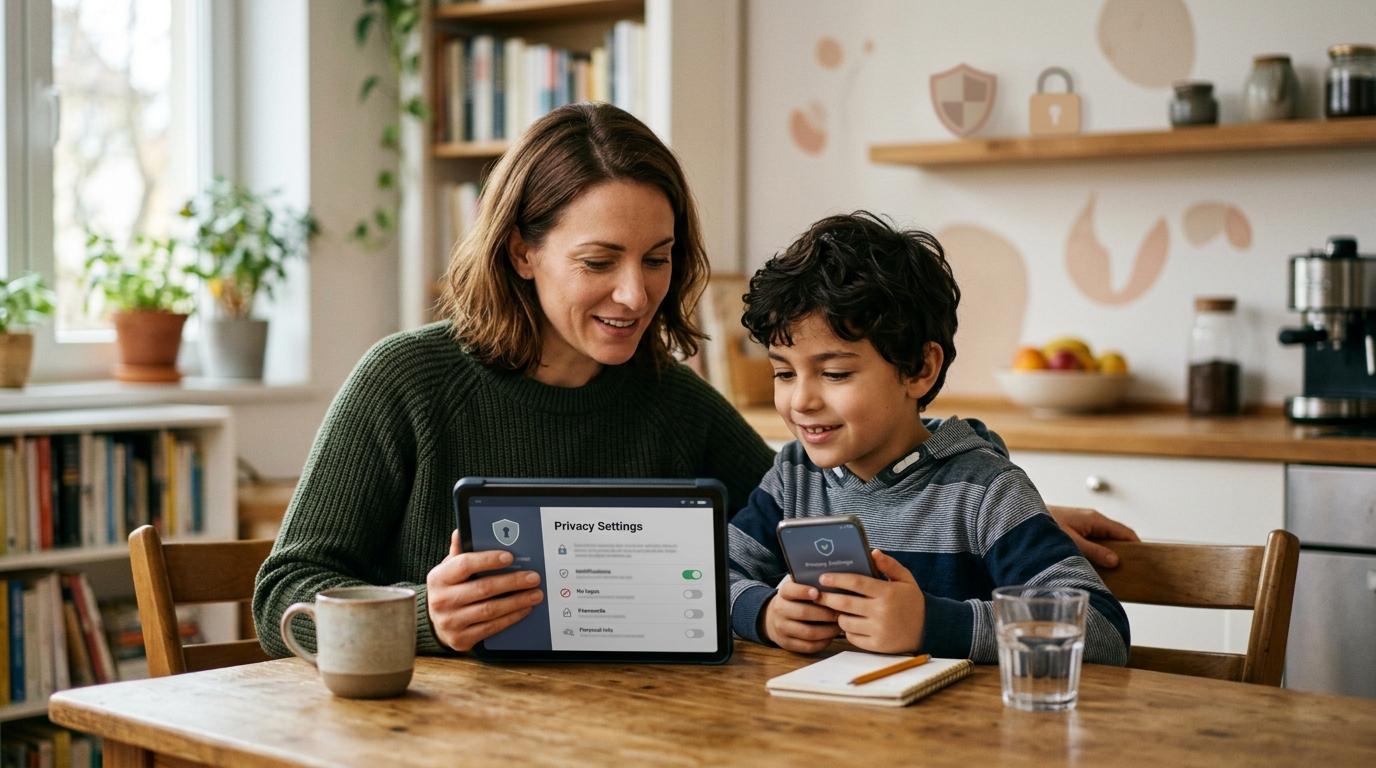
A useful child online safety checklist starts with safer privacy settings, not secret monitoring. Set device-level parental controls, require app approval, limit WhatsApp groups, review location and app permissions, check AI app data settings, and teach scam warning signs with your child before problems appear.
Online safety works best when children understand the rules. The goal is not to scare them or watch every tap. The goal is to make everyday apps, chats, games, school tools and AI helpers safer by default.
Quick Parent-Child Setup Checklist
#Use this checklist when your child gets a new phone, tablet, laptop, smartwatch, gaming account, messaging app or AI homework tool.
- Update the phone, tablet or computer software.
- Set up Apple Screen Time or Google Family Link.
- Require approval for app downloads and in-app purchases.
- Review app permissions for location, camera, microphone, photos and contacts.
- Limit location sharing to trusted family use only.
- Set WhatsApp profile, groups, status and live location privacy.
- Review school, gaming and group chats for unknown members or strange links.
- Check AI app settings for chat history, memory, personalization and training.
- Teach children not to enter personal information into AI prompts.
- Agree that they can ask for help without automatically losing the device.
Why Privacy Settings Should Come Before Monitoring
#Parents often jump straight to monitoring apps because they want quick reassurance. But basic privacy settings usually reduce risk earlier.
They can help limit who can contact your child, stop random group invitations, reduce surprise purchases, block unnecessary location access and make children less visible to strangers. Official consumer-safety guidance from organizations such as the FTC and child-safety resources from groups like UNICEF consistently frame parental controls as support tools, not substitutes for family conversations.
Think of online safety like teaching road safety. You are not trying to make your child afraid of every road. You are teaching them to pause, look around and make safer choices.
Device-Level Controls: Start Here
#Device controls work across many apps, so they are the best first layer.
For iPhone and iPad
#Use Apple Screen Time through the child’s device or Family Sharing.
Check:
- Content & Privacy Restrictions
- App age ratings
- Ask to Buy or purchase approval
- Downtime for sleep or study routines
- Communication limits for younger children
- Account-change and privacy-change restrictions
Keep the rules realistic. A calm bedtime setting that your family follows is better than strict controls that become a daily fight.
For Android and Chromebook
#Use Google Family Link for child Google accounts on supported Android devices and Chromebooks.
Check:
- Google Play app approval
- In-app purchase approval
- Daily screen time and bedtime
- App permissions
- YouTube and web settings
- Location sharing settings
Filters help, but they are not perfect. Use them as a safety layer, then keep talking about what your child sees online.
Lock Down App Downloads and Purchases
#Many safety problems begin with one quick download. A child may install a game because friends use it, tap a free trial without understanding billing, or accept every permission just to enter the app.
Before approving an app, ask:
- Can strangers message my child here?
- Can others find them by phone number, email or username?
- Does the app show location?
- Does it request contacts, camera, microphone or all photos?
- Does it include public comments or group chats?
- Are there in-app purchases or subscriptions?
- Does the app collect data for ads or personalization?
You do not need to be a security expert. You just need a pause point before the app becomes part of daily life.
Review Kids Privacy Settings App by App
#After device controls, review the apps your child actually uses. Start with messaging, gaming chats, video apps, AI tools, school accounts, social apps and photo-sharing apps.
Look for settings named Privacy, Safety, Account, Visibility, Messages, Contacts, Location, Data controls, Personalization or Ads.
Use this simple rule:
If an app does not need a permission to work, turn that permission off.
For children, safer defaults usually mean:
- Messages limited to friends or contacts.
- Profiles not public.
- Location off unless clearly needed.
- Limited photo access when available.
- Contacts access denied unless necessary.
- Public tagging or group adding restricted.
The aim is not to make every app unusable. It is to make sure your child is not more visible, searchable or reachable than they need to be.
WhatsApp Safety for Kids and Group Chats
#WhatsApp is useful for family, school, tuition, sports and community groups. It can also become messy quickly if unknown people add children to groups or share suspicious links.
Open WhatsApp and go to:
Settings > Privacy
Check these settings:
Talk through group chats calmly. Ask which groups your child is in, who added them, whether they know everyone, and whether anyone has shared strange links, private photos, money requests, codes or threats.
Simple family rules help:
- Do not click unknown links in group chats.
- Do not share passwords, OTPs or verification codes.
- Do not forward private photos or screenshots.
- Ask before joining groups with unknown people.
- Show a trusted adult any message that asks for secrecy, money, codes or personal photos.
AI App Privacy for Students
#AI tools can help with brainstorming, translation, explanations, practice questions and study support. The risk is that children may treat AI apps like private notebooks. They are not private diaries.
For every AI app or website your child uses, check settings such as:
- Chat history
- Memory
- Personalization
- Data controls
- Training or “improve the model”
- Connected apps
- Export or delete data
Where available, turn off extra data use for training or product improvement, especially for a child’s schoolwork or personal questions.
Teach the zero personal info rule. Children should not type these into AI tools:
- Full name
- Home address
- Phone number
- School name
- Student ID
- Passwords
- OTPs or verification codes
- Private family information
- Medical details
- Photos of identity documents
- Private messages from friends
A helpful phrase is:
If you would not write it on a classroom whiteboard, do not put it into an AI prompt.
Scam and Suspicious Message Warning Signs
#Children can be targeted through games, social apps, chats, email and video comments. The message may look fun, urgent, friendly or official.
Teach your child to pause when they see:
- Urgency — “Click now,” “last chance,” or “your account will be deleted.”
- Free rewards — gaming coins, skins, diamonds, Robux or V-Bucks from unknown links.
- Strange links from friends — “Is this you?” or “Vote for me.”
- Requests for passwords or codes — no real friend or support agent needs these.
- Requests for secrecy — “Don’t tell your parents” is a major warning sign.
- Money or gift card requests — no payments without a parent or caregiver.
Make sure your child knows they can come to you even if they already clicked something. If every mistake turns into punishment, children may hide the next problem.
Location, Camera, Microphone and Contacts
#Location privacy is one of the most important family settings. Maps and family safety tools may need location. Many games, filters, quizzes and casual apps do not.
Review:
- Location access
- Live location sharing
- Photo location metadata
- Camera access
- Microphone access
- Full photo library access
- Contacts access
- Notifications
Notifications also matter. Game and social alerts can pull children back into apps repeatedly. Turn off alerts that create pressure, distraction or emotional spikes.
A Simple 20-Minute Privacy Setup Plan
#If this feels like a lot, start with one short session.
First 5 minutes: Turn on Screen Time or Family Link, app approval and purchase approval.
Next 5 minutes: Review permissions for location, camera, microphone, photos and contacts.
Next 5 minutes: Set WhatsApp Groups to My Contacts, limit profile visibility and check Live Location.
Last 5 minutes: Review AI app data settings, explain the zero-personal-info rule and teach scam warning signs.
That is enough for today. You can tighten more settings later.
Internal AllBlogs Reading Suggestions
#For related privacy-first habits, readers may also find these AllBlogs guides useful:
- Google Account Security Checklist: Passkeys, 2-Step Verification, and Recovery Setup
- WhatsApp Two-Step Verification Checklist: PIN, Recovery Email and Scam-Safe Setup
- App Permissions Audit: What to Allow or Deny
- AI Companion App Privacy Checklist: What to Check Before You Chat
- Fake Delivery Text Message Checklist: How to Spot Package Scams Before You Tap
Source-Aware Notes
#This guide uses general digital-safety education and source-aware wording from official and widely recognized child-safety guidance, including the FTC’s online safety resources, Google Family Link documentation, Apple Family Sharing and Screen Time guidance, UNICEF child online safety and privacy resources, and public online-safety guidance around parental controls. Platform settings can change, so parents should always check the latest settings inside the actual app or device.