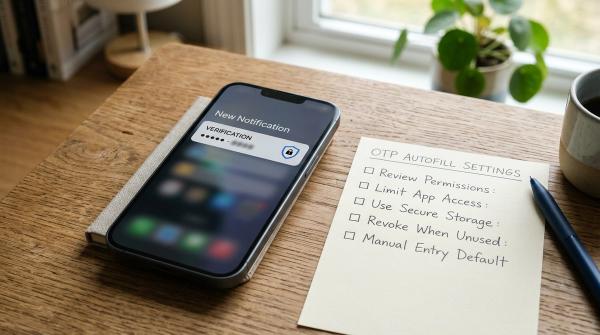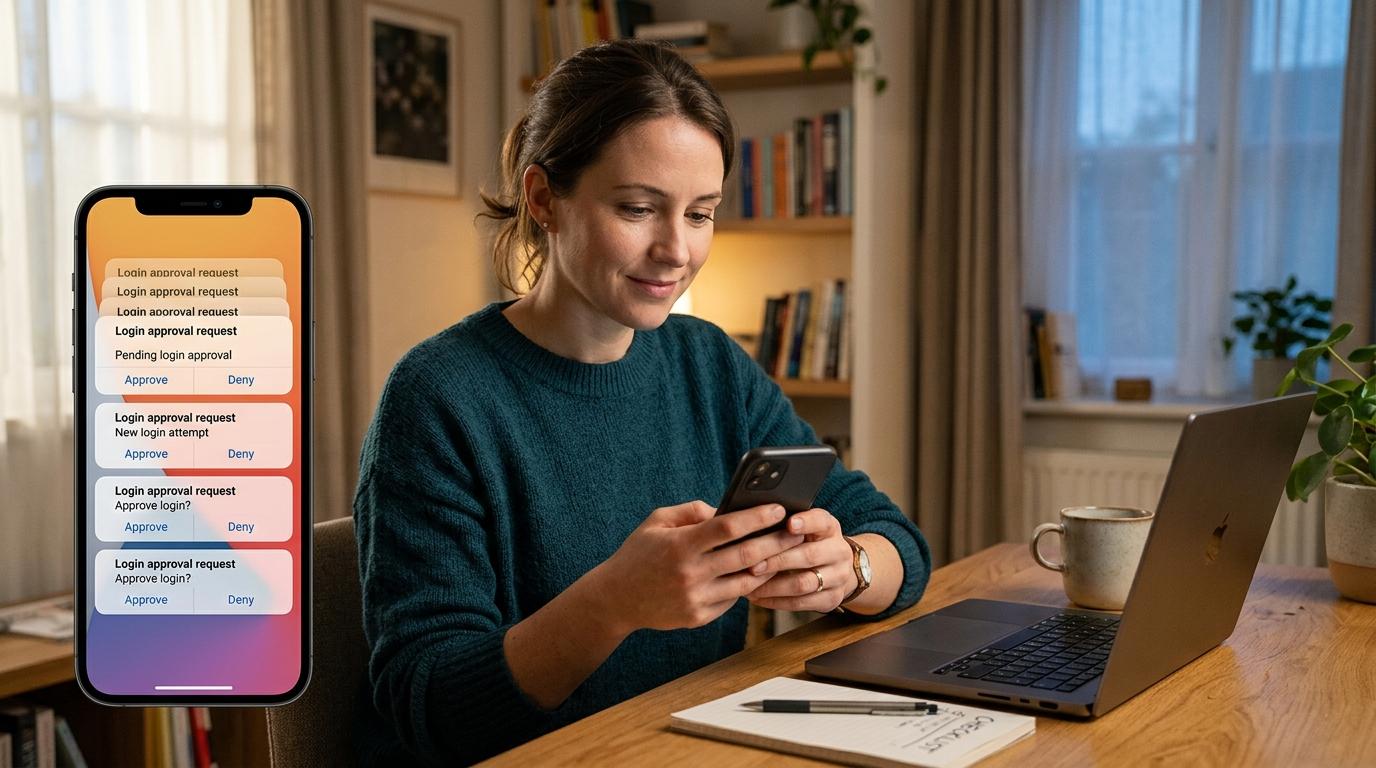
Your phone buzzes. Then it buzzes again. Each time, it is the same kind of message: “Approve sign-in?” or “Is this you trying to log in?”
If you did not just try to sign in, do not approve it. Repeated MFA prompts you did not request can be a sign of an MFA fatigue attack, also called MFA prompt bombing or push bombing. Deny the prompt, avoid message links, open the real account site yourself, change your password, check signed-in devices, and contact IT if it is a work or school account.
MFA fatigue and prompt bombing, explained simply
#People often use MFA fatigue, MFA prompt bombing, and push bombing to describe the same account-safety problem.
MFA prompt bombing is the tactic: someone repeatedly tries to sign in so your authenticator app or phone keeps showing approval requests.
MFA fatigue is the reaction the attacker wants: they hope you get tired, annoyed, distracted, or confused enough to tap Approve.
In security language, MITRE ATT&CK describes this as MFA request generation under technique T1621. For everyday users, the meaning is simple: someone may have your password, but they still need you to approve the login.
The safest rule is:
If you did not start the login, do not approve the prompt.
Why am I getting repeated login prompts?
#A normal MFA prompt appears after you sign in with your password. For example, you open Gmail, Microsoft 365, Apple iCloud, a school portal, or a work account, then your phone asks you to approve that login.
A suspicious MFA prompt appears when you did not do anything.
If the prompts keep coming, it often means someone is trying to use your password from another device. They may have found it in a data breach, guessed it, stolen it through a fake login page, or obtained it another way. They are stuck at the MFA step, so they keep trying.
The prompts are annoying, but they are also useful warning signs. They tell you the second factor may still be blocking the login. You still have time to protect the account.
What to do immediately if you get MFA prompts you did not request
#1. Do not tap “Approve”
#Do not approve any login you did not personally start. Not because the alerts are annoying. Not because you are busy. Not because the prompt looks official.
If the app gives you an option such as Deny, No, it’s not me, Report fraud, or This wasn’t me, use that option. If there is no clear safe option, ignore the prompt and continue with the next steps.
2. Do not click “security” links from messages
#Attackers sometimes combine prompt bombing with fake texts, emails, or chat messages. Be careful with messages that say things like:
- “Suspicious login detected. Click here to secure your account.”
- “Your account will be locked unless you verify now.”
- “IT support needs you to approve the prompt.”
- “Reply with the code to stop these alerts.”
Do not click the link. Do not reply with a code. Do not send screenshots of the prompt.
Instead, open the official app yourself or type the account website directly into your browser. A trusted bookmark is fine too.
3. Change your password from a trusted device
#Use a device you normally use and trust. Go directly to the official website or app, then change your password.
Your new password should be:
- Long
- Unique to that account
- Not reused anywhere else
- Stored in a password manager, if you use one
This matters because repeated MFA prompts often mean the attacker already knows your current password. Changing it can stop the login attempts.
4. Sign out of unknown devices and active sessions
#After changing the password, look for account settings with names like:
- Your devices
- Signed-in devices
- Active sessions
- Where you’re signed in
- Manage devices
- Sign out everywhere
Remove anything you do not recognize. If the account offers sign out of all other sessions, use it. This can help kick out anyone who may already have access.
5. Check recovery options
#Now check account recovery settings:
- Recovery email addresses
- Recovery phone numbers
- Backup authentication methods
- Trusted devices
- Account recovery contacts
- 2FA recovery codes
Make sure everything belongs to you. Remove anything unfamiliar. If the service lets you generate fresh 2FA recovery codes, do that after securing the account. Store them in a password manager or another safe place, not in an unprotected note, screenshot, or chat thread.
6. Contact IT for work or school accounts
#If the account belongs to your workplace, school, college, or any organization, do not handle it alone. Contact the help desk, IT administrator, or security team as soon as possible.
You can say:
“I’m receiving repeated MFA prompts that I did not request. I denied them. Can you check my account sessions and reset my sign-in methods if needed?”
If you accidentally approved one, say that too. Quick reporting helps security teams check sign-in logs, revoke sessions, reset MFA methods, and block suspicious activity.
What not to do
#Avoid these rushed mistakes:
- Do not approve the prompt just to make it stop.
- Do not turn off MFA.
- Do not click “security” links from unexpected messages.
- Do not share MFA codes with anyone.
- Do not share recovery codes.
- Do not send MFA screenshots to strangers or random “support” accounts.
- Do not assume everything is fine just because the account still opens.
You do not need to panic, but you should treat the prompts seriously.
Account-specific checklist
#Google accounts, including Gmail, YouTube, and Drive
#- Go directly to your Google Account.
- Open Security.
- Review Your devices or Manage all devices.
- Sign out of devices you do not recognize.
- Review recovery email and phone number.
- Check Third-party apps with account access.
- Remove unfamiliar apps or services.
- Change your password if you have not already.
- Review 2-Step Verification settings.
- Generate fresh recovery codes if needed.
Microsoft accounts, including Outlook, Microsoft 365, Office, and Xbox
#- Go directly to your Microsoft account.
- Open Security.
- Review Advanced security options.
- Check sign-in methods, including authenticator apps, email addresses, and phone numbers.
- Remove anything you do not recognize.
- Review devices and sessions.
- Use sign-out options if available.
- Change your password.
- If you use Microsoft Authenticator, read prompts carefully.
Microsoft Authenticator often uses number matching, where the sign-in screen shows a number and the app asks you to enter that number. This is safer than a simple approve-or-deny prompt because it makes blind approval harder.
Apple accounts, including iCloud and Apple ID
#- On your iPhone, iPad, or Mac, open Settings or System Settings.
- Select your name or Apple Account.
- Review signed-in devices.
- Remove any device you do not recognize.
- Open Sign-In & Security.
- Check trusted phone numbers.
- Review account recovery options.
- Change your password if needed.
- Be careful with unexpected sign-in requests or verification prompts.
Safer MFA options and trade-offs
#CISA recommends phishing-resistant MFA where possible. If that is not available, number matching can still reduce the risk of fatigue-based approvals.
If you change only one thing, move away from simple Approve prompts whenever your account offers a safer option.
How to reduce the risk next time
#Use unique passwords
#Password reuse is one of the biggest reasons one account problem turns into many account problems. If you use the same password on multiple sites and one site has a breach, attackers may try that password everywhere.
Use a different password for every important account. A password manager can make this realistic.
Turn on stronger MFA where available
#Look for options such as:
- Passkeys
- Hardware security keys
- Number matching
- Authenticator app codes
- Recovery codes
If basic push MFA is your only option, keep using it carefully. MFA is still better than no MFA. Just remember: if you did not start the login, deny the prompt.
Store recovery codes safely
#2FA recovery codes are backup keys for your account. Store them in a password manager, a secure offline location, or a printed copy kept somewhere private. Do not send them through chat or email. Real support teams should not need your recovery codes.
Review account activity after warning signs
#Check recent sign-ins, devices, and security events after:
- An unexpected MFA prompt
- A password reset email you did not request
- A suspicious login alert
- A lost phone or laptop
- Any message that makes you think something is off
A quick review can help you catch problems early.
Bottom line
#Repeated MFA prompts are not just annoying. They can be a warning sign that someone is trying to use your password.
Do not approve a login you did not start. Deny the prompt. Open the real account site yourself. Change your password. Sign out unknown devices. Check recovery options. If it is a work or school account, contact IT.
Then, when things calm down, upgrade your MFA if you can. Number matching, passkeys, and hardware security keys are safer choices than basic push approval.
The simple rule is still the best one:
If you did not start the login, do not approve the prompt.
Source notes
#- CISA recommends phishing-resistant MFA and notes that number matching can help when push MFA remains in use.
- MITRE ATT&CK technique T1621 describes MFA request generation.
- Microsoft Authenticator number matching asks users to enter the number shown on the sign-in screen.