If you want to make a shared family device more private, start with the simplest fix: give people their own space.
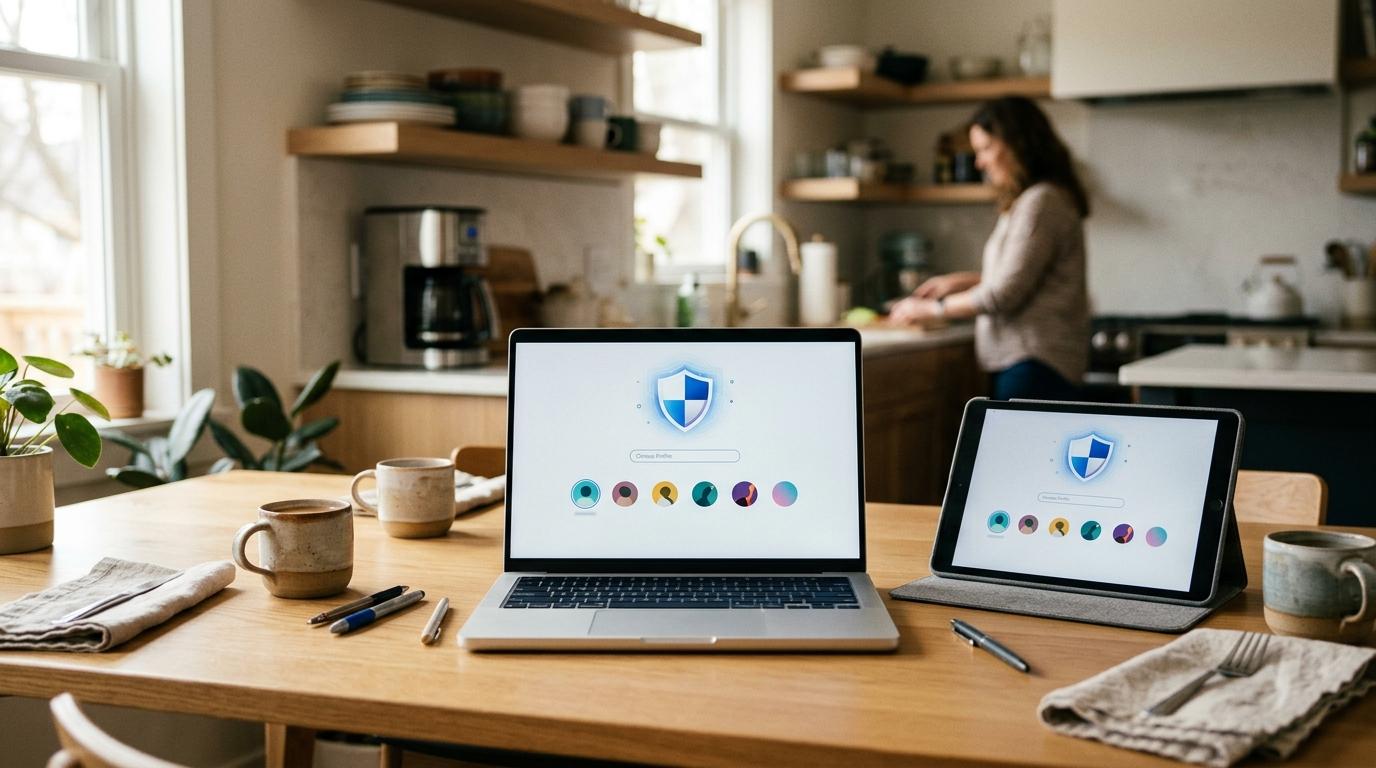
That usually means separate user profiles.
Not a fancy privacy app. Not a weekend of complicated settings. Just separate sign-ins for the people who use the device most.
Use separate Windows accounts, macOS accounts, or Android multi-user profiles if your device supports them. For children, use child accounts with built-in tools like Apple Screen Time, Apple Family Sharing, or Microsoft Family Safety.
And if your family really does have to share one login? You can still reduce the chaos. Use separate browser profiles, open Guest Mode for visitors, clean up autofill, review saved passwords, and check app permissions once in a while.
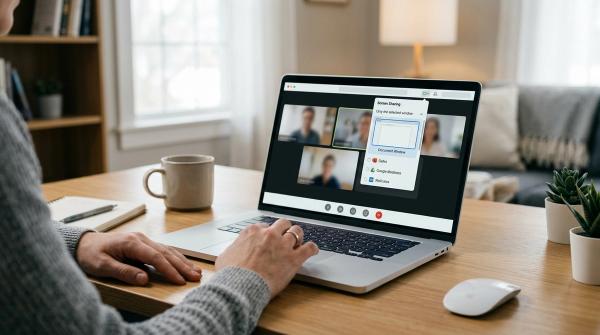
A shared device at home is completely normal. One tablet might be used for homework, cartoons, video calls, recipes, online shopping, and paying bills all in the same day. A laptop might live in the living room where anyone can open it. A phone might get handed to a child during a long car ride.
That convenience is useful. But privacy can get messy fast.
Most shared device privacy problems are not dramatic hacks. They’re everyday accidents.
A saved card fills in for the wrong person. A child opens a parent’s email. Someone’s search history appears in another person’s account. A medical PDF sits in Downloads for months. A browser keeps someone signed in long after they forgot about it.
The goal is not to make family tech annoying. The goal is to give everyone a little breathing room, so people can use the same device without stumbling into each other’s private stuff.
Quick rule: profiles first, settings second
#The safest setup is usually:
- Separate user profiles on the device for each regular user.
- Child accounts and parental controls for younger users.
- Separate browser profiles if separate device profiles are not practical.
- Guest Mode for visitors or quick one-time use.
- Careful settings for autofill, passwords, passkeys, app permissions, location, and downloads.
If you only do one thing, create separate device user accounts.
That one step does more for shared tablet privacy, family laptop safety, and shared computer privacy than most small settings tweaks.
Separate user profiles vs. one shared login
#Before changing browser settings or installing anything new, decide how the device should actually be shared.
There are two common options.
Option 1: Separate user profiles
#Separate user profiles mean each regular person gets their own sign-in on the device.
On a laptop or desktop, that might mean each person has their own Windows, macOS, or other operating system account. On some Android tablets and phones, it may mean using Android multi-user profiles. Support depends on the device model and manufacturer, so check your settings.
This is usually the best option because each person gets a more separate space for:
- Desktop or home screen layout
- Files and downloads
- Browser history
- Saved accounts
- App settings
- Some device preferences
It also makes parental controls much easier. A child account can have different limits than an adult account.
At first, this can feel like extra work. Everyone has to pick their own profile and sign in. But after a few days, it usually prevents far more confusion than it creates.
Option 2: One shared login
#A shared login means everyone opens the same device account.
Maybe the family computer goes straight to the desktop. Maybe the tablet is always unlocked. Maybe everyone knows the same PIN.
It’s convenient, but it mixes everyone’s activity together.
With one shared login, people may see the same:
- Downloads folder
- Browser history
- Saved passwords
- Signed-in accounts
- Autofill suggestions
- App data
- Notifications
If you must use one shared login, browser profiles and Guest Mode become much more important.
They’re not as strong as separate device accounts, but they do help prevent everyday mix-ups.
Set up child accounts and parental controls
#If children use the device, don’t rely only on “please don’t click that.”
Built-in child account tools are usually more consistent, and honestly, easier to manage.
Apple Screen Time and Family Sharing
#For Apple devices, families can use Apple Family Sharing with Screen Time for children.
Screen Time can help with:
- App limits
- Content restrictions
- Purchase approvals
- Downtime settings
- Communication limits
- Age-appropriate controls
This works best when a child uses their own child account on an iPhone, iPad, or Mac.
It also helps parents avoid handing over an adult Apple ID just so a child can use games, apps, or videos.
If a shared iPad is used by both children and adults, be extra careful with:
- Apple ID settings
- App purchases
- Messages
- Photos
- Browser history
- Saved accounts
Use Screen Time settings to reduce accidental access where you can.
Microsoft Family Safety on Windows
#For Windows laptops and desktops, create separate Windows user accounts.
For children, Microsoft offers Family Safety features that can help manage:
- Screen time
- Content filters
- App and game limits
- Activity settings
- Web and search controls
The big rule is simple:
A child should not use the parent’s main Windows account for everyday browsing, gaming, or schoolwork.
Create a child account, then apply the family settings to that account.
Android child accounts and multi-user profiles
#On supported Android tablets and some Android phones, Android multi-user features allow separate users on one device.
This can help keep apps, accounts, and activity more separate.
For children, use a child account where appropriate and review the family or parental control settings available on that device.
Android menus vary a lot by manufacturer, so the exact names may not match every guide you find online. If you can’t find “Users” or “Multiple users,” check your device’s support page.
Browser profile safety for shared devices
#Even if everyone has their own device account, browser settings still matter.
If your family shares one device login, browser settings matter even more.
A browser profile is a separate space inside a browser like Chrome, Edge, Firefox, or Safari. It can keep things like these separate:
- Bookmarks
- History
- Cookies
- Extensions
- Signed-in browser data
- Site settings
This helps with browser profile safety, especially when one family computer login is shared.
When to use separate browser profiles
#Use separate browser profiles when:
- Several family members use the same Windows or macOS login
- People keep seeing each other’s search history
- One person’s YouTube, shopping, or school account opens for another person
- Work, school, and personal accounts are getting mixed together
- You want bookmarks and browsing history separated without changing the whole device setup
For example, you might create browser profiles named:
- Parent
- Student
- Grandparent
- Shared household
- Schoolwork
Just remember: this is not perfect privacy.
Browser profiles are often easy to switch between, depending on the browser and setup. They’re best for preventing accidents, not for hiding sensitive information from someone who already has full access to the device.
When to use Guest Mode
#Use Guest Mode when someone only needs temporary access.
Guest Mode is useful for:
- Visiting relatives
- Babysitters
- Neighbors
- A friend checking email
- A child’s classmate using the laptop for a quick task
In Chrome Guest Mode, the guest does not use your regular browser profile. After the guest window is closed, the browser will not keep the same browsing history, cookies, and site data in your normal profile.
Still, Guest Mode is not a full privacy shield.
It does not make activity invisible to websites, school or work networks, Wi-Fi owners, or internet providers. Also, downloaded files may still remain on the device, depending on where they were saved.
After a guest uses the device, check Downloads.
Autofill cleanup: stop the browser from helping too much
#Autofill is great on a personal device.
On a shared device, it can reveal more than you meant to share.
Browsers can save and suggest:
- Names
- Home addresses
- Email addresses
- Phone numbers
- Payment card details
- Passwords
- Login forms
That’s where autofill privacy matters.
What to check in Chrome autofill and password controls
#In Chrome, review the autofill and password areas in settings.
The wording changes sometimes, but look for controls related to:
- Password Manager
- Payment methods
- Addresses and more
- Autofill suggestions
- Sign-in prompts
- Password saving
On a shared family device, consider turning off saved payment methods and saved addresses.
If everyone uses the same device login or browser profile, avoid saving passwords in the browser.
Also remove old entries that no longer belong there. A browser may remember an old address, a previous phone number, or someone else’s email from a form filled out months ago.
Clean up saved cards and addresses
#Check for:
- Old credit or debit card entries
- Home and work addresses
- Children’s school addresses
- Saved phone numbers
- Email addresses from other family members
- Forms filled out by guests
Delete anything that should not pop up automatically for the next person.
The point is not to remove every convenience. It’s to stop the device from offering private details to the wrong user.
Password managers and passkeys on shared devices
#Passwords need special care on shared devices.
A saved password can turn a quick browser session into full access to someone’s email, shopping account, cloud files, school portal, or work account.
Password managers are useful, but lock them properly
#A password manager can be safer than saving passwords directly in a shared browser profile, especially if each person has their own vault.
But on a shared device, the lock settings matter a lot.
Check your password manager settings for:
- Auto-lock after inactivity
- Lock when the browser closes
- Lock when the computer sleeps
- Requiring a master password, PIN, or biometric approval
- Not staying signed in forever
A practical setting is to make the vault lock quickly after inactivity.
Do not leave a password manager open all day on a shared computer.
If several people use the same device login, each person should avoid unlocking their password vault and walking away. It happens, of course, but it is not a safe habit.
Be careful with “keep me signed in”
#Many websites ask if you want to stay signed in.
On a personal device, that can be fine. On a shared family computer, it can be risky.
Avoid “keep me signed in” for:
- Cloud storage
- Banking or payment-related accounts
- School portals
- Work tools
- Medical portals
- Shopping accounts with saved payment details
This is not about mistrusting family.
It’s about preventing accidental access.
Passkeys on shared devices
#Passkeys can be a secure way to sign in, but they are often tied to the device, operating system profile, browser, or account setup.
On a shared device, ask one question before saving a passkey:
Who can unlock the place where this passkey lives?
If a passkey can be approved by the device PIN, Windows Hello, Touch ID, Face ID, or another local unlock method, then the safety of that passkey depends on who can use that unlock method.
For passkeys, separate operating system user profiles are strongly preferred.
Avoid setting up sensitive passkeys inside a shared login that multiple people can unlock.
App permissions: camera, microphone, contacts, photos, and more
#Shared devices collect permissions over time.
One person installs a video app. Another grants photo access. A game asks for microphone access. A school app requests file access.
After a while, nobody remembers what has access to what.
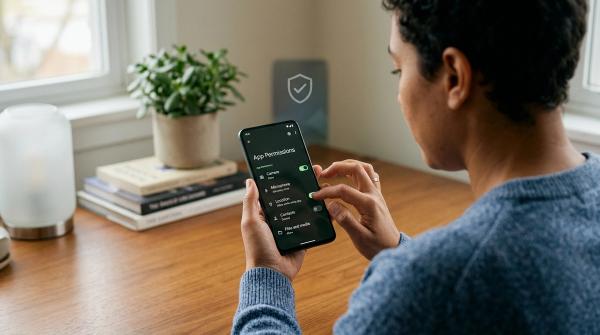
Review app permissions on shared tablets, phones, and laptops. Focus on:
- Camera
- Microphone
- Location
- Photos and videos
- Contacts
- Calendar
- Files and folders
- Bluetooth
- Notifications
Remove permissions that are not needed anymore.
For example:
- A video calling app may need camera and microphone access.
- A calculator app should not need location access.
- A game probably does not need contacts.
- A photo editing app may not need full photo library access forever.
On a shared device, permissions affect everyone.
Keep them narrow where possible.
Location sharing on family devices
#Location sharing can be helpful for families, but it can also get confusing on a shared device.
If a tablet or phone is signed in with one person’s account, location services may reflect that account, not the actual person holding the device.
That can cause misunderstandings.
Review location settings for:
- Device-level location services
- App-level location permissions
- Family location sharing tools
- “Find my device” features
- Photo location tagging
- Maps and weather apps
- Browser location access
Use location access only where it is useful.
For many apps, “while using the app” is better than always-on location access.
If a device is shared by adults and children, check that family location settings match how the device is actually used now — not how you thought it was used six months ago.
Downloads: the shared folder everyone forgets
#The Downloads folder is one of the most overlooked privacy spots on a shared computer.
It may contain:
- School forms
- Medical PDFs
- Tax documents
- Resume files
- ID scans
- Photos
- Work attachments
- App installers
- Game files
- Random files from websites
On a separate user profile, each person usually has their own Downloads folder.
On a shared login, everyone may see the same one.
Set a simple household rule:
If a file is private, move it out of Downloads right away.
Use a personal folder, a separate user account, or a private cloud storage account. Then delete the extra local copy if it is no longer needed.
Also empty the Downloads folder regularly.
Don’t let it become permanent storage. That’s how random private files end up sitting there for years.
Comparison table: which sharing setup is safest?
#Step-by-step shared family device privacy checklist
#Use this checklist when setting up a new family laptop, tablet, phone, or shared browser.
Step 1: Decide who uses the device
#List the regular users:
- Adults
- Children
- Students
- Seniors
- Guests
- Work or school users
Then decide whether each regular person needs their own device profile.
For most regular users, the answer should be yes.
Step 2: Create separate device profiles where possible
#Set up individual profiles or user accounts:
- Windows: Create separate Windows user accounts.
- Microsoft Family Safety: Use child accounts where appropriate.
- macOS: Use separate user accounts for each regular user.
- Android: Use Android multi-user profiles where available.
- Apple devices: Use separate Apple IDs where appropriate, and use Family Sharing and Screen Time for children.
Avoid having children use an adult’s main account for everyday activity.
Step 3: Set up child accounts and controls
#For children, review:
- Screen time limits
- App limits
- Content restrictions
- Purchase approval settings
- Download restrictions
- Web content settings
- Age-appropriate app access
Use Apple Screen Time, Apple Family Sharing, and Microsoft Family Safety where they fit your devices.
Step 4: Create browser profiles if the login is shared
#If the device must use one shared login, create separate browser profiles.
Suggested profiles:
- Parent
- Child
- School
- Guest household
- Grandparent
Remind everyone to use their own profile, especially before checking email, school accounts, shopping sites, or cloud files.
Step 5: Use Guest Mode for visitors
#Do not let visitors use a signed-in family browser profile.
Open Guest Mode for:
- Quick email checks
- Travel planning
- Printing a document
- Looking something up
- Temporary access
Afterward, close the Guest Mode window and check Downloads if files were saved.
Step 6: Clean up autofill
#Review browser autofill settings.
Remove or disable saved:
- Payment cards
- Addresses
- Phone numbers
- Email addresses
- Old form entries
- Passwords in shared profiles
For Chrome, check the autofill and password controls in settings.
Step 7: Review saved passwords and password manager settings
#Check whether passwords are saved in:
- The browser
- A password manager extension
- The operating system account
- Apps
On shared devices:
- Avoid saving passwords in a shared browser profile.
- Set password managers to lock quickly.
- Do not leave a vault unlocked.
- Avoid “keep me signed in” on sensitive accounts.
Step 8: Think before saving passkeys
#Before creating a passkey on a shared device, ask:
- Is this my own device profile?
- Can another family member unlock this profile?
- Is the passkey tied to a shared PIN or shared biometric access?
- Is this account sensitive?
For passkeys, use a separate operating system profile whenever possible.
Step 9: Review app permissions
#Go through installed apps and check access to:
- Location
- Camera
- Microphone
- Photos
- Contacts
- Files
- Notifications
Remove permissions that no longer make sense.
Step 10: Review location sharing
#Check:
- Device location settings
- App location permissions
- Family location sharing
- Find My or find-my-device tools
- Browser location access
Make sure location sharing reflects how the device is actually used.
Step 11: Clean the Downloads folder
#Open Downloads and remove old files.
Move private files to a personal space, such as:
- A private user folder
- A personal cloud storage account
- A secure external drive
- Another appropriate private location
Then delete extra local copies that do not need to stay on the shared device.
Step 12: Repeat once in a while
#Shared devices change.
Apps get installed. Children grow. Guests use the browser. Passwords get saved by accident. Someone signs into an account and forgets to sign out.
Set a reminder to review shared device privacy settings every few months, or whenever the device changes hands.
A practical setup for common family situations
#Different households share devices in different ways. Here are a few realistic setups.
Shared family laptop in the living room
#Best setup:
- Separate Windows or macOS accounts for each regular user
- Child accounts for children
- Microsoft Family Safety where appropriate on Windows
- Separate browser profiles only as a backup
- No saved payment cards in shared browser profiles
- Password manager auto-lock enabled
- Downloads cleaned regularly
This setup works well when the laptop is used for a little bit of everything: homework, bills, streaming, browsing, printing, and family tasks.
Shared tablet for children and adults
#Best setup:
- Separate user profiles where the device supports them
- Child account settings where appropriate
- Apple Screen Time and Family Sharing for Apple child accounts
- App permissions reviewed often
- Location settings checked carefully
- No adult email or shopping account left open for children
Tablets get passed around easily, so it’s especially important to check which account is signed in before handing the device to someone else.
Shared browser on one household computer
#Best setup:
- Separate browser profiles for each person
- Guest Mode for visitors
- Autofill payment methods disabled
- Saved passwords avoided in shared profiles
- Browser sync checked, so one person’s history does not follow another person
- Downloads folder cleaned often
This is not as private as separate device accounts, but it is much better than everyone using the same browser profile.
Device used by a senior family member and helpers
#Best setup:
- One main profile for the senior user
- Guest profile or Guest Mode for helpers
- Clear browser bookmarks for common tasks
- Autofill reviewed to prevent accidental form filling
- Password manager configured to lock safely
- App permissions kept simple and necessary
The goal here is balance. Make the device easy to use, but do not let helpers, visitors, or family members accidentally access private accounts.
Small habits that make shared devices safer
#You do not need a complicated system.
A few small habits help a lot:
- Sign out of sensitive websites when finished.
- Close private browser tabs.
- Do not save passwords in a shared browser profile.
- Do not save payment cards on shared browsers.
- Use Guest Mode for anyone who is not a regular user.
- Move private downloads right away.
- Check which account is signed in before using email, cloud storage, or shopping sites.
- Lock the screen when walking away.
- Teach children to use their own profile.
The best privacy setup is the one your family will actually follow.
If it is too annoying, people will stop doing it. Keep it simple enough that it becomes normal.