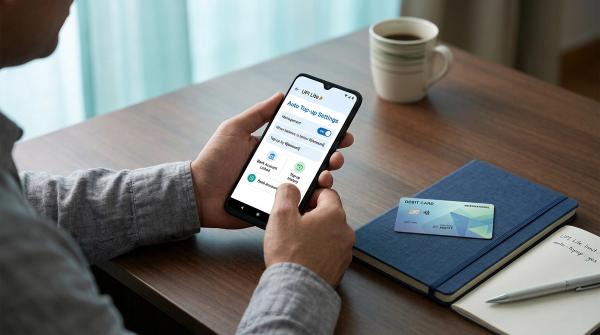
Trying to remove a bank account from a UPI app and getting blocked? Don’t worry. This usually happens because something is still active on that bank account.
In most cases, the issue is one of these two things:
- an active UPI AutoPay mandate
- an active UPI Lite account
Apps like Google Pay, PhonePe, Paytm, BHIM, and other UPI apps may not let you remove a bank account until these are closed or cancelled first.
So instead of tapping the remove button again and again, do this in order:
- Check if UPI Lite is active.
- Close or disable UPI Lite, if needed.
- Check for active UPI AutoPay mandates.
- Cancel or revoke the mandates you no longer need.
- Save screenshots or confirmation messages.
- Try removing the bank account again.
You may see different error messages depending on the app, such as:
- Account cannot be removed
- Bank account linked to active AutoPay
- Remove active mandate first
- UPI Lite must be closed before removing account
- Unable to unlink bank account
The wording may change, but the reason is usually the same: the bank account is still connected to an active UPI feature.
Why UPI may not let you remove your bank account
#UPI apps generally do not allow you to remove a bank account if there is still an active payment setup linked to it.
The two most common blockers are:
- UPI AutoPay, also called a UPI mandate or e-mandate
- UPI Lite, if it is enabled for that bank account
Google Pay help guidance says users must unlink active Autopay or UPI Lite before removing a bank account. NPCI’s UPI Help material also refers to mandate viewing and management, while RBI e-mandate directions require customer-facing mandate withdrawal and grievance details.
So if your app says the account cannot be removed because of UPI AutoPay, don’t start from the bank account screen. Start by checking the AutoPay, Mandates, or Recurring Payments section.
UPI AutoPay, UPI Lite, and UPI ID are different things
#These terms often appear in the same app, so it is easy to mix them up. Here is the simple difference.
1. UPI AutoPay
#UPI AutoPay is used for recurring payments. You approve a mandate once, and after that, the merchant or service provider can debit your bank account according to the mandate.
Common examples include:
- OTT subscriptions
- Mobile or broadband bills
- Insurance premiums
- Mutual fund SIPs
- App subscriptions
- Other recurring payments
If an active UPI AutoPay mandate is linked to your bank account, your UPI app may stop you from removing that account.
Depending on the app, this section may be called:
- AutoPay
- Autopay
- Mandates
- UPI Mandates
- Recurring payments
- Subscriptions
- Autopay requests
2. UPI Lite
#UPI Lite is mainly used for small-value UPI payments. It works a little differently from normal UPI payments and is usually linked to a specific bank account.
If UPI Lite is active on the bank account you want to remove, the app may ask you to close or disable UPI Lite first.
For UPI Lite bank account removal, open the UPI Lite section in your app and look for options such as:
- Close
- Disable
- Deactivate
- Remove UPI Lite
3. UPI ID
#A UPI ID, also called a VPA, is your payment address. It may look like:
name@okaxisnumber@yblname@paytmmobile@upi
A UPI ID itself is usually not the reason your bank account cannot be removed. The bigger reason is normally an active AutoPay mandate or UPI Lite.
However, if a UPI ID is connected only to that bank account, it may stop working in that app once the account is removed.
Quick checklist before removing the bank account again
#Before you try to remove the bank account again, go through this checklist carefully.
- Open the UPI app where you want to remove the bank account.
- Check whether UPI Lite is active for that bank account.
- If UPI Lite is active, close or disable it.
- Go to AutoPay, Mandates, Recurring Payments, or Subscriptions.
- Look for any active UPI AutoPay mandate linked to the same bank account.
- Cancel or revoke the mandates you no longer want.
- Take screenshots before and after cancelling.
- Wait until the mandate shows as cancelled, revoked, inactive, or stopped.
- Go back to the bank account settings.
- Try removing or unlinking the bank account again.
One important point: if you want to stop the mandate properly, choose cancel or revoke. Do not only pause it unless the app clearly says pausing is enough. In many cases, a paused mandate may still remain linked to the bank account.
How to cancel or revoke a UPI AutoPay mandate
#The exact menu names are different in every app. Google Pay, PhonePe, Paytm, BHIM, and bank UPI apps may all show this slightly differently. But the basic process is usually similar.
Step 1: Open the app where you created the mandate
#Start with the UPI app you used when you approved the AutoPay.
For example:
- If you created the mandate in Google Pay, open Google Pay first.
- If you approved it in PhonePe, check PhonePe first.
- If you used Paytm or BHIM, start there.
Many people check the wrong app and assume the mandate is missing. Try to remember which app you used when you first approved the recurring payment.
Step 2: Find the AutoPay or Mandates section
#Look in these areas of the app:
- Profile
- Settings
- Payments
- AutoPay
- Mandates
- UPI Mandates
- Recurring payments
- Subscriptions
- Payment settings
If you are trying to remove a bank account from Google Pay, check Google Pay settings first, especially the Autopay or recurring payments section. In PhonePe or Paytm, the option may be under payments, profile, or subscriptions.
Step 3: Open the active mandate
#Tap the merchant or service name and check the status carefully.
You may see statuses such as:
- Active
- Live
- Pending
- Paused
- Revoked
- Cancelled
- Failed
- Inactive
If the status says active or live, it can still block bank account removal. Pending mandates can also cause confusion, so it is a good idea to save a screenshot of the status.
Step 4: Cancel or revoke the mandate
#Now look for an option such as:
- Cancel
- Revoke
- Stop AutoPay
- Cancel mandate
- Manage mandate
- Remove AutoPay
Follow the steps shown in the app. Some apps may ask you to enter your UPI PIN to confirm the cancellation or revocation. That is normal only if you are inside your trusted UPI app.
Step 5: Save the confirmation
#After cancelling, take a screenshot of the confirmation screen. Also save any SMS or email you receive from the bank, app, or merchant.
This can help later if:
- The merchant still shows the payment as active
- The UPI app still shows the mandate as active
- A debit happens after cancellation
- You need to raise a complaint
Step 6: Try removing the bank account again
#Once the mandate no longer shows as active, go back to the bank account section and try removing the account.
If it still does not work, check UPI Lite and look for any other mandates linked to the same bank account. There may be more than one.
How to close UPI Lite before removing the bank account
#If UPI Lite is the problem, cancelling AutoPay will not fix it. You need to close UPI Lite separately.
General steps:
- Open your UPI app.
- Go to Profile or Settings.
- Find the UPI Lite section.
- Select the active UPI Lite account.
- Tap Close, Disable, Deactivate, or a similar option.
- Follow the instructions shown in the app.
- Save the confirmation screen.
- Try removing the bank account again.
Avoid uninstalling the app before closing UPI Lite. It may make the issue harder to fix later. Use the proper in-app option first.
What proof should you save?
#This may feel unnecessary at the time, but it can save you a lot of trouble if something goes wrong.
Save proof whenever you cancel a UPI AutoPay mandate, close UPI Lite, or contact support.
Useful proof includes:
- Screenshot of the active mandate before cancellation
- Screenshot showing cancelled, revoked, inactive, or stopped status
- Merchant name
- Bank name
- UPI app name
- Date and time of the cancellation attempt
- UMRN, if shown
- Any SMS from your bank
- Any email from the merchant, bank, or UPI app
- Complaint or ticket number
- Screenshot of the bank account removal error
This is especially useful if your app says UPI AutoPay is not cancelling, or if the same recurring payment is still visible after you revoked it.
Safety warning: do not share OTP or UPI PIN
#Be careful while trying to fix UPI issues. Scammers often target people searching for UPI errors and customer care numbers.
Follow these rules:
- Do not share your OTP with anyone.
- Do not share your UPI PIN with anyone.
- Do not type your UPI PIN on a screen sent by someone on WhatsApp, SMS, or during a call.
- Do not install remote screen-sharing apps for “UPI support”.
- Do not call random customer care numbers from search results, comments, or social media posts.
- Use only official support inside the app, the bank website, the merchant app, or official help channels.
Your UPI PIN may be needed inside your own UPI app to approve or revoke a mandate. But no customer care person needs to know your PIN. Ever.
If UPI AutoPay is not cancelling, who should you contact?
#If the mandate does not cancel, or the bank account still cannot be removed, escalate the issue step by step. Do not rely on random helpline numbers.
1. Contact the merchant first
#Open the merchant’s app or website and check the billing, subscription, AutoPay, or payment section.
The merchant may allow you to cancel the recurring payment from their side. Save proof of the cancellation request.
Contact the merchant first if:
- The UPI app shows the mandate but cancellation fails
- The merchant still shows the subscription as active
- You do not recognize the mandate
- You need more details about the recurring payment
Also remember this: cancelling the UPI mandate may stop the automatic payment instruction, but it may not cancel your actual subscription or service. You may need to cancel the plan separately in the merchant’s app or website.
2. Contact UPI app support
#Next, use the in-app help section of the UPI app where the mandate appears.
This could be:
- Google Pay support
- PhonePe support
- Paytm support
- BHIM support
- Your bank’s UPI app support
Share these details:
- Screenshot of the mandate
- Screenshot of the bank account removal error
- Merchant name
- Bank name
- Date and time of cancellation attempt
- UMRN, if shown
NPCI says UPI Help can help with mandate viewing and management, so also check the support options available inside your UPI app.
3. Contact your bank
#If the merchant and UPI app do not solve the issue, contact the bank linked to the mandate.
Ask the bank how to withdraw or revoke the active UPI mandate. RBI’s e-mandate directions require that customers should have a way to withdraw mandates and access grievance details.
Share all the proof you saved, especially the UMRN if it is available.
4. Use official UPI or grievance channels
#If the issue still continues, use official support channels available through:
- Your UPI app
- Your bank
- The merchant
- NPCI UPI Help, where applicable
Avoid unofficial numbers, social media “support agents”, and anyone asking for OTP, UPI PIN, or remote access.
Why the bank account still cannot be removed
#If you cancelled one mandate but the bank account still will not remove, one of these may be the reason:
- Another active UPI AutoPay mandate is linked to the same bank account.
- UPI Lite is still active.
- The merchant cancelled it, but the UPI app has not updated yet.
- The mandate is still pending cancellation.
- You are checking the wrong UPI app.
- The app has not refreshed the latest status.
- You uninstalled the app earlier without revoking the mandate properly.
- The same bank account is active in more than one UPI app.
A practical way to troubleshoot this is to check every UPI app where you have used the same bank account.
Final word
#If you cannot remove a bank account from UPI, check active UPI AutoPay mandates and UPI Lite first.
Cancel or revoke active mandates, close UPI Lite if it is enabled, save proof, and then try removing the bank account again.
In most cases, once the active link is removed properly, the bank account can be unlinked without any issue.