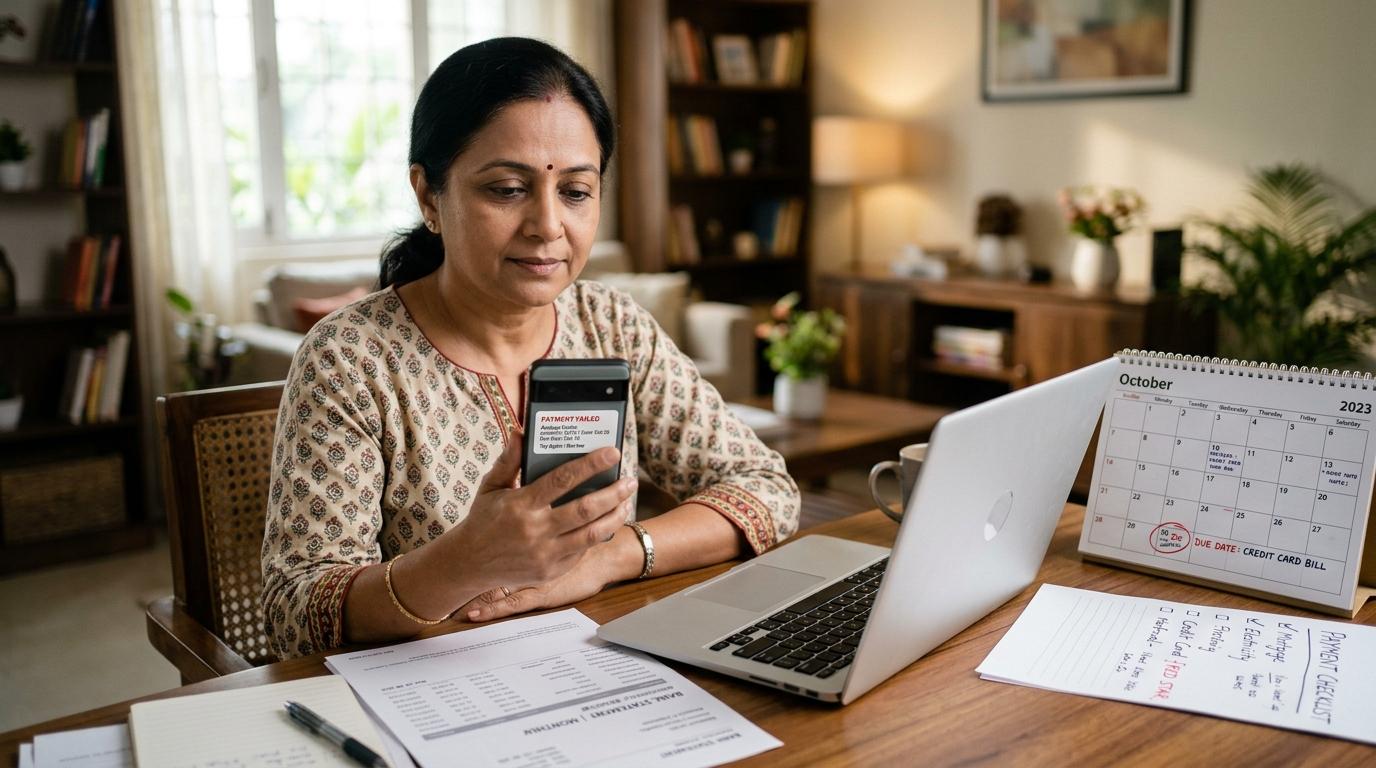
A failed credit card AutoPay can make anyone nervous, especially when the due date is close. But don’t rush into paying again immediately.
First, check one simple thing: has the money actually left your bank account? Then open your credit card app or website and see whether the payment has been received.
If no money has been debited and your credit card payment due date is today or tomorrow, it is usually safer to make a manual payment through a trusted channel. Keep the proof carefully. Don’t just wait and assume AutoPay will try again on time, because sometimes it may not.
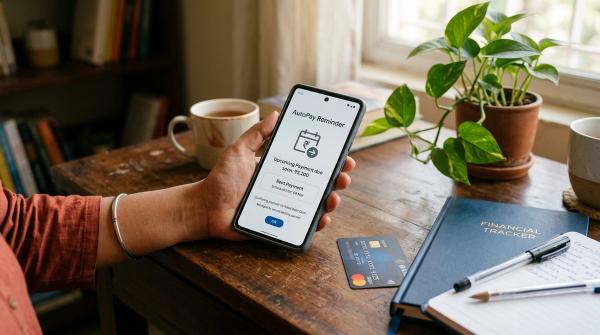
AutoPay is useful, but it is not something you can ignore forever after setting it up. Payments can fail because of low balance, bank downtime, UPI issues, inactive mandates, wrong limits, or because your bill is higher than the mandate amount.
The good news is that most of this can be handled calmly if you check things in the right order. This guide walks you through what to verify, when to pay manually, what proof to save, and how to avoid late fees or duplicate payments.
First, understand what “AutoPay failed” actually means
#When people say their credit card AutoPay failed, they may be talking about different types of payment setups.
It could be:
- Bank auto-debit or standing instruction, where your savings account is linked to your credit card bill.
- Credit card e-mandate, where a recurring debit instruction is registered through your bank or card issuer.
- UPI AutoPay for credit card bills, where your UPI app manages the recurring payment.
- Scheduled payment through a bill-payment app, where the app reminds you or schedules a payment, but it may not be the issuer’s official AutoPay.
So before worrying, check where the failure message came from.
Was it from:
- Your bank?
- Your credit card issuer?
- Your UPI app?
- A third-party bill-payment app?
That message usually tells you where to start looking.
Why credit card AutoPay can fail in India
#A credit card AutoPay failed India situation does not always mean you forgot to keep money in your account. There are several common reasons.
1. The AutoPay instruction was not active yet
#Many people set up AutoPay and assume it will work immediately. But banks and payment systems may take a few days to activate a standing instruction or mandate.
If you created the AutoPay setup very close to your due date, it may not apply to the current billing cycle.
What to do: if the due date is near, pay the current bill manually. Let AutoPay begin from the next cycle only after you confirm that it is active.
2. The mandate limit was lower than your bill
#This is a very common issue.
For example, your mandate limit may be ₹20,000, but your total amount due is ₹24,000. In that case, the payment may fail or may not be processed as expected.
This often happens when you set up the mandate months ago and your spending has increased since then.
Check the mandate limit in your:
- Bank app
- Credit card app
- UPI app
- Mandate or recurring payments section
3. Your bank balance was low at the time of debit
#You may have enough money now, but that may not help if the debit was attempted earlier.
Maybe an EMI, SIP, rent payment, transfer, or another debit reduced your balance before AutoPay was attempted.
So don’t just check your current balance. Check your bank statement and see what the balance was at the time the debit was attempted.
4. AutoPay was set for Minimum Amount Due instead of Total Amount Due
#Sometimes users accidentally choose Minimum Amount Due instead of Total Amount Due while setting up AutoPay.
This may prevent an immediate late payment issue, but it does not clear your full bill. Interest may apply on the unpaid amount, depending on your card issuer’s terms.
If your goal is to pay your bill in full every month, make sure AutoPay is set to Total Amount Due.
5. UPI, bank, or payment system issues
#Sometimes the problem is not with you at all.
UPI may be down. The bank server may be slow. The biller system may be unavailable. A payment gateway may be facing issues.
It happens.
But if your due date is close, don’t depend only on a possible retry. Use another trusted payment method and save proof.
6. The mandate needed extra action from your side
#Recurring payments in India are subject to customer notifications, limits, authentication rules, and revocation options under RBI’s e-mandate and digital payment guidelines.
Depending on the channel, amount, and mandate type, a debit may need additional authentication or may fail if some condition is not met.
For credit card bill AutoPay, always read the exact rules shown by your bank, issuer, or UPI app when setting up the mandate.
Step-by-step checklist if your credit card AutoPay failed
#Follow this order. It can help you avoid both missed payments and duplicate payments.
Step 1: Check your linked savings bank account
#Open the bank account linked to AutoPay. Don’t rely only on SMS alerts.
Check:
- Was the credit card bill amount debited?
- Was there a failed debit entry?
- What time was the debit attempted?
- Was there enough balance at that exact time?
- Is the amount marked as pending, on hold, or successfully debited?
- Is there any mandate failure entry?
If money has already been debited, don’t rush to pay again. Move to the next step.
Step 2: Check your credit card account
#Now open your credit card issuer’s app or website.
Check:
- Recent payments
- Payment history
- Outstanding balance
- Total amount due
- Minimum amount due
- Payment due date
- Unbilled transactions
Sometimes money leaves your bank account first, and the credit card account updates later.
If your bank shows a debit but your credit card account has not updated yet, save the bank debit proof. Wait for the issuer’s usual update time, unless the due date is extremely close and support advises otherwise.
Step 3: Read the failure message carefully
#The exact wording matters.
The message may say:
- Payment failed
- Mandate failed
- Auto-debit unsuccessful
- Insufficient balance
- Mandate inactive
- Limit exceeded
- UPI mandate failed
- Transaction pending
- Payment under process
A pending transaction is not the same as a failed transaction.
If the status is pending and money has been debited, paying again may lead to a duplicate payment. If it clearly says failed and no money has been debited, manual payment may be safer when the due date is near.
Step 4: Check how close the due date is
#Your next step depends mainly on the due date.
Do not assume AutoPay will retry before the due date. Some systems retry. Some may not.
Step 5: Make a manual payment if needed
#If the due date is close and no successful debit is visible, make a manual payment.
Use a trusted payment route such as:
- Your credit card issuer’s official app or website
- Your bank’s mobile banking or net banking
- UPI payment to the credit card biller, if supported
- A reliable bill-payment app where the biller name and transaction reference are clearly shown
Before paying, double-check:
- Last four digits of the credit card
- Cardholder name, if displayed
- Amount due
- Payment mode
- Payment status
- Reference number after payment
One small mistake can create unnecessary follow-up later, so check once calmly before tapping pay.
Step 6: Save payment proof immediately
#After paying, take screenshots before closing the app. This can be very useful if you later need a late fee reversal, duplicate payment check, or complaint support.
Save:
- Payment success screen
- UPI reference number, UTR, or transaction ID
- Date and time of payment
- Amount paid
- Debit account details, partly masked
- Credit card number, partly masked
- Bank statement entry showing debit
- Credit card app screen showing payment received, once updated
- Failed AutoPay SMS or email
- E-mandate or UPI AutoPay failure message
- Statement page showing due date and amount due
Keep these records at least until the payment is posted and your next statement is generated.
Step 7: Check whether the old AutoPay is still active
#This is important.
If you paid manually, your AutoPay mandate may still be active. If the system retries later, you may end up paying twice.
Check the mandate section under names like:
- Standing instructions
- Auto debit
- E-mandates
- BillPay mandates
- UPI AutoPay
- Recurring payments
- Credit card payment instructions
If the failed AutoPay can retry and you have already paid manually, monitor your bank account. Don’t cancel the mandate blindly unless you understand whether it will affect future bill payments.
Step 8: Contact support if needed
#Contact your bank, card issuer, UPI app, or payment app if:
- Money was debited from your bank but not credited to your card.
- You paid before the due date but still got a late fee.
- AutoPay failed even though the mandate was active and balance was available.
- You paid twice and need clarity on refund or adjustment.
- Your UPI AutoPay mandate is active but payments keep failing.
- The linked account, mandate limit, or payment option is wrong.
When contacting support, share the transaction reference number and screenshots.
Never share:
- Full card number
- CVV
- PIN
- OTP
- Password
- Full bank account number
No genuine support person needs these details to check a payment.
AutoPay vs manual payment vs UPI AutoPay
#No method is perfect. A good habit is to treat AutoPay as a safety net, but still check your bill a few days before the due date.
How to avoid a duplicate credit card payment
#A credit card duplicate payment usually happens like this:
AutoPay looks delayed or failed, you pay manually, and then the original debit also goes through.
Here’s how to reduce that risk.
1. Check whether money has already left your account
#If the amount is already debited, wait for the credit card account to update unless the due date situation is urgent. Save the bank debit proof.
2. Understand pending vs failed
#If a transaction is pending, paying again can create a duplicate payment.
If it is clearly failed and no money was debited, manual payment is usually safer when the due date is near.
3. Don’t try multiple payment channels one after another
#Avoid paying through UPI, net banking, and a bill-payment app within minutes of each other.
If one of those payments is delayed, it becomes hard to track what actually happened.
4. Pay the correct amount
#If AutoPay was supposed to pay the Total Amount Due, and you manually pay a different amount, reconciliation can become confusing.
Try to pay the exact amount due unless you intentionally want to pay a different amount.
5. Monitor your account after manual payment
#After making a manual payment, keep an eye on the bank account linked to AutoPay.
If another debit happens, the extra amount may appear as excess credit on your card or may be handled according to your issuer’s refund process.
6. Don’t ignore a duplicate payment
#If you paid twice and need the money back, contact your card issuer.
Ask whether the excess amount can be refunded to your bank account or adjusted against future spends. Keep both transaction IDs ready.
What proof should you save after a payment failure?
#Good credit card payment proof can save a lot of time if you need to raise a complaint.
Save these screenshots or PDFs:
1. Credit card statement page
#It should show:
- Statement date
- Total amount due
- Minimum amount due
- Payment due date
2. AutoPay setup page
#Save the screen showing:
- Mandate status
- Linked account
- Payment type
- Mandate limit
Mask sensitive details before sharing it with anyone.
3. Failed AutoPay message
#Keep the SMS, email, app notification, or UPI message that says the debit failed.
4. Bank account statement entry
#If money was debited, save the entry showing:
- Date
- Amount
- Transaction narration
- Reference number, if available
5. Payment success screen
#This should show:
- Amount
- Date
- Time
- Reference number
- Payment channel
6. UPI reference or UTR
#For UPI and bank transfers, the UTR or reference number is often the most useful tracking detail.
7. Credit card payment update
#Once your card app shows the payment as received, save that screen too.
8. Customer support complaint number
#If you raise a complaint, save:
- Ticket ID
- Date of complaint
- Support response
- Any promised resolution timeline
Again, never share your OTP, CVV, PIN, password, full card number, or full bank account number with anyone claiming they can “fix” the payment.
RBI e-mandate and credit card safety notes
#India’s recurring payment systems are designed with customer protection rules around registration, authentication, notifications, limits, revocation, and grievance redressal.
For regular users, the practical meaning is simple:
- You should be able to view and manage eligible e-mandates through your bank or payment channel.
- Recurring debits may have limits and notification requirements.
- Some payments may require additional authentication.
- A mandate can fail if the amount, limit, authentication, or processing condition is not met.
- Revocation and complaint processes exist, but the exact steps can differ by bank, issuer, or app.
For credit cards, issuers also have to follow rules around billing, charges, communication, and complaint handling.
If you believe a late fee or charge was applied even though you paid on time, raise a complaint with payment proof.
The main point is simple: AutoPay is helpful, but it does not remove the need to check your bill, due date, mandate status, and final payment confirmation.
When to contact the bank and when to contact the card issuer
#It helps to contact the right party first.
When contacting support, keep your message short and clear.
You can write something like:
Autopay failed for my credit card bill. I made a manual payment before the due date. Please confirm credit and review any late fee if applied. Transaction reference: XXXXX. Payment date and time: XXXXX. Amount: ₹XXXXX.
A safer routine for future credit card due dates
#To avoid the same stress next month, follow a simple routine:
- Keep a calendar reminder 3 to 5 days before the due date.
- Check whether AutoPay is set for Total Amount Due or Minimum Amount Due.
- Keep enough money in the linked bank account before the expected debit date.
- Review your mandate limit after large spends.
- Don’t set up AutoPay too close to the due date and assume it will work immediately.
- Keep one main payment method and one backup method.
- Check payment status after every bill cycle, even when AutoPay is enabled.
AutoPay should feel like a safety net, not a reason to stop checking your credit card account.
Final takeaway
#If your credit card AutoPay failed, don’t wait blindly. Check your bank debit status, check your card payment status, confirm the due date, and make a manual payment if time is short.
Save proof at every step.
AutoPay is convenient, but the safest credit card habit is still simple: verify before the due date, pay only through trusted channels, and keep records until the payment is clearly posted.
Disclaimer: This AllBlogs guide is for general banking safety awareness and informational use. Credit card billing, AutoPay, UPI AutoPay, e-mandate handling, charges, and refund processes can vary by bank, issuer, app, and current regulatory directions. Always verify the latest terms with your own card issuer or bank.