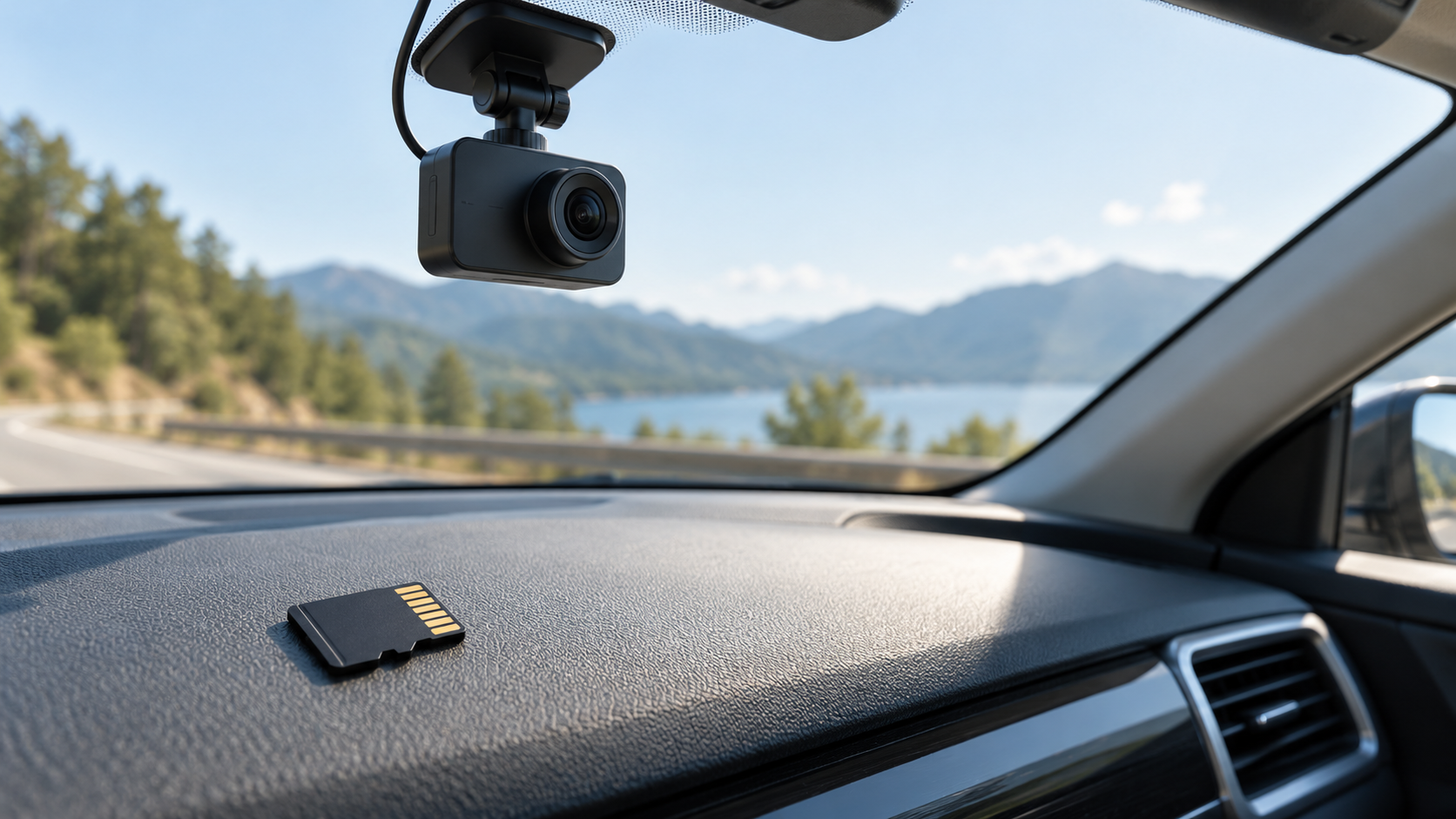
The right dash cam memory card is the one your camera supports and can keep writing to every day. Start with the exact model's manual or support page. Check its card type, maximum capacity and required speed class. Then choose a genuine high-endurance microSD card that meets those requirements. A huge card or a headline read speed cannot make an incompatible card reliable.
This guide is for someone buying a card for a dash cam they already own, or checking the real cost of a new camera setup. It covers the choice and the first recording check. It does not rank cards through hands-on testing. Manufacturer recommendations vary by camera model, so the model-specific manual has the last word.
Start with the camera, not the card listing
#Write down the dash cam's full model name. A series name alone may hide different front-only, front-and-rear or newer versions. In the manual or maker's support page, find the supported card format, minimum and maximum capacity, minimum speed class, and any list of approved card families. Also check whether a card is included and whether the camera has a menu option to format it.
This first check prevents an easy buying mistake. An older Garmin Dash Cam 45/55 series manual, for example, lists microSDHC cards from 4 to 64 GB, while Garmin's broader support guidance for other dash cams reaches 512 GB. Those figures describe different device support, not a universal recommendation. Buying a 256 GB card for a camera whose own manual stops at 64 GB is a gamble, even if the card is fast and genuine.
Check whether the camera requires a particular maker-approved card. VIOFO's support guidance recommends its own cards and a specific endurance family for many models. That is a manufacturer compatibility position, not proof that every other card fails. If the maker publishes a short tested list, use it to reduce uncertainty. If you want a different card, verify the exact model and capacity with current support before paying.
Finally, look at the recording setup. A rear camera, higher bitrate, parking recording or longer trips can change how much footage you want to keep before loop recording overwrites it. The camera's supported limit still applies.
What “high endurance” actually solves
#A dash cam repeatedly writes video and overwrites older files. That is a different workload from occasionally moving photos onto a phone card. High-endurance card lines are sold for continuous recording and often state a rated recording life or write endurance, operating temperature range and dash cam warranty terms. Garmin explicitly recommends cards designed for that workload and warns that ordinary-card warranties may not cover dash cam use.
Treat “high endurance” as a product-line claim to inspect, not a magic certification. Compare the exact card's datasheet and warranty, including whether dash cam recording is covered. A lifetime warranty is not the same as a guarantee that missing footage can be recovered. Even an endurance card can wear out, be counterfeit, or fail in a particular camera.
Capacity can affect wear because a larger supported card has more room before the camera cycles back over the oldest data. Garmin makes this point in its card guidance. It is a reason to consider a sensible step up in capacity, not a reason to buy the largest available card. The camera may reject that size, and a longer recording window has little value if you normally save incidents promptly.
For a simple purchase decision, put compatibility first, endurance second and capacity third. Compare speed only after those three checks. The order matters because a very fast gaming or phone card can still be a poor fit for constant overwriting or for the camera's firmware.
Capacity: buy the recording window you need
#The card's capacity determines roughly how much video stays available before loop recording replaces the oldest ordinary clips. It does not tell you a fixed number of hours on its own. Resolution, bitrate, frame rate, compression, the number of cameras, audio and the space kept for locked files all matter. Parking mode may add another recording pattern.
VIOFO suggests 64 GB as a minimum for its cameras and 128 or 256 GB for longer trips or commercial use, while noting that only some of its models support 512 GB. That is useful context, but it should not be copied as a rule for every brand. If your camera has a recording-time table, use that table for your exact settings. If it does not, make a short test recording after installation and see how much space and time the camera actually uses.
Here is a transparent sizing example. Suppose your camera writes a combined 40 megabits per second from its active channels. Divide by eight to get about 5 megabytes per second. An hour is therefore about 18 gigabytes before file-system overhead and any camera-specific reserve. A nominal 128 GB card might hold roughly six to seven hours at that assumed rate, not a promised runtime. Change the bitrate to 20 megabits per second and the rough window doubles; add another high-bitrate channel and it shrinks. The useful calculation is usable storage divided by the actual combined recording rate, with room left for protected files and normal variation.
This is also why a “4K” label alone is a poor sizing tool. Two 4K cameras can use different bitrates, and a front-and-rear setup may write more than a single camera at the same front resolution. Check the camera's own estimate or a sample clip size rather than copying another model's hours.
If you only drive short routes and can save needed footage soon, a supported 64 or 128 GB endurance card may be enough. If you take long drives, use two channels or want more time before old clips are overwritten, consider 128 or 256 GB only if your model permits it. A small supported spare card can be useful after an incident: replace the recording card so the important footage is not overwritten while you arrange a safe copy. Power the camera off and follow its removal instructions first.
| Your situation | Capacity decision to check |
|---|---|
| Short daily drives, one camera | Start with the maker's recommended range, then test the actual loop window. |
| Long trips or front-and-rear recording | Consider the next supported size if the current card overwrites footage too soon. |
| Frequent parking recording | Check the camera's parking-mode behavior and protected-file space before sizing up. |
| Older camera with a low maximum | Stay within that model's published limit, even when larger cards are cheap. |
Speed symbols: read the minimum write rating
#Card listings often lead with a large read speed because it helps files transfer to a computer. A dash cam needs steady write performance. The SD Association's speed-class symbols describe minimum sequential write performance under defined conditions: C10, U1 and V10 represent 10 MB/s classes; U3 and V30 represent 30 MB/s classes. Those symbols are not a promise that every camera will record flawlessly, but they are more relevant than an advertised peak read number.
Match the class required by the camera. Garmin's general guidance requires Class 10 or faster for the models covered by that page. VIOFO says Class 10 or U1 as a baseline and recommends U3 for its 4K cameras. Do not assume every 4K model has the same requirement; the camera maker's support page should settle it. Also avoid buying a costly V60 or V90 card merely because the number is larger when the dash cam cannot use that class.
The symbols belong to different speed-class families. The SD Association advises matching the host's indicated family and using an equal or higher class within it. A listing that displays U3 and V30 is easy to read, but a different symbol combination is not, by itself, proof of dash cam compatibility. If the camera maker lists an exact tested card, that evidence is stronger than a generic speed badge.
Check the write specification on the exact capacity you plan to buy. Card families can have different figures across capacities. Also check the microSD form factor; a full-size SD card will not fit a microSD slot even when an online listing calls both simply “SD cards.”
SDHC, SDXC and formatting
#The card format matters especially for an older dash cam. The SD Association defines SDHC as capacities above 2 GB through 32 GB, generally using FAT32, and SDXC as above 32 GB through 2 TB, using exFAT in the standard. An SDHC-only host does not automatically support SDXC. This is another reason to read the camera's model-specific limit instead of assuming that a physically fitting microSD card will work.
Format a new card using the dash cam's own format function when the maker instructs you to. Formatting erases what is on the card, so first copy any footage you need. VIOFO asks users to format before use; Nextbase manuals and Garmin guidance also specify periodic formatting, but their suggested intervals differ. Follow the schedule and method for your camera rather than treating one maker's interval as a universal maintenance rule.
Do not format a card containing an incident recording until the footage is safely copied and checked. If a computer asks to reformat a card unexpectedly, avoid accepting the prompt before you have tried to preserve important files. A fresh card that the camera repeatedly rejects may have the wrong format, an unsupported capacity, a counterfeit capacity claim or a fault. Recheck the camera's manual and test with a known compatible card before blaming the camera.
Check the seller and the warranty
#A genuine card from a reputable seller is a basic part of this purchase. A too-good-to-be-true capacity or an unfamiliar marketplace seller increases the risk that the card's reported size or performance will not match its label. Keep the packaging and receipt until the camera has recorded and played back sample footage. If the maker provides a serial or authenticity check for that product line, use it.
Read warranty terms for the exact endurance line and region. Some standard cards exclude continuous recording, while endurance lines may cover it; terms can differ by product and market. Look for a realistic replacement process in your country. The warranty may replace the card, but it cannot recreate a recording that was never saved. That makes a routine playback check more valuable than a long warranty headline.
Be careful with marketplace titles that mix terms such as “industrial,” “4K,” “gaming” and “high endurance” without a matching manufacturer datasheet. A high price is not evidence of fit. Compare the model number on the listing with the manufacturer's page and the camera maker's approved list. A card with the right capacity, endurance use case and speed class is a better purchase than one with the flashiest transfer-speed claim.
A practical purchase check
#Before paying, write the camera model and its card requirements in one line. For example: “microSDXC; 64–256 GB; U3; approved high-endurance family.” This line is only an illustration; your actual camera may specify something else. It turns a crowded card listing into a short pass-or-fail check.
Compare candidates in this order:
- Supported type and capacity. Reject anything outside the camera's documented range.
- Maker compatibility. Prefer an exact approved card or family where the camera maker provides one.
- Continuous-recording suitability. Check the exact card line's endurance description and warranty use terms.
- Required write class. Match the camera's specified symbol or validated card list.
- Recording window. Choose enough capacity for your actual channels and save habits.
- Seller and total cost. Check authenticity signals, local warranty support and the cost of a spare if important footage matters to you.
This framework can lead to a modest card. If your camera supports only 64 GB and records at a lower bitrate, a supported 64 GB endurance card may be the sensible choice. If it supports 256 GB and you use front-and-rear recording on long drives, paying for more supported capacity may give you a useful buffer. Neither conclusion requires pretending one brand wins for every driver.
Verify the card after you install it
#Insert the card with the camera powered down if the manual says to do so. Format it in the camera if instructed, then let it record a normal trip. Check that the recording indicator is active, play back a recent clip with sound if you use audio, and confirm that timestamps are correct. A camera that powers on is not proof that it saved usable video.
Next, verify loop recording. Once the card has enough ordinary footage to cycle, see whether new clips continue to appear. Check how the camera handles protected or event clips; a growing protected-file area may need manual attention on some models. When you need to retain a clip, copy it promptly to another safe location and verify that the copy opens. Loop recording is a convenience, not an archive.
Recheck the card occasionally, especially after a firmware update, a card error warning or a long hot-weather period. Garmin notes that cards wear out and its devices may warn when formatting or replacement is needed. If clips are missing, corrupted or unusually short, stop relying on that card for important footage. Save what you can, consult the camera's troubleshooting steps and replace the card if the issue persists. Do not keep reformatting a failing card as if that restores its endurance.
The choice in one sentence
#Buy a genuine, camera-compatible high-endurance microSD card with the required write-speed class and enough supported capacity for your real recording window; then test that the dash cam actually records and plays back footage. The manual and a successful recording check matter more than a generic “best card” label.