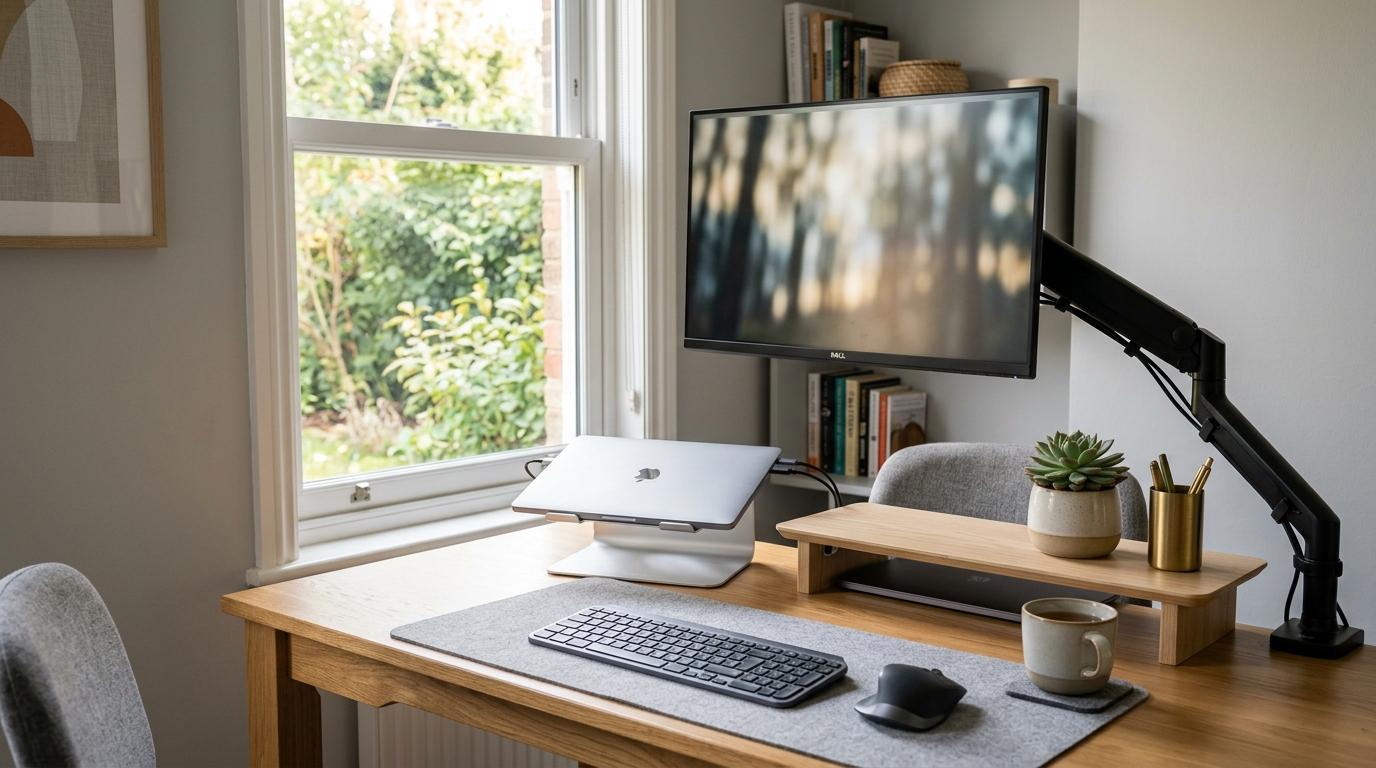
If you mainly work on a laptop, a laptop stand is usually the right first upgrade — but only if you also use an external keyboard and mouse.
If you use an external monitor and your desk feels cramped, a monitor arm will probably make the biggest difference.
If your screen just needs to sit a little higher and you don’t want to install anything, get a monitor riser.
And if your setup already feels comfortable? Save your money. You may not need any of them.
Short Answer
#Laptop stand: Best for laptop-only users, students, remote workers, hybrid workers, and anyone who needs a setup they can move around.
Monitor arm: Best for people who use an external monitor and want more desk space, better screen positioning, and a cleaner setup.
Monitor riser: Best if you want a cheap, simple way to raise your monitor and maybe create a little storage underneath.
No-buy option: Best if your screen height already feels good and your desk does not feel annoying to use.
A small desk can look totally fine until you actually try to work at it for a few hours. Then the problems show up.
Your notebook has nowhere to go. Your mouse keeps hitting your mug. The monitor base eats up the middle of the desk. Your laptop screen sits so low that you slowly start leaning forward without realizing it.
That is where the laptop stand vs monitor arm vs monitor riser decision comes in.
This is not really about making your desk look like a perfect setup photo. It is about fixing the specific thing that makes your desk uncomfortable, crowded, or frustrating to use every day.
Let’s make the choice simple.
The Quick Buying Rule
#Start with your main screen.
If your laptop is your main screen, look at a laptop stand.
If an external monitor is your main screen, choose between a monitor arm and a monitor riser.
If your desk already works well, do not buy something just because other people online have cleaner-looking setups.
A good small desk setup does not have to be expensive. It just needs three things:
- Enough clear space to actually work
- A screen height that does not make you hunch
- A layout you can use without constantly moving clutter around
Option 1: Laptop Stand
#A laptop stand lifts your laptop off the desk so the screen sits higher. Some are lightweight and foldable, which makes them easy to carry around. Others are heavier and meant to stay on one desk.
The main reason to buy one is simple: it brings your laptop screen closer to eye level.
For people who work mostly from a laptop, this is often the first desk upgrade that makes sense. But there is one important catch.
A laptop stand works best with an external keyboard and mouse.
If you raise your laptop and keep typing on the built-in keyboard, your wrists and arms can end up in an awkward position. The screen gets better, but the keyboard gets too high. That might be fine for a quick email, but it is not ideal for long work sessions.
Who should buy a laptop stand?
#Buy a laptop stand if:
- You mostly work from a laptop.
- You move between home, office, school, cafés, coworking spaces, or shared desks.
- You want something easy to pack away.
- You want your webcam to sit higher for video calls.
- You do not use a large external monitor as your main screen.
A laptop stand is especially useful for students, remote workers, and hybrid workers who do not sit at the same desk every day.
It can make a temporary setup feel much more comfortable and intentional.
Who should avoid a laptop stand?
#Skip a laptop stand if:
- You mostly use an external monitor.
- You want a permanent dual-screen setup.
- You plan to type directly on the laptop while it is raised.
- Your real problem is a bulky monitor base, not laptop height.
A laptop stand can improve a laptop setup a lot, but it will not fix a desk that feels crowded because of a monitor stand. For that, you are probably looking at a monitor arm or riser instead.
Option 2: Monitor Arm
#A monitor arm attaches your external monitor to the back of your desk, usually with a clamp. Some can also be installed through a grommet hole if your desk has one.
Instead of sitting on its original stand, your monitor is held above the desk by the arm.
On a small desk, this can make a surprisingly big difference.
A monitor arm clears the space underneath your screen. That gives you room for your keyboard, notebook, drawing tablet, phone, coffee, or just empty space. And honestly, empty desk space is underrated.
A monitor arm also gives you more control over where your screen sits. Depending on the model, you can raise it, lower it, pull it forward, push it back, tilt it, swivel it, or move it off to the side.
That flexibility matters. A regular monitor stand usually locks your screen into one general position. A monitor arm lets you adjust the screen around the way you actually work.
Who should buy a monitor arm?
#Buy a monitor arm if:
- You use an external monitor as your main screen.
- Your desk is narrow or shallow.
- Your monitor base takes up too much space.
- You want better control over screen height and distance.
- You use two monitors and want a cleaner layout.
- Your monitor has VESA mounting holes.
- Your desk is strong enough for a clamp or grommet mount.
If your small desk always feels crowded, a monitor arm is often the upgrade that changes the most.
It does not just raise the screen. It gives part of your desk back.
Who should avoid a monitor arm?
#Avoid a monitor arm if:
- Your desk is glass.
- Your desk is very thin, hollow, weak, or wobbly.
- Your monitor does not have VESA mounting holes, unless you are willing to use an adapter.
- You only need a tiny height boost.
- You do not want to install anything.
- Your budget is tight.
A monitor arm is not automatically the best choice for everyone. It needs the right monitor, the right desk, and a little patience during setup.
If any of those are missing, a riser may be the safer and easier option.
Option 3: Monitor Riser
#A monitor riser is basically a small platform that sits on top of your desk. You place your monitor and its existing stand on it.
Some risers are simple shelves. Others have drawers, cubbies, or open space underneath for a keyboard, notebook, sticky notes, cables, or the random little things that always seem to collect on a desk.
A monitor riser is the easiest fix when your monitor is too low.
There is no clamp. No drilling. No VESA check. No tension adjustment. No installation drama.
You put the riser on the desk, place the monitor on top, and you are done.
That simplicity is the whole appeal.
Who should buy a monitor riser?
#Buy a monitor riser if:
- Your monitor sits too low.
- You want a cheap, low-risk fix.
- You cannot clamp anything to your desk.
- Your monitor does not support VESA mounting.
- You want a little storage space under the screen.
- You rent, share a desk, or do not want to leave marks.
For a lot of people, a riser is enough.
If your only problem is monitor height, you may not need a monitor arm at all.
Who should avoid a monitor riser?
#Avoid a monitor riser if:
- Your desk is already very shallow.
- Your monitor already feels too close.
- You need to adjust your screen often.
- You want to completely remove the monitor base from the desk.
- You do not want to add another object to your desk surface.
The big difference in the monitor riser vs monitor arm decision is movement.
A riser gives you a fixed height.
A monitor arm gives you height, distance, tilt, and position adjustment.
If you want simple, choose the riser. If you want flexible, choose the arm.
Option 4: The No-Buy Setup
#Sometimes the smartest desk upgrade is buying nothing.
Before you order a laptop stand, monitor arm, or riser, look at what your current setup can already do.
Some monitor stands are basic, but others adjust for height, tilt, swivel, or rotation. If your monitor can already reach a comfortable height and your desk has enough usable space, you might not need another accessory.
The same goes for laptops. If you only work in short sessions, move around often, and feel fine with your current setup, a laptop stand may not be urgent.
Who should choose the no-buy option?
#Skip buying for now if:
- Your screen is already at a comfortable height.
- You have enough clear desk space.
- You do not feel cramped while typing, writing, or using your mouse.
- Your current monitor stand adjusts well enough.
- You are not sure what problem you are trying to fix.
That last point matters.
Buying desk gear without knowing the problem is how people end up with drawers full of “upgrades” they barely use.
Laptop Stand vs Monitor Arm vs Monitor Riser: The Real Comparison
#You do not need to overthink this. Here is how the three options compare in the ways that actually matter.
Best for saving desk space: Monitor arm
#A monitor arm usually wins for desk space because it removes the monitor’s original base from the desktop.
On a small desk, that can make the whole setup feel less cramped almost immediately.
A monitor riser can help by creating storage underneath, but it still sits on the desk. A laptop stand also takes up some surface area, although foldable ones are usually compact.
If your main complaint is, “I have no room to write, type, or move my mouse,” look at a monitor arm first.
Best for laptop-only work: Laptop stand
#If your laptop is your only screen, a monitor arm is probably not the first thing you need.
A laptop stand makes more sense.
It raises the screen, improves your webcam angle, and can make even a temporary workspace feel more organized.
Just remember that for longer work sessions, you should pair it with an external keyboard and mouse. Without those, a laptop stand can look more comfortable than it actually feels.
Best for budget: Monitor riser
#A monitor riser is usually the easiest budget choice.
It is simple, works with almost any monitor, and does not require special mounting holes.
A basic laptop stand can also be affordable, especially if you need something portable. Monitor arms often cost more, and you have to check more things before buying one.
If all you need is a little extra screen height, do not overbuy.
Best for adjustability: Monitor arm
#A monitor arm gives you the most control.
Depending on the model, you can adjust height, depth, tilt, rotation, and side-to-side position. That helps if you switch between typing, reading, drawing, video calls, or using multiple screens.
It is also useful if more than one person uses the same desk.
A riser is fixed. A laptop stand may have some adjustment, but it is still mainly designed around the laptop itself.
Best for zero installation: Monitor riser
#A monitor riser is the easiest option.
Put it on the desk. Put the monitor on top. Done.
A laptop stand is also simple, but for comfort you may need to add a keyboard and mouse. A monitor arm takes more effort because you have to clamp it, attach the monitor, route the cables, and make sure everything is stable.
If you hate assembly, the riser is the least annoying choice.
What to Check Before Buying
#Before you add anything to your cart, check these things first.
1. Check your main screen
#Ask yourself: what screen do I look at the most?
If it is your laptop, start with a laptop stand.
If it is an external monitor, decide between a monitor arm and a monitor riser.
If you use both equally, think about which one causes the most discomfort or clutter.
2. Check your desk depth
#Small desks are not all the same.
A narrow desk and a shallow desk can create different problems.
If your desk is shallow, a bulky monitor riser may push the screen too close to your face. In that case, a monitor arm may work better because it can let the screen sit closer to the back edge.
If your desk has decent depth and the monitor is simply too low, a riser may be enough.
3. Check your desk material
#This matters a lot for monitor arms.
Be careful with glass desks, very thin boards, hollow-core desks, and cheap particleboard surfaces. A clamp puts pressure on one area of the desk. If the surface is weak, it can bend, crack, or get damaged over time.
A monitor riser is usually safer for fragile desks because the weight sits directly on top of the surface.
4. Check your desk thickness and back edge
#Monitor arms have clamp limits. Your desk needs to fit within that range.
Also check the back edge of the desk. Some desks have thick frames, cable trays, wall panels, or awkward lips that make clamping difficult.
If there is no usable edge and no grommet hole, a standard monitor arm may not work.
5. Check VESA compatibility
#Look at the back of your monitor.
Most monitor arms need VESA mounting holes, usually in a square pattern such as 75 x 75 mm or 100 x 100 mm.
If your monitor does not have those holes, you may need an adapter. If that sounds like a hassle, a monitor riser is much simpler.
6. Check cable length
#A monitor arm changes how your cables run.
Your HDMI, DisplayPort, power, and USB cables may need to travel along the arm and down to your computer or dock. If the cables are too short, the arm may not move properly, or it may pull on the ports.
Check this before installation, not after you have already half-built everything.
7. Check how often you move your setup
#If you pack up every day, a fixed monitor arm may not be worth it. A foldable laptop stand might fit your life better.
If your desk stays in one place, a monitor arm or riser makes more sense.
Step-by-Step Buying Checklist
#Use this as a simple laptop stand buying guide and monitor arm buying guide for a small desk.
Step 1: Identify your main device
#If your main device is a laptop, choose a laptop stand.
If your main device is an external monitor, go to Step 2.
If you use both, decide which screen needs the better position.
Step 3: Check whether a monitor arm is possible
#Before buying a monitor arm, confirm that:
- Your monitor has VESA mounting holes.
- Your desk can handle a clamp or grommet mount.
- The desk edge is usable.
- The desk is not glass or too fragile.
- Your cables are long enough.
If one or more of those checks fail, a monitor riser may be the safer choice.
Step 4: Decide how much adjustment you really need
#If you set your screen once and never move it, a riser or basic arm may be enough.
If you change posture a lot, share the desk, switch between different tasks, or use multiple screens, a more adjustable monitor arm can be worth it.
Do not pay for movement you are never going to use.
Step 5: Plan the whole setup
#A laptop stand usually needs:
- External keyboard
- External mouse
- Enough desk space for both
A monitor arm usually needs:
- VESA-compatible monitor
- Strong desk edge or grommet mount
- Long enough cables
- Time for setup
A monitor riser usually needs:
- Enough desk depth
- Enough width for the monitor base
- A stable surface
The accessory only helps if the full setup works together.
Common Mistakes to Avoid
#Mistake 1: Buying a monitor arm for a weak desk
#This is one of the most common small desk setup mistakes.
A monitor arm can put concentrated pressure on one part of the desk. If the desk is hollow, thin, glass, or poorly supported, the arm may damage it.
If you are not sure your desk is strong enough, a monitor riser is the safer option.
Mistake 2: Forgetting VESA compatibility
#Not every monitor can attach directly to a monitor arm.
Check the back of the monitor before buying. If there are no mounting holes, you will need an adapter or a different solution.
For many non-VESA monitors, a riser is simply easier.
Mistake 3: Typing on a raised laptop
#A laptop stand raises the screen, but it also raises the keyboard.
That can make typing uncomfortable during long sessions. If you buy a laptop stand, plan for an external keyboard and mouse too.
Mistake 4: Buying a riser for a shallow desk
#A riser can make a shallow desk worse if it pushes the monitor too close.
Measure the desk depth first. If the screen already feels close, consider a monitor arm instead.
Mistake 5: Paying for too much adjustability
#Some people buy a flexible monitor arm, adjust it once, and never touch it again.
That is not always a terrible purchase, but it might be more than you need. If your only goal is a small height boost, a riser can save money.
Mistake 6: Ignoring cables
#When the screen moves, the cables move too.
Short cables can limit the arm, pull on ports, or make the setup look messy. Check cable length before you install anything.
So, What Should You Buy?
#Buy a laptop stand if your laptop is your main screen and you want a cleaner, more portable setup. It is a good choice for students, hybrid workers, and anyone who works from different places.
Buy a monitor arm if you use an external monitor and your small desk feels cramped. It is the best option for reclaiming desk space and adjusting screen position, as long as your desk and monitor are compatible.
Buy a monitor riser if your monitor is simply too low and you want an easy, budget-friendly fix. It is also the better choice for non-VESA monitors or desks that should not be clamped.
Buy nothing if your screen height already feels comfortable and your desk has enough usable space.
The best ergonomic desk setup is not the one with the most gear. It is the one that solves the problem you actually have.