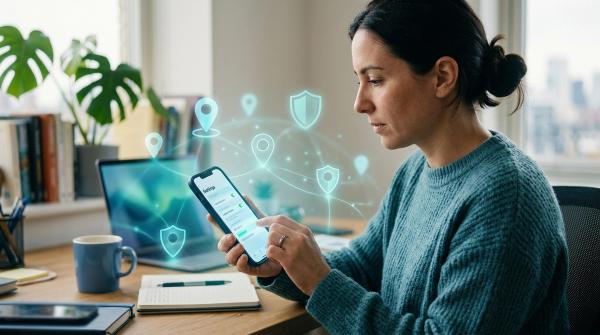
Sharing your location can make life easier, but it should be specific, temporary, and intentional. Use a one-time current location pin when someone only needs your current spot. Use live location only when trusted people genuinely need to follow your movement, such as during a commute, trip, pickup, or walk home. Set the shortest useful time limit, check the recipient, and stop sharing when the reason is over.
Important safety note: If you are in immediate danger, feel threatened, or think someone may be monitoring your phone, contact local emergency services or a trusted local safety organization. If someone else has access to your phone, be careful before changing settings, because sudden changes may be noticed.
This guide is only about safe, consensual location sharing. No spying, no stalking, no tracking anyone without permission. Just practical habits for everyday life.
Current Location vs Live Location vs Find My and Google Maps
#Before you tap “share,” pause for a second and ask: What does this person actually need to know? Do they just need your current spot, or do they need to see you move?
A good rule: if someone only needs to know where you are right now, send your current location. If they need to follow your journey for a short while, use live location with a timer. If you use family location sharing, make sure everyone understands it, agrees to it, and knows how to review or stop it.
The Location Sharing Privacy Checklist
#Use this checklist before sharing your location on iPhone, Android, Google Maps, or WhatsApp.
- Ask what the person really needs. Do they need your live movement, or just a meeting point? Most of the time, a simple pin is enough.
- Choose current location when it does the job. For a cafe, office, hotel, gate, pickup point, event venue, or restaurant, a one-time current location pin usually works perfectly.
- Use live location only for a clear reason. Live location makes sense when someone trusted needs to follow your movement for safety or coordination.
- Set the shortest useful time limit. If the app gives options like 15 minutes, 1 hour, or until the end of the day, choose the shortest one that makes sense.
- Check the recipient carefully. Make sure you are sending your location to the right person, not the wrong chat or group.
- Avoid live location in large groups. If only one person needs your location, send it directly to that person.
- Stop sharing when you arrive. Once the reason is over, check that sharing has ended. If it has not stopped automatically, turn it off manually.
- Review app location permissions. If an app only needs location while you are using it, do not give it background or “always” access unless there is a good reason.
- Do a regular location audit. Monthly is a good habit for most people, especially after trips, events, conferences, college projects, temporary work setups, group outings, or travel.
How to Share Location Safely on iPhone With Find My and Safety Check
#On iPhone, Apple’s Find My app lets you share your location with trusted people and locate your Apple devices. Apple also offers Safety Check on supported iPhones, which helps you review who can see your location and what information you are sharing.
Share your location safely in Find My
#- Open the Find My app.
- Tap the People tab.
- Choose the option to share your location.
- Select a trusted contact.
- Pick a limited duration where available, such as Share for One Hour or Share Until End of Day.
- Use Share Indefinitely only if you truly want ongoing sharing with that person.
If a friend only needs your pickup point, you may not need Find My at all. A regular current location pin in Maps or Messages may be enough.
Review or stop sharing on iPhone
#To stop sharing with someone in Find My:
- Open Find My.
- Go to People.
- Select the person.
- Choose Stop Sharing Location, if shown.
To review broader sharing on supported iPhones:
- Open Settings.
- Go to Privacy & Security.
- Tap Safety Check.
- Review who has access to your location and other shared information.
- Remove access you no longer want.
Safety Check is helpful because it puts many sharing controls in one place. If you are in a sensitive personal safety situation, read the safety note above before making changes.
Check iPhone location permissions
#- Open Settings.
- Tap Privacy & Security.
- Tap Location Services.
- Review the apps listed.
- Change permissions for apps that do not need ongoing access.
For everyday privacy, avoid giving “always” location access to apps that only need your location while you are using them.
How to Share Location Safely With Google Maps
#Google Maps location sharing works on both Android and iPhone, which makes it useful when people use different devices.
Share your location in Google Maps
#- Open Google Maps.
- Tap your profile picture or initial.
- Tap Location sharing.
- Choose Share location.
- Set a time limit.
- Select the trusted contact.
- Share only with the person who actually needs it.
The most important choice here is the duration. If Google Maps gives you a choice between a timed session and sharing until you turn it off, choose the timed session unless you truly need ongoing sharing.
Stop sharing location in Google Maps
#- Open Google Maps.
- Tap your profile picture or initial.
- Tap Location sharing.
- Review who can see your location.
- Select the person.
- Tap Stop, if shown.
This is especially worth checking after travel, family outings, office trips, college events, temporary projects, or any situation where you shared location for a short-term reason.
Android Location Permissions Checklist
#Android menus can look slightly different depending on your phone brand, but the basic privacy idea is the same: check which apps can access your location, and reduce access where you can.
Try this general path:
- Open Settings.
- Go to Location.
- Open App location permissions or a similar menu.
- Review apps with location access.
- Change apps to a more limited option where appropriate, such as access only while using the app.
- Remove location access from apps that do not need it.
If you cannot find the exact menu, search for “Location” inside your phone’s Settings app. Most Android phones will show the right settings from there.
How to Use WhatsApp Live Location Safely
#WhatsApp live location is popular because it is convenient and already inside the chat. Families, students, travelers, and friends use it for pickups, meetups, and short safety check-ins. That convenience is useful, but it also means you should slow down before sending it.
Share live location on WhatsApp
#- Open a chat with a trusted person.
- Tap the attachment icon, such as the paperclip or plus icon, depending on your phone.
- Tap Location.
- Choose Share live location.
- Select the shortest useful duration.
- Add a note if helpful, such as “Sharing until I reach the station.”
- Send it.
If the person only needs to know where you are right now, choose current location instead of live location.
Stop WhatsApp live location
#To stop it from the chat:
- Open the chat where you shared live location.
- Find the live location message.
- Tap Stop sharing, if shown.
To review active live locations:
- Open WhatsApp Settings.
- Go to Privacy.
- Look for Live location, if available on your version.
- Stop any active sharing sessions you no longer need.
WhatsApp menus may change depending on your phone and app version, so use the in-app privacy settings as your main reference.
When Should You Share Live Location?
#Live location is useful when there is a clear, temporary reason for someone trusted to follow your movement.
Examples include:
- You are walking home and want someone you trust to follow your route.
- You are commuting late or traveling through an unfamiliar area.
- A family member or friend is picking you up.
- You are on a trip and coordinating arrival times.
- A parent and child have agreed on temporary sharing for safety.
- You are going somewhere new and want someone trusted to know your route.
- You are meeting someone and your exact movement helps avoid confusion.
It is usually not needed for simple meetups, casual plans, or situations where a one-time pin would do the job.
When Should You Avoid Sharing Live Location?
#Avoid live location when:
- You are in a large group chat and only one person needs your location.
- You do not fully trust the recipient.
- You feel pressured to share.
- You are sharing out of habit, not because it is useful.
- You cannot easily stop or review the sharing later.
- The situation involves personal safety concerns and changing settings could create risk.
Location sharing should feel voluntary, clear, and useful. If it feels uncomfortable, pause. You can send a current location pin instead, make a phone call, meet in a public place, or simply choose not to share.
How to Avoid Overexposure
#Most overexposure is not dramatic. It usually happens quietly.
Someone shares live location during a trip, then forgets to turn it off. Or they give an app “always” location access once and never review it again. Or a group chat gets more information than it really needs.
Small habits can prevent this:
- Use timers whenever possible.
- Prefer current location for simple plans.
- Review sharing after every trip or event.
- Check Apple Find My and Google Maps monthly.
- Look at WhatsApp live location after using it.
- Limit app location permissions.
- Avoid sharing location in public posts or large chats.
- Do not share someone else’s location without consent.
For families, keep the conversation open. Family location sharing works best when everyone understands who can see what, why it is being used, and how to stop or review it. It should feel like safety and coordination, not secret monitoring.
Quick Stop Sharing Location Guide
#Final Takeaway
#Location sharing is safest when it is specific, temporary, and intentional. Use a current location pin when that is enough. Use live location only when someone needs to follow your movement. Set a time limit, check the recipient, avoid large groups, and stop sharing when the reason is over.
A quick monthly review of Find My, Safety Check, Google Maps, WhatsApp, and app location permissions can prevent a lot of accidental exposure.