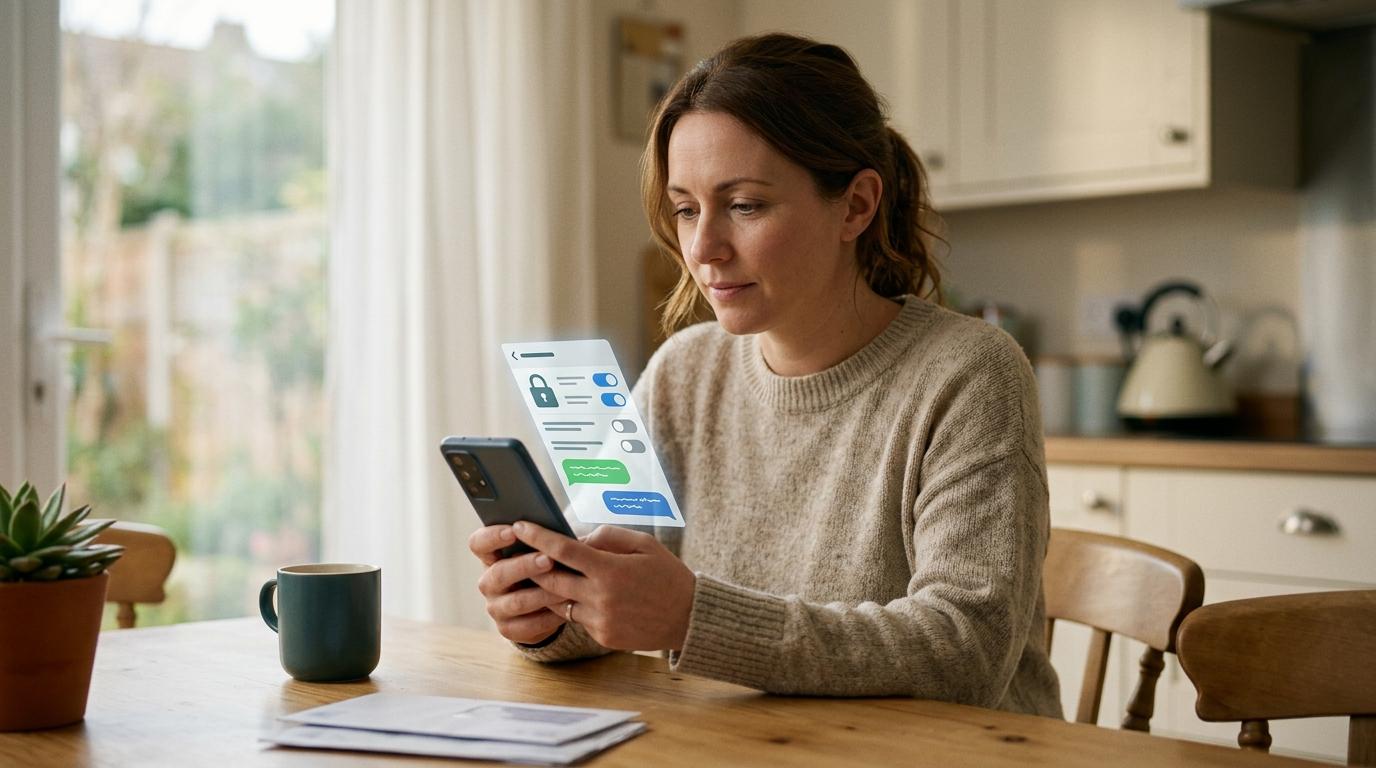
Short answer: WhatsApp app lock locks the whole WhatsApp app. WhatsApp Chat Lock hides and locks specific chats inside WhatsApp.
So if you want to stop someone from opening WhatsApp at all, use app lock.If you want certain conversations to stay out of your normal chat list, use Chat Lock.
The difference sounds small, but it matters.
Think about how often someone else touches your phone. Maybe your child wants to watch YouTube. A friend needs to make a quick call. A shopkeeper asks you to confirm a payment. A coworker wants to see a photo. Your phone might already be unlocked in all of these situations.
That’s where WhatsApp privacy settings help. Not because you’re doing anything wrong, but because private conversations should stay private.
Let’s break down what WhatsApp app lock and Chat Lock actually do, where they fall short, and how to use them properly.
Encryption and hiding messages are not the same thing
#WhatsApp uses end-to-end encryption for personal chats. That means your messages are protected while they travel between you and the person you’re messaging. WhatsApp says it cannot read those messages in between.
But encryption does not stop someone from reading chats on your unlocked phone.
If your phone is already open, or WhatsApp is already open, the bigger issue is not encryption. It is what someone can see on your screen.
Here’s the simple version:
- End-to-end encryption protects messages while they are being sent.
- WhatsApp app lock stops people from opening WhatsApp.
- WhatsApp Chat Lock hides selected chats inside WhatsApp.
- Notification privacy controls what appears on your lock screen or notification shade.
These features work together, but they do different jobs.
What is WhatsApp app lock?
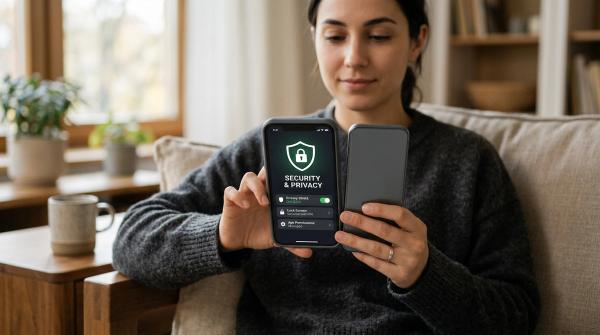
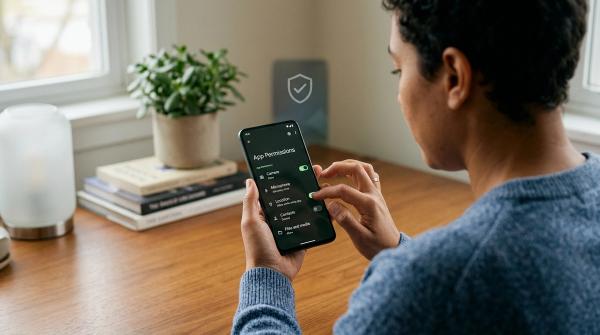
#WhatsApp app lock puts a lock on the entire WhatsApp app.
Depending on your phone, it may use fingerprint, Face ID, your screen lock, or another form of device authentication.
Once it is turned on, someone using your unlocked phone cannot simply tap WhatsApp and read your inbox. They need your fingerprint, face scan, PIN, password, or whatever your phone uses to confirm it is you.
This is useful if:
- You sometimes hand your unlocked phone to other people.
- Your kids use your phone for videos or games.
- Friends or coworkers borrow your phone for a minute.
- You want basic privacy for your whole WhatsApp inbox.
- You do not want people casually opening WhatsApp.
But app lock has one important limit.
Once WhatsApp is unlocked, your normal chat list is still visible. People may be able to see names, groups, recent conversations, and message previews inside the app.
So think of app lock as the front door. It helps a lot, but it does not hide specific rooms inside the house.
What is WhatsApp Chat Lock?
#WhatsApp Chat Lock is more targeted. It lets you lock individual chats and group chats.
When you lock a chat, WhatsApp moves it away from your main inbox and puts it behind authentication. In plain English, that chat no longer sits openly in your regular chat list.
When Chat Lock is turned on for a conversation:
- The chat is moved out of the main inbox.
- It appears in a locked area.
- You need device authentication to open it.
- You can add a WhatsApp secret code for more privacy.
- Notifications from locked chats hide the sender name and message content.
That notification part is a big deal.
If a locked chat gets a new message, WhatsApp does not show the full preview on your screen. Instead, it shows a more private alert, such as a basic new message notification.
Chat Lock is helpful when you do not want certain conversations to be visible, even if someone already has your phone in their hand.
Chat Lock vs app lock: the real difference
#Which one should you use?
#For most people, the best setup is to use both.
Use WhatsApp app lock as your first layer of protection. This stops someone from opening WhatsApp when your phone is already unlocked.
Then use WhatsApp Chat Lock for conversations that need extra privacy. These could be personal chats, work chats, financial conversations, health-related messages, or anything else you do not want sitting openly in your inbox.
A simple way to decide:
- Want to stop people from opening WhatsApp? Use app lock.
- Want to hide specific chats inside WhatsApp? Use Chat Lock.
- Want locked chats to be less obvious? Use a WhatsApp secret code.
- Do not want messages showing on your lock screen? Check notification settings.
- Use WhatsApp on a computer? Review linked devices regularly.
No single setting protects everything. But when you combine them, casual snooping becomes much harder.
What WhatsApp Chat Lock does not protect
#Chat Lock is useful, but it is not magic. There are a few things it does not do.
1. It does not lock the whole WhatsApp app
#Chat Lock only protects the chats you choose.
Your other chats will still appear in your regular WhatsApp inbox. If someone can open WhatsApp and you have not enabled app lock, they may still see other conversations, groups, profile details, and activity inside the app.
2. It does not hide every WhatsApp notification
#Chat Lock hides notification content for locked chats.
But regular chats may still show sender names or message previews, depending on your WhatsApp settings and your phone’s notification settings.
If notification privacy matters to you, check both places. This is one of those small settings people forget until a message appears at the wrong time.
3. It does not make archived chats private
#Archive and Chat Lock are not the same thing.
Archived chats are mostly for cleaning up your inbox. They move chats out of the main list, but they do not add fingerprint lock, Face ID, or a secret code.
If someone opens your archived chats, there is no extra privacy layer.
So if your goal is privacy, do not rely on Archive alone. Use Chat Lock.
4. It may not hide WhatsApp calls the same way
#Chat Lock mainly protects chats and chat notifications.
A WhatsApp call from a locked contact may still appear like a normal incoming call on your screen. That means the person’s name or number may still be visible when they call.
5. It does not replace your phone lock
#If your phone has no screen lock, or your PIN is something easy like 1234, your privacy is already weak.
Start with a strong phone lock. Then add WhatsApp app lock and Chat Lock on top.
6. It cannot stop someone from looking over your shoulder
#If you open a locked chat while someone is standing next to you, they can still see it.
Chat Lock controls access. It does not control your surroundings.
That sounds obvious, but it matters in classrooms, offices, buses, shops, homes, and anywhere else people can glance at your screen.
What does the WhatsApp secret code do?
#The WhatsApp secret code adds another layer of privacy to locked chats.
Normally, locked chats may appear in a locked chats folder. With a secret code, you can make access more private and less obvious.
This helps because not everyone who picks up your phone will immediately see a clear “Locked Chats” folder and start asking questions. You can access locked chats using the code you set.
WhatsApp also notes that locked chats on WhatsApp Web require a secret code created on your Android phone or iPhone.
Choose a code you can remember, but do not make it too easy. Avoid things like:
- Your birthday
- Your phone number
- 1234
- Your name
- A partner’s name
- Anything someone close to you could guess
And please do not save it in a note called “WhatsApp secret code.” That defeats the point.
Privacy warning signs to watch for
#WhatsApp privacy settings are not just for hiding “secret” conversations. They also protect you from accidents, pressure, and scams.
Here are a few situations where you should be careful.
Someone wants your phone for “just one minute”
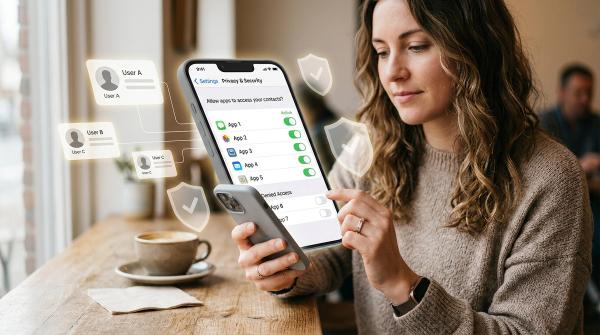
#Most of the time, it may be harmless. But if someone has your unlocked phone, they may be able to open WhatsApp unless app lock is turned on.
If you often hand your phone to other people, WhatsApp app lock is one of the easiest protections to enable.
You see unknown linked devices
#Check WhatsApp’s linked devices section from time to time.
If you see a device you do not recognize, log it out immediately.
This is especially important if you use WhatsApp Web at work, on a shared laptop, in a cyber cafe, or on someone else’s computer.
Someone asks for your WhatsApp verification code
#Never share your 6-digit WhatsApp verification code.
Not with a friend.Not with someone claiming to be WhatsApp support.Not with someone saying they sent the code to you by mistake.
That code protects your account. If you share it, someone may take over your WhatsApp.
Someone pressures you to unlock private chats
#Using privacy settings is normal.
People lock chats for many reasons: family matters, work, money, health, business, personal space, or simply because they do not want every conversation visible.
If someone pressures you to unlock private chats in front of them, that is a red flag. Privacy still matters in relationships, workplaces, families, and shared-phone situations.
Message previews show when your phone is lying around
#If WhatsApp messages are readable on your lock screen, people do not even need to open your phone.
This matters if your phone is often left on a table, shop counter, classroom desk, office desk, or charging point.
Turn off message previews if you do not want people reading notifications over your shoulder.
A safer WhatsApp setup, step by step
#Menu names can vary slightly depending on Android, iPhone, and WhatsApp version. But the basic idea is the same.
Step 1: Set a strong phone screen lock
#Start with the phone itself.
- Open your phone settings.
- Set a PIN, password, fingerprint, or Face ID.
- Avoid easy PINs like 0000, 1234, or your birth year.
- Do not casually share your phone unlock code.
Your WhatsApp privacy is only as strong as your phone security.
Step 2: Turn on WhatsApp app lock
#This protects the whole app.
- Open WhatsApp.
- Go to Settings.
- Tap Privacy.
- Look for App Lock, Fingerprint Lock, or Screen Lock.
- Turn it on.
- Choose how quickly WhatsApp should lock.
If you often hand your phone to other people, choose the shortest lock time that feels practical. Immediate lock is the safest, although it can feel a little annoying at first.
Step 3: Lock private WhatsApp chats
#Now lock the conversations that need extra privacy.
- Open the chat you want to lock.
- Tap the contact name or group name at the top.
- Find Chat Lock.
- Turn it on.
- Confirm using your device authentication.
Repeat this for any other chats or groups you want to protect.
Step 4: Set up a WhatsApp secret code
#For more privacy around locked chats:
- Open your locked chats area in WhatsApp.
- Go to Chat Lock settings.
- Choose Secret Code.
- Create a code you can remember.
- Follow the on-screen options for hiding or accessing locked chats.
Use something memorable, but not obvious.
Step 5: Fix notification privacy
#This is where a lot of people forget to look.
- Open WhatsApp Settings.
- Go to Notifications or Privacy, depending on your phone.
- Review message previews and notification content.
- Open your phone’s main notification settings too.
- Turn off lock screen previews if needed.
Chat Lock hides content for locked chats, but this step helps with regular chats as well.
Step 6: Review linked devices
#This takes less than a minute.
- Open WhatsApp.
- Go to Settings.
- Tap Linked Devices.
- Review the list.
- Log out of any device you do not recognize or no longer use.
Make this a habit if you use WhatsApp Web or WhatsApp Desktop.
Step 7: Never share verification codes
#If you receive a WhatsApp verification code, keep it private.
Do not forward it.Do not read it out loud.Do not send a screenshot. 
If someone asks for it, treat that as a scam warning.
Best setup for common situations
#If you share your phone at home
#Turn on WhatsApp app lock first. Then use Chat Lock for private family, health, school, or money-related conversations.
Also hide notification previews if your phone is often lying around the house.
If you are a student
#Use app lock if friends borrow your phone.
Use Chat Lock for personal chats or groups you do not want popping up during class, tuition, hostel life, or while someone else is using your phone.
If you use WhatsApp for work
#Use app lock and check linked devices regularly.
Lock chats that include sensitive client details, office discussions, documents, payments, or personal information.
If you use WhatsApp Web on shared computers, always log out and check linked devices later.
If you are helping an older family member
#Keep it simple.
Start with a phone lock, WhatsApp app lock, and notification privacy. Explain verification code scams clearly.
Only set up Chat Lock and a secret code if they are comfortable remembering and using it.
If you run a small business
#Use app lock to stop casual access when staff, family members, or customers handle the phone.
Lock important chats separately if they include customer details, payment conversations, supplier information, or private business discussions.
Read next on AllBlogs
#- WhatsApp Linked Devices Privacy Checklist
- WhatsApp Backup Privacy Checklist
- Lock Screen Notification Privacy Checklist
- WhatsApp Two-Step Verification Checklist
Final takeaway
#Use WhatsApp app lock when you want to stop people from opening WhatsApp on your unlocked phone.
Use WhatsApp Chat Lock when you want to hide specific chats from the main inbox and keep their notifications private.
For the safest everyday setup, use a strong phone lock, turn on WhatsApp app lock, lock sensitive chats, add a WhatsApp secret code if needed, hide message previews, and review linked devices regularly.
Privacy does not have to be complicated. A few small settings can make WhatsApp much safer when your phone is shared, borrowed, or simply left on the table.