Set up stolen phone protection before your phone goes missing: use a strong screen lock, turn on iPhone Stolen Device Protection or Android Theft Protection, enable Find My or Find Hub, and secure your Apple or Google account recovery options. These settings cannot guarantee recovery, but they can make it harder for someone to open your data or change your account.
Your phone may hold private chats, photos, bank alerts, email, saved passwords, payment apps, work files, school documents, and personal notes. Losing the device is stressful; losing access to the accounts inside it can be worse.
This calm checklist walks through the iPhone and Android settings worth turning on now. It uses built-in Apple and Google tools, avoids risky “phone tracking” shortcuts, and focuses on everyday protection for normal users.
Quick stolen phone protection checklist
#If you only have a few minutes, check these three things first:
- Your phone has a strong screen lock.
- Theft protection is turned on.
- Find My, Find Hub, or Find My Device is ready.
Why stolen phone protection matters
#A stolen phone is not just a stolen object. It can become a shortcut into your email, messages, cloud storage, banking alerts, payment apps, photos, social accounts, work apps, and recovery codes.
The goal of phone-theft protection is simple: make it harder for someone else to get in, change sensitive settings, or lock you out of your own accounts.
These settings cannot promise your phone will be found. They also cannot make theft impossible. But they can protect your information, slow a thief down, and give you safer options during a stressful situation.
The basics every phone should have
#Before you look for advanced settings, make sure the foundation is in place.
1. Use a strong screen lock
#Do not leave your phone unlocked. Use a passcode, PIN, password, pattern, Face ID, Touch ID, fingerprint unlock, or face unlock.
A screen lock is the first barrier between your private data and anyone holding your phone. It is also required for many theft protection and recovery features.
Avoid easy codes like birthdays, repeated digits, or patterns someone could guess after watching you unlock your phone in public.
2. Stay signed in to your main Apple or Google account
#Your phone needs to be connected to your main account for official recovery tools to work.
On iPhone, that means your Apple Account. On Android, that means your Google Account.
This is worth checking for parents, seniors, children, students, or anyone who rarely opens phone settings. Many people assume their account is configured correctly and discover the gap only after a phone goes missing.
3. Turn on location for finding tools
#Location helps official tools show where your phone may be.
On iPhone, it supports Find My. On Android, it supports Find Hub and related device-finding tools.
If your phone appears on a map and you believe it was stolen, do not go after it yourself. Location can be delayed, approximate, or unsafe to act on. Use official tools and contact local emergency services or law enforcement if needed.
iPhone stolen device protection checklist
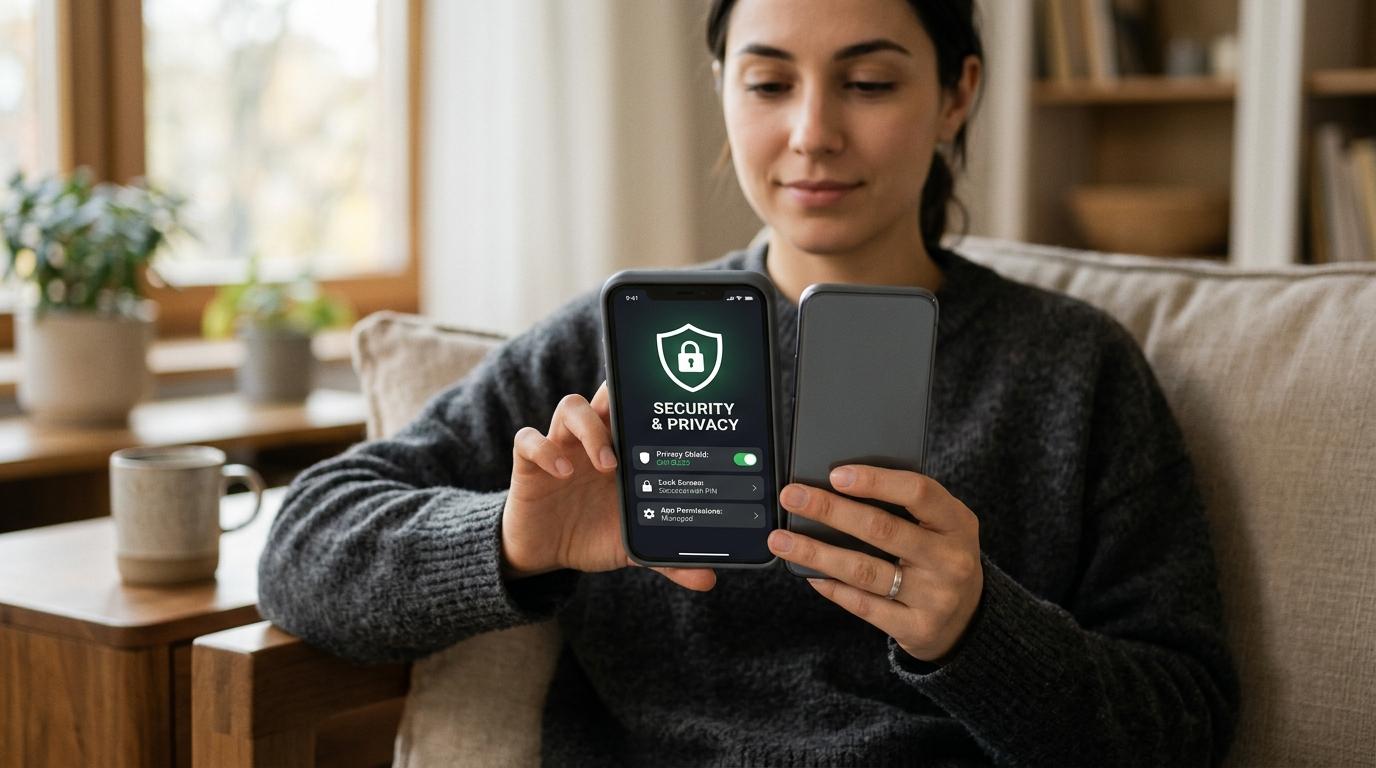
#Apple’s Stolen Device Protection adds extra security when your iPhone is away from familiar places, such as home or work. Apple’s official guidance says the feature adds a layer of security to help protect accounts and personal information if an iPhone is stolen.
This matters because phone theft is not always a simple grab-and-run. Sometimes a thief may have seen your passcode. Sometimes someone may trick or pressure a user into unlocking the phone.
With Stolen Device Protection turned on, certain sensitive actions require Face ID or Touch ID instead of just a passcode. For some important changes, Apple may also require a waiting period called a Security Delay.
In plain English: even if someone knows your passcode, this feature can make it harder for them to quickly change account settings, access saved passwords, or lock you out.
How to turn on iPhone Stolen Device Protection
#On your iPhone:
- Open Settings.
- Tap Face ID & Passcode or Touch ID & Passcode.
- Enter your passcode.
- Tap Stolen Device Protection.
- Turn it on.
The exact wording can vary depending on your iPhone model and iOS version. If you do not see the option, update your iPhone and check Apple’s official support page for the current path.
How to turn on Find My for iPhone
#Find My helps you locate, lock, or manage a missing Apple device through Apple’s official tools.
On your iPhone:
- Open Settings.
- Tap your name at the top.
- Tap Find My.
- Tap Find My iPhone.
- Turn on the available Find My options.
Also make sure your iPhone has a passcode and Location Services are enabled.
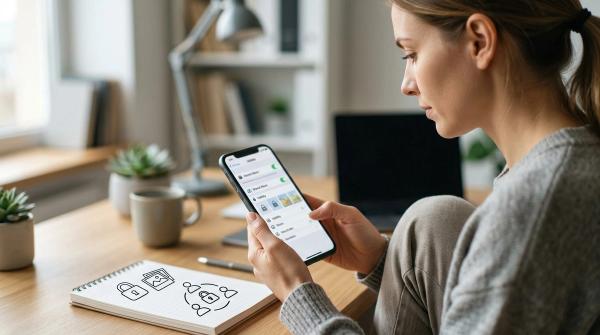
iPhone settings to check now
#Android theft protection checklist
#Google’s Android Theft Protection is designed to help protect your personal data if your phone is stolen. Google’s official Android Help notes that some theft protection features need Android 15 or newer, and availability can vary by device, country, and settings.
The main Android theft-protection features to know are:
- Theft Detection Lock
- Offline Device Lock
- Remote Lock
- Find Hub or Find My Device tools
How to turn on Android Theft Protection
#On many Android phones:
- Open Settings.
- Tap Google.
- Tap All services.
- Look for Personal & device safety.
- Tap Theft protection.
- Turn on the available theft protection features.
Android menus can look different on Samsung, Pixel, Motorola, OnePlus, Xiaomi, and other phones. If you do not see that path, use the search bar inside Settings and search for Theft protection.
How to prepare Find Hub or Find My Device
#Google’s device-finding tools can help you locate, lock, or manage a missing Android phone.
Check these things now:
- Your phone has a screen lock.
- You are signed in to your Google Account.
- Location is turned on.
- Find Hub or Find My Device features are enabled.
These setup steps matter. If your phone is not connected to your Google Account, does not have a screen lock, or has location turned off, your options may be limited later.
What Android Theft Protection features do
#Theft Detection Lock can use signals from your phone to notice movement that may look like a theft event, such as a sudden snatch followed by fast movement. If triggered, it can lock the screen.
Offline Device Lock can lock your phone if it goes offline for a period of time. This helps because someone who steals a phone may quickly disconnect mobile data or Wi-Fi.
Remote Lock can help you lock a missing Android phone through Google’s official tools where available.
These features are protective, not magic. They do not prove a theft happened, and they do not guarantee recovery.
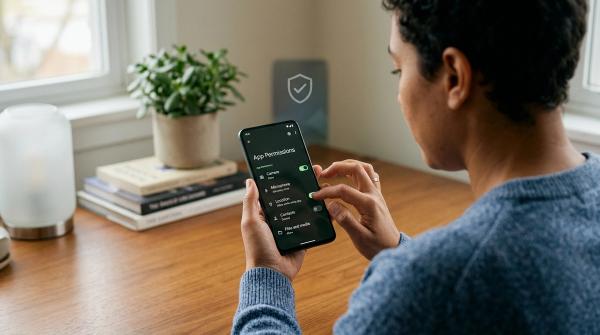
Android settings to check now
#iPhone vs Android stolen phone protection
#What to do if your phone is already lost or stolen
#If your phone is already missing, move carefully and use official tools only.
1. Use Find My or Find Hub
#For iPhone, use Apple’s Find My tools. For Android, use Find Hub or Google’s device-finding tools.
Depending on your settings and whether the phone is online, you may be able to see its location, lock it, or manage it remotely.
2. Lock the device
#If the phone is not already locked, use the official lock option for your device. This helps protect your information while you decide what to do next.
3. Do not confront anyone
#Even if your phone appears on a map, do not go to the location yourself if you think it was stolen.
Phone locations can be approximate. They can also lead to unsafe situations. Your safety matters more than the device.
4. Protect your Apple or Google account
#Use Apple’s or Google’s official support steps for lost or stolen devices. Do not share your password, verification codes, screen lock code, recovery codes, or account recovery details with anyone claiming they can help.
Be careful with messages or emails claiming someone can recover your phone. Scammers often target people right after a phone is lost or stolen.
5. Contact your mobile carrier
#If your phone was stolen or you cannot recover it, contact your carrier through its official support channel. They may help with SIM-related steps, service suspension, or replacement.
What not to do
#Avoid these mistakes:
- Do not install random “phone recovery” apps after the theft.
- Do not give verification codes to anyone.
- Do not share your Apple, Google, or carrier password.
- Do not pay strangers who promise to recover the phone.
- Do not confront a suspected thief based on map location.
- Do not rely on one setting alone.
A safer plan uses layers: screen lock, theft protection, finding tools, account recovery, cloud backup, and calm response steps.
Related AllBlogs guides to read next
#If you want to strengthen your phone and account setup further, these AllBlogs guides are closely related:
- SIM Swap Prevention Checklist — protect your phone number from account takeover risk.
- Changing Your Phone Number? Do This Before You Switch — avoid lockouts when updating recovery numbers.
- Passkey Recovery Checklist — prepare for lost-phone passkey problems.
- Google Account Security Checklist — secure passkeys, 2-Step Verification and recovery details.
- WhatsApp Linked Devices Privacy Checklist — remove unknown logins and avoid QR-code scams.
Final takeaway
#A stolen phone protection checklist is not about fear. It is about doing a few simple things before you need them.
Turn on a strong screen lock. Enable Stolen Device Protection on iPhone or Android Theft Protection on Android. Set up Find My, Find Hub, or Find My Device. Check account recovery details. Then help your family do the same.
Five minutes today can make a stressful lost-phone moment much safer later.