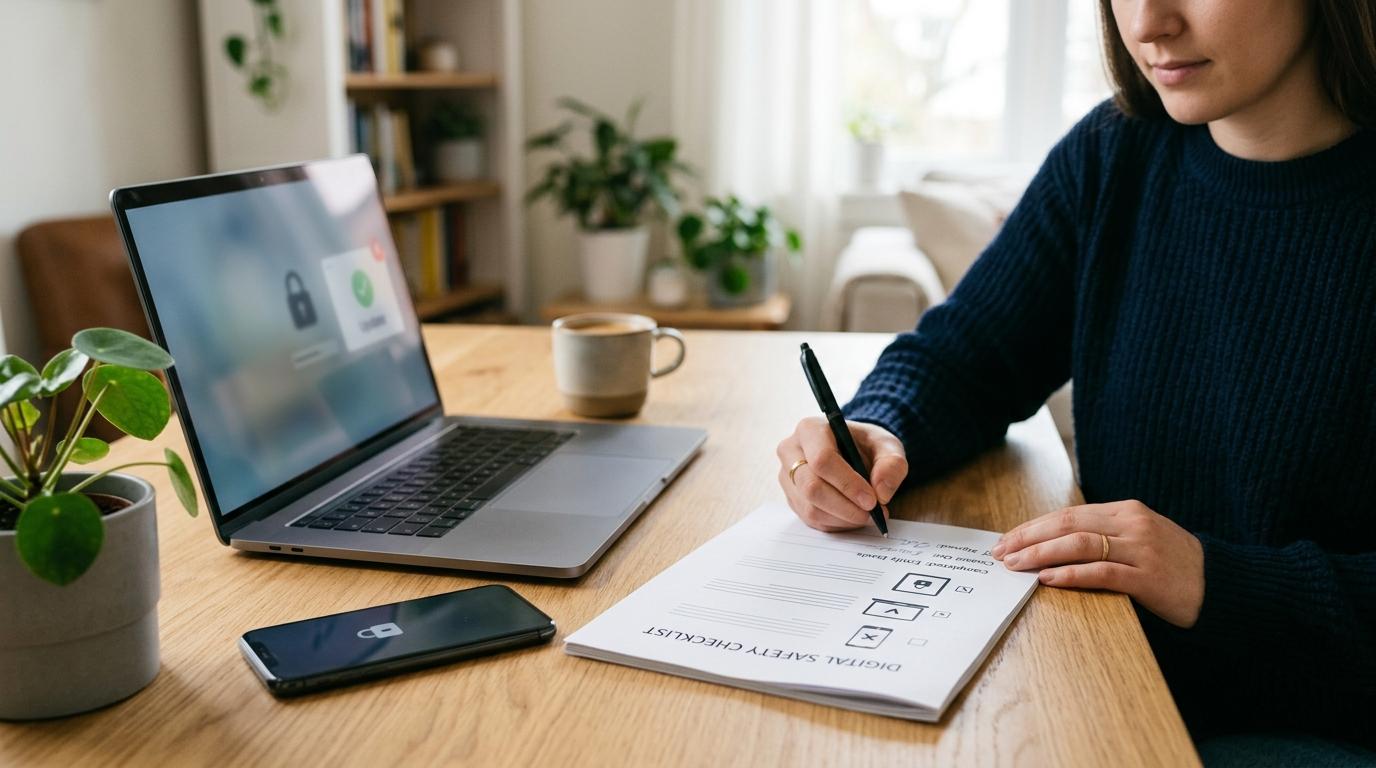
An old device login cleanup means reviewing where your important accounts are still signed in, then removing phones, browsers, smart TVs and linked devices you no longer use or trust. Start by updating recovery email, phone, two-factor authentication and backup codes so you do not lock yourself out. Then check Google, Apple, WhatsApp, Instagram, Facebook, password managers and passkeys.
You probably have more accounts signed in on old devices than you realize.
An old phone in a drawer. A laptop you sold months ago. A browser on your partner’s computer. A tablet your child borrowed once. A smart TV in a hotel room. That work computer where you opened WhatsApp Web for “just a minute” and never thought about again.
Most of the time, nothing bad happens. Staying signed in is convenient, and apps are designed to make that easy.
But old logins can become risky when a device is lost, sold, shared, repaired, or simply forgotten. If someone can still open your email, photos, messages, social media, cloud files, or saved passwords, they may not need to “hack” anything. They may already be in.
That’s why it’s worth doing an old device login cleanup every so often.
It’s not complicated. You check where your important accounts are signed in, then remove anything old, unfamiliar, or no longer needed.
This guide walks through Google, Apple, WhatsApp, Instagram, Facebook, password managers, passkeys, two-factor authentication, recovery details, smart TVs, and a few practical checks that can make your accounts much safer without turning this into a stressful tech project.
What Is an Old Device Login Cleanup?
#An old device login cleanup means reviewing the phones, computers, browsers, apps, and linked sessions connected to your accounts.
You’re looking for things like:
- Old phones you no longer use
- Tablets used by family members
- Browsers on school, office, library, or shared computers
- Smart TVs where you signed in to YouTube, Google, Apple, or streaming apps
- WhatsApp Web or desktop sessions
- Instagram or Facebook logins from old browsers
- Password manager extensions on old laptops
- Passkeys saved on devices you no longer control
- Unknown devices that do not look familiar
The goal is not to panic and sign out of everything. The goal is simpler: keep the devices you actually use, and remove the ones you don’t.
A good question to ask is:
“Where am I logged in, and do I still trust every device on that list?”
When Should You Do This Cleanup?
#You do not need to check this every day. That would be exhausting.
But it’s smart to do an old device login cleanup when:
- You sell, trade, repair, or give away a phone, tablet, or laptop
- You switch to a new phone
- You borrow someone else’s laptop
- You use a hotel, airport, college, office, or library computer
- You sign in on a smart TV or streaming box
- You share a device with a child, partner, roommate, or coworker
- You have a hacked-account scare
- You click a suspicious link
- You notice strange account activity
- You want to clean up family device sharing
- You are reviewing your general account security
It’s also a good once-a-year habit, like checking smoke detector batteries or updating emergency contacts.
Not exciting, but very useful.
Before You Sign Out Everywhere, Check Recovery First
#When people get nervous about account security, their first instinct is often to hit “Sign out of all devices.”
Pause before doing that.
Many accounts use your current trusted devices to confirm that you are really you. Google may send a verification prompt to a phone where you’re already signed in. Apple may send two-factor authentication codes to your trusted devices.
If you remove everything too quickly, you could accidentally make it harder to get back into your own account.
Before removing devices, do this quick safety check.
1. Update Your Recovery Email and Phone
#Go into your most important accounts and make sure your recovery email and phone number are still current.
Check:
- Google Account recovery email and phone
- Apple Account trusted phone number
- Meta account contact details
- Password manager recovery options, if available
Remove old phone numbers and email addresses you no longer control.
This is one of those small chores that can save you a huge headache later.
2. Check Your Two-Factor Authentication
#Two-factor authentication, or 2FA, adds an extra step when you sign in.
Make sure your 2FA method still works. This might be:
- A code sent to your phone
- A prompt on a trusted device
- An authenticator app
- A security key
- A passkey
- Backup codes
Do not remove the only device that receives your sign-in approvals until you have another working method.
This is where people accidentally lock themselves out, so take your time.
3. Save Backup Codes
#Some services let you generate one-time backup codes. These can help you get back in if you lose your phone or can’t access your normal 2FA method.
If backup codes are available, save them somewhere safe.
For many people, a secure password manager is a practical place to keep them, as long as the password manager account itself is well protected.
4. Review Your Passkeys
#Passkeys let you sign in using a device unlock method, such as your fingerprint, face scan, PIN, or screen lock.
They are convenient, but you should know where they are stored.
If a passkey is tied to an old phone, laptop, or tablet you no longer control, review whether it should stay connected.
The Old Device Login Cleanup Checklist
#Start with your most important accounts.
For most people, that means:
- Apple or Google account
- Messaging apps
- Social media
- Banking and payment apps
- Cloud storage
- Password manager
- Work or business accounts
Start with Google and Apple if you use them, because they often connect to many other devices, apps, and sign-ins.
1. Google Account: Remove Old Devices From Google Account Settings
#Your Google Account may be signed in on phones, laptops, tablets, browsers, apps, smart TVs, and services connected to Gmail, YouTube, Google Photos, Drive, Chrome, and Android.
Google lets you see devices where you are currently signed in, or where you were signed in recently.
How to Check Google Devices
#- Go to
google.com/devices - Or open your Google Account
- Go to Security
- Find Your devices
- Select Manage all devices
You’ll see devices and sessions connected to your Google Account.
What to Look For
#Look for:
- Phones you replaced
- Android tablets you no longer use
- Browsers on shared computers
- Laptops you sold or gave away
- Smart TVs or streaming devices
- Devices with names you do not recognize
- Locations or activity that seem unusual
To remove old devices from Google Account settings, open the device or session and choose Sign out if that option is available.
Don’t Panic Over Duplicate Sessions
#You might see the same phone or laptop more than once.
That does not automatically mean something is wrong.
Google may show separate sessions for different browsers, apps, or services. For example, Chrome, Gmail, Google Drive, and a mobile app might appear separately, even if they are all on the same device.
If the device is yours and the activity makes sense, it’s probably fine.
If You See an Unknown Google Login
#If a Google device truly looks unfamiliar:
- Sign it out
- Change your Google password
- Review your recovery email and phone
- Check 2FA settings
- Look for unfamiliar forwarding rules, connected apps, or account changes
Stay calm, but do not ignore it.
2. Apple Account Device List: Remove Old iPhones, iPads, and Macs
#If you use an iPhone, iPad, Mac, Apple Watch, or Apple services, your Apple Account connects your devices to iCloud, Find My, App Store purchases, and other Apple features.
Apple has a device list where you can see what is connected to your account and remove devices you no longer use.
How to Check on iPhone or iPad
#- Open Settings
- Tap your name at the top
- Scroll down to see your device list
- Tap any device to view details
You may see details like the model, software version, and other device information.
How to Check on Mac
#- Open System Settings
- Click your name
- Review the devices connected to your Apple Account
What to Look For
#Remove a device if:
- You sold it
- You gave it away
- It was lost or stolen
- You no longer use it
- You do not recognize it
- It belongs to someone else and should not be connected to your Apple Account
Tap the device, then choose Remove from Account if that is the right action.
Important Apple Reminder
#Removing a device from your Apple Account can affect access to Apple services on that device. It may no longer have access to iCloud, Find My, and related features through your account.
Also, do not remove your only trusted device before checking your two-factor authentication options.
If that device receives verification codes, make sure you have another working way to verify your identity first.
3. WhatsApp Linked Devices: Log Out Old Browsers and Computers
#WhatsApp lets you use your account on linked devices, including WhatsApp Web, desktop apps, tablets, and companion phones.
It’s handy, but it’s also very easy to forget a session on a borrowed or shared computer.
The WhatsApp linked devices screen is one of the quickest checks you can do.
How to Check WhatsApp Linked Devices
#- Open WhatsApp on your primary phone
- Go to Settings
- Tap Linked Devices
On Android, the path may vary slightly depending on your version, but Linked Devices is the menu you want.
What to Look For
#Review each linked device.
Look for:
- Browsers you no longer use
- Work computers
- Shared family laptops
- Old desktop sessions
- Devices you do not recognize
- Sessions from travel or temporary access
Tap a linked device and choose Log Out if it should no longer have access.
WhatsApp Cleanup Tip
#If you use WhatsApp Web on a shared computer, make a habit of logging out when you’re done.
Closing the browser tab is not always the same as ending the linked session.
If you log out and reconnect later, you may need your primary phone to approve the connection again.
4. Instagram and Facebook: Check Meta Accounts Center
#Instagram and Facebook sign-ins are managed through Meta’s settings, especially if your accounts are connected in Accounts Center.
These accounts matter because they often contain private messages, creator accounts, business pages, ads, shopping details, and identity verification.
How to Check Where You Are Logged In
#- Open Instagram or Facebook
- Go to Settings
- Open Accounts Center
- Go to Password and security
- Tap Where you’re logged in
You can review logins for connected Instagram and Facebook accounts.
What to Look For
#Check for:
- Old phones
- Browsers from years ago
- Shared family tablets
- Work or school computers
- Unknown locations
- Devices you do not recognize
Select the devices you want to remove, then log them out.
If You Manage Pages or Creator Accounts
#Be extra careful if you manage creator accounts, business pages, ad accounts, or brand profiles.
An old login on a shared machine can create a risk that is completely avoidable.
After removing old sessions, review:
- Account email and phone number
- Password
- Two-factor authentication
- Connected accounts
- Page or business access, if relevant
The main goal is simple: only current, trusted devices should remain signed in.
5. Password Managers: Check Devices and Browser Extensions
#A password manager can make your accounts much safer by helping you use long, unique passwords.
But the password manager itself needs cleanup too.
If your password manager is still active on an old browser or laptop, that can be a serious problem.
What to Check
#Open your password manager settings and look for sections such as:
- Devices
- Sessions
- Authorized devices
- Browser extensions
- Account security
- Recent activity
The names vary by service, so choose the closest matching option.
Remove Access From
#Remove or sign out:
- Old laptops
- Shared computers
- Browsers you no longer use
- Phones or tablets you sold
- Devices that were repaired, lost, or replaced
Also confirm that your password manager has:
- A strong master password
- Two-factor authentication, if supported
- Current recovery options, if available
6. Passkeys: Remove Ones You No Longer Use
#Passkeys are becoming more common on Google, Apple, Microsoft, password managers, and many other services.
They can be safer and easier than passwords, but you still need to know which devices can use them.
What to Review
#In your account security settings, look for:
- Passkeys
- Security keys
- Sign-in methods
- Authentication methods
Remove passkeys or security keys that belong to devices you no longer control.
And again: keep at least one reliable sign-in method before deleting old ones.
Do not remove your only working way back into the account.
7. Smart TVs, Streaming Devices, and Shared Screens
#Smart TVs are easy to forget.
You might sign in to YouTube, Apple services, Netflix, streaming apps, or social apps on a TV in a hotel, guest room, dorm, rental, or relative’s house.
If you signed in with Google, Apple, or another account, check both the TV app and your account device list when possible.
Common Places to Check
#- Google Account device list
- YouTube app settings
- Apple Account device list
- Streaming app account settings
- The TV’s account or profile settings
If the TV is not yours, sign out.
If you no longer have access to the TV, use your account’s device or session management page if one is available.
What If You Find a Device You Do Not Recognize?
#An unfamiliar device does not always mean your account has been hacked.
First, rule out the normal explanations.
First, Check the Obvious
#It could be:
- A VPN showing a different location
- A browser session from your own device
- An in-app browser opened through another app
- A family member’s device you used once
- A work, school, or travel device
- A renamed phone or laptop
- An old device you forgot about
Look at the device type, date, location, and recent activity.
If it still does not make sense, take it seriously.
If It Looks Truly Unknown
#Take these steps:
- Sign out the unknown device
- Change the account password
- Use a long, unique password
- Store it in a password manager if you use one
- Check recovery email and phone
- Review two-factor authentication
- Remove unknown passkeys or security keys
- Check for suspicious account changes
- Watch for new alerts from the service
If the account is important, especially your main email, slow down and be thorough.
Your email often controls password resets for many other accounts, so it deserves extra attention.
Phishing Reminder: Device Cleanup Helps, But It Is Not Everything
#Old sessions are only one part of account security.
Phishing is another big one.
Phishing messages try to trick you into giving away your password, 2FA code, or approval prompt. They can arrive by email, text message, WhatsApp, Instagram DM, Facebook message, or fake support chat.
Be careful with messages that say:
- Your account will be deleted today
- You won a prize
- Your package failed delivery
- Your bank account is locked
- Someone logged in and you must click immediately
- A friend needs urgent help
- A creator or business account must “verify” through a link
When in doubt, do not use the link in the message.
Open the app or website directly and check your account from there.
Quick 15-Minute Old Device Login Cleanup Plan
#If you want the short version, follow this order.
Minute 1 to 3: Recovery Check
#- Confirm recovery email
- Confirm recovery phone
- Check 2FA
- Save backup codes if available
Minute 4 to 6: Google
#- Go to
google.com/devices - Review devices and sessions
- Sign out old or unknown ones
Minute 7 to 9: Apple
#- Open Settings
- Tap your name
- Review your Apple Account device list
- Remove devices you no longer own or trust
Minute 10 to 11: WhatsApp
#- Open WhatsApp
- Go to Linked Devices
- Log out old browser and desktop sessions
Minute 12 to 13: Instagram and Facebook
#- Open Accounts Center
- Go to Password and security
- Check Where you’re logged in
- Remove old sessions
Minute 14 to 15: Password Manager and Passkeys
#- Review active devices
- Remove old browser extensions or sessions
- Check passkeys and security keys
- Keep at least one reliable recovery method
Family and Shared Device Tips
#Families share tablets, laptops, smart TVs, and old phones all the time. That’s normal.
The key is to avoid accidental long-term access.
A few simple habits help:
- Use separate user profiles on shared computers when possible
- Do not save passwords on devices you do not control
- Log out of WhatsApp Web after using someone else’s laptop
- Check smart TVs before leaving a hotel, dorm, or rental
- Remove your account before giving a device to a child or relative
- Review family tablets every few months
- Keep recovery phone numbers and emails updated after phone changes
If you help a parent, grandparent, child, or partner with their accounts, go slowly.
Explain what you’re doing before removing devices, especially if one of those devices may be used for 2FA prompts.
What Not to Remove Too Quickly
#During cleanup, keep these until you are sure:
- Your current phone
- Your main laptop
- A trusted tablet used for verification
- Your authenticator app device
- Any device that receives Apple or Google prompts
- Your password manager’s trusted device
- A security key or passkey you still rely on
If you’re unsure, update your recovery options first.
Then remove old devices one at a time.
Simple Rule: Keep What You Use, Remove What You Don’t
#You do not need to be a cybersecurity expert to protect your accounts.
An old device login cleanup is just a calm review of access.
Ask yourself:
- Is this my device?
- Do I still use it?
- Do I recognize this browser?
- Should this smart TV still be signed in?
- Does this linked WhatsApp session still belong here?
- Do I have recovery options before I remove anything?
If the answer is no, sign it out.
Do this after selling a device, changing phones, traveling, borrowing a laptop, using shared family devices, or having a hacked-account scare.
Then repeat it once or twice a year.
Small cleanup, big peace of mind.