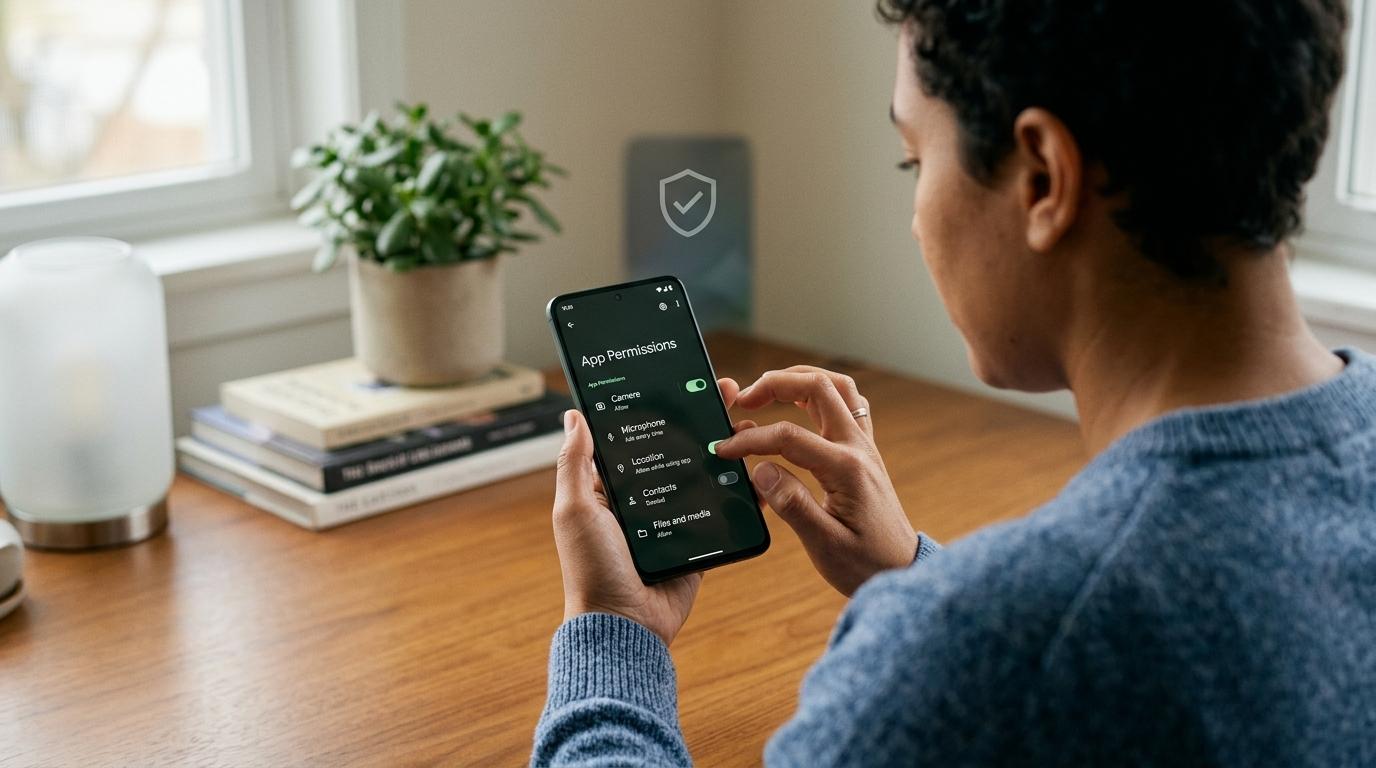
If an app asks for Android Accessibility permission, do not approve it just because the screen looks official, urgent, or confusing. Accessibility access is not a normal permission like camera or location. It can help people use their phones, but it can also let the wrong app read screen content or control taps. Only allow it when you clearly understand why the app needs it and genuinely trust the app.
What Android Accessibility Access Can Do
#Android Accessibility features are designed to make phones easier to use.
For example:
- A screen reader can read text aloud.
- A voice-control app can help someone use the phone without touching it.
- A switch access tool can help people navigate using external buttons or other input devices.
- Some trusted automation apps can perform actions that the user has chosen in advance.
To make these features work, Android may allow an Accessibility app to do powerful things. Depending on the app and your Android version, Accessibility access may let an app read text shown on your screen, know which app or screen you are using, interact with buttons and menus, perform taps and swipes, and watch for screen changes.
That can be extremely useful when the app is legitimate. But if the app is dishonest, the same access can be abused. A malicious app with Accessibility access may try to read sensitive information on your screen, guide you into approving things you did not mean to approve, or interfere with other apps.
The Simple Question to Ask
#Before you allow Accessibility access, pause and ask yourself:
Would this app be useless without the ability to read my screen or control taps?
For some apps, the answer may be yes. A screen reader, voice navigation tool, switch access app, or trusted automation app may genuinely need this permission.
But for many apps, the answer is clearly no. A flashlight app does not need it. A wallpaper app does not need it. A coupon app does not need it. A phone cleaner probably does not need it. A random loan app should not be asking for it.
If the permission does not match what the app is supposed to do, deny it.
Red Flags: When Accessibility Access Is Risky
#Be extra careful if an app asks for Accessibility access in any of these situations.
1. The App Came From an Urgent Link
#Scam messages love urgency. They may claim your package is stuck, your bank account is frozen, your phone service will be disconnected, or you need to install a support app immediately.
If a text, email, WhatsApp message, Telegram message, social media post, or ad sends you to download an app, be careful. If that app asks for Accessibility access, stop.
Do not install apps from urgent links. If the message claims to be from your bank, courier, government service, mobile provider, or utility company, close the message and go to the official website or official app yourself.
2. It Claims to Be a System Update
#Fake update apps may appear while browsing the web or after tapping a suspicious link. Some pretend to be from Google, Android, your phone brand, your mobile carrier, or a security company.
Real system updates normally come through your phone’s built-in settings, not through a random pop-up asking you to install an app. If an “update” app asks for Accessibility access, deny it and remove it.
3. It Is a Cleaner, Booster, or Battery Saver
#A phone cleaner, battery booster, RAM optimizer, CPU cooler, or speed booster should not need to read your screen or control your taps.
These apps often use scary messages such as “your phone is infected,” “battery damage detected,” or “virus found.” A basic utility app does not need Accessibility access to show storage information. If it asks for that level of control, treat it as a red flag.
4. It Is a Loan App Asking for Too Much
#Be very careful with loan apps. Some risky or predatory loan apps ask for far more access than they need, including contacts, messages, photos, location, call logs, and sometimes Accessibility access.
Financial apps should be held to a higher trust standard, not a lower one. If money is involved, do not rush. Check the company, reviews, official website, app store listing, and permissions.
5. The App Was Installed From Outside an Official Store
#Installing an app from a website or APK file is called sideloading. Sideloading is not always bad, but it is riskier than installing from trusted stores.
Be especially careful if the app came from a random website, shortened link, file-sharing site, Telegram group, WhatsApp message, social media post, or pop-up ad. If an app from one of these sources asks for Accessibility access, the safest answer for most people is no.
Allow, Deny, or Revoke: A Simple Checklist
#Use this checklist whenever an app asks for Accessibility access.
Allow Accessibility Access Only If Most of These Are True
#You can consider allowing Accessibility access if the app’s main purpose clearly requires screen reading, voice control, switch access, or trusted automation; you installed it intentionally; you recognize the developer; you downloaded it from a trusted source; the app explains the need clearly; and you are comfortable with the app seeing and interacting with what is on your screen.
A helpful test is this: can you explain, in one sentence, why this app needs Accessibility access? If yes, and you trust the app, the request may be reasonable. If no, deny it for now.
Deny Accessibility Access If Any of These Are True
#Deny the request if you do not recognize the app, installed it from a message or pop-up, saw fake urgency, or cannot match the permission to the app’s real purpose. Also deny it if Android shows a restricted setting warning or if you feel rushed, confused, or pressured.
Revoke Accessibility Access If Any of These Are True
#Turn Accessibility access off if you no longer use the app, do not remember allowing it, installed it from outside an official app store, or connected it to a fake update, cleaner, loan offer, or suspicious message.
Revoking access is a normal privacy check. You are not damaging your phone by turning off access for apps that do not clearly need it.
How to Check Accessibility Access in Android Settings
#The exact menu names vary depending on your phone brand and Android version. Samsung, Google Pixel, Xiaomi, OnePlus, Motorola, Vivo, Oppo, and other devices may use slightly different wording.
Try this:
- Open Settings on your Android phone.
- Tap Accessibility.
- Look for Downloaded apps, Installed apps, Installed services, or Accessibility apps.
- Review the apps listed there.
- Tap any app you do not recognize or no longer trust.
- Turn the Accessibility access switch Off.
- If the app looks suspicious, uninstall it too.
You can also use the search bar inside Settings and search for Accessibility, Installed services, Accessibility apps, or Special app access.
If you are helping a parent, grandparent, child, or friend, go through the list slowly. Do not blame them if they allowed something risky. Many scam screens are designed to confuse people.
What If Android Shows a Restricted Setting Warning?
#Newer Android versions may block some sideloaded apps from enabling sensitive permissions, including Accessibility access.
If you see a warning such as Restricted setting, take it seriously. It usually means Android is trying to stop an app from gaining powerful access after being installed from a less trusted source.
If you downloaded that app from a link, website, message, or pop-up, do not try to bypass the warning. Delete the app instead.
Play Protect Helps, But It Is Not Enough by Itself
#Play Protect is Google’s built-in app safety system for Android. It can scan apps, warn you about harmful behavior, and help protect against known threats.
To check it:
- Open the Google Play Store.
- Tap your profile picture.
- Tap Play Protect.
- Review the scan status.
- Run a scan if needed.
Keep Play Protect turned on and take its warnings seriously. But do not rely on it alone. Google Play is usually safer than random APK downloads, but “available in an app store” does not automatically mean an app is safe for every permission.
A Quick Family Safety Routine
#Every now and then, check Accessibility access on your phone or a family member’s phone.
- Open Settings > Accessibility.
- Check Downloaded apps, Installed apps, or Installed services.
- Turn off access for apps you do not recognize.
- Uninstall suspicious cleaners, fake update apps, or apps installed from links.
- Open Play Store > Play Protect and run a scan.
- Review other Android app permissions for apps that ask for too much.
This is especially useful after someone clicked a strange link, installed a “support” app, saw a fake virus warning, downloaded an APK from a website, started getting too many pop-ups, or allowed permissions without understanding them.
Related AllBlogs Guides
#- App Permissions Audit: What to Allow or Deny
- Notification Access Permission Checklist: What to Check Before You Allow It
- Browser Extension Permissions Checklist: What to Check Before You Install
Bottom Line
#Accessibility access is not bad. Many people genuinely need it, and many excellent accessibility tools depend on it.
The risk comes from giving it to the wrong app. If the app helps someone read the screen, control the phone, use voice navigation, or perform trusted automation, and it comes from a reliable source, the request may make sense.
If the app is a cleaner, fake update, urgent support download, risky loan app, or random link install, deny it. Your phone should not pressure you into trust. A good app earns it.